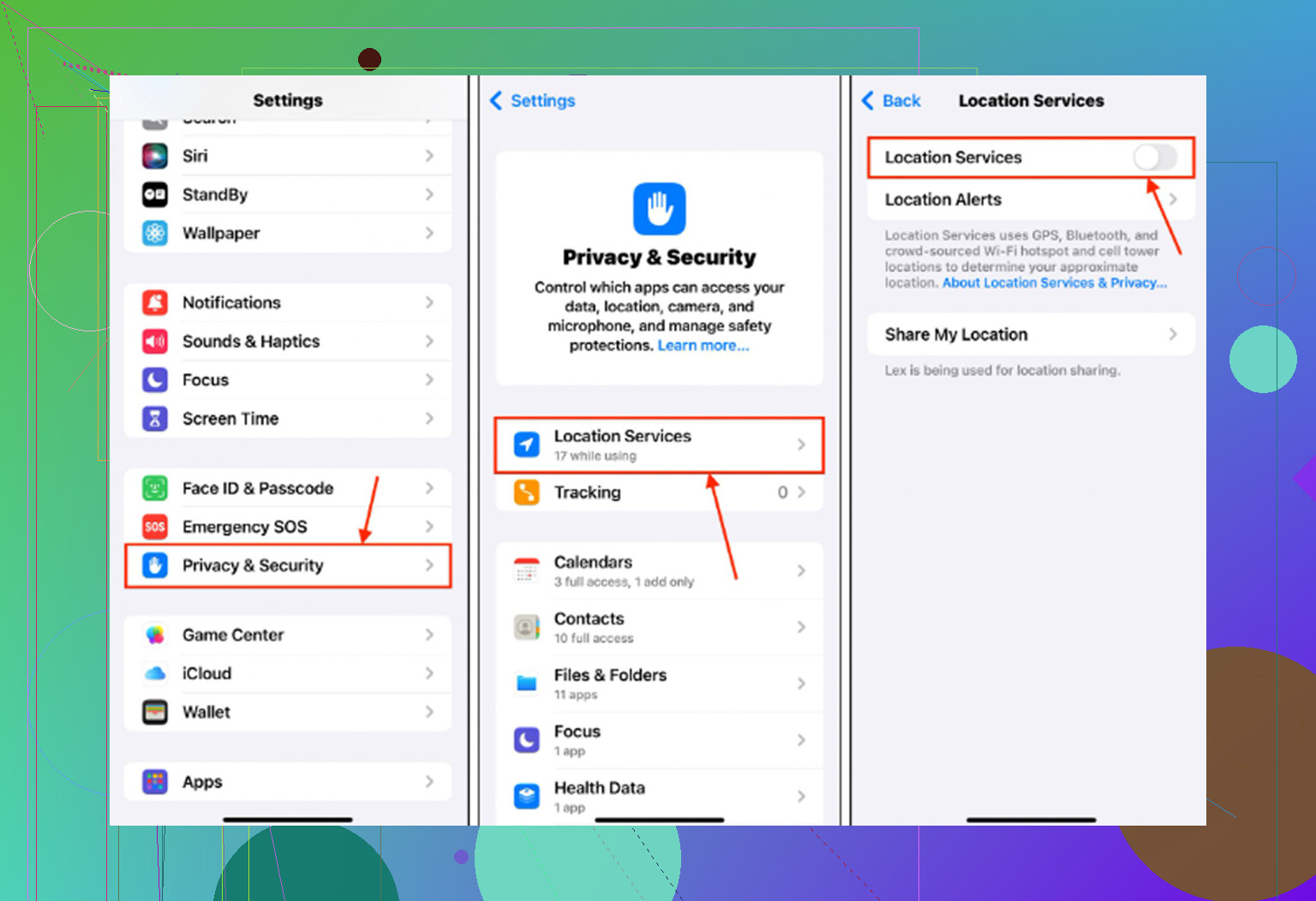
My iPhone recently started lagging on basic tasks, especially typing, opening apps, and switching screens. It used to run fine, but now even simple actions feel delayed. I’m looking for help figuring out what could cause sudden iPhone slowdown and what settings, storage issues, or fixes I should check first.
If your iPhone used to feel fine and now even typing feels delayed, storage is one of the first things I’d check. Not just “do I have a little space left,” but whether the phone has enough breathing room to work normally.
About that 1GB free storage advice
The 1GB thing is real, but it gets misunderstood. Apple treats about 1GB free as the bare minimum so the phone does not crash, boot loop, or run into serious system problems. That does not mean an iPhone with 1GB free is going to feel smooth.
For normal use, you usually want something more like 10 to 20 percent of the phone’s storage free. When storage gets packed, iOS has less room for temporary files, cache, and virtual memory. So even simple stuff like typing, scrolling, or opening an app can start feeling weirdly slow because the system is constantly trying to move things around in almost no space.
Restarting may make it feel better for a minute, but it will not really fix it if the storage is still almost full.
The apps usually are not the main problem
Deleting a random app or clearing Safari might help a little, but on most older iPhones the big storage hog is the photo library. Years of 4K videos, screen recordings, burst photos, and ten almost identical shots of the same thing add up fast.
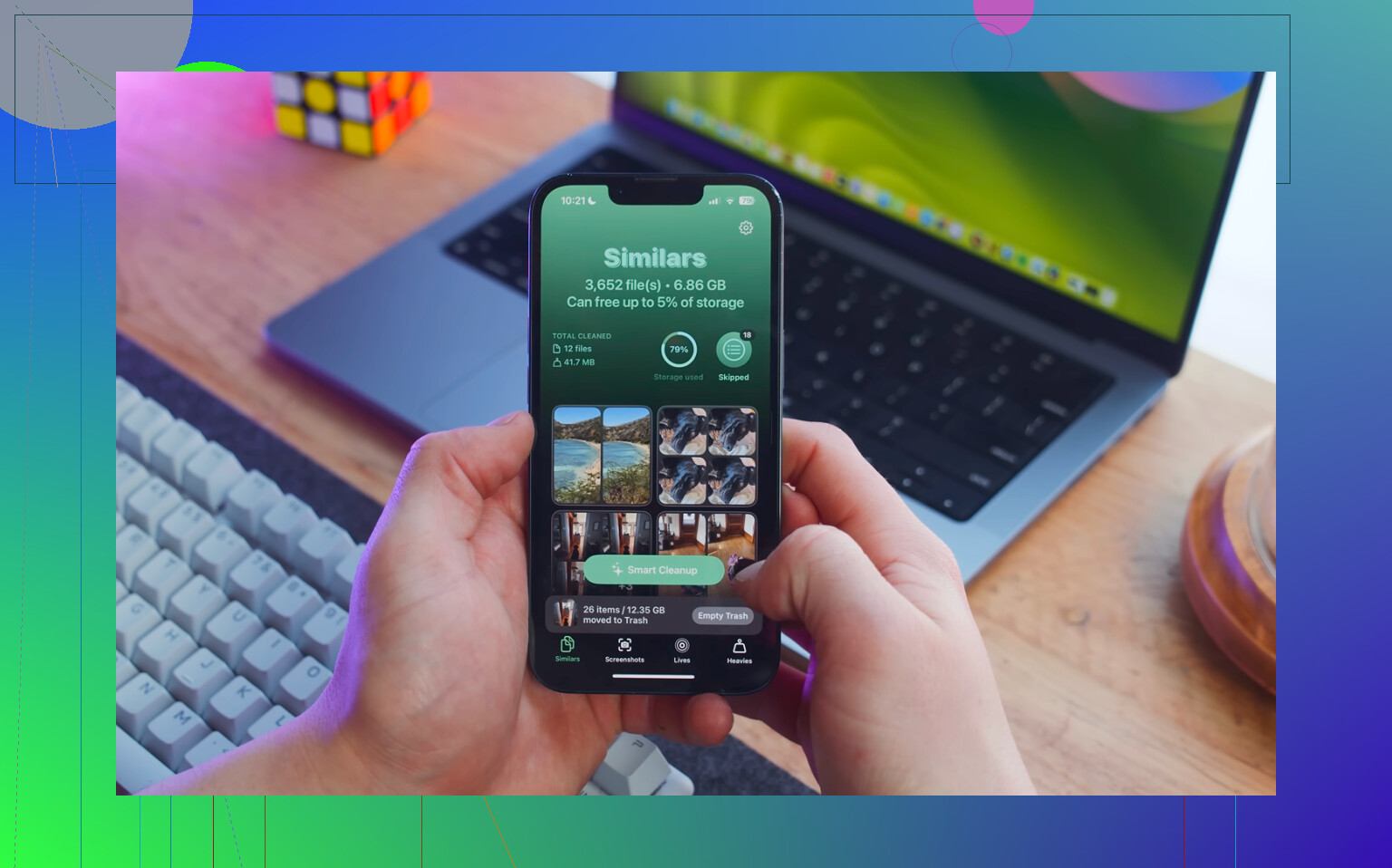
Manually digging through thousands of photos is a pain, especially if you are trying to find the biggest files first. Clever Cleaner is useful for this because it is free, has no ads, and does not require a subscription.
The cleanup order that usually makes the biggest difference is:
- Start with the Heavies tab. It sorts files from largest to smallest and shows the exact file sizes, so old 4K videos, screen recordings, and huge clips are easy to spot. Deleting only a few of those can free up several gigabytes.
- Then check the Similars tab. It groups near-duplicate photos and picks a Best Shot, so you are not manually comparing every sunset photo or every frame from a burst.
- After deleting, open Photos - Albums - Recently Deleted and hit Delete All. This part matters. Photos and videos in Recently Deleted still take up storage for 30 days, so the phone may stay slow until that folder is emptied.
Clever Cleaner does the processing on the iPhone itself, so the files are not uploaded somewhere else.
A few settings worth checking too
Go to Settings - General - Background App Refresh and turn it off. Background refresh can keep apps doing work when you are not using them, which does not help if the phone is already struggling.
Also go to Settings - Safari - Clear History and Website Data. Safari can build up its own pile of cache over time.
If Low Power Mode is always on, turn it off and test the phone again. Low Power Mode saves battery partly by reducing performance, so it can make everyday lag more noticeable.
If none of that fixes it
Check Settings - Battery - Battery Health. If maximum capacity is under 80 percent, iOS may be slowing the phone down on purpose to avoid unexpected shutdowns. At that point, cleanup apps and settings changes will only go so far. The real fix is a battery replacement.
One exception: if this started right after an iOS update, especially within the last 48 hours, the phone may just be reindexing in the background. Leave it plugged in on Wi-Fi overnight and give it two or three days before deciding something is actually wrong.
3 Likes
If the lag is everywhere, storage and battery are fair suspects; if it is mostly while typing, I’d look at the keyboard before doing a big cleanup. Turn off any third-party keyboard, then test in Notes. If it still stutters, try Settings > General > Keyboard and temporarily turn off Predictive Text and Check Spelling. A messed up keyboard dictionary can cause weird typing delay too, so Reset Keyboard Dictionary is a low-risk thing to try before deleting a bunch of stuff. The storage point from @mikeappsreviewer is still worth checking, but typing lag by itself is not always a “phone is dying” problem.
If the slowdown shows up after the phone has been in your hand for a while, while it is charging, or when it feels warm, I would look at heat before I start deleting half the phone.
iPhones can feel normal for a minute and then suddenly turn into mud when they are throttling. Typing lag is one of the first places you notice it because every little keypress has a delay. A thick case, charging in bed, direct sun, CarPlay, Maps, video calls, or a game left suspended in the background can all make this worse. If the phone is warm, take the case off, unplug it, lock it for 10 minutes, then test typing in Notes. That is a quick way to tell whether you are fighting heat instead of a storage or keyboard problem.
I agree with @sternenwanderer that testing in Notes is a good move. I’d take it one step more basic: test with airplane mode on for a few minutes. If typing gets smooth when radios are off, the phone may be busy with iCloud sync, Photos syncing, Mail, Messages, or some app constantly retrying in the background. That can make the whole phone feel slow even though the keyboard is not actually the broken part.
Check this path too:
Settings > General > iPhone Storage
Wait on that screen for a bit and see if it says it is calculating, syncing, or if System Data is huge. If the phone is doing a lot of storage cleanup behind the scenes, it may lag until it finishes. I would not obsess over the exact number, but if you have almost no free space, @mikeappsreviewer is right that it can affect basic use. Just don’t assume storage is the only answer if you still have plenty free.
Another boring but useful check is Screen Time and Accessibility. Some people turn on settings and forget about them. Go to:
Settings > Accessibility > Motion
Try turning on Reduce Motion and turning off stuff like Auto-Play Message Effects if it is enabled. This will not repair a broken phone, but it can make an older one feel less choppy. Same idea with widgets. A Home Screen full of live widgets can make swiping between screens feel worse than it should, especially on older models.
I’d be careful with “close all apps” advice, though. Force closing everything over and over usually does not make iOS faster. It can even make apps open slower because they have to reload from scratch. The exception is if one app is obviously misbehaving, like Photos stuck syncing, a social app heating the phone, or a browser tab eating memory. Then close that app, not every app like a ritual.
A simple order I’d try before doing anything drastic:
- Restart the phone, not just lock and unlock it.
- Test typing in Notes with airplane mode on.
- Remove the case and make sure the phone is cool.
- Check iPhone Storage and Battery Health.
- Update apps from the App Store.
- If it started after an iOS update, leave it plugged in on Wi-Fi overnight.
If it is still lagging everywhere after that, then I’d start thinking about bigger causes like a failing battery, a bad iOS install, or the phone just being near the limit for the current iOS version. At that point a backup and restore may be worth trying, but I would not jump there first. It is a lot of hassle if the real cause is heat, syncing, or one bad app running wild.