My iPhone storage says Media is using a lot more space than what I can see in the Photos app. I already checked my photos and videos, but the numbers do not match, and I am not sure what is taking up the extra storage. I need help figuring out what counts as Media on iPhone storage and how to free up that space.
I kept staring at the iPhone storage bar and, after a while, the pattern got annoyngly obvious. The “Media” chunk confuses people because it is not the same thing as “Photos.” You wipe a bunch of pictures, remove a few apps, then the bar barely shifts. What’s happening is simple. Apple splits your storage into separate buckets, and Media is often hiding a different mess than the one in Photos.
What sits in the Media section
Your own photos and videos live under Photos. Media is the other pile. I’m talking about downloaded songs from Apple Music or Spotify, offline movies and TV episodes, podcast downloads, voice memos, custom ringtones, cached artwork, thumbnails, and other app leftovers saved so feeds and libraries load faster.
On iOS 17 and newer, there’s another trap called Synced Media. If you moved files from a Mac or PC through Finder or old iTunes sync, they land there. Home videos, old albums, random files from years back. The annoying part is Apple shows it like one fat block. No clear list. No clean way to inspect what is inside from the built-in storage page.
Deleting downloads does not wipe your library
This is the part most people seem to miss. If you remove a downloaded song in Music, or delete an offline movie in the TV app, you are deleting the copy stored on your phone, not erasing the item from your account. It still stays in your cloud library. You stream it later or pull it down again when you need it.
Same idea for podcasts and audiobooks. If your goal is space, clearing downloads works. You keep access. You lose the local file. Big difference.
Why Apple’s built-in storage screen feels slow
I used the default route for too long. Settings, General, iPhone Storage, then tapping through apps one by one. Music. Podcasts. TV. Then each streaming app. Then back again. It turns into a scavenger hunt.
Worse, the storage breakdown often gives you totals instead of useful detail. You’ll see 20 GB used by Media, but no straight answer on what caused it. Sometimes it is three forgotten downloads. Sometimes it is dozens of smaller files spread across multiple apps. The native view does not help much with sorting that out.
Also, there’s no proper way to sort your media by size across the board. If you want the ten largest files first, you’re out of luck. You poke around and guess. I did this more times than I want to admit.
What worked better for me
After doing the manual cleanup routine over and over, I ended up using Clever Cleaner. I went in skeptical because most cleaner apps I tried were loaded with ads or they blocked the one useful feature behind a subscription screen. This one felt different. No ads. No paywall popping up the second I tapped something useful. I was half expecting the catch and didn’t find one.
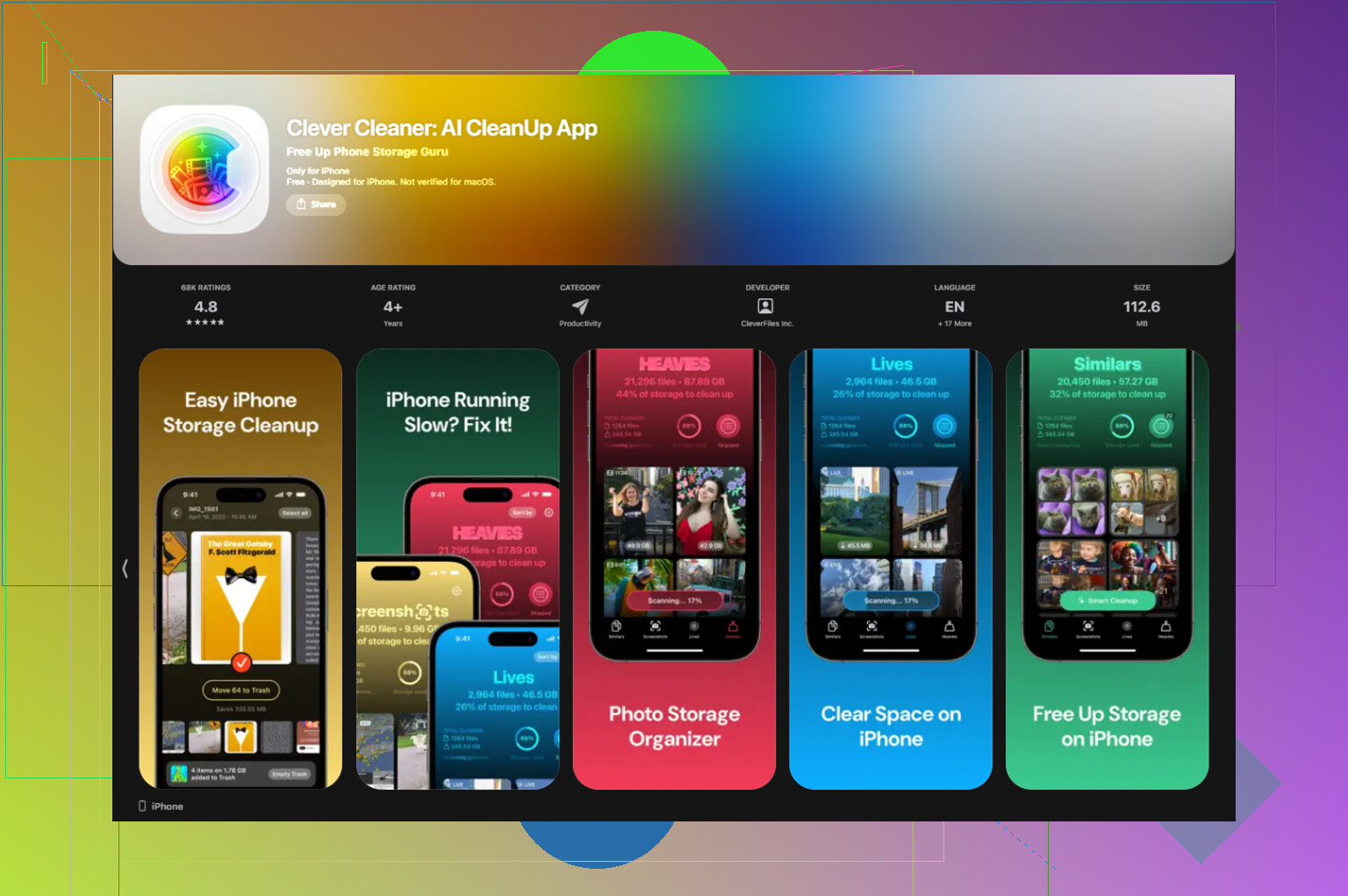
The part tied most closely to the Media problem is the Heavies tab. It lays out your library from the biggest file down to the smallest, and it shows the exact size. This mattered more than I expected. Old 4K clips, offline movies I forgot after a trip, podcast downloads I never finished, all of it floated to the top fast. No guessing. You see the worst offenders before deleting anything.
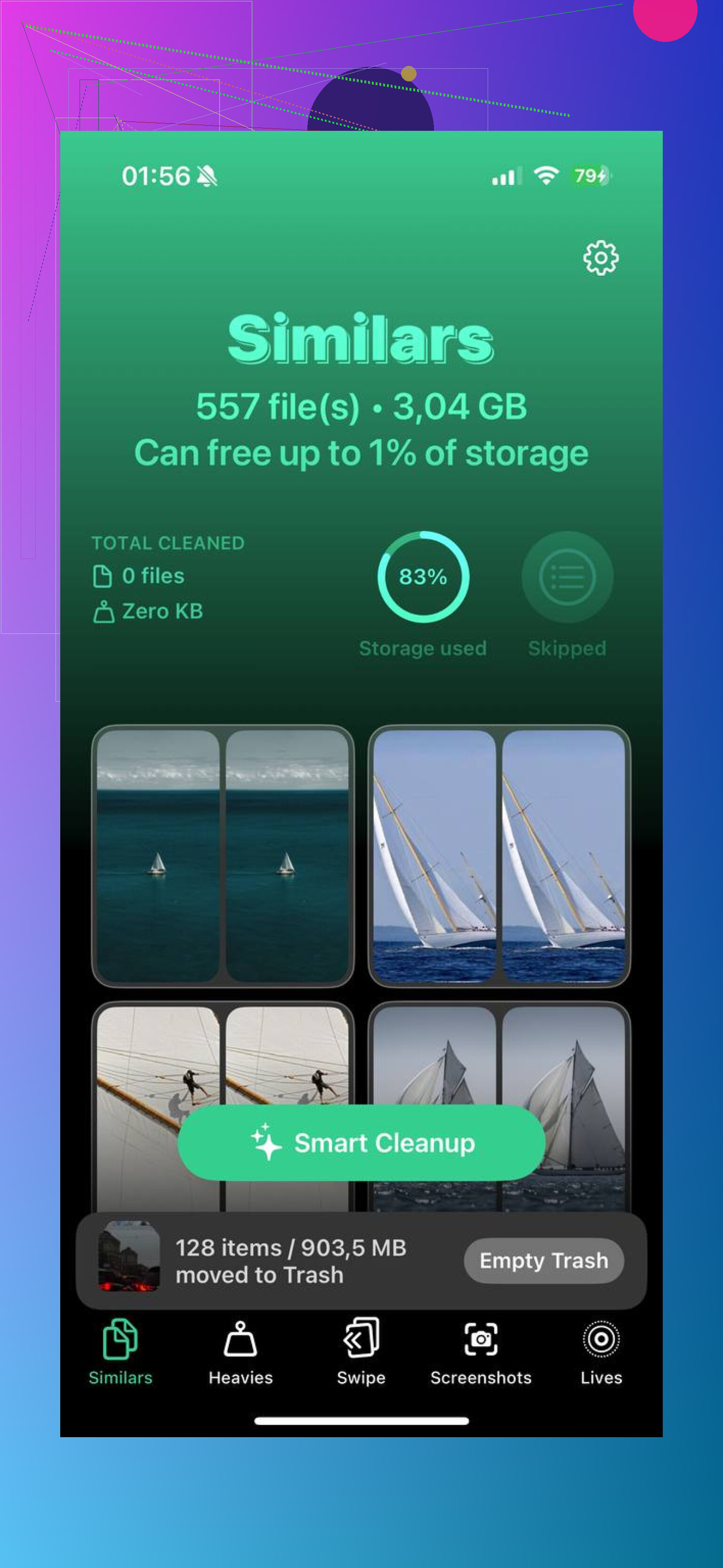
There’s also the Similars tab, which tackles a different storage leak. Near-duplicate photos. Burst shots, repeated tries at the same pic, five angles of the same receipt, ten versions of the same pet photo because one looked slightly less blurry than the others. It groups those together, then you keep one and toss the rest. Took me less time than scrolling through the Photos app by hand.
One detail I cared about was privacy. The processing stays on the device. Nothing from your library gets shipped off somewhere else for analysis. If your phone is full of screenshots, personal clips, or random private junk, that matters.
Three things worth checking first
- Open YouTube, Netflix, and Spotify. Look for offline downloads you forgot about.
- Go to Settings, Messages, Keep Messages, then switch it to 30 Days or 1 Year so old video attachments stop piling up forever.
- Use the Heavies section in Clever Cleaner and find the files eating the most space first.
Then do the step people skip. Open Recently Deleted in Photos and remove everything there. Those files sit around for 30 days and still count against storage the whole time. If the bar refuses to move, this is often why. I missed it once and thought my phone was bugged. Nope. Stuff was still sitting there.
44 Likes
What you see in Photos is not the whole “Media” total. That mismatch is normal on iPhone.
A few things add to Media without showing up clearly in Photos:
- Messages attachments. Videos, memes, voice notes, GIFs. These pile up fast.
- Safari downloads and Files app media. Stuff saved to On My iPhone or iCloud Drive.
- App caches. Instagram, TikTok, WhatsApp, Telegram, CapCut, VLC. They keep temp video files and previews.
- Voice Memos, GarageBand files, iMovie exports, screen recordings.
- Synced media from old Finder or iTunes sync.
I slightly disagree with @mikeappsreviewer on one part. The issue is not always hidden downloads. A lot of the time it’s Messages and app cache bloat. I’ve seen WhatsApp alone sit on 15 GB, and Photos showed none of it. Same with Telegram. sneaky stuff.
What I’d check:
- Settings > General > iPhone Storage, wait 1 to 2 mins for the bar to finish calculating.
- Open Messages > top contact threads > delete large video attachments.
- Check Files app > Downloads.
- In WhatsApp or Telegram, open Storage Usage.
- Reinstall heavy streaming or social apps if their cache looks bloated.
If you want a faster way to spot big files in your photo library, Clever Cleaner helps. It won’t fix every cache issue outside Photos, but it’s useful for large videos and duplicate cleanup. Also, if you want a third-party walkthrough, watch this iPhone storage cleanup video review.
One more thing. iPhone storage numbers lag sometimes. Delete stuff, restart, then recheck. iOS is annoyngly slow at updating the breakdown.
What trips people up is that the storage bar is a category estimate, not a neat inventory. So “Media” can be inflated by stuff iOS classifies loosely, while Photos only shows what the Photos library owns.
I’d actually push back a bit on @mikeappsreviewer and @espritlibre here: cache is part of it, sure, but sometimes the mismatch is just indexing garbage after updates, failed syncs, or old backups restoring oddly. iOS loves vague numbers.
A few places people forget:
- Apple Music classical/downloaded lossless files
- photo/video attachments inside Notes
- downloaded reels or edits inside apps like InShot/CapCut
- screen recordings not obvious if you never sorted by media type
- shared album content and edited duplicates
- Mail attachments saved locally
Also check Settings > Camera > Record Video. If you shoot in 4K/60 or ProRes, a “small” library can still eat storage real fast.
If Photos itself is the issue, Clever Cleaner is useful for surfacing huge videos and duplicate-ish shots quicker than Apple does. There’s also a solid writeup on why Clever Cleaner stands out as a top cleanup app.
If the number still looks wrong after cleanup, restart the phone, then give iPhone Storage a few mins to recalculate. iOS is weirdly bad at showing live numbers sometimes.
I’d add one angle the others only touched lightly: database leftovers. Not just cache, not just downloads. After major iOS updates, photo indexing, Face recognition, thumbnail regeneration, and edited-media sidecars can temporarily bloat storage categories in weird ways. So I slightly disagree with @espritlibre and @cazadordeestrellas on how often this is “real” media you can manually find. Sometimes the number is inflated because iOS is classifying working files badly.
A few under-checked spots:
- Photos edits: cropped/filtered videos can keep extra data around
- Shared albums: small previews and synced assets add up
- Books app: PDFs, audiobooks, imported files
- Notes app: scanned docs and embedded video
- Mail: downloaded attachments stored offline
- Third-party editors: VN, CapCut, InShot export leftovers
What I’d do differently from the usual advice:
- Compare Photos size in Settings > General > iPhone Storage versus what you “see” in the Photos app.
- Turn Optimize iPhone Storage on if you use iCloud Photos.
- Check Settings > Apple ID > iCloud > Manage Storage > Photos for sync mismatch clues.
- Force-close Photos, restart, charge the phone, connect to Wi-Fi overnight. iOS often finishes cleanup/indexing only then.
About Clever Cleaner: useful if your actual photo library is the culprit, especially for giant videos and duplicates.
Pros: quick size-based cleanup, easier than Apple’s sorting, simple UI.
Cons: won’t remove Mail, Messages, or app-cache junk, so it won’t explain every “Media” mismatch.
So yeah, @mikeappsreviewer is right that hidden media exists, but I would not assume every missing gigabyte is a forgotten movie file. Sometimes it’s just iOS being messy with storage math.
A simpler fix is to rebuild the iPhone’s storage index.
Create an encrypted backup with Finder on Mac or Apple Devices on Windows. Confirm the backup finished. Then erase the iPhone through Settings, General, Transfer or Reset iPhone, Erase All Content and Settings. Restore your backup during setup.
This clears temp files, broken indexes, and stale Media totals in one pass. Users often recover several GB without hunting through every app. Recheck iPhone Storage after a few hours on Wi-Fi and power. It takes longer upfront, but avoids the annoyng app-by-app search.
Before you erase and restore like @owllab suggested, know that a restore can quietly re-download everything and leave you exactly where you started if your iCloud settings pull it all back. I’d try the boring fix first: check your System Data too, since that bucket bloats and often gets mislabeled near Media.