My external hard drive suddenly showed up with a missing partition after I unplugged it from my PC, and now I can’t access important files I need for work and personal backups. I’m looking for the safest way to recover the lost partition without making things worse, and I’d really appreciate advice on recovery steps or trusted partition recovery software.
I did this once in Disk Management and nuked the wrong partition. Felt sick for about ten minutes. The good news is a deleted partition does not always mean the files are gone. In a lot of cases, Windows removes the map to the data first. The data itself often sits there until new writes land on top of it.
If this happened to you, stop touching the drive now. Don’t make a new partition. Don’t format the unallocated space. Don’t copy files to it. Every write lowers your odds.
Check Disk Management before you do anything bigger.
- If the partition still shows up and it only lost its drive letter, assign one and see if it mounts again.
- If the area shows as Unallocated, treat it like a deleted partition and recover data first.
Grab the files first
I’d start with file recovery, not partition repair. Safer path. Less chance of making a bad situation worse.
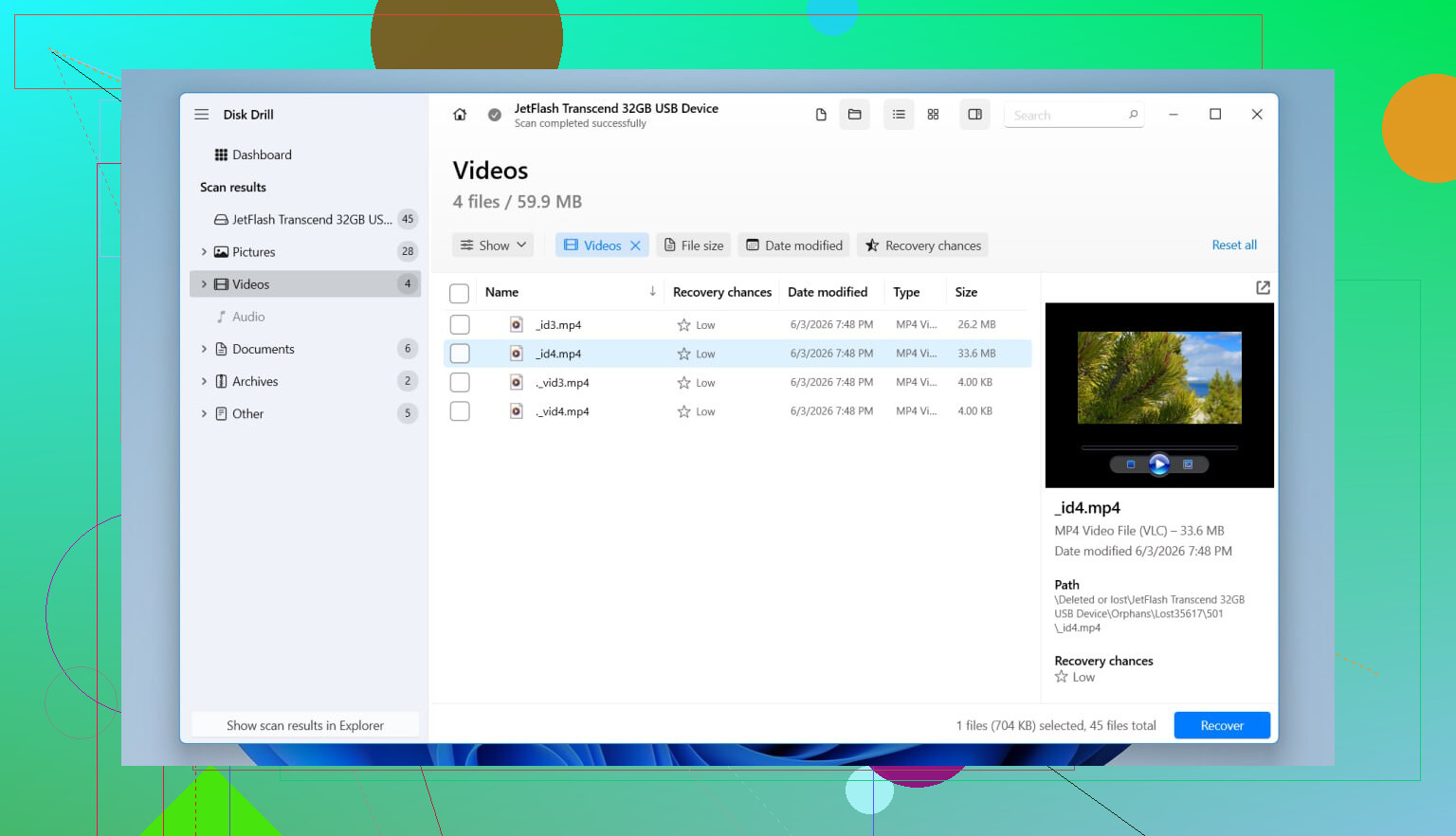
I used Disk Drill for this kind of mess because it tends to find deleted partitions as partitions, not only as a pile of raw files with broken names. When it works, you keep folders and filenames, which saves a ton of sorting later. It supports the usual Windows stuff too, NTFS, FAT32, exFAT, and ReFS.
What I did:
- Installed Disk Drill on a different physical drive.
- Opened it and picked the whole physical disk, not only a leftover volume.
- Started a Scan.
- Waited. Takes a bit. If the deleted partition shows up, it often appears as its own entry.
- Previewed important files first. Don’t skip this part.
- Selected the folders and files I cared about.
- Recovered them to another drive. Not the same disk. Never the same disk.
- Opened a few recovered files after to make sure they weren’t corruped.
If your drive was already being weird before the partition disappeared, random disconnects, SMART alerts, odd noises, stuff slowing to a crawl, I’d image the disk first and scan the image instead. Repeated reads on a failing drive are a bad bet.
Then try to rebuild the partition
After your important files are safe, then I’d mess with partition repair.
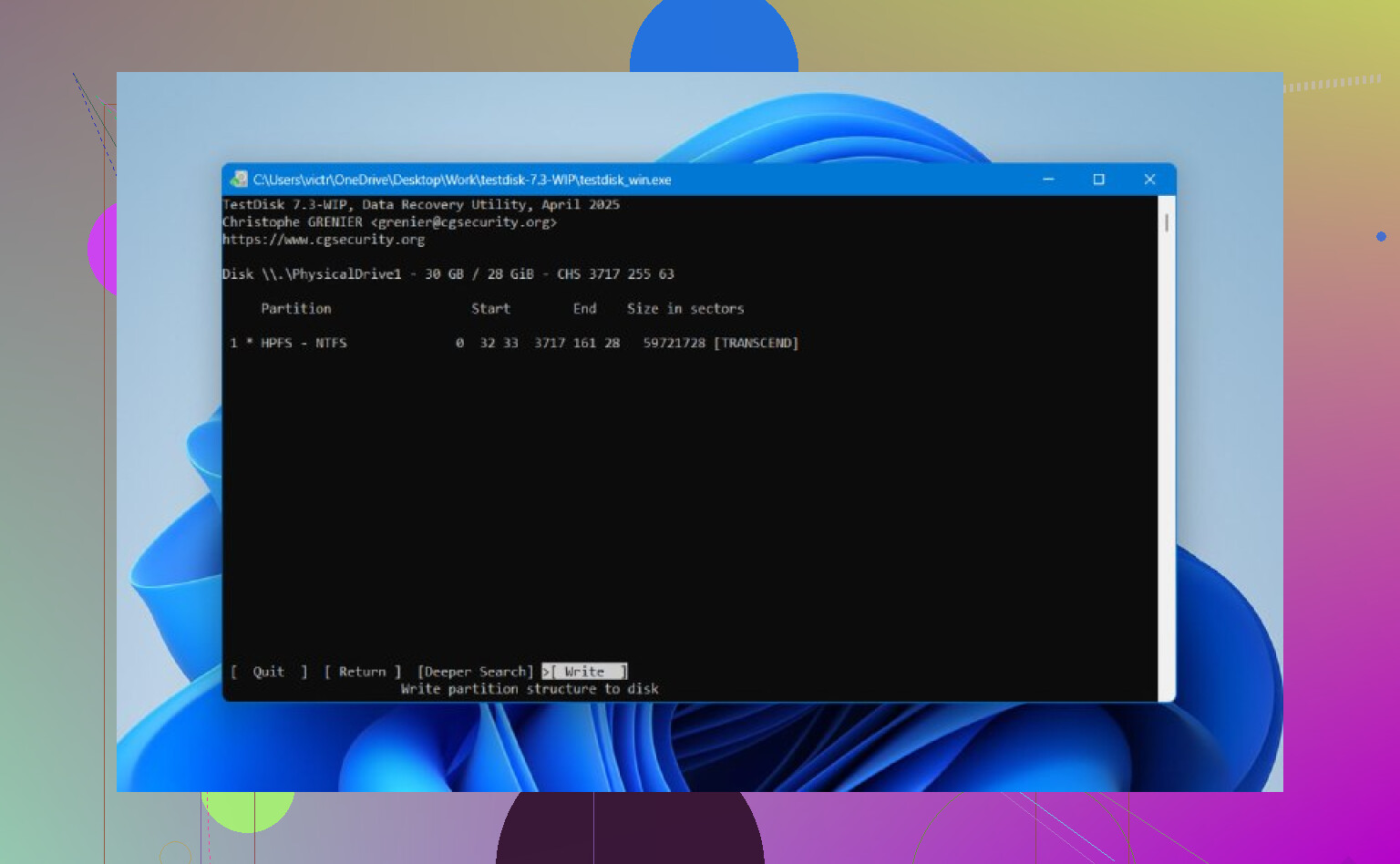
For a free option, TestDisk still gets mentioned for a reason. It’s old-school and text-based. Not friendly. Still useful. If the partition table wasn’t overwritten much, it often finds lost partitions and writes them back.
Usual flow:
- Download TestDisk and extract it.
- Run testdisk_win.
- Create a new log.
- Select the physical disk with the deleted partition.
- Accept the partition table type it detects.
- Pick Analyse.
- Run Quick Search.
- If the missing partition appears, highlight it.
- If not, run Deeper Search.
- Use Write to save the recovered partition table.
- Confirm, reboot Windows, then check the disk again.
If it works, the partition comes back and your files are still there. If you use TestDisk, stay focused. It gives you enough low-level options to make a small mistake into a worse one. I woudn’t poke around in menus unless my files were already copied off somewhere safe.
One more thing. SSDs are rougher for this because of TRIM. A partition delete does not always trigger cleanup right away, but once the SSD starts doing its own housekeeping, old data gets harder to pull back. Time matters more on SSDs than on spinning drives, from what I saw.
If neither Disk Drill nor TestDisk brings the partition back, but your files are already recovered, you’re still fine. At that point I’d make a new partition in Disk Management, do a quick format, and copy the recovered files back over.
23 Likes
First, stop using the drive. No repair tools yet. No format. No chkdsk. I know @mikeappsreviewer leaned toward recovery first, and I mostly agree, but I would put one step before it if the disk is unstable.
Check the drive’s health with something simple like CrystalDiskInfo. If SMART shows bad sectors, pending sectors, or the drive keeps disconnecting, clone it first with HDD Raw Copy Tool or ddrescue. Work from the clone. A flaky external drive gets worse fast, and repeated scans are what kill recoveries.
If the drive health looks normal, the easiest safe route is still a read-only scan with Disk Drill on Windows. Scan the whole physical disk, preview files, and export recovered data to another drive. Pick your must-have work files first. Do not chase the full partition right away.
I would skip CHKDSK at this stage. Lots of people run it too soon and it rewrites file system data. Great for a damaged file system, bad for missing partitions.
After your files are safe, then test partition repair. If Windows only lost the partition entry, a tool like TestDisk or even DMDE often finds the old structure. DMDE is worth a look if TestDisk feels too clunky. It shows partition boundaries more clearly, imo.
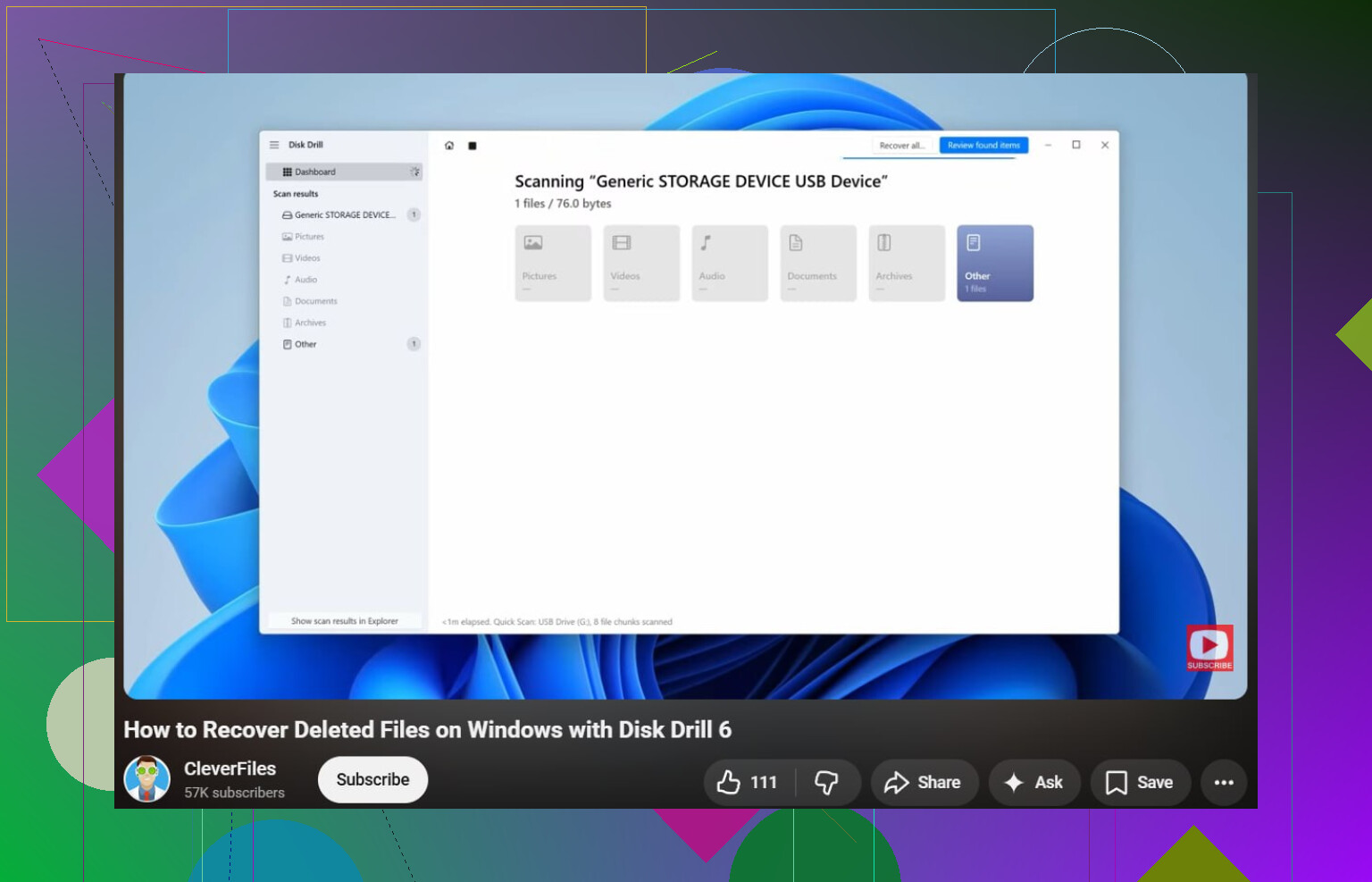
If you want a simple guide for Windows file recovery, this video helps: easy Windows file recovery walkthrough.
Short version:
- Stop writes.
- Check SMART.
- Clone first if unhealthy.
- Recover files with Disk Drill to another disk.
- Repair the partition only after your data is safe.
That order saves more data, period. Two typos for honesty: dont rush this, and dont write anything to the drive.
Before you do any recovery software stuff, try the dumb-simple checks that people skip.
- Swap the USB cable.
- Try a different USB port, preferably on the back of the PC.
- Plug it into another computer.
- Check Device Manager and Disk Management.
- If the partition is there but marked RAW, that is a different problem than fully unallocated space.
I slightly disagree with @mikeappsreviewer and @vrijheidsvogel on one point: not every missing partition needs an immediate deep scan first. Sometimes the enclosure or USB bridge flakes out after an unsafe unplug and the disk looks ‘broken’ when it really isnt. I’ve seen externals come back just by moving the bare drive to a different SATA/USB adapter.
If Disk Management shows the correct size but no letter, assign one. If the enclosure is suspicious, remove the drive from the external case only if it’s a standard desktop drive and you’re comfortable doing that. For some WD portable models, the USB board is tied into hardware encryption, so dont do surgery blindly.
If the partition is truly gone, then yeah, recover files before trying repairs. Disk Drill is a solid beginner option because the interface is easy and it usually gives you a quick idea whether the lost partition data is still readable. I’d still avoid writing any changes to the drive until you’ve copied the important files elsewhere.
Also, if you want a solid roundup instead of guessing, this is a pretty useful best data recovery software for Mac and PC list.
One more thing: if the drive clicks, spins down, or vanishes during reads, stop. That’s not a DIY partition problem anymore, thats hardware waving a red flag.
One angle I’d add that @vrijheidsvogel, @jeff, and @mikeappsreviewer only touched lightly: make sure this is not just a broken partition type or damaged boot sector on the volume itself.
If Windows shows the space as RAW instead of unallocated, I would not jump straight into partition rewriting. First inspect it with a non-writing partition tool and see whether the volume start sector still looks sane. A lot of “lost partition” cases are really a file system header issue, not a vanished partition map.
My order would be:
- Check whether the drive reports the old capacity correctly.
- See if the missing area is RAW, unallocated, or simply missing a drive letter.
- If RAW, prioritize file extraction, not partition fixes.
- If unallocated, verify whether the old partition boundaries are still detectable.
- Only after that decide between recovery and repair.
About Disk Drill, it makes sense here if you want the least frustrating path.
Pros:
- easy UI
- good for previewing recoverable files fast
- decent at finding old folder structure
- less intimidating than command-line tools
Cons:
- deep scans can be slow
- not the cheapest route if you need full recovery
- on failing drives, scanning the original disk too long is still risky
My slight disagreement with the “recover files first no matter what” crowd is this: if the partition is visibly intact and it is literally just a lost drive letter, recovery software is overkill. Fix the mount issue first. But if anything looks ambiguous, then yes, Disk Drill before repair is the safer play.