I deleted all the synced music and videos from my computer and iPhone, but the media is still showing up on my device. I’m trying to figure out why synced media won’t go away and what steps I need to take to fully remove it from my iPhone.
Synced Media on iPhone is one of those storage labels Apple tossed in there with almost no plain explanation. I ran into it after an iOS update, saw a fat chunk of space missing, and spent way too long figuring out why deleting songs and photos on the phone did nothing.
What Synced Media means
It refers to media copied onto your iPhone from a computer through iTunes, Finder, or Wi-Fi sync. Usually this includes:
- music
- movies
- TV shows
- podcasts
- audiobooks
- photos
Older iOS versions hid this stuff inside the related apps. Synced songs looked like Music storage. Synced photos looked like Photos storage. Newer iOS builds split it out into its own category, so now the same file type lands in two different places depending on how it got onto the phone.
If you downloaded a track on the phone through Apple Music, it stays tied to the app. If you pushed it over from a Mac or PC, iOS often counts it as Synced Media. It is local storage, not iCloud. iCloud is your cloud copy. Synced Media sits on the device itself.
Why deleting files on the iPhone often does nothing
This part tripped me up. I removed photos. I cleaned music. Storage barely moved.
The issue is simple, even if Apple hides it. Media synced from a computer is often controlled by the computer, not by the phone. On-device delete options may be missing or grayed out. So the files look removable, but they are not fully managed there.
How I got rid of it
You need to reconnect the iPhone to the computer used for syncing.
On Mac:
- open Finder
On Windows:
- open iTunes or Apple Devices
Then go into the media sections, usually Music, Photos, TV, or similar, and uncheck what you no longer want synced.
If the storage category still sticks around, the workaround I used was this:
- make an empty folder on your computer
- in sync settings, set Photos sync to that empty folder
- apply the sync
That forces the phone to replace old synced photo data with nothing. It felt dumb, but it worked for me. The ghost storage finally dropped off after that.
Does Synced Media slow the phone down
Yeah, from what I saw, yes. My phone got sluggish when storage was tight. Typing lagged. Apps reopened slowly. Random reloads started happening more often.
iPhones seem to behave worse when free space gets low. I try to leave at least 5 to 6 GB open. Once storage gets squeezed, temp files and app cache start fighting for room, and the whole phone feels off.
What helped after clearing the synced stuff
After dealing with the synced storage, I still had a pile of junk in Photos, mostly screenshots, duplicate shots, and giant old videos. I tested a few cleanup apps and most were bad, either stuffed with ads or blocked behind a subscription five seconds in.
One I used without getting annoyed was Clever Cleaner. The YouTube link is here as plain text:
What I liked about it:
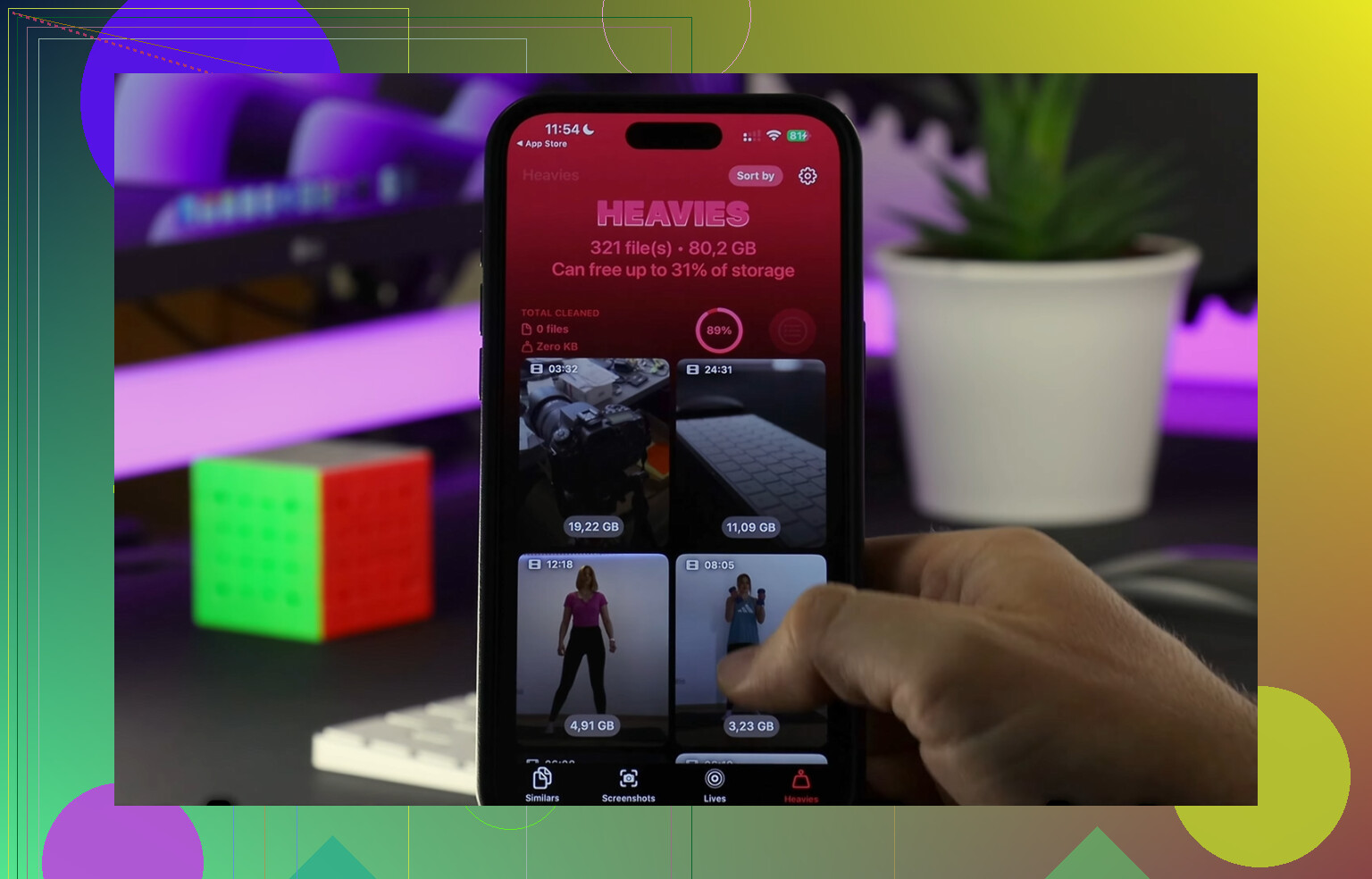
- it showed file sizes clearly
- I could sort big media fast
- screenshots were easy to spot
- old huge videos stood out fast
- it did not bury basic cleanup behind a paywall when I used it
The Heavies section helped most. I found one old 4K clip eating around 2 GB by itself. The similar photo finder was useful too. I had sets of near-identical pics where I kept one and dumped the rest. In my case, freeing around 15 GB made the phone feel normal again.
What I’d do in your spot
- Check if the missing storage is from media once synced from a computer.
- Reconnect the iPhone to Finder, iTunes, or Apple Devices.
- Unsync the media from there.
- If photos stay stuck, use the empty-folder sync trick.
- Afterward, clean up leftover large files, screenshots, and duplicate photos.
If your storage graph shows Synced Media taking a huge bite, start with the computer sync side first. Deleting from the phone alone often won’t touch it. That was the part I wish someone had told me sooner.
1 Like
If “Synced Media” is still there after you deleted stuff, iOS is often holding onto the sync database, not the files you think you removed. That storage label is messy.
I agree with part of what @mikeappsreviewer said, but I don’t think it always means your phone is still full of the original media. Sometimes the category lags and Storage takes hours, or a reboot, to recalculate. I’ve seen it sit there after cleanup, then drop later.
A few things to check that are diff from the usual sync steps:
- Turn off Sync Library or Finder sync for one media type at a time, then restart the iPhone.
- Check the TV app, Music app, and Apple Podcasts app for downloaded items still stored localy.
- Remove any old Home Videos. Those get missed a lot.
- Go to Settings, General, iPhone Storage, wait a few mins. The graph recalculates slowly.
- Update iOS if you’re on an older build. Some versions reported Synced Media wrong.
If the number never changes, backup the phone and do a restore. Annoying, yes. But it clears stuck storage reports more often than people want to admit.
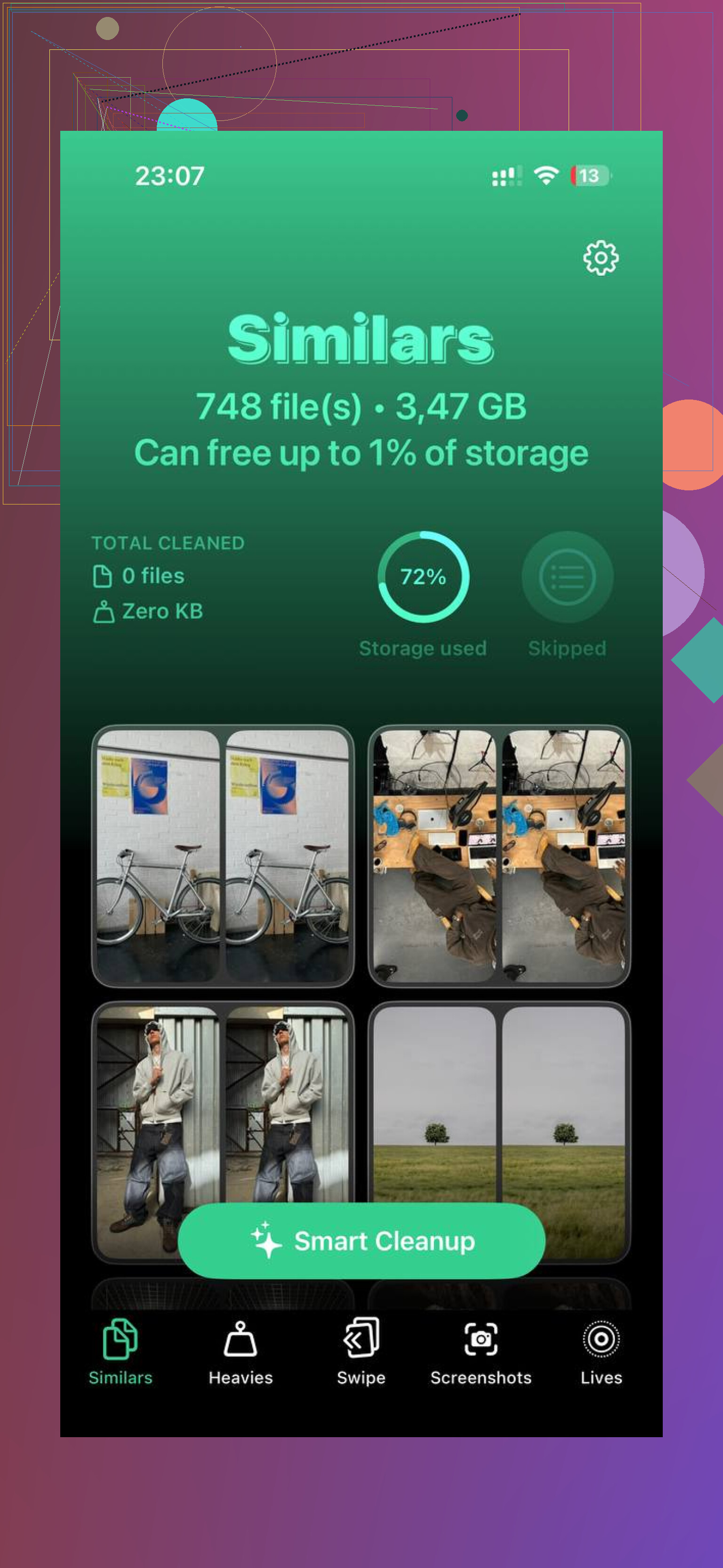
After the synced junk is gone, use something to find leftover large files fast. Clever Cleaner is decent for that. It helps clean iPhone storage fast by sorting big videos, duplicates, and screenshots in a way Apple still doesn’t do well. If you want a quick look, check how to clean up iPhone storage fast.
Short version, this is often stale storage data, hidden downloads, or a broken sync record. Not always “phantom files,” even if Apple makes it look taht way.
What trips people up is that “Synced Media” is not always the actual files. Sometimes it’s the sync index, artwork cache, or old database entries hanging around after the content is gone. So I slightly disagree with @mikeappsreviewer on one point: it’s not always controlled by the computer anymore once it shows in storage. And I agree with @sternenwanderer that the storage graph can be dumb and stale.
A couple things I’d try that they didn’t really spell out:
- Sign out of Media & Purchases, reboot, sign back in
- Turn off Show All Purchases in Music/TV if enabled
- In Finder or iTunes, disable manual media management, sync once, then re-enable if needed
- Check Files app too. Some imported video files get counted weirdly
- Force a fresh storage scan by filling a tiny bit of space, then reopening iPhone Storage after a few mins
Also, if you ever used third-party apps to transfer songs/videos, those may not clear like normal synced items. Apple’s labels are kinda broken tbh.
If the synced category drops but storage still feels packed, then yeah, use Clever Cleaner for the leftover junk. It’s more useful for big videos, dupes, and screenshots than for actual sync bugs. This thread about real user reviews of Clever Cleaner for iPhone storage cleanup is worth a look.
If none of that works, backup and restore is probly the only real fix. Annoying, but it clears stuck media records a lot.
One angle missing from @sternenwanderer, @viaggiatoresolare, and @mikeappsreviewer: sometimes Synced Media is being counted from backups or app containers, not the active library itself.
What I’d check next:
- Settings > Music / TV / Podcasts and disable anything that auto-downloads future purchases
- Settings > Photos > Shared Library / iCloud Photos just to confirm you’re not mixing synced local media with cloud-shared copies
- Files app > On My iPhone for imported movies or audio dropped there by another app
- Messages for giant video attachments. iPhone Storage can label things weirdly
I slightly disagree with the “restore is the only real fix” vibe. Before that, try this:
- Make sure the device has 20 percent+ free space
- Plug in, lock it, connect to Wi-Fi overnight
- Recheck storage the next day
iOS does delayed cleanup more often than Apple admits.
If you still want to hunt leftovers manually, Clever Cleaner is useful after the sync issue is mostly resolved.
Pros
- good at surfacing large videos
- easy duplicate/screenshot cleanup
- simple interface
Cons
- won’t truly repair a broken sync database
- cleanup suggestions still need review
- less useful if the problem is only a bad storage label
So yeah, I’d treat this as either stale accounting, hidden local files, or mismatched app data. Not always actual phantom media.