My SSD suddenly changed to RAW and Windows no longer lets me open it. It was working fine before, but now Disk Management shows the drive as RAW instead of NTFS. I have important files on it and need help figuring out if I can convert the RAW SSD to NTFS without formatting or losing data.
I held off on converting a RAW drive to NTFS the first time I ran into this. Good call, I think. When Windows labels a partition as RAW, it usually means the file system stopped making sense to it. I’ve seen it happen after a bad unplug, a write job getting cut off, file system damage, weak sectors, malware, and once on an old external drive that was dying in slow motion. A lot of the time, the files are still sitting there. The main thing is to pull your data first, then mess with repairs later.
What I’d do looks like this.
Step 1: Look at the drive before doing anything else
Open Disk Management and check whether the drive shows the right size. If the capacity looks normal, even with the partition marked RAW, recovery still has a decent shot. If the drive drops offline, shows the wrong size, or starts making odd sounds, I’d stop there. Don’t keep poking it. Those are the cases where the storage itself might be failing.
Step 2: Pull your files off with Disk Drill
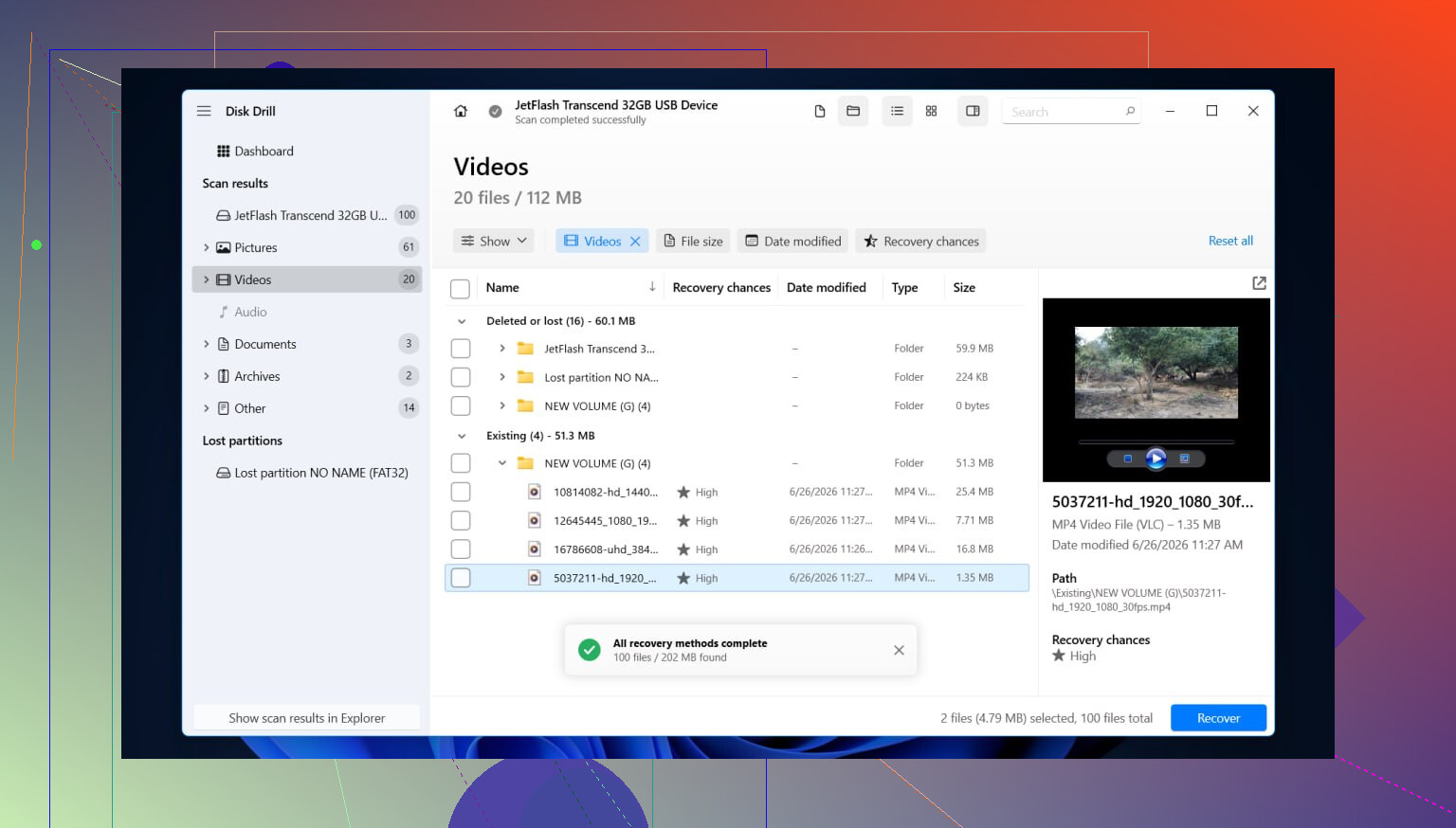
I used tools on RAW volumes before, and Disk Drill is one of the simpler ones because it runs several recovery methods in one pass instead of making you guess up front.
Here’s the way I’d handle it.
- Install Disk Drill on a different drive. Not on the RAW one. Don’t write anything new to the damaged disk if you care about the files.
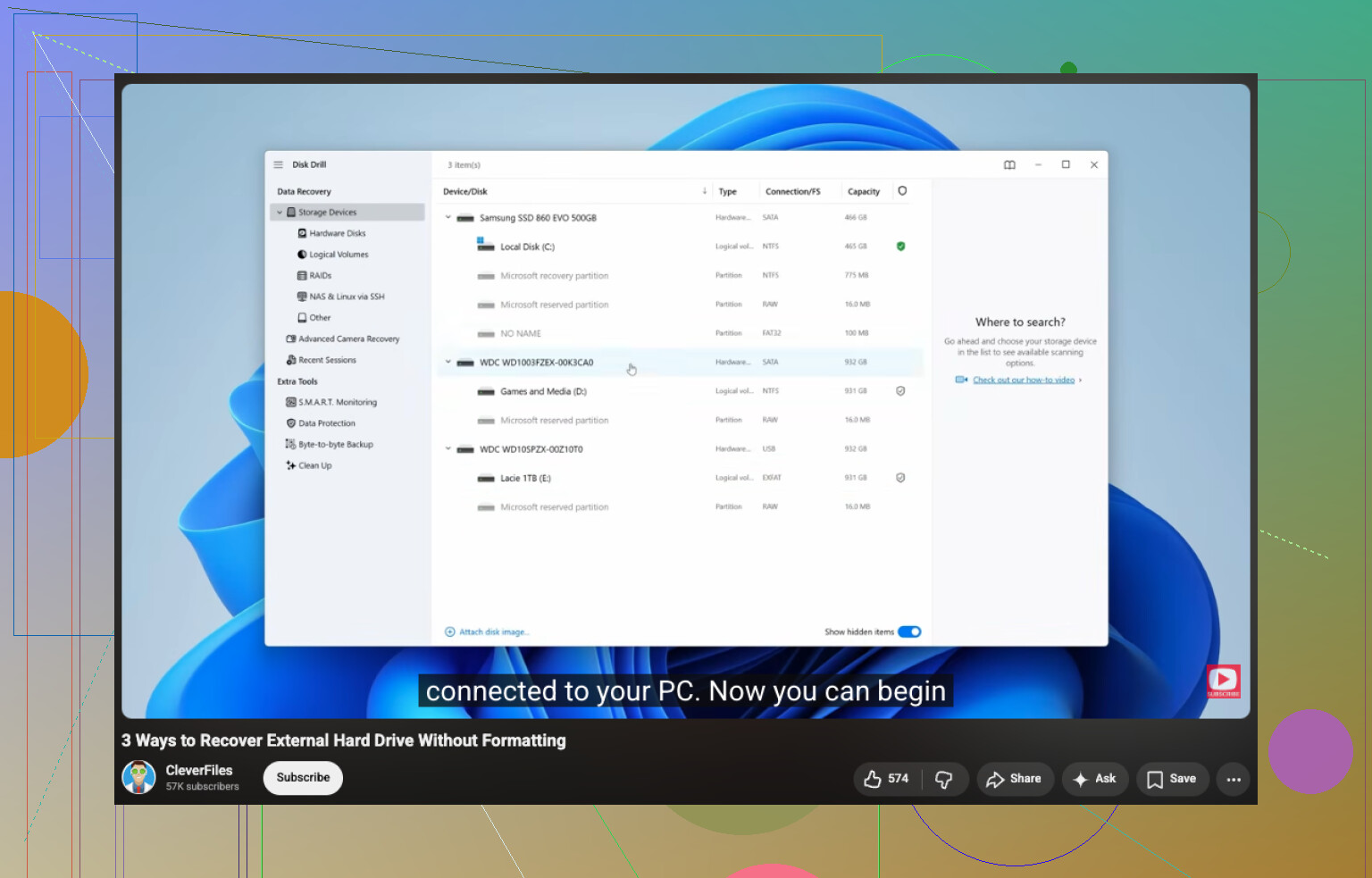
- Open it, then pick either the RAW partition or the full physical disk.
- Hit Search for lost data and let it finish. RAW scans tend to drag, so I wouldn’t stop halfway unless the drive starts acting worse.
- Go through the results with the file-type filters or the search box. If folder view is available, use it. Seeing the old directory tree makes it easier to tell whether recovery found the original structure or only fragments.
- Preview the files you care about, photos, docs, video, whatever. I always do this first because a filename alone doesn’t prove the file opens.
- Mark what you want back.
- Recover everything to another drive. Never write recovered data back onto the RAW partition.
One thing I learned the hard way. If the drive starts disconnecting during the scan, or it reads at a crawl, stop hammering it. Make a byte-for-byte image first and recover from the image instead. Safer, less wear, fewer chances to turn a bad drive into a dead one.
Step 3: Repair the drive after your files are safe
Once the important stuff lives somewhere else, then deal with the broken volume. The fix depends on what went wrong in the first place, so I wouldn’t treat every RAW drive the same.
These are the usual paths.
- Format it to NTFS if the file system is damaged and you no longer need anything from the partition.
- Restore or rebuild the partition if the partition table took the hit.
- Assign a drive letter if Windows sees the partition but refuses to mount it right.
- Run CHKDSK only after recovery. It changes the file system. It is a repair tool, not a file recovery tool.
- Update or reinstall storage controller drivers and USB drivers if this started after a Windows update, or if the problem only shows up on one PC.
- Replace the drive if SMART alerts, bad sectors, or repeated read failures keep showing up. At some point, repair stops being worth your time.
After it seems fixed, I’d test it a bit before trusting it. Copy over a few large files, unplug and reconnect it, then check whether everything still reads fine. If the partition turns RAW again after formatting, I’d stop trying to save the device. That usually points to failing hardware, not a one-off software mess.
1 Like
Yes, but do not convert it first if your files matter.
RAW means Windows no longer reads the file system. Converting to NTFS in the normal way usually means formatting. Formatting wipes the file system records and lowers recovery odds. So I disagree a bit with people who jump straight to “fix the disk.” Fix it after your data is out.
A few checks first.
- Try another USB port, cable, enclosure, or PC.
- Look in BIOS or Device Manager. See if the SSD shows the correct model and size.
- Open CrystalDiskInfo or any SMART tool. If health looks bad, stop using the drive for random tests.
If the SSD still shows the right capacity, file recovery is often possible. Disk Drill is a solid option for RAW SSD recovery because it scans by file signatures and filesystem traces, not only the current NTFS metadata. Install it on another disk, scan the RAW SSD, preview files, then save recovered data somewhere else. This is the safe path if you need to recover files from a RAW drive without formatting.
If you want a quick visual guide, this video covers how to recover files from a drive without formatting.
After recovery, wipe the SSD and format to NTFS. If it turns RAW again, the SSD is suspect. At tht point, replace it. @mikeappsreviewer is right about one thing for sure, CHKDSK is not step one. It edits the disk. Bad move on a drive with important data.
Yes, it’s possible to get it back to NTFS, but not as some magical “convert RAW to NTFS without consequences” thing. In most cases, going from RAW to NTFS means format/rebuild the file system. So if the files matter, don’t click Format just because Windows is being dumb.
I mostly agree with @mikeappsreviewer and @viajantedoceu on the “recover first” part, but I’d add one thing: before you even scan, check whether the partition style got messed up. If the volume suddenly lost its file system after a crash/update/bad enclosure, sometimes the issue is the partition record, not the whole SSD. Tools like TestDisk can sometimes restore partition structure without doing a full format. More technical, yes. But worth knowing.
Also, if this is an internal SSD, check Event Viewer for disk/nvme/controller errors. If you see lots of I/O or reset errors, that points more to hardware/connection than just file system corruption. On externals, the USB bridge/enclosure is sometimes the real villian.
If the SSD is readable enough, use Disk Drill to pull data off first. Then you can wipe it, create a fresh NTFS volume, and test it. If it flips back to RAW again, don’t overthink it, the drive is probly toast.
If you want extra reading, this roundup on top hard drive recovery and repair software for Windows is decent too.