My Seagate external drive suddenly stopped mounting on my Mac, and I keep getting the com.apple.diskmanagement.disenter error in Disk Utility. The drive was working before, and I need help figuring out if this is a macOS issue, file system problem, or signs the drive is failing.
I ran into the same “disenter error” mess on macOS, and it never points to one clean cause. What I kept seeing was simpler than the alert makes it sound. The Mac detects the drive, but the part of macOS handling disks refuses to mount the file system.
The thing I’ve hit most often was a stuck fsck process. macOS starts fsck, short for File System Check, after a drive gets unplugged the wrong way. On bigger external drives, especially ExFAT and some APFS volumes, I’ve watched it sit there forever. The drive shows up, but stays locked out like the system put a deadbolt on it.
If you want the fastest thing to try, open Terminal from Spotlight and run:
sudo pkill -f fsck
You’ll need your admin password. When I did this, the drive mounted right after on one MacBook, and on another it came back read-only. I was fine with read-only. At that point I only wanted my files off the thing before it got worse.
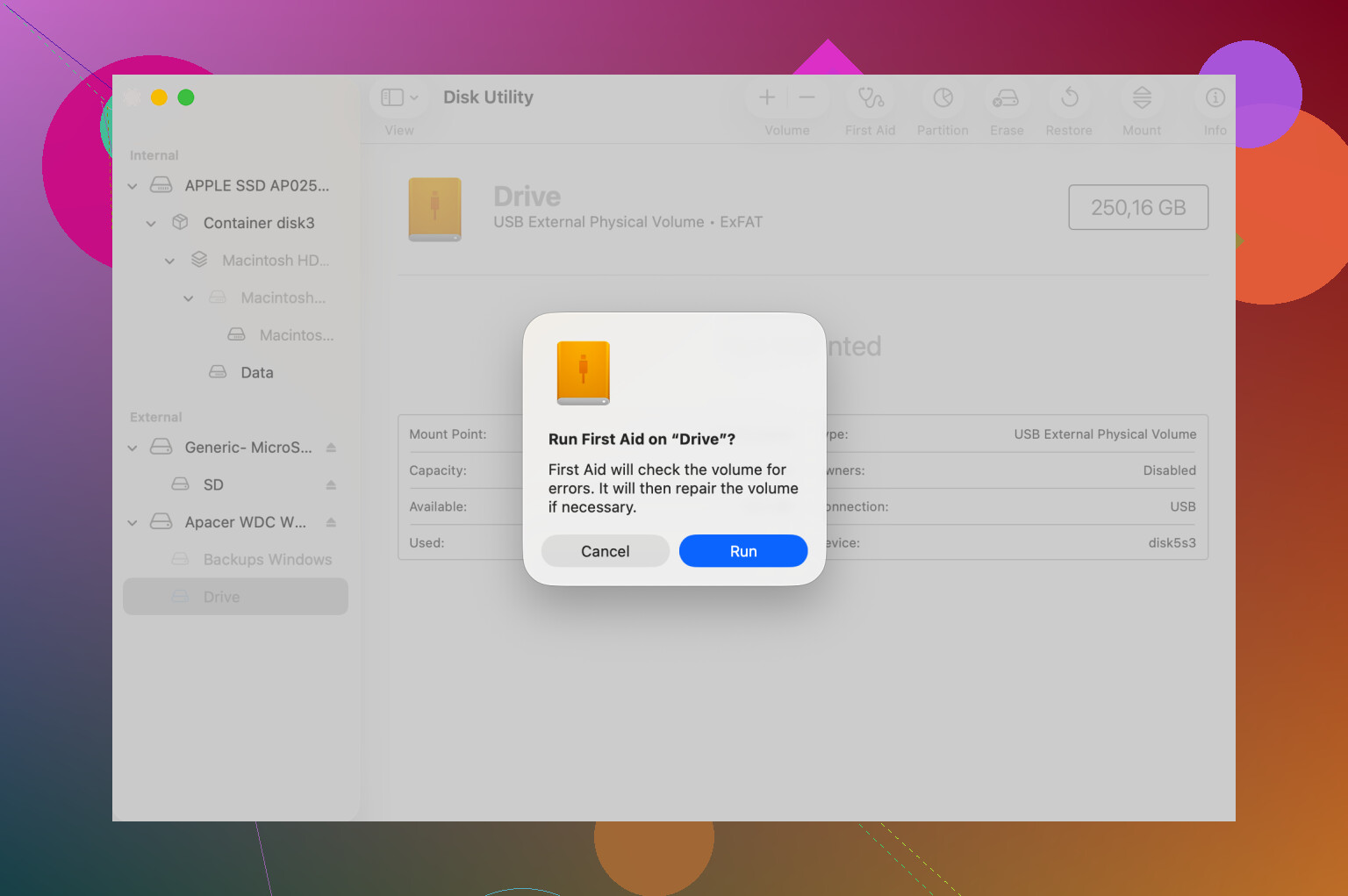
Disk Utility is where a lot of people waste time because they repair the wrong level. I did too. Open Disk Utility, hit View, then Show All Devices. Start at the top with the physical disk. After that, run First Aid on the container. Then do the volume last. If it errors once, I wouldn’t quit after the first try. I’ve seen the second or third pass clear a B-tree issue or some ugly partition-map hiccup.
If First Aid throws exit code 8, or says the volume can’t be repaired, I’d stop pushing it. I learned this one the annoying way. Repeated mount attempts on a damaged disk made recovery harder, not easier. At that stage I went with recovery first, repair later.
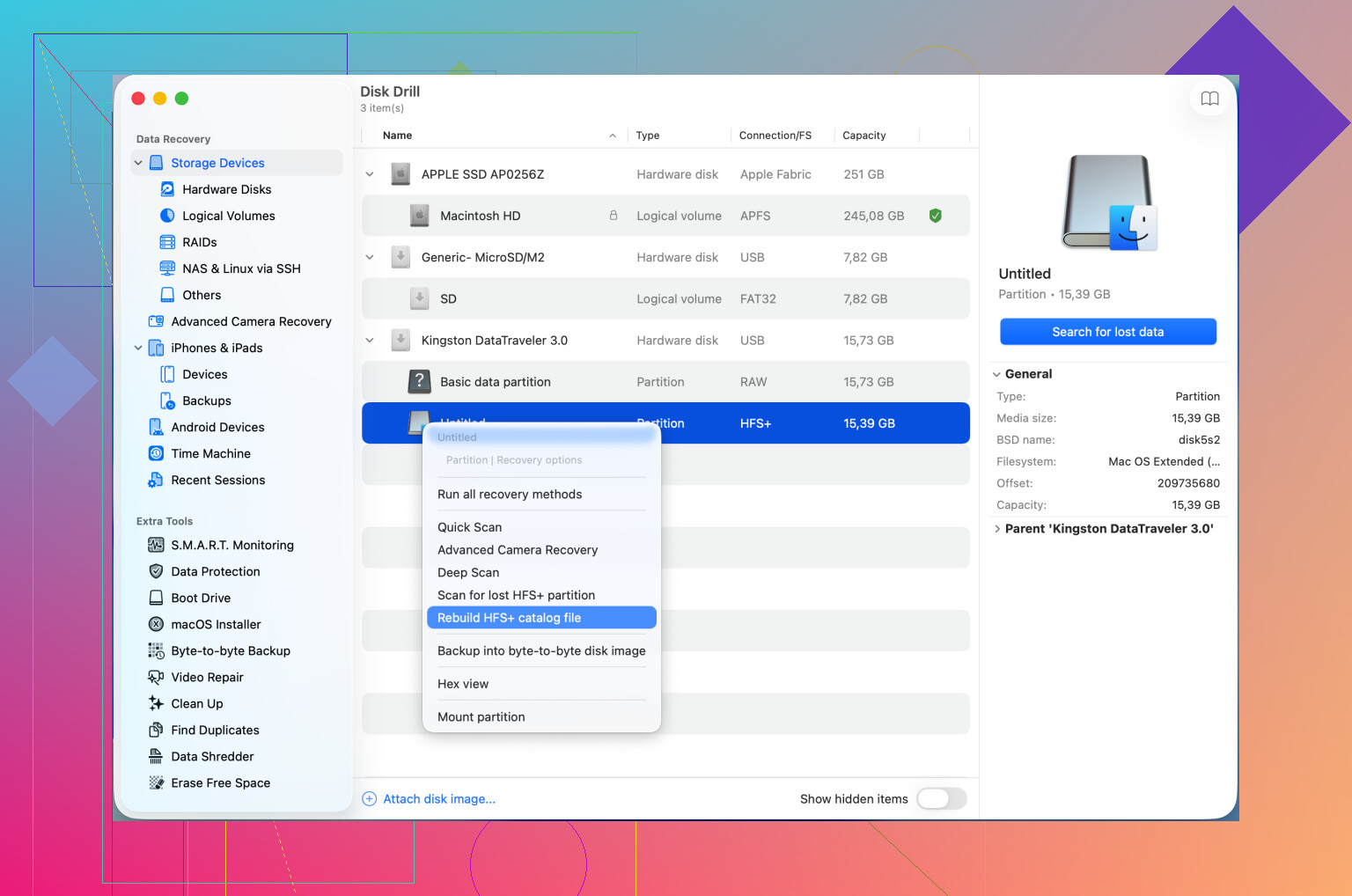
Disk Drill helped in cases where macOS refused to mount the volume at all. What stood out for me was file preview and raw scanning. On one busted external SSD, it pulled the folder tree well enough for me to copy the important stuff to another drive before wiping the bad one. If your goal is the data, not saving the file system, this route makes more sense than brute-forcing mounts over and over.
One other odd fix. I’ve seen newer macOS builds get weird with DiskManagement. Logging out of your account and signing back in cleared it once. Safe Mode did it on another machine. A full restart is worth trying too, esp if the drive looks fine physically and the error showed up out of nowhere.
My rough order would be this:
1. Kill fsck with Terminal.
2. Try Disk Utility with Show All Devices enabled.
3. Repeat First Aid across disk, container, and volume.
4. If repair fails with code 8, switch to recovery.
5. Try logout, restart, or Safe Mode before formatting.
If the disk mounts read-only, I’d treat that like a small win and copy your files first. Don’t get cute and test stuff for an hour. Pull the data while the door is open.
11 Likes
If the Seagate shows in Disk Utility but throws com.apple.diskmanagement.disenter, I’d look at the connection path first, not the file system first. I know @mikeappsreviewer focused on fsck and First Aid. Fair point. I’ve seen plenty of cases where the issue was the USB bridge, bad cable, or low power from a hub.
Try this order.
-
Swap the cable.
Seagate drives are picky with cheap USB cables. A bad cable still lets the drive appear, but mount fails. -
Plug it straight into the Mac.
No hub. No dock. No adapter chain. If you use USB-C, try a diff port too. -
Check System Information.
Apple menu, About This Mac, System Report, USB. If the drive drops in and out there, this smells like hardware, not macOS. -
Test on another Mac or a Windows PC.
If it mounts elsewhere, your Mac setup is the issue. If it fails everywhere, the drive or enclosure is the issue. -
If it is an older Seagate desktop drive, listen to it.
Clicking, spin-up/spin-down loops, or slow detection usually means hardware trouble. Stop messing with repairs if you hear thsoe noises. -
Run this in Terminal:
diskutil list
Then:
diskutil info /dev/diskX
Replace X with your Seagate disk number. Look for File System Personality and Read-Only Media. If macOS reports corrupted or unrecognized structure, focus on recovery first.
If your goal is files, Disk Drill is a solid next move before formatting. Better search phrasing for your case would be:
how to repair an HFS catalog and recover data from a disenter error
One more thing. If the drive is exFAT, test it on Windows. I’ve seen macOS choke on dirty exFAT volumes more often than APFS. Annoying, but true.
If you already tried the obvious stuff @mikeappsreviewer and @techchizkid mentioned, I’d check one angle they kinda danced around: macOS privacy and mount helpers, not just disk damage.
Sometimes com.apple.diskmanagement.disenter pops because Finder/Disk Arbitration gets confused, not because the Seagate is dead. I’ve had this clear up by launching Disk Utility, then using Terminal:
diskutil unmountDisk force /dev/diskX
diskutil mountDisk /dev/diskX
If that fails, try mounting the specific volume instead of the whole disk:
diskutil mount /dev/diskXs1
Also check if the volume is NTFS. macOS will often see it but not mount cleanly if the journal is dirty. In that case, don’t keep poking it on the Mac. Test on Windows first and run error checking there.
One thing I sort of disagree on: killing fsck is not always the first move. If the drive is already unstable, interrupting checks can make things messier. I’d only do that if Activity Monitor shows fsck stuck for a long time and the disk is otherwise healthy.
If your priority is files, stop trying random repairs after 2 or 3 failed attempts. Use Disk Drill and recover first. That’s usually the smarter play with an unmountable external drive.
For picking a recovery app, this is probly closer to what you need: best data recovery software for an unmountable external drive
Also check Console.app for repeated I/O errors. If you see those, that’s a bad sign and not just a weird macOS hiccup.
I’d check one layer lower than what @techchizkid, @codecrafter, and @mikeappsreviewer covered: the partition map itself.
In Terminal:
diskutil list
Look for whether the Seagate shows a valid GUID_partition_scheme, APFS container, or just free space / Microsoft Basic Data with odd sizes. If the physical disk capacity looks wrong, that points to enclosure firmware or failing media, not just a mount issue.
Also run:
log show --last 10m --predicate 'process == 'diskarbitrationd''
That can expose whether macOS is refusing the mount because of an unsupported or damaged volume header.
One small disagreement: I would not keep retrying First Aid multiple times if the drive keeps reconnecting. That’s often how a marginal drive gets worse.
If the SMART status is available in Disk Utility or via diskutil info, check that too. “Verified” is not a guarantee, but “Failing” changes the plan immediately to copy data only.
If files matter, Disk Drill is reasonable before any reformat. Pros: easy preview, good for drives that show up but won’t mount, simple interface. Cons: deep scans can take forever, recovery names may be messy, and the best features are paid.
If the partition map is broken but the hardware is stable, recovery first usually beats repair first.