My flash drive was working fine, but when I plugged it in today, all my files were suddenly missing. I had important photos and work documents on it, and I really need help figuring out if the files were deleted, hidden, or if the drive is starting to fail. What are the safest ways to recover lost files from a USB flash drive without making things worse?
USB file deleted by mistake, what I’d do first
I’ve run into this more than once. USB sticks don’t treat deleted files the same way your main drive does. A lot of the time, when you delete from a flash drive, it skips the Recycle Bin and the file looks gone on the spot. Annoying, yes. Dead forever, not always.
First move, stop touching the drive
This part matters most.
Do not keep using the USB stick.
I mean it. Don’t copy one last file to it. Don’t rename folders. Don’t format it. Don’t run random cleanup or repair tools because some old forum reply said so. Deleted data often sits there until new data lands over the same space. On a small flash drive, overwriting happens fast. I’ve seen people lose the thing they wanted back because they saved one tiny docx after the mistake. Stuff like final_final_USE_THIS_ONE_v3.docx. You know the type.
The short version
If this were my drive, I’d do this:
- Unplug it and leave it alone until you’re ready to scan.
- Download recovery software to your computer or another disk, not to the USB.
- Save recovered files somewhere else.
- Skip repair tools at the start unless the drive has read problems.
Before scanning, check the simple stuff
I’d still do one quick pass before recovery.
Open the USB and make hidden files visible. Sometimes files were not deleted at all. I’ve seen them get hidden after a glitch, a weird attribute change, or malware nonsense.
Also look for hidden trash folders such as:
- $RECYCLE.BIN
- RECYCLER
- RECYCLED
- .Trashes
That last one shows up if the stick was used on a Mac.
I wouldn’t expect this check to fix most cases, but it takes a minute and costs nothing.
Then I’d run recovery software
For this kind of job, I’d start with Disk Drill.
Not because it performs miracles. I picked it first because the process is easy to follow and the file preview helps a lot. Preview is a big deal. If a file opens in preview, your odds are usually better. If all you get is a pile of mystery items with names like recovered_file_001, recovered_file_002, then yeah, you might still get your data back, but sorting it later is a pain.
The way I’d handle the scan
- Install Disk Drill on your computer, never on the USB stick.
- Plug in the flash drive and select it from the device list.
- Start a standard lost-data scan.
- Let the scan finish. Don’t cut it short if the files matter.
- Use search, filters, and preview to narrow things down.
- Recover the files to your internal drive, an external HDD, or a different USB.
What good scan results look like
A few signs I look for:
- The preview opens fine
- The original file name shows up
- The old folder path is still there
Those are all good signs.
If the software finds files with generic names only, recovery still might work. It’s less tidy. You’ll spend more time opening and sorting results by hand. Not fun, still better than losing the lot.
Why this tends to work on USB sticks
Most flash drives use FAT32, exFAT, or NTFS. Disk Drill handles those file systems well enough from what I’ve seen. It also checks file system records and, when those are damaged, scans by file signature. That helps when the stick was pulled out badly, got corrupted, or started acting weird before the deletion.
About Recuva
You can try Recuva too. I’ve used it for basic jobs.
My take, it’s more of a fallback. It’s older, Windows-only, and I wouldn’t put it first if the missing files are important or mixed across a bunch of formats. For a handful of JPGs, PDFs, or Word files, sure, take a shot. For anything more serious, I’d still lean toward Disk Drill because the results are easier to sort through.
One thing I would not do early
I would not run CHKDSK right away because somebody posted “try chkdsk” in all caps.
CHKDSK is for file system repair. It is not an undelete tool. Sometimes it helps with drive errors. Sometimes it changes things enough to make recovery messier. My rule has been simple for years:
Recover first. Repair later.
When software is the wrong tool
If the USB stick is not detected at all, shows 0 bytes, drops connection every few seconds, or the connector is bent, stop with software attempts. At that point you’re not dealing with a normal delete case anymore. If the files matter, look at a recovery lab.
Software won’t fix failing hardware.

11 Likes
If the files vanished all at once, I’d check for a file system glitch before treating it like a delete case. Small difference, big impact.
@mikeappsreviewer is right about not writing anything new to the drive. I agree with that part 100 percent. Where I differ a bit, I do one extra check first. Open Disk Management on Windows and see what the USB shows for file system, size, and partition status. If it shows RAW, unallocated, or the size looks wrong, the issue is corruption, not a normal delete.
What I’d do, in order:
- Plug it into a differrent USB port and another computer.
- Check Disk Management, not only File Explorer.
- Run a malware scan on your PC if the files show as missing but used space is still there.
- In Command Prompt, try:
attrib -h -r -s /s /d X:*.*
Replace X with your USB letter.
That command often brings back files hidden by malware or bad attributes. I’ve seen it fix “empty” flash drives more than recovery apps did.
If it still looks empty, then use Disk Drill. It’s solid for USB recovery, especially when photos and docs vanished after corruption. Save restored files to your PC, not back to the stick.
One more thing. If used space on the drive still matches your old data size, hidden files or index damage is more likely. If free space suddenly jumped up, deletion or file table damage is more likely.
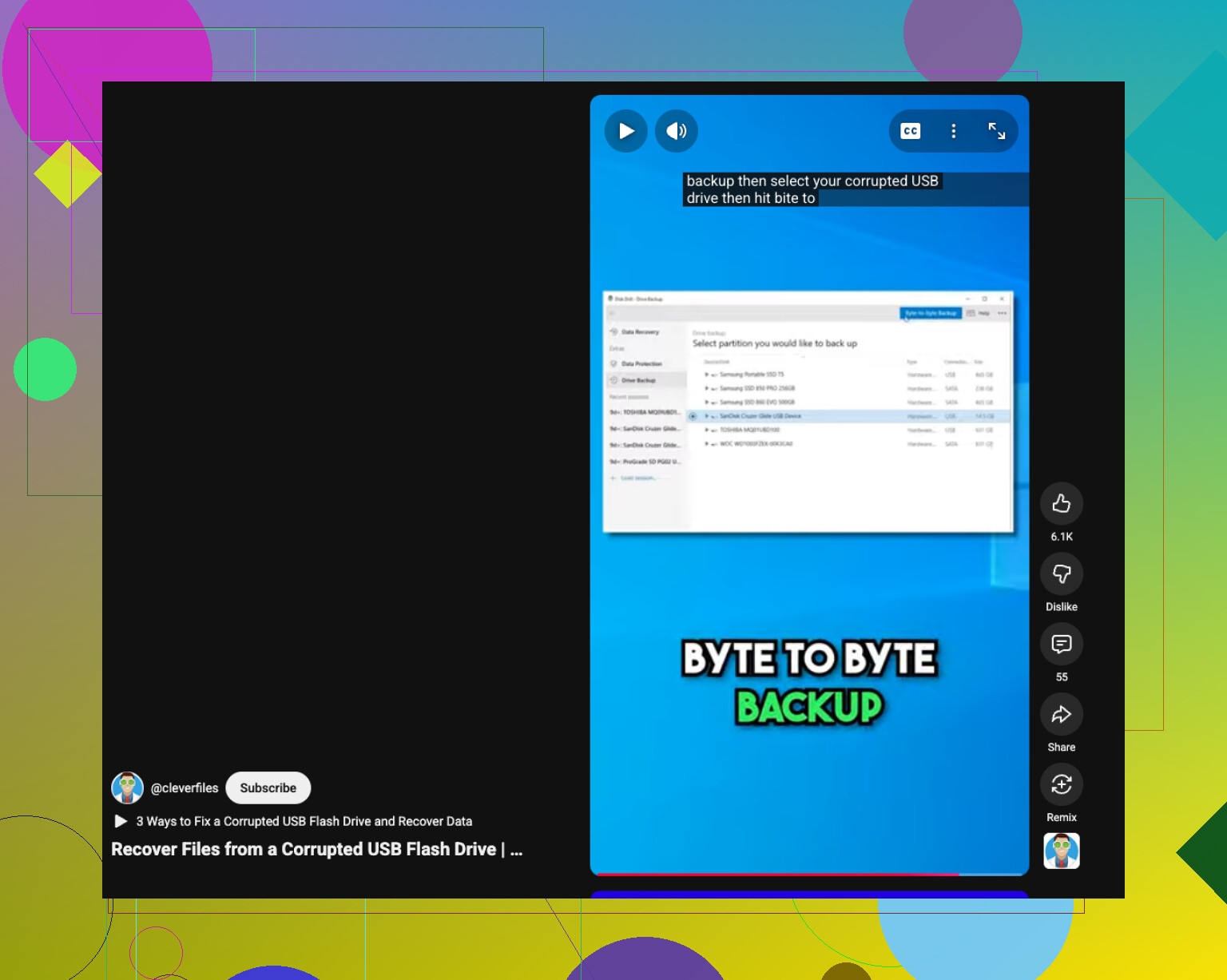
For a quick visual guide, this helps:
recover data from a corrupted USB drive
Don’t run format, error checking, or “repair drive” yet. Those tools help later, not first.
If the files vanished all at once, I’d also check whether the USB is showing the wrong capacity. That’s one clue neither @mikeappsreviewer nor @reveurdenuit really leaned on. If your 64 GB stick suddenly shows something weird like a few MB, that can point to controller or partition-table trouble, not simple deletion.
Another thing: try a Linux live USB or a Mac if you have access to one. I’ve had “empty” flash drives open normally there when Windows acted like the folders didn’t exist. Sounds dumb, but it works often enough to be worth 10 minutes.
Also, if these are mostly photos and office docs, I’d make a full image of the flash drive first with something like USB Image Tool or dd if you know how. Then scan the image instead of the original stick. Safer if the drive is starting to flake out. Kinda nerdy, yes, but less risky.
I do agree with both of them on one thing: don’t format it, don’t let Windows “fix” it yet.
If the drive is stable and detected properly, then yeah, Disk Drill is a reasonable next move because it handles deleted files plus damaged file systems pretty well, and preview helps sort out what’s actually recoverable. If you want a decent explainer first, this is useful: watch this Disk Drill recovery guide and review
If the USB keeps disconnecting, gets super hot, or asks to be initialized, stop messing with it. That’s where DIY recovery goes from “maybe” to “oops, I made it worse.”