I accidentally deleted important files from my hard drive and emptied the Recycle Bin before realizing it. I’m trying to figure out the best way to recover deleted files without making things worse, because some of these documents and photos are really important. Looking for safe hard drive data recovery advice and steps that actually work.
Losing files off an HDD feels bad fast. I’ve been there. The worst move is to keep using the drive like nothing happened.
First step, stop writing anything to it. Don’t install apps on it. Don’t copy files onto it. Don’t shuffle folders around. Every new write raises the odds of overwriting stuff you still might get back.
Also, listen to the drive before you do anything fancy. I mean it. If I hear clicking, scraping, spin-up loops, random disconnects, or the whole system starts hanging when the drive is plugged in, I treat it like a hardware problem first. Same if file browsing turns glacial or the disk drops out of Explorer or Finder for no clear reason. A quick S.M.A.R.T. check with a disk tool helps too. Bad sectors and read errors usually show up there before the drive fully gives up.
If the disk still opens and you’re able to read from it, start with the easy stuff.
Check here first:
- Recycle Bin on Windows
- Trash on Mac
- File History on Windows
- Previous Versions on Windows
- Time Machine on Mac
- Cloud storage trash folders, like OneDrive, Google Drive, Dropbox, and iCloud
A lot of “gone” files are sitting in one of those places. Cloud services especially tend to hold deleted files for 30 days, sometimes longer.
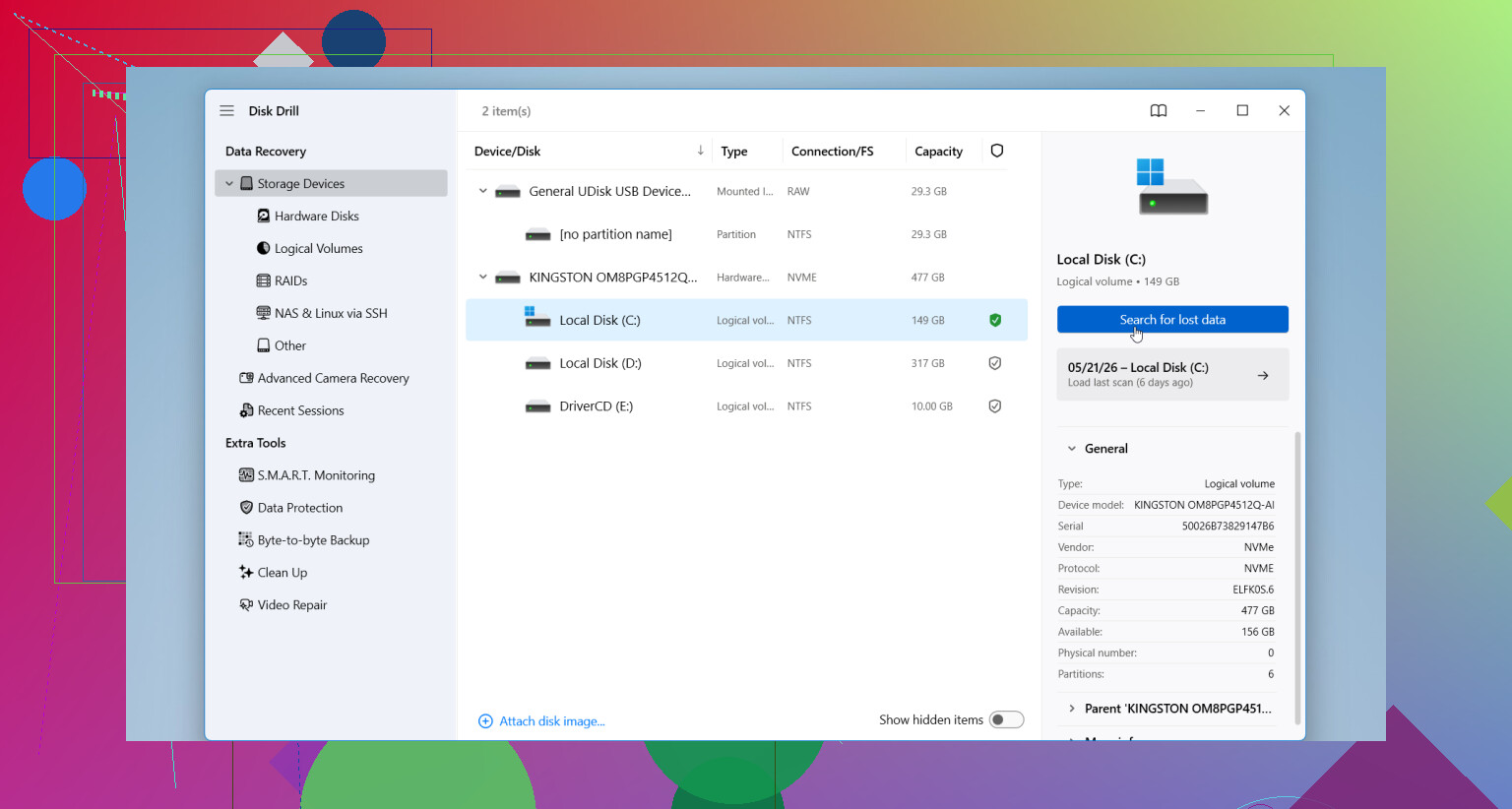
If none of that helps, use recovery software. I’ve seen people start with Disk Drill because it’s simple to get going with and it handles the usual messes well, deleted files, formatted drives, damaged partitions, and RAW disks. The file preview is useful too. If the preview opens, your odds are often better than they looked at first.
What I’d do:
- Plug the HDD into your computer.
- Install the recovery app on a different disk.
- Pick the problem HDD inside the app.
- Run the scan.
- Preview what it finds.
- Save recovered files somewhere else, not onto the same HDD.
That last part matters more than people think. Writing recovered data back to the bad drive is how you trample what’s left.
One more thing. If the drive gets louder while scanning, keeps disconnecting, or locks up the whole machine, stop. Don’t push through it. At that point I’d assume the damage is deeper, and repeated DIY attempts tend to make recovery harder, not easier.
11 Likes
If the drive is healthy and the deletion was recent, your odds are decent. Emptying Recycle Bin does not erase the file data right away. It mostly removes the file table entry until new writes overwrite those sectors.
I agree with @mikeappsreviewer on stopping use. I disagree a bit on scanning the original disk first if the files matter a lot. For an HDD, the safer move is to make a sector-by-sector image of the drive first, then run recovery on the image. Tools like ddrescue on Linux are built for this. If the scan hits weak sectors, you only stress the disk once.
My order would be:
- Remove the drive from normal use.
- Connect it as a secondary drive.
- Check free space. If a lot of new data got written after deletion, recovery odds drop fast.
- Clone or image the whole disk to another drive with equal or larger size.
- Run recovery software against the image, not the source.
- Recover files to a third drive.
For software, Disk Drill is fine if you want a simple UI and preview support. I’d sort results by original folder path and file signature. Photos and docs often recover well. Large video projects and fragmented files are more hit-or-miss, esp on busy drives.
One more tip people skip. Search temp locations and app autosaves. Office, Adobe apps, and some editors keep copies in hidden folders even after deletion.
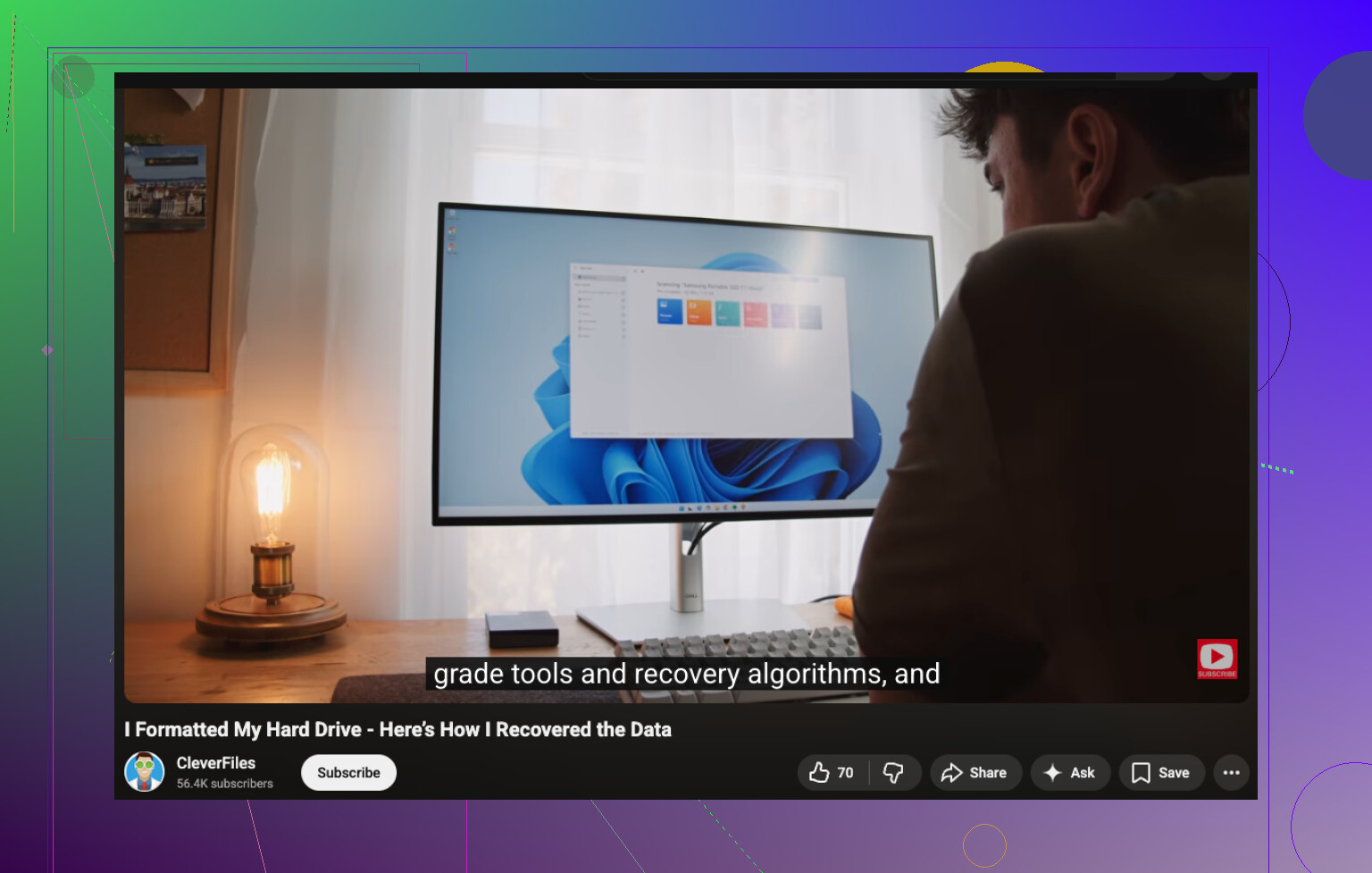
If you want a walkthrough, this hard drive file recovery video guide covers the process in a clean way. It’s worth a watch befroe you do anyhting.
Emptying the Recycle Bin isn’t the same as the data being vaporized, so don’t panic just yet. I agree with @mikeappsreviewer about not using the drive, but I’m a little less sold on people instantly throwing every case into the full imaging workflow from @andarilhonoturno. If this is just a normal healthy HDD and the deletion was recent, sometimes a careful read-only scan is fine. If the files are irreplaceable though, yeah, image first.
One thing I’d add that both kinda skipped: check whether the files were ever indexed, synced, or cached somewhere else. Windows Search, app recent files lists, Adobe cache, Office autorecovery, even email attachments you sent yourself. I’ve recovered “deleted” stuff that way without touching recovery tools at all. Sounds dumb, works suprisingly often.
Also, if the drive is an internal system drive, shut the PC down and connect that HDD to another machine as a secondary disk if you can. Booting from the same drive keeps creating temp writes.
For actual recovery, Disk Drill is a solid pick because it’s easy to preview files before restoring them. That matters, because a giant recovery list is useless if half the files are busted. Just recover to a different drive, not back onto the original one. Seriously, people do this and then wonder why things got worse.
If the HDD starts clicking or freezing the system, stop DIY stuff. That becomes a lab job fast.
If you want more hard drive data recovery software recommendations that are actually worth reading, that thread is decent too.
Small disagreement with @andarilhonoturno here: imaging first is ideal, but not always the best first move if the HDD is healthy and you do not have a spare equal-size drive ready. What I would do before any deep scan is check the file system state. If the deleted files were on NTFS, recovery quality often depends on whether TRIM was involved, whether the drive is actually an HDD not an SSD, and whether the MFT entries are still partly intact. That changes the odds a lot.
A couple things nobody stressed enough:
-
Do not run CHKDSK yet.
People love suggesting it. Bad idea after accidental deletion. It can “fix” metadata in ways that make recovery messier. -
Check if the files were in a library or synced folder.
Sometimes OneDrive Known Folder Move or similar setup means the desktop/documents copy exists in cloud history even when the local copy is gone. -
Recover the most important file types first.
Do not just bulk restore 200 GB of junk. Target docs, project files, spreadsheets, RAW photos first. Less time scanning and less chance of chaos.
On Disk Drill specifically:
Pros:
- easy preview
- good for quick triage
- simple filtering by type
- decent for users who do not want command line tools
Cons:
- deep scans can return messy filename recovery
- not my favorite if you need forensic-level control
- best results still depend heavily on avoiding overwrites
- paid recovery limits can be annoying depending on version
So yeah, @byteguru and @mikeappsreviewer are right about stopping use immediately, and @andarilhonoturno is right that imaging is safest when the files are truly critical. I just would not blindly jump into one path without checking whether the disk is stable and whether easier copies exist first.