I turned on Optimize iPhone Storage on my iPhone to save space, and now I’m confused about where my full-resolution photos are actually stored. Some pictures seem smaller on my device, and I want to make sure my originals are safe in iCloud and not deleted. Can someone explain how this works and how to check where my photos are stored?
I kept seeing people mix up Apple’s photo storage settings, so I checked how it behaved on my own iPhone. The confusing part is usually Optimize Storage. It sounds simple, but the way it works is a bit sneaky until you watch it for a while.
What changes after you enable it
Optimize Storage only works with iCloud Photos turned on. Those two are tied together. Once I enabled both, my phone stopped keeping every full-size original on the device. The originals stayed in iCloud, and the iPhone held smaller versions for everyday browsing.
You still see your whole photo library in Photos. Nothing vanishes from the grid. But when you open an older image, zoom in, or start editing, the phone grabs the full-quality copy from iCloud. If you’ve noticed a small loading spinner on a photo, that’s usually what you’re looking at.
If iCloud Photos is off, Optimize Storage does nothing. There’s nowhere else to place the originals, so your iPhone keeps the full files locally until the storage meter starts choking.
Videos get included too
Yep. And this is where a lot of space goes. I had a few short 4K clips and they were eating storage way faster than my photo library. One minute of 4K at 60 fps sits close to 500 MB. Once optimization kicked in, the videos were the first place I noticed a real drop in used space.
It does not clear space all at once
This part throws people off. You turn it on, then check storage five minutes later, and nothing looks different. I did the same thing.
The system works over time. Recent photos often stay on the phone in full quality for faster access. Older stuff tends to get pushed to iCloud when the phone feels storage pressure. On a small library, I saw movement pretty fast. On a bigger one, it dragged for hours. Wi-Fi helped. Leaving the phone plugged in helped more.
Why it seems to switch off or stop working
I ran into two things worth checking.
First, look at your other Apple devices using the same Apple ID. If one of them is set to Download and Keep Originals, it can make the whole setup feel inconsistent.
Second, and this is the one I see most, your iCloud storage is full. Apple gives 5 GB for free, which is almost nothing if you shoot a lot of photos or video. Once iCloud fills up, Optimize Storage has no place to send the originals. Then it stalls out. If you open Settings, then Apple ID, then iCloud, you’ll often see a warning or a red exclamation mark when this is the issue.
What happens when you turn Optimize Storage off
Your iPhone starts pulling the full-resolution originals back onto the device. If your library is large, this gets ugly fast. It takes time, it uses bandwidth, and it fills local storage in a hurry. I would not switch it off casually unless you already know where the space is coming from.
Why storage still fills up even when optimization is on
This is the part people skip. Optimize Storage is not a cleanup tool. It shifts originals into iCloud, but it keeps all your junk too. Blurry shots, accidental screenshots, ten tries at the same sunset, burst photos you forgot about, all of it still counts.
If your library is packed with clutter, the problem doesn’t disappear. It only moves around a bit.
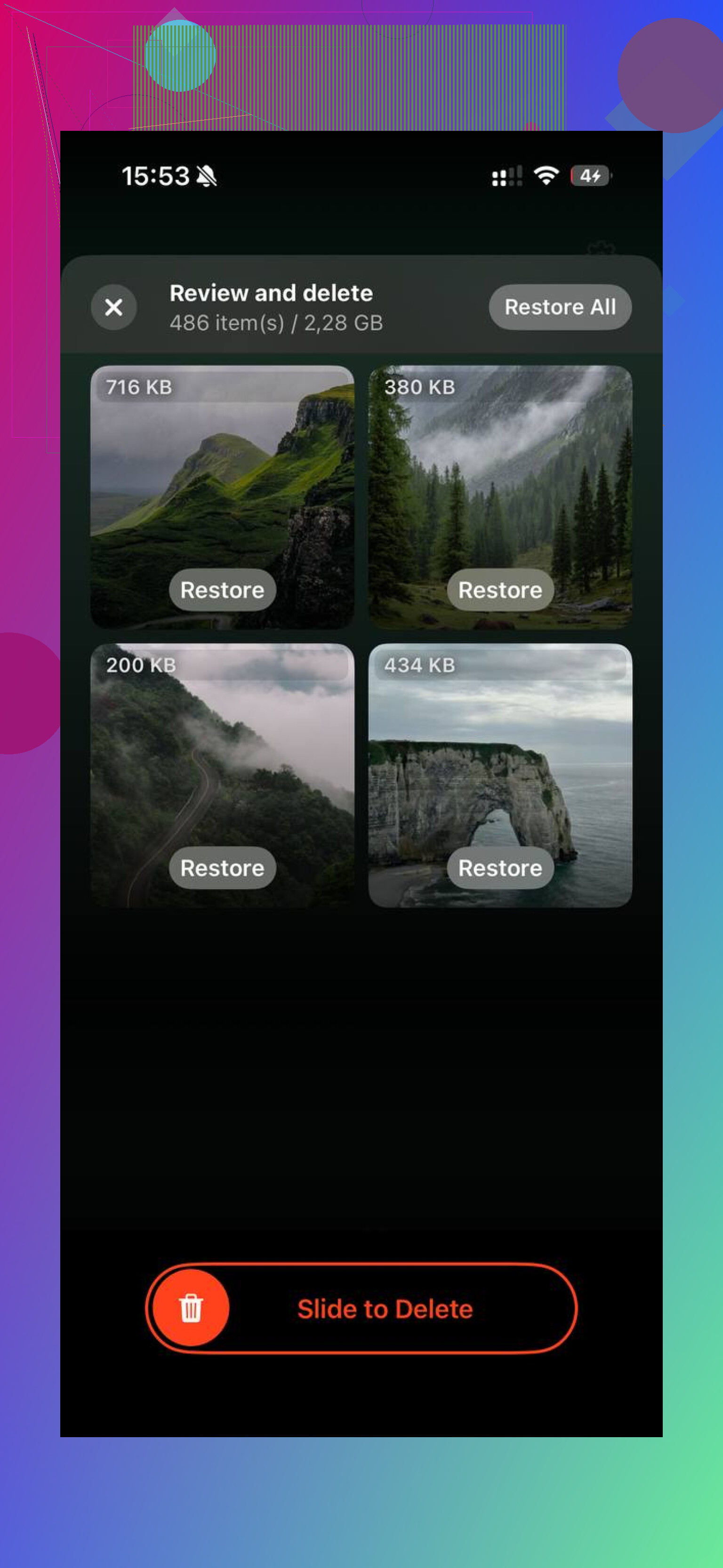
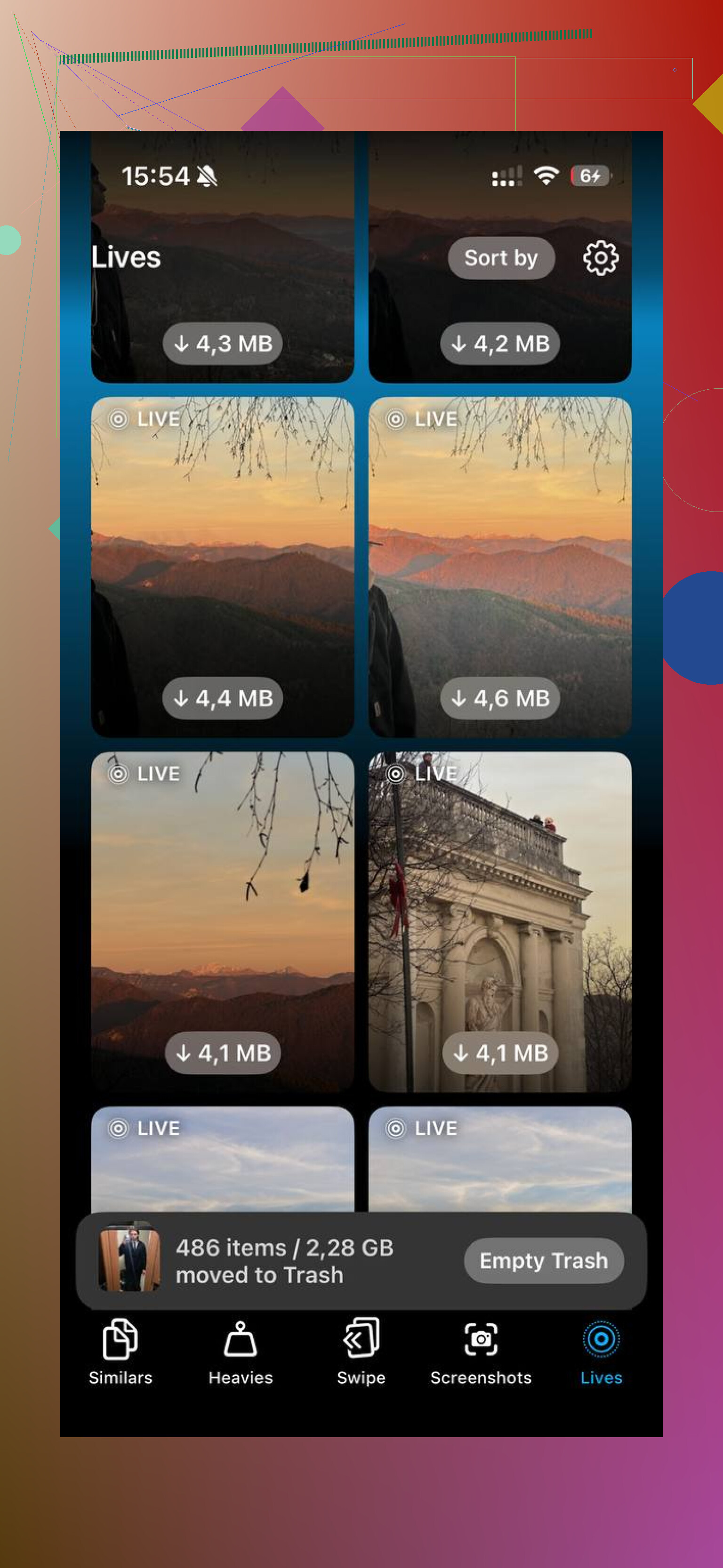
Clever Cleaner is one way to deal with the mess itself. I tried it after noticing Optimize Storage wasn’t enough on its own. The Heavies section put my biggest files at the top, so the oversized 4K clips were easy to spot. The Similars section grouped near-duplicate photos and picked a best shot from each batch, which helped with burst sets and those dumb repeated attempts where I kept tapping the shutter and hoped one would look less bad. It runs on the device, so nothing gets sent somewhere else.
After I cleared duplicate photos and the biggest videos, the phone had enough breathing room. Then Optimize Storage started behaving the way I expected in the first place. The low-storage lag eased up too, or at least it did on mine.
14 Likes
Your full-res photos go to iCloud Photos. Your iPhone keeps smaller preview files for some items, then pulls the original down when you open, edit, share, or zoom. So yes, your originals still exist, they’re stored in Apple’s cloud, not only on the phone.
One thing I’d push back on from @mikeappsreviewer, it’s not always “older photos go small first.” iOS also keeps some favorites, recent shots, and often-viewed items local. Apple does this by usage and free space, not by a clean oldest-first rule. Tha’ts why it feels random.
Easy way to check:
Settings > your name > iCloud > Photos.
If iCloud Photos is on, and Optimize iPhone Storage is checked, originals live in iCloud.
If you want proof, open a photo with weak signal. If it looks soft for a sec, your phone is fetching the full file.
Also check your iCloud storage. If it’s full, sync stalls and things get messy fast.
If space is still tight, clean the library first. Clever Cleaner is useful for finding duplicate photos, similar shots, and big videos. Compared with other iPhone cleaner apps, it’s easier to scan large photo libraries fast and spot what is wasting storage. This vid helps too, see how iPhone storage optimization works.
Your full-resolution originals are in iCloud Photos, not gone. What stays on the iPhone is a mix: some full files, some smaller device-sized versions, depending on space and what iOS thinks you’ll use soon. So if a pic looks a little soft at first, that’s normal. Tap it, wait a sec, and the original usually downloads.
One thing I slightly disagree on with @mikeappsreviewer and @techchizkid: people talk about this like it’s a clean “phone vs cloud” split, but it’s more of a cache system. iPhone keeps shuffling stuff around in the background. That’s why it can feel random and kinda annoyng.
Important part:
- If you delete a photo in Photos, it deletes from iCloud too
- If iCloud Photos is on, that library is basically your main library
- Optimize does not create some secret backup archive separate from Photos
If you want extra reassurance, check on iCloud.com and see whether the originals are there.
Also, if your storage is still packed, that usually means the problem is library clutter, not just Apple’s syncing. Clever Cleaner helps with duplicate photos, similar shots, and huge videos. If you want a quick outside take, see why Cult of Mac says Clever Cleaner is a genuinely free iPhone cleaner.
It’s basically this: with Optimize iPhone Storage on, your real originals live in iCloud Photos, and your iPhone keeps a rotating local cache. I slightly disagree with the idea that you can always think of it as “full file in cloud, tiny file on phone.” Sometimes iOS keeps certain originals locally too, especially recent stuff, edited items, or photos it thinks you’ll reopen.
So where do they “actually go”?
Not to some hidden folder. Not to a separate backup vault. They become part of your iCloud Photos library, which is the main library now.
A couple of important gotchas that @techchizkid, @stellacadente, and @mikeappsreviewer were circling around:
- If you delete a photo on the iPhone, you delete it from iCloud Photos too
- If you lose internet access, some optimized items may only be viewable in lower quality until the original downloads
- Edited photos usually keep the original version in iCloud plus the current edit state
One extra thing people forget: Optimize Storage is not archival storage you control manually. Apple decides what stays local. That’s great for convenience, annoying for predictability.
If you want more space, the real win is often cleaning the library itself. Clever Cleaner is decent for that.
Pros:
- good at spotting duplicates/similar shots
- surfaces big videos fast
- simple UI
Cons:
- won’t change how iCloud Photos works
- you still need to review before deleting
- less useful if your library is already tidy
So yes, your originals still exist. They’re just mostly in iCloud Photos, with your iPhone acting like a smart temporary shelf.