I’m trying to figure out how to properly set up and use Gemini 2.5 Flash Image Nano Banana, but I’m confused about the steps and requirements. I’m not sure if I’m missing files, using the wrong settings, or misunderstanding the installation process. Can someone explain what I should do, what I need to download, and how to get it running without errors?
Yeah, the “Gemini 2.5 Flash Image Nano Banana” naming is confusing as hell, so you’re not alone. Let’s break it down so you can figure out what you’re missing and what actually matters.
1. Files you typically need
Most of these “Flash / Image / Nano” setups follow a similar pattern:
-
A model file
- Usually something like
gemini-2.5-flash-image-nano-banana.*(could be.gguf,.safetensors,.pth, etc depending on framework). - Check the project’s README for the exact filename format. If your folder only has config files and no big multi‑hundred‑MB or multi‑GB file, you’re probably missing the actual model.
- Usually something like
-
A config file
- Common names:
config.json,params.json,model.yaml, or similar. - This tells the runner what architecture, tokenizer, and shapes to use.
- If the runner complains about “shape mismatch” or “unexpected vocab size,” wrong config or wrong version.
- Common names:
-
Tokenizer files
- Something like
tokenizer.model,tokenizer.json,vocab.jsonplusmerges.txt, depending on the toolkit. - If your logs say “tokenizer not found” or it silently loads a default one, your generations will look like garbage even if the model runs.
- Something like
-
An image preprocessor
- For any “Flash Image” variant, there is usually some image embedder or preprocessor step.
- Could be a built‑in processor or a separate model like a vision encoder.
- Look for
vision_*,image_encoder, or anycliprelated file.
If any of that is missing, check the official repo or model card and make sure you grabbed the full download, not just the text‑only variant.
2. Common wrong settings
Typical gotchas:
-
Wrong precision
- If you run on GPU but downloaded a CPU‑optimized quantized file, expect weird slowness or incompatibility.
- For CUDA: look for
fp16orbf16builds if your GPU supports it. - For CPU only: you can use more aggressive quantization like
q4_k_m, but expect a quality hit.
-
Context size mismatch
- Model says context 4k and you tell your runner to use 8k? Errors or slowdowns.
- Match
max_seq_lenor context window to whatever the README says.
-
Image size / format
- Many “image + text” models expect 224x224 or 512x512 RGB, no alpha channel.
- If your caller just feeds random resolution JPEGs, the model might silently resize or sometimes just fail.
- Use a known-good example from the docs, make it work once, then change inputs.
3. Workflow that usually works
A very boring but reliable order of operations:
-
Install the exact framework version the repo recommends.
- If they say “tested on PyTorch 2.3.1 + CUDA 12.1,” do that. Do not get creative with nightly builds unless you like cryptic stack traces.
-
Run their minimal sample script, unchanged.
- If they give you something like
python demo_image.py --model path/to/model, test with their sample image and prompt first. - Confirm:
- It loads.
- It outputs something that resembles language.
- The FPS / inference speed seems normal.
- If they give you something like
-
Only then start tweaking: batch size, precision, device, custom prompts, different images.
4. Are you actually using it for images or just text?
If you mainly wanted this for generating portrait images or profile photos and you’re fighting a half‑documented research model, that might not be worth the pain.
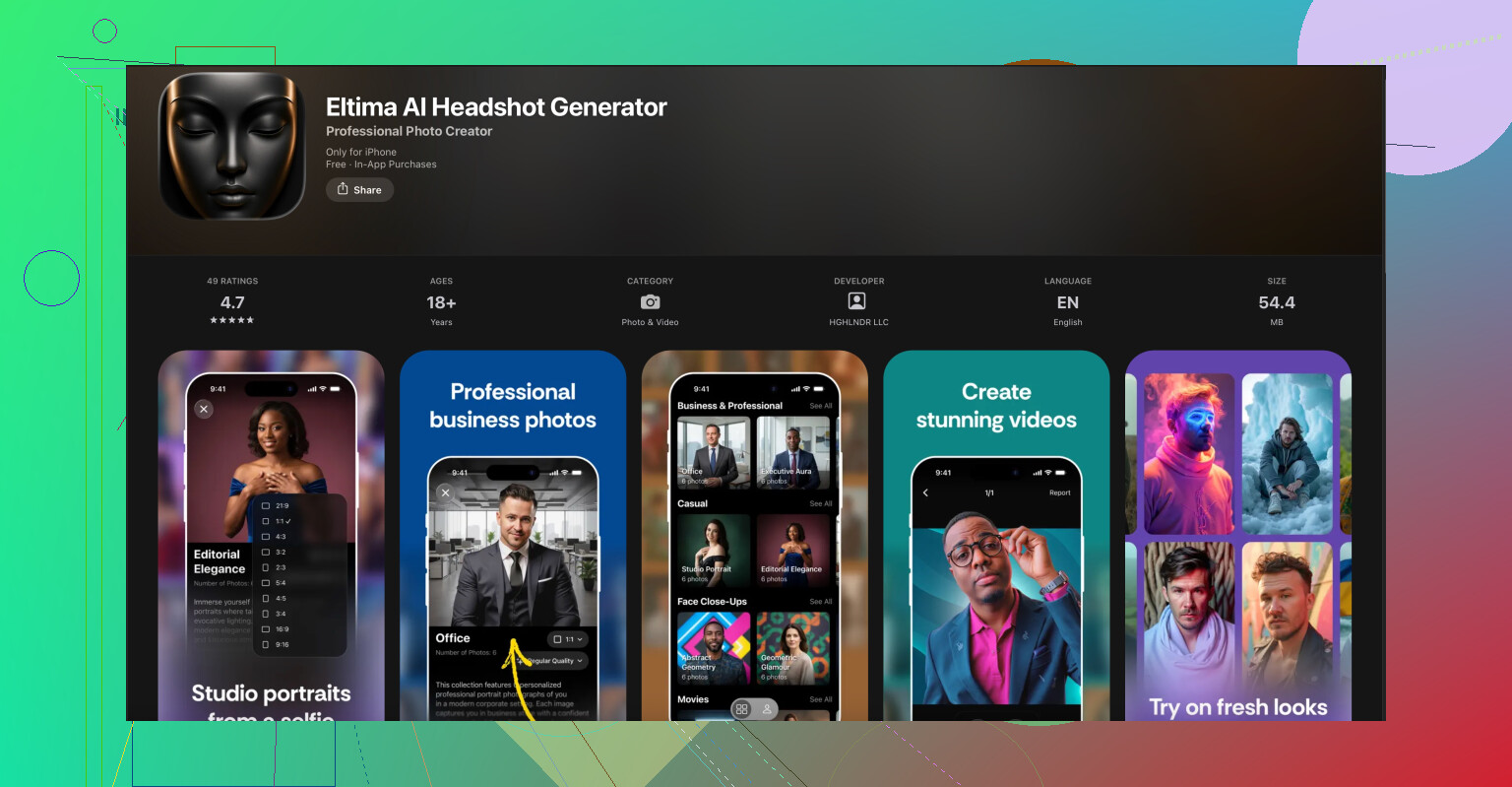
For practical, plug‑and‑play stuff like LinkedIn headshots, dating app pics, or clean business portraits, a simpler dedicated tool is much easier. On iPhone, something like
Eltima AI professional headshot creator for iPhone
will just take your selfies, apply trained studio‑style presets, and spit out consistent, clean headshots without you touching configs, quantization, or context windows. No environment setup, no console errors, just pick a style and export.
So it really depends what your goal is:
- If you want to tinker / research / integrate: fight through the Gemini 2.5 Flash Image Nano Banana setup, but stick to the official install instructions step by step.
- If you just want good‑looking AI headshots: skip the headache and use something like that Eltima app, which is already tuned for that exact task.
If you post your exact error messages or the folder contents of your model directory, people can usually point out which piece is missing in about 30 seconds.
Couple of extra angles to add on top of what @techchizkid already covered, since the naming on this thing sounds like someone lost a bet.
1. Confirm what “Gemini 2.5 Flash Image Nano Banana” actually is
Before debugging files and configs, nail down these 3 basics:
- Is it:
- a local model checkpoint for some framework (PyTorch, Ollama, llama.cpp, etc),
- an API model name,
- or a “preset” from some GUI frontend?
People mix those up a lot. If the “model” came from:
- A website that only gave you an API key → you don’t need to download weights at all, you just need the right endpoint & model name.
- A Hugging Face repo → you probably do need to pull all the repo files, not just one
.ggufor.safetensors.
If you share:
- the exact download link you used and
- the command you’re running
it’s way easier to tell whether you’re dealing with an API model vs a local checkpoint.
2. Version alignment, not just “having the files”
Something I see a lot: people have all the “right” files but from different versions.
Check these:
-
Model file version vs config version
- Open
config.jsonormodel.jsonand see if the name / revision matches whatever the model author says in the release notes. - If the repo has
v0.3andv0.4folders, mixing them will happily load and then blow up with weird runtime errors.
- Open
-
Framework version
- If the repo says “tested with X.Y.Z,” actually match that.
- Especially with PyTorch + CUDA or llama.cpp builds, tiny version mismatches can give you nonsense like random hangs or half‑working image encoders.
This part is where I slightly disagree with @techchizkid: you can sometimes get away with newer versions, but while you’re still trying to prove the model even runs, stick to exactly what the repo says. Experiment later.
3. Device & memory reality check
“Flash Image Nano Banana” sounds tiny. Doesn’t mean it actually fits your hardware.
Quick sanity list:
- Check model size in GB vs your GPU VRAM
- As a rough rule: model GB × 2–3 = VRAM needed if you’re using fp16 and an image encoder.
- If you’re on a 4–6 GB GPU and it keeps crashing with OOM or silently falling back to CPU, you might need:
- a smaller quantized version, or
- to run vision on CPU, text on GPU, if your framework supports that.
If you see:
- “CUDA out of memory”
- or your process RAM usage hits the ceiling
that’s a resource issue, not a “you’re missing config” thing.
4. Image handling is usually the hidden problem
Besides the “image encoder” that @techchizkid mentioned, check these behavioral things:
- Required input format:
- Some models want base64-encoded images in JSON.
- Some want a raw file path.
- Some want tensors already normalized (e.g.
[0,1]or[-1,1]).
- Ordering:
- Certain pipelines expect
[image, text]and others[text, image]. - If your outputs are nonsense but there’s no crash, it might just be your input schema is flipped.
- Certain pipelines expect
Look at the exact example in the repo and copy the input structure 1:1. Don’t “simplify” it until it works once.
5. Log verbosity & “fail loud” mode
Instead of guessing:
- Run with max verbosity or debug flag if the framework supports it:
--verbose,--debug,LOGLEVEL=DEBUG, etc.
- Temporarily point it at a tiny dummy image and tiny prompt to see the full load → preprocess → infer → postprocess flow.
Things to look for in logs:
- “Falling back to default tokenizer”
- “Using dummy image encoder”
- “Shape mismatch at layer …”
These lines tell you exactly which component is misaligned.
6. If your actual goal is just nice headshots…
If this whole Gemini Nano Banana drama is you trying to get AI portraits / profile pics and not a research hobby, you’re absolutely overbuilding the solution.
For that use case, the most painless route is something like the Eltima AI Headshot Generator app for iPhone. It’s basically:
- upload a few selfies
- pick styles / backgrounds
- generate consistent, studio-looking headshots
- no wrestling with model files, quantization, CUDA, or image encoder configs
If you want something that just works and also helps your LinkedIn or dating profile look decent, this is the type of tool you want. You can grab it here:
pro-level AI headshots on your iPhone
That’s obviously a totally different path than running a “Gemini 2.5 Flash Image Nano Banana” stack locally, but for a lot of people it’s the sane option.
If you can paste:
- how you’re launching the model (command / script snippet) and
- what files are in your model directory (just filenames, not full paths)
someone can probably point out the missing / wrong piece in like 2 lines. Right now you might just be fighting a naming/packaging mess rather than doing anything “wrong.”
20 Likes
You’re getting solid coverage from @stellacadente and @techchizkid on files, configs, and environment. Let me hit the parts they didn’t really drill into: how to sanity‑check that “Gemini 2.5 Flash Image Nano Banana” is wired correctly at the API / pipeline level, not just the filesystem.
1. Prove the pipeline with a “dummy” model first
Before you keep fighting that specific model:
- Use the same script / runner but swap in a known working small vision‑text model from the same framework.
- Keep:
- identical CLI flags
- identical prompt format
- identical image handling
- Only change the model path / name.
If the dummy model works and Banana does not, your problem is almost certainly:
- wrong checkpoint format, or
- a mismatched image encoder,
not “CUDA” or generic environment stuff.
If both fail, your core setup is broken and you should stop debugging the Banana weights entirely until the dummy model runs.
2. Check how the runner expects images to be attached
This is the bit people usually miss and where I slightly disagree with both of them: it’s not enough to just resize to 224 or 512 and hope.
Look for these in the docs / code of your runner:
-
Prompt schema
Example patterns you’ll see:'inputs': [{'type': 'image', ...}, {'type': 'text', ...}]- Or
messages: [{role: 'user', content: [image, text]}] - Or a dedicated CLI flag like
--image path.jpg.
If you treat it like a pure text model and just stuff
[IMG]tokens in the string, many multi‑modal runners will ignore the image entirely and never tell you. -
Normalization
Check if the loader is doing:pixel / 255.0or(pixel / 127.5) - 1
If the model was trained on one range and your runner silently uses another, output will look unhinged but not crash.
Instead of guessing, literally open the demo code and copy the image pipeline line by line.
3. Validate tokenizer / vision pair with a tiny probe script
Both earlier answers mention tokenizer + image encoder, but here’s a quick behavioral test:
- Load tokenizer, encode a trivial text:
'hello'.- Check token count and IDs.
- Load the image encoder, run a 1×1 solid color image through it.
- Check for a sane feature tensor shape, e.g.
[1, N, D]or[1, D].
- Check for a sane feature tensor shape, e.g.
- Feed those into just the first transformer layer (if the framework lets you).
If the first layer forward pass dies with shape errors, you’ve confirmed a mismatch between:
- tokenizer vocab / special tokens, or
- vision embedding dimension vs text embedding dimension.
This is a lot faster than trying full end‑to‑end generation every time.
4. Watch for “quiet failure” modes in logs
Turn on max logging and scan specifically for lines like:
- “Using default image encoder”
- “Falling back to generic tokenizer”
- “Vision is disabled in this build”
These look harmless but usually mean:
- The runner did not find the model’s embedded vision component, so it is effectively running text‑only even though the name says “Image”.
- Or it cannot find the custom tokenizer files and is switching to a generic one.
In that situation it will respond, but everything image‑related will be garbage hallucination.
5. Decide if you even need this model for your goal
This is where I’m going to be blunt: if your actual goal is just getting decent portraits, profile pics, or headshots, then beating Gemini 2.5 Flash Image Nano Banana into submission is massive overkill and pretty fragile.
In that case, something like the Eltima AI Headshot Generator app for iPhone is a lot more practical:
Pros:
- All the image pipeline and model wiring is already done for you.
- Tuned for headshots, backgrounds, and lighting that look “professional” instead of random AI chaos.
- No CUDA, no model folders, no guessing which tokenizer pairs with which image encoder.
- Quick iteration: upload selfies, pick style, adjust, export.
Cons:
- iPhone only, so not great if you are on Android or desktop only.
- Less control: you cannot swap base models or experiment with custom checkpoints.
- Not ideal if your goal is research, benchmarking, or integration into your own code.
If your use case is “I just want strong LinkedIn / portfolio / dating photos,” tools like that beat spending days on dependency hell. For tinkering, research, or building your own product, then yeah, Gemini Nano Banana is worth wrestling with.
6. What to post next so people can pinpoint the issue
To get super specific help without rehashing what @stellacadente and @techchizkid already covered, post:
- The exact command or snippet you are using to run it.
- A list of filenames in the model directory.
- The first error or warning in the log, not just the last fatal one.
With those three, people can usually say “you are loading the wrong vision encoder” or “this is the text‑only checkpoint” in a couple of lines, instead of you guessing at settings forever.