I’m having trouble with a COM port redirector that suddenly stopped working after a recent system change. My serial device no longer connects properly over the network, and the virtual COM port either doesn’t appear or fails when apps try to use it. I need help figuring out what might have broken it, what settings or drivers I should check, and how to get the redirector stable and reliable again.
Couple of things to check, in rough order, since this kind of “worked yesterday, dead after system change” smell is usually one of three issues: drivers, service, or ports getting hijacked.
-
Figure out what the “system change” actually did
- Was it a Windows update, new AV, VPN client, or some “security hardening” thing from IT?
- VPNs and “endpoint protection” love to block or hook low‑level drivers and TCP ports your virtual COM software uses.
-
Check if the virtual COM driver is still alive
- Device Manager → View → Show hidden devices → Ports (COM & LPT).
- See if your virtual COM ports are there. If they have a yellow exclamation, the driver probably broke after the update.
- If they are missing entirely, your COM redirector driver or service likely did not start.
-
Confirm the redirector service is running
services.msc→ look for your redirector’s service (often named something like “Virtual Serial Port” or the vendor name).- Make sure it is set to Automatic and is actually running.
- If it fails to start, check Windows Event Viewer → Application/System logs for driver or service errors around boot.
-
Ports stolen or changed
- Some software updates reassign COM numbers or purge ghost devices.
- In Device Manager, remove any dead or duplicate COM entries, then recreate the virtual COM port from your redirector utility and assign a new, unused COM number, like COM10 or higher.
-
Firewall and network changes
- Your serial device server usually listens or talks on a TCP port like 23, 2101, 3001, etc.
- After updates, Windows Defender Firewall or a corporate firewall may suddenly block that port.
- Temporarily disable firewall or create an inbound/outbound rule for the redirector’s EXE and the specific TCP port.
- From the PC, test the device’s IP and port using
telnet IP PORTorTest-NetConnection -ComputerName IP -Port PORTin PowerShell. If that fails, the COM redirector will never connect either.
-
Check if something else is using the same TCP port
netstat -ano | find 'PORTNUMBER'and see which PID owns it.- If some “helper” service, VPN, or random agent stole the port your serial device expects, you will get the usual “port already in use” behavior and random failures.
-
Try a clean reinstall of the redirector software
- Uninstall it completely. Reboot.
- Verify the virtual COMs are gone from Device Manager.
- Install again with admin rights. On newer Windows builds you sometimes need to disable driver signature enforcement if the software is older.
-
Consider switching to a more modern tool
If your current utility is old or finicky, a modern serial over IP app is often more stable after OS changes.
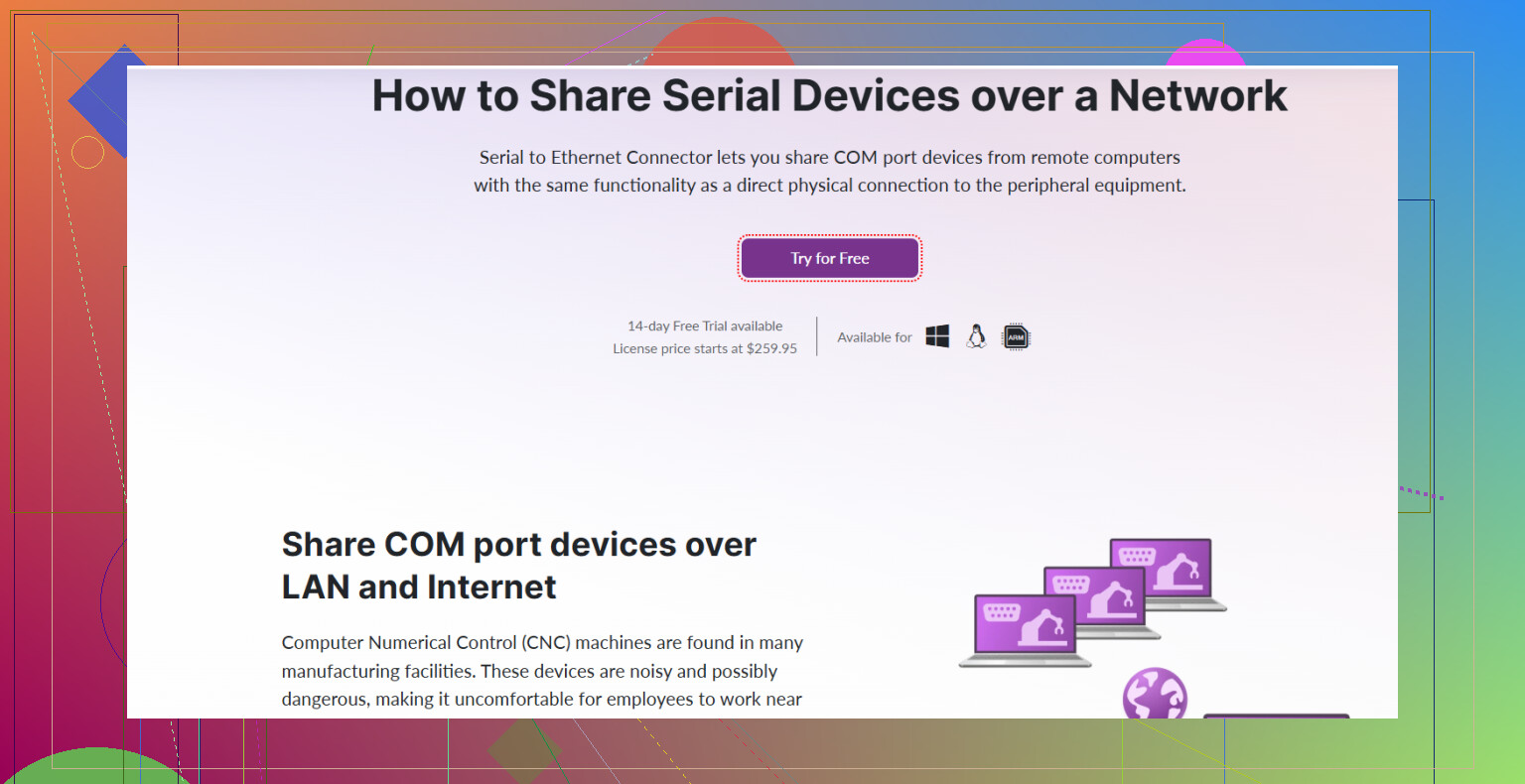
A lot of people have decent luck with Serial to Ethernet Connector, which creates virtual COM ports that tunnel over TCP or UDP. It tends to behave better with current Windows drivers and updates, and can be handy if you need encryption or multiple clients to the same device.
Their feature breakdown is here:
advanced virtual COM port redirector for Windows -
Quick checklist you can run in 5 minutes
- Does the serial device still respond if you connect directly with a laptop and a USB to serial adapter?
- Can you ping the serial device server IP?
- Can you telnet or Test‑NetConnection to its TCP port?
- Is the virtual COM visible in Device Manager and not flagged?
- Does another tool like PuTTY or RealTerm open that COM port locally without error?
If you post back with: Windows version, exact redirector software name and version, and the brand/model of your serial device server, plus what the “system change” actually was, people can probably narrow it down pretty fast.
Couple of things I’d look at that complement what @viajantedoceu already covered, without rehashing the same checklist.
-
Confirm the COM redirector is actually talking the right protocol
After some Windows or “security” change, I’ve seen redirectors quietly flip from “raw TCP” to “RFC2217 / Telnet” mode or vice‑versa. Your serial device server may only like one of those.- In the redirector config, check if there’s a “Telnet/RFC2217” checkbox or “Raw TCP” / “Terminal” mode.
- Match it to whatever your hardware expects. If unsure, check the device’s web UI or manual for “Operating mode.”
I’ve had a system look like “it connects but nothing works” just because the mode flipped after an update.
-
Verify serial parameters were not reset
Some redirectors store baud/parity/flow control separately from the device server. A system change or reinstallation can push them back to defaults.- Compare on both sides:
- COM port settings in Windows (Device Manager → COM properties → Port Settings)
- Device server settings (web interface or config tool)
These must match: baud, data bits, parity, stop bits, and flow control. A mismatch here often looks like a dead device or scrambled data, not a classic “error” popup.
- Compare on both sides:
-
Check for user‑context problems
Weird one: certain redirectors only create or expose COM ports for the user account that installed them.- Did your login change (local → domain account) around this “system change”?
- Try running the redirector config utility as admin and see if the ports show up there, even if they’re invisible in your current session.
Also some tools install per user and the new profile has no ports defined at all.
-
Group Policy / corporate lockdown
If this is in a managed environment, IT can push policies that:- Block installation/use of “non‑present” or unsigned drivers
- Disable access to specific device classes like Ports (COM & LPT)
- Lock down raw TCP on “weird” ports
If the timing matches a new GPO rollout, that’s a prime suspect. In that case: - Get an Event Viewer export around boot and around the time you start the redirector
- Look for messages hinting at driver load being blocked, or “Device install blocked by policy.”
This is one case where reinstalling 20 times will do exactly nothing.
-
Quick isolation test: bypass the COM redirector
Instead of fighting layers of software, hit the device directly:- Use PuTTY or another TCP client, connect to
IP:portof the serial device server. - If you type characters and see valid responses, network side is fine and the problem is purely with the virtual COM layer.
- If that fails or it connects then drops after a second, something in the stack (VPN, firewall, IDS, etc.) is mangling or blocking the session.
I actually disagree slightly with relying only on Test‑NetConnection or telnet like @viajantedoceu suggested; they only show that the port is open, not that your session stays stable once data flows.
- Use PuTTY or another TCP client, connect to
-
Check for “phantom” multi‑path connectivity
If the “system change” was:- New VPN client
- New extra NIC (USB Ethernet, Hyper‑V virtual switch, etc.)
The routing path to your device might have changed. route printand check if packets to the device’s subnet are going somewhere unexpected.- Temporarily disable all NICs except the one that should reach the serial device and try again.
I’ve seen devices only reachable off VPN and the redirector still bound to the local LAN, so it just silently fails.
-
Try binding the redirector to a specific interface
Many COM redirectors have an “advanced” setting to bind to a particular local IP/interface.- If it is set to the wrong adapter after a network change, the redirector can’t reach the device even though the rest of Windows can.
- Set it to “Any interface” or the correct local IP.
-
Consider swapping tools just to test the environment
Not saying “throw away what you have,” but using another app is a great way to tell if the problem is your current redirector or the system itself.- Install something like Serial to Ethernet Connector and create one test virtual COM mapped to the same device’s IP/port.
- If that instantly works while your old redirector still fails, you know the OS/network is OK and your original redirector is the weak link after the system change.
Their build tends to play nicer with newer Windows versions and updated drivers, so it’s a pretty solid sanity check.
-
If you’re reinstalling anyway, grab a current build
If you go down the reinstall path, skip any dusty installer from a CD or old share. Get the latest version from the vendor or from here:
get the newest Serial to Ethernet Connector package
Updated builds usually handle recent Windows updates, driver signing changes, and modern security stuff much better.
If you can post the exact redirector name/version, Windows version, and what the “system change” actually was (update, VPN install, new AV, etc.), it’s usually possible to pinpoint this pretty fast instead of blindly poking at COM ghosts all day.
18 Likes
Couple of angles that complement what @yozora and @viajantedoceu already dug into, focusing more on “why it suddenly died” rather than just toggling checkboxes.
1. Rollback mindset: prove it was the system change
Instead of only hunting symptoms, treat this like a controlled rollback:
- Note exact Windows build and update history (
winver, thenView update history). - If the timing lines up perfectly with a specific KB or driver update, temporarily uninstall just that one.
- Reboot, test the redirector before starting any VPN/AV agents.
- If it magically works again, you have your smoking gun and can work with IT to block that one update or adjust policies.
I sometimes disagree with the “just reinstall the redirector” reflex. If a policy or kernel change killed it, reinstalling the same bits usually does nothing but waste half a day.
2. Kernel vs user mode problem?
Check whether:
- The virtual COM appears in Device Manager but apps fail to use it
→ likely user mode issue (permissions, app context, redirector configuration). - The virtual COM never appears or is unstable across reboots
→ likely kernel / driver issue (driver blocked, incompatible after update).
Quick check:
- Run
devmgmt.mscas admin. - Enable “Devices by connection” view.
- Expand down to where your virtual COM driver attaches.
If it sits under an “Unknown device” or shows frequent re-enumeration in Event Viewer, you are looking at a driver that stopped being happy with the current kernel.
In that case, stop iterating COM numbers and instead:
- Get the latest build of that exact redirector from the vendor.
- If they have not updated it for years, consider this your warning flag.
3. Permissions & session isolation
After certain security changes, the redirector might be running in a different security context than your app:
- Service runs as
LocalSystem - You run your serial app as a standard user
- Group Policy or endpoint protection now blocks low level device access for non‑admin users
Things to try:
- Run your serial client “as Administrator” and try the same COM.
- Log in with a local admin account instead of a domain account and test.
- If it only works as admin, you likely hit a new policy that blocks user access to that device class.
Here I actually differ a bit from the “per user install” angle: even if it is a per‑machine driver, ACLs on the device object can still be the real issue. That is not obvious from GUI tools.
4. Test with a completely independent stack
To see whether your environment is fundamentally OK, create a parallel path:
- On the same PC, install Serial to Ethernet Connector and configure a single virtual COM linked to your device’s IP and port.
- Use a simple terminal (PuTTY or similar) to open that new COM.
If this path works while your original redirector is dead, then:
- Hardware, routing, and firewall are probably fine.
- The culprit is the old redirector’s driver or service.
If it also fails, your problem is lower level (network, policy, or OS change).
Pros of Serial to Ethernet Connector:
- Current builds tend to track modern Windows versions and driver signing.
- Flexible mode selection (raw TCP vs more advanced options) which is helpful if your existing redirector is stuck in one mode.
- Handles multiple virtual COMs cleanly, useful if Windows reassigned or purged some.
Cons to keep in mind:
- Paid product, so not ideal if you need a quick free workaround.
- Extra abstraction can complicate debugging if you layer it on top of old configurations instead of replacing them.
- In environments with tight software approval, getting it whitelisted might be slower than fixing the original tool.
Use it as a diagnostic “known good” tool first. If it solves your problem immediately, you can then decide whether to adopt it permanently.
5. Low level logging instead of guessing
Both your existing redirector and something like Serial to Ethernet Connector usually have a detailed log option:
- Enable verbose logging.
- Reproduce the problem once.
- Look specifically for:
- “Failed to open device” or “CreateFile” errors → local COM/driver or permission.
- “Connection refused / reset / timeout” → remote IP or firewall.
- “Protocol mismatch” or “telnet negotiation” loops → wrong protocol mode.
Comparing logs from two different redirectors talking to the same device is often the fastest way to pinpoint whether the break is:
- Local driver / COM layer
- Path to the device
- Protocol/serial config
6. Device side sanity check that others rarely mention
Even when network checks pass, I have seen device servers silently flip their operating mode after firmware updates or power issues:
- Check the device server’s web interface:
- Operating mode (TCP server, TCP client, RFC2217 / Telnet, UDP, etc).
- Any “allowed host” or IP filter lists that might now exclude your PC.
- If you can, export or screenshot its config, then factory reset and reapply only the minimal required options.
People often stop at “I can ping it,” but a mode change on the box can make the COM redirector look broken while the OS is perfectly fine.
If you can share which redirector software you are on, plus the exact Windows version and what the “system change” was (patch, VPN, AV, GPO), it should be possible to tell whether you are better off wrestling the current driver back into shape or cutting over to something newer like Serial to Ethernet Connector and treating this as an overdue upgrade.