I’m trying to control my Panasonic TV with my iPhone, but the apps I’ve found either don’t connect, crash, or won’t detect my TV on the same WiFi network. I’ve checked my TV settings and restarted everything, but nothing seems to help. Can anyone recommend a reliable Panasonic TV remote app for iOS or explain what settings I might be missing so I can use my phone as a remote?
Had the same headache with a stubborn Panasonic, most iOS apps either time out, fail to see the TV on LAN, or crash on connect. A few things that helped and what I use now:
-
Check what type of Panasonic TV you have
- Smart Viera / network models work with IP control over WiFi.
- Older non smart models need IR control, so the phone needs an IR blaster or an external IR dongle. iPhones do not have IR, so you need a WiFi to IR bridge or stick to IP control only.
-
Network settings on the TV
- Make sure the TV has a real IP address from your router, not 169.x.x.x.
- Turn on any “Remote control”, “VIERA Link” or “Network remote” option in the TV menus. Panasonic hides it in Network or Setup.
- Disable AP Isolation / Client Isolation in the router WiFi settings. If that is on, your phone and TV sit on same SSID but do not see each other.
- Put both phone and TV on the same band if your router splits 2.4 GHz and 5 GHz into different SSIDs.
-
iPhone side
- Turn off VPN and Private Relay while testing. Those break local discovery a lot.
- Allow local network access in iOS Settings for the remote app. Many people tap “Don’t allow” once and the app never sees the TV.
-
App choice
The official Panasonic TV Remote 2 app has not been updated in years and fails on newer iOS and routers. I had constant “device not found” and random crashes.What worked more reliably for me was using a solid universal TV remote app instead of a brand specific one. On iPhone, try the TVRem Universal TV Remote app.
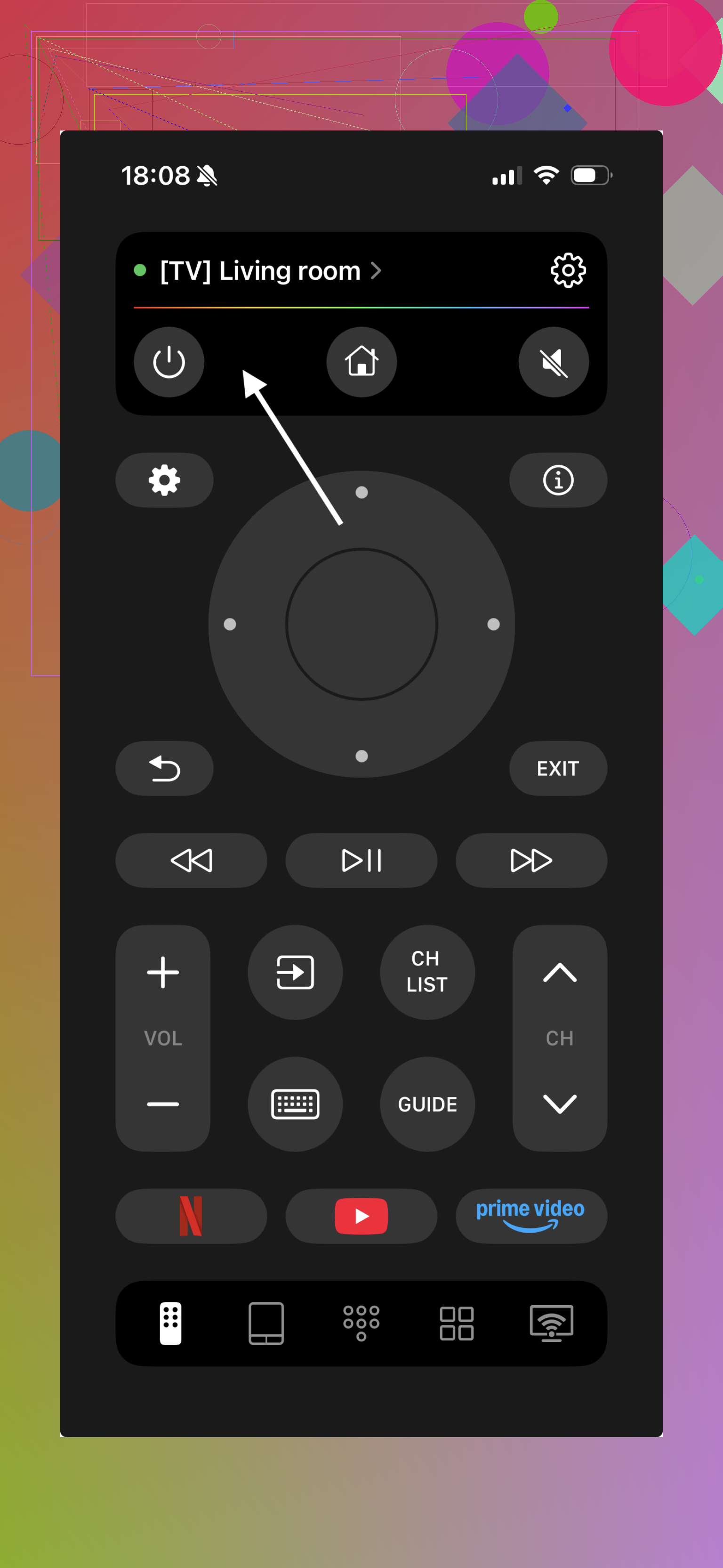
You can grab it here:
Turn your iPhone into a smart Panasonic TV controller
Steps I did with it:
- Install, give it Local Network permission.
- Pick Panasonic from the brand list.
- Let it auto scan. If it misses the TV, check if your iPhone and TV are on the same Wi-Fi.
- Test power, volume, input. If the first profile fails, try the next Panasonic profile inside the app.
Watch the video:
- If it still fails
- Reboot router, TV, and iPhone in that order.
- Try wired Ethernet on the TV instead of WiFi. Some Panasonic WiFi chips are flaky with multicast discovery.
- Turn off “Guest” mode WiFi. Those networks often block device to device traffic.
With those steps plus TVRem, my iPhone works as the daily remote and the original remote sits in a drawer now.
37 Likes
Same boat here, Panasonic + iPhone is weirdly more painful than it should be.
I’ll skip repeating what @himmelsjager already covered (they nailed the network and permission stuff). Let me add a few different angles that helped me get a “this actually works every day” setup:
-
Figure out if your TV even likes IP control
Some Panasonic models only accept app control when:- “Network remote control” is on
- “Eco” or “Power save” is off or set so the network stays alive in standby
Trick: Turn the TV fully on, then test the app. If it works when on but never in standby, that’s just a firmware limitation and no app will magically fix that.
-
Static IP on the TV
This was a game changer for me. Instead of relying on DHCP:- Go to your router, reserve an IP for the TV’s MAC address
- Or set a manual/static IP on the TV in the Network menu
A lot of “TV not found” issues happen because the IP keeps changing and the remote app is stuck on the old one.
-
Multicast / IGMP snooping on your router
This is the super boring but real cause in many homes:- If your router has “IGMP snooping” or “Multicast enhancement” toggles, try turning them off and on to see which state lets your phone find the TV.
- Some routers silently kill the discovery packets the remote apps rely on.
-
Don’t rely only on auto discovery
This is where I slightly disagree with a lot of advice I’ve seen: auto scan is nice, but with some Panasonics it just fails forever.
Whatever app you use, if it offers “manual IP” input, use that right away:- Grab the TV’s IP from its network status screen
- Enter that into the app and save the device profile
Manual pairing solved it for me when every scan feature just sat there spinning.
-
App side: what actually works reliably
The official Panasonic apps are basically abandonware at this point on newer iOS versions. They kinda work, then randomly die after an iOS update.The only thing that stayed solid for me: the TVRem Universal TV Remote app.
It works as a proper remote for Panasonic and does not crash every ten seconds like half the App Store clones.If you want something that’s actually usable as a daily replacement for the real remote, have a look at
control your Panasonic TV from your iPhone seamlessly -
If your Panasonic is not a “true” smart model
This is where a lot of people get stuck and blame the apps:- If your TV does not show any network control options and apps never detect it, it might simply not support IP control at all.
- In that case you need an IR bridge (like a small WiFi to IR box) in your living room that the app talks to. iPhones have zero built in IR, so no app alone will fix this.
-
Basic sanity checklist that is not just “restart stuff”
Quick run-through that often fixes the stubborn cases:- TV on wired Ethernet instead of WiFi
- iPhone on the main WiFi, not guest network
- VPN off, iCloud Private Relay off
- Static IP reserved for the TV
- Manual IP add in the app