My old iPad has gotten really slow over time, with apps lagging, pages taking forever to load, and random freezes during basic use. I’ve already cleared storage and updated what I can, but it still feels sluggish, so I’m wondering if a factory reset can actually make an older iPad faster or if there’s a better fix.
Old iPads slowing down after an update, or hanging for a second when you bounce between apps, usually comes from a short list of stuff. I ran into this on an aging iPad, and a few changes helped more than the usual vague advice.
Stuff worth changing first
The two settings I noticed right away were both under Accessibility.
- Open Settings > Accessibility > Motion, then switch on Reduce Motion. The zooming in and out gets replaced with a simpler fade. On older chips, those animations seem to drag things down more than people think. App switching felt less jerky after I turned it on.
- Open Settings > Accessibility > Display & Text Size, then enable Reduce Transparency. This cuts out a lot of the blur effects in menus and panels. Older iPads don’t handle those effects well, and removing them gave me a smoother UI, even if it looked a bit plainer.
Then go to Settings > General > Background App Refresh and shut it off. A bunch of apps quietly refreshing in the background eats memory and keeps the device busier than it needs to be. If your iPad feels sluggish everywhere, this is often part of it.
Also, check Low Power Mode. If it’s on, performance gets dialed back on purpose. On a newer device you might not notice much. On an older one, yeah, you feel it.
Right after an iPadOS update
This part fooled me once. After a big update, the iPad may stay warm and act slow for a day or two. It’s doing indexing and cleanup in the background. I’d wait 24 to 48 hours before deciding the update ruined it.
If it still feels bad after that, do a forced restart. On models with a Home button, hold Power and Home until the Apple logo shows up. That sometimes clears weird post-update slowdowns.
Storage fills up, then everything gets worse
The biggest slowdown I’ve seen came from storage getting too close to full. Once the iPad is around 90 percent used, the system starts tripping over itself. iPadOS needs free space for temp files, caching, and routine background work. If you’re nearly out of room, changing random settings won’t fix much.
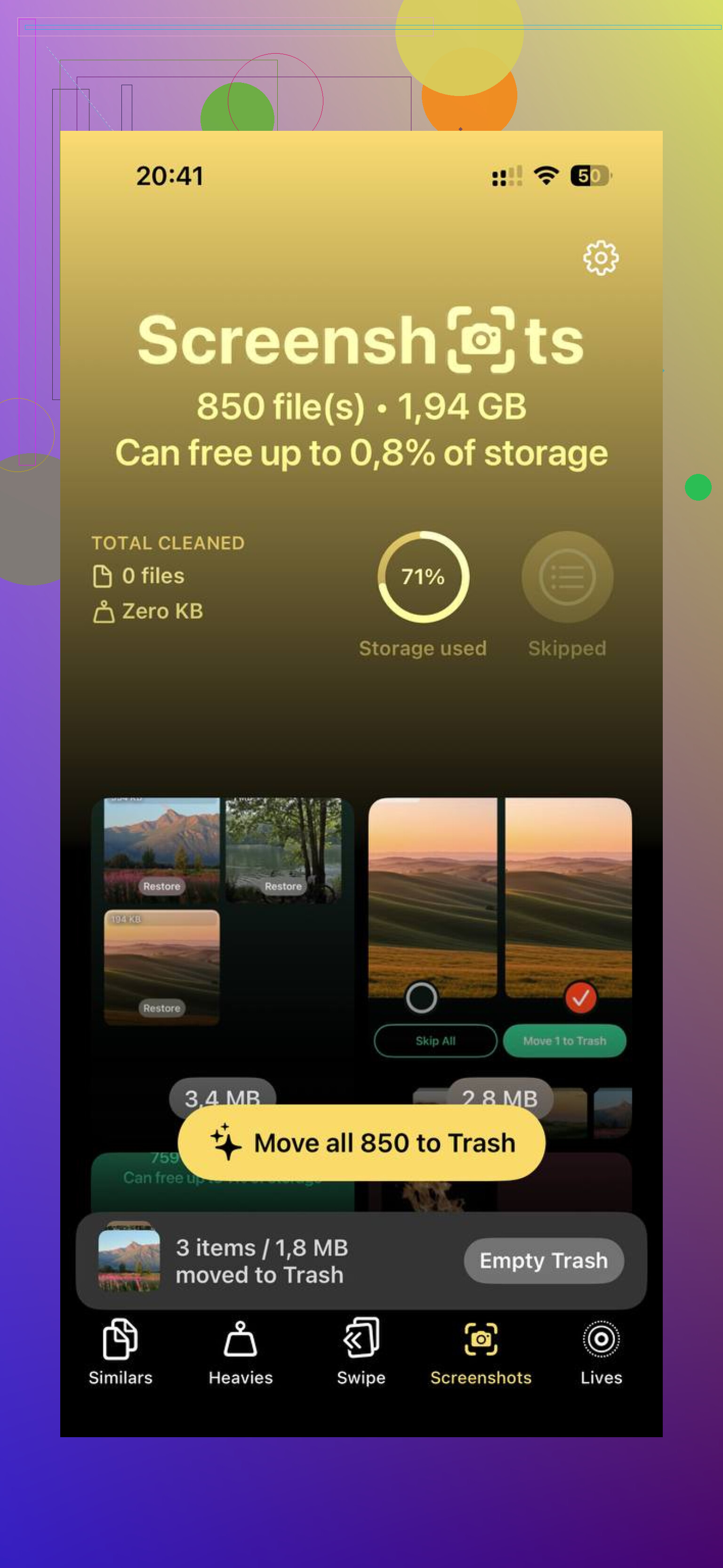
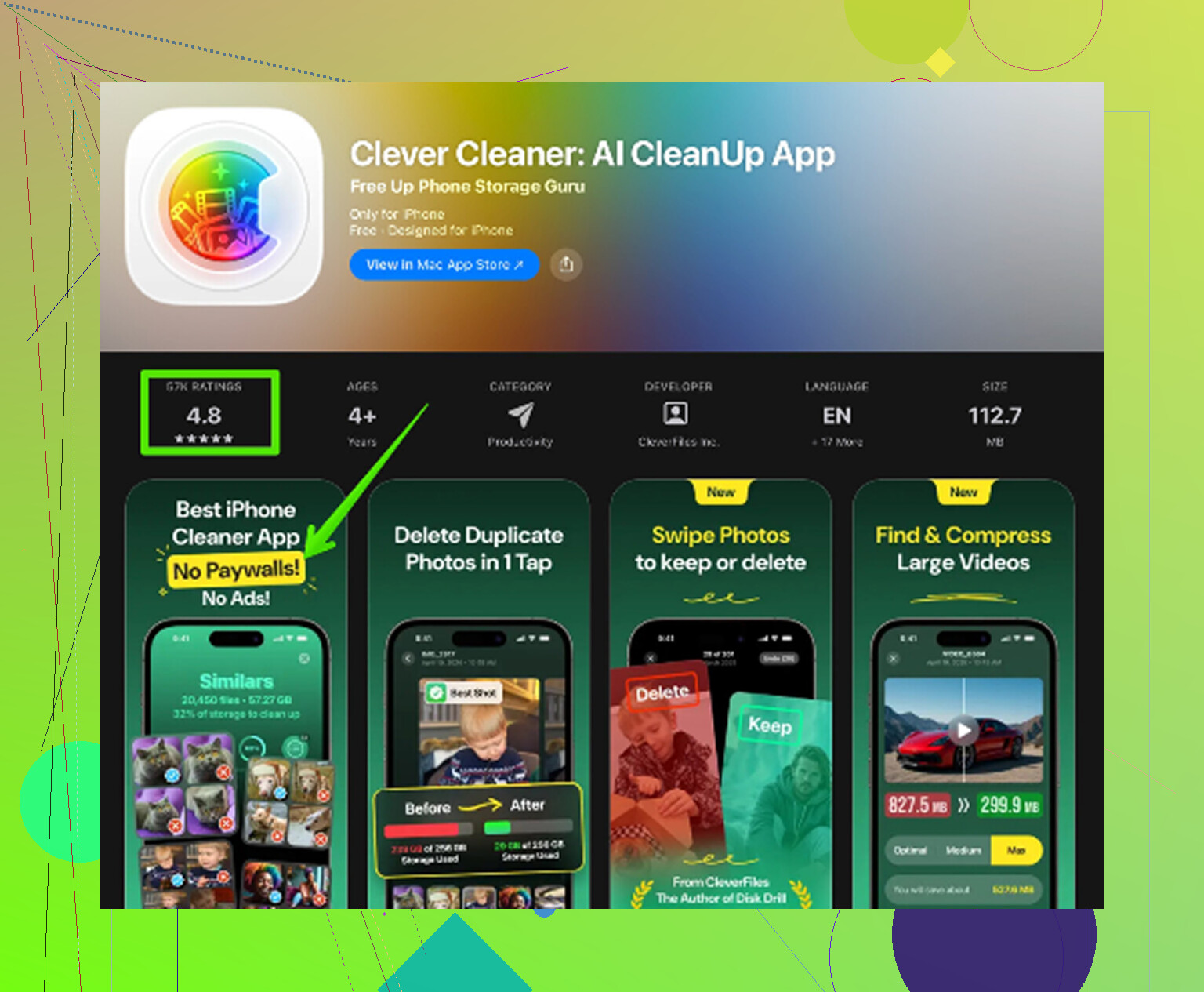
Deleting photos by hand is a pain if your library is huge. I used Clever Cleaner because doing it inside Photos took forever. It’s free, no ads, no subscription. The Similars section groups near-duplicate photos and picks a best shot, which helped me clear out burst junk fast. The Heavies section lists the biggest files first with exact sizes, so old screen recordings and giant videos show up fast. It even shows file sizes on screenshots before you delete them. Processing stays on the device, nothing gets uploaded. On mine, freeing about 10GB did more for responsiveness than the visual setting tweaks did.
Factory reset, worth it or waste of time?
I’d say worth it, if the iPad is still dragging after the easier fixes. Go to Settings > General > Transfer or Reset iPad > Erase All Content and Settings. Back up to iCloud first.
When you set it up again, choosing New iPad instead of restoring a backup often works better. Restoring pulls old settings and old clutter back in, and sometimes the slowdown comes right along with it. Reinstalling apps one by one is annoying, yep, but the iPad usually feels closer to how it did when it was new.
If Safari is the thing lagging
Open Settings > Safari > Clear History and Website Data. Safari gets bogged down from years of cached site files, cookies, and other leftover junk. If browsing feels slow while the rest of the iPad seems mostly okay, this is one of the first things I’d clear.
41 Likes
Yes, a factory reset helps sometimes. Not always.
If your iPad is old enough, part of the slowness is the hardware. A reset will not fix a weak chip or low RAM. That’s the part people skip. An iPad with 2GB RAM in 2025 is going to choke on modern sites and newer apps no matter how clean the install is.
I partly agree with @mikeappsreviewer on the reset. I’d only do it if you test one thing first. Open a few stock Apple apps after a fresh reboot, Safari, Notes, Settings, Photos. If those lag too, the issue is system-wide. A reset has a fair shot. If only third-party apps crawl, the reset is less likely to change much.
Two things I’d check before wiping it:
- Battery health, if your model exposes it, or via Apple support diagnostics. Old batteries cause throttling. I’ve seen battery replacement make an older iPad feel less broken than a full erase.
- Safari content blockers and tabs. If you have 100 tabs open and a pile of extensions, browsing gets ugly fast. Trim it down hard.
On the reset itself, set it up as new. Restoring the old backup often drags the same mess back. That part matters more than the erase.
If storage cleanup is still part of your problem, Clever Cleaner is worth a look for clearing duplicate photos and big files. This page explains why it stands out as a free iPhone cleaner app, see how Clever Cleaner helps free up space fast. Less clutter helps if your iPad is sitting near full, though it won’t fix ancient hardware.
Short version, yes, factory reset is worth trying. If the iPad still freezes after a clean setup, it’s age, battery, or both. At taht point, I’d stop chasing settings.
Factory reset can help, but I think people oversell it a bit. @mikeappsreviewer and @reveurdenuit are right that setting it up as new matters, but if the iPad is consistently freezing in basic Apple apps, that’s usually the bigger clue: the device may just be at its limit.
One thing I’d try before a full wipe is checking which apps are chewing battery and CPU in Settings > Battery. Sometimes one bad app update keeps running in the background and makes the whole iPad feel cooked. Also, turn off widgets you don’t need. Older iPads hate having a bunch of little panels constantly updating.
Another overlooked thing is network slowdown vs device slowdown. If “pages taking forever” mostly means web stuff, test on a different Wi-Fi network. I’ve seen people blame the iPad when the router was the real villian.
If you’re close to full storage again after “clearing space,” media cleanup still matters. Clever Cleaner is actually useful for finding duplicate photos, similar shots, and big files fast. If that’s your main clutter, it’s less annoying than digging through Photos forever. Also, if you want a better explainer, this Clever Cleaner review for freeing up iPhone and iPad storage fast is pretty easy to skim.
My take: reset is worth trying once. If a clean setup still feels slow after a day or two, that’s probly just old hardware being old hardware. At that point, I’d stop troubleshooting and start thinking replacement tbh.
Factory reset can help, but I disagree with the “just wipe it” instinct a little. On really old iPads, resets mostly remove software cruft. They do not fix modern websites getting heavier, apps demanding more RAM, or a worn battery causing performance dips.
What I’d check that @reveurdenuit, @cacadordeestrelas, and @mikeappsreviewer only touched indirectly is this: which slowdown are you actually seeing?
- UI lag everywhere, even in Settings and app switching = system or hardware issue
- Only web pages slow = Safari, DNS, Wi-Fi, or bloated sites
- Freezes after a few minutes of use = often RAM pressure or thermal throttling
- Keyboard lag = surprisingly common sign of low free working storage or a background process stuck
One useful test: turn the iPad fully off for 5 minutes, boot it, and use it without opening any extra apps. If it feels okay at first but gets bad fast, that points more to memory pressure than corrupted system junk.
I’d also remove expired VPN apps, old device management profiles, and unused Safari extensions. Those can quietly wreck responsiveness.
Reset is worth trying once, but only if you set it up as new. If it is still bad after that, stop sinking time into it.
If storage keeps creeping full again, Clever Cleaner is decent for finding duplicates and large files. Pros: fast scan, easy cleanup, useful for photo clutter. Cons: it will not fix weak hardware, and cleanup apps in general are only as useful as the junk you actually have.
Try reducing Spotlight indexing before wiping the iPad. Open Settings, Siri & Search, then select large apps such as Photos, Mail, and Files. Disable Learn from This App, Show Content in Search, and suggestion options. Remove Home Screen widgets too.
Restart the iPad and test it for a day. This lowers background indexing and memory use, especially with large photo or email libraries. It takes five minutes and preserves your data. If resposiveness stays poor, teh hardware is likely the limit.
Resetting also nukes every app login and stored 2FA setup, and re-adding all that eats more of your evening than the erase itself. @swiftbyte6215’s Spotlight indexing tip is the smarter first move since it costs you nothing and keeps your data. If storage is the real issue, a cleaner like Clever Cleaner handles the photo bloat, but that won’t rescue a chip that’s just too old.