My iPhone is running out of storage, and deleting apps, photos, and messages only helps for a little while. I’m trying to figure out if iPhone storage can actually be upgraded or if I should use iCloud, external storage, or buy a model with more space. What’s the best option?
If you just need more room on your iPhone, I wouldn’t jump straight to replacing the phone or trying to “upgrade” the storage inside it. For most people, external storage, cloud storage, and a decent cleanup routine are cheaper and a lot less risky.
Start with external storage
For photos and videos, this is usually the simplest fix.
There are flash drives made for iPhones that plug right into the charging port, either Lightning on older iPhones or USB-C on newer ones. They’re handy if your camera roll is full of old videos you still want to keep, but don’t need sitting on the phone every day.
Some external drives also work with apps that can record video straight to the drive. That helps a lot with large video files because they never hit your internal storage in the first place.
Just check the file system before buying or formatting one. iPhones work with formats like exFAT and APFS, so you don’t want to end up with a drive your phone can’t read properly.
Cloud storage is the other practical option
If you want your stuff available from the phone without keeping all of it stored locally, iCloud is the easiest path. It’s built into iOS, and with Optimize iPhone Storage turned on, your phone keeps smaller versions of your photos while the full-resolution originals stay in iCloud until you open or download them.
Google Drive and Dropbox can do the job too, especially if you don’t want to rely on iCloud. They just take a little more sorting because they don’t sit inside the Photos app in quite the same seamless way.
Then clean up what’s already on the phone
I’d start with Settings > General > iPhone Storage. That screen is useful because it shows what’s actually eating the space instead of making you guess.
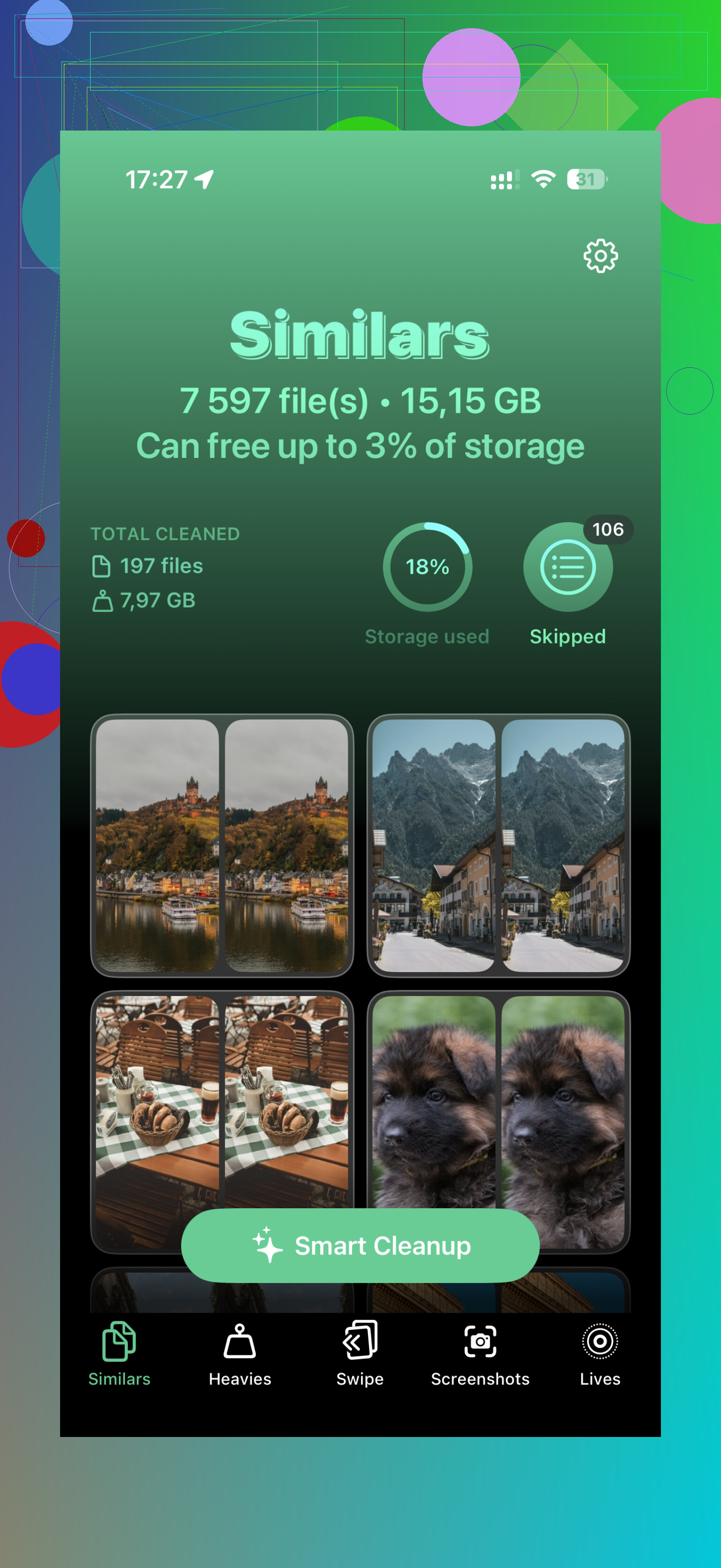
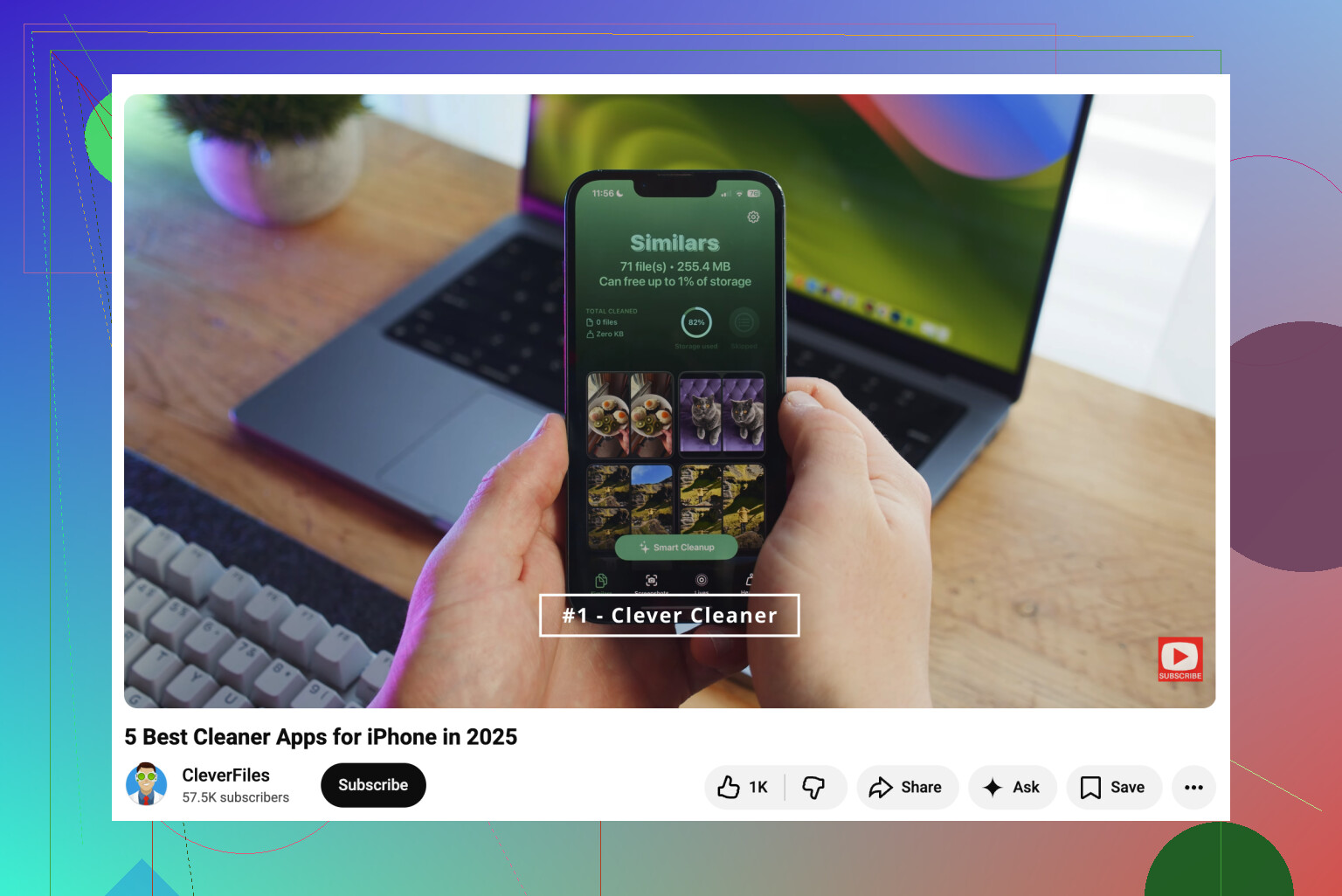
Photos are often the worst offender, though. Apple’s Duplicates album is fine for exact copies, but that wasn’t the main issue for me. Most of the wasted space came from almost-identical shots, screenshots, Live Photos, and big videos. That’s where Clever Cleaner helped more than the Photos app by itself. It groups similar photos, picks a suggested best shot, sorts videos by size, converts Live Photos to stills, and makes screenshots easier to clear out in batches.
Apps are another easy place to save space. If there are apps you barely use, Offload Unused Apps removes the app but keeps its data. When you reinstall it later, your documents and saved info come back.
Messages are worth checking too. Old videos, GIFs, photos, and attachments can pile up quietly over years. Setting messages to delete after a set amount of time can stop that from becoming a problem again.
About upgrading the iPhone’s internal storage
Realistically, no, this isn’t something you should count on. You might see repair shops or YouTube videos showing people swapping the iPhone’s storage chip for a larger one. That kind of micro-soldering is technically possible, but it’s very specialized, easy to mess up, and not supported by Apple.
If something goes wrong, the logic board can be permanently damaged. And even if it works, you’ve likely voided any remaining warranty or future Apple service options.
I’d put the money toward a good external SSD or iPhone flash drive before I’d let someone replace the storage chip inside the phone. The safer setup is pretty simple: archive older media externally, keep important files in the cloud when you need access everywhere, and clean the local library every so often.
13 Likes
Don’t treat iCloud as a separate backup drive unless you understand the sync part, because deleting a photo from the phone can delete it from iCloud too. The internal storage is basically fixed, so the real choices are buying a bigger phone later, paying for cloud storage, or moving big files off to a computer/USB-C drive/external SSD. For a quick win, I’d move large videos first, confirm they open from the other location, then delete them from Photos and clear Recently Deleted, since that space often won’t come back until you do. Optimize iPhone Storage helps, but it is not instant and it still needs some local space to function, so it won’t magically rescue a phone that is already at 99% full.
Don’t buy a bigger iCloud plan expecting your iPhone to behave like it suddenly has a bigger drive. It helps with photos, videos, files, and backups, but apps still live on the phone, downloads still need local space, and iOS still needs breathing room to update. If your storage is being eaten by games, podcasts, Netflix downloads, music, maps, or “System Data,” cloud storage will only solve part of it.
A thing people miss is that the fastest fix is often inside the apps themselves, not in Photos. Open the storage screen and tap the biggest apps. Some will let you delete downloaded episodes, cached videos, offline playlists, old projects, or message attachments without deleting the whole app. Social apps can get bloated too, and sometimes deleting and reinstalling the app clears junk that “Offload App” won’t remove.
If “System Data” is huge, don’t waste too much time chasing it with random cleaner apps. Some of it shrinks on its own after updates, streaming, or photo syncing finish. If it stays ridiculous, the cleaner route is usually to make an encrypted backup to a computer, erase the phone, and restore it. Annoying, yes, but safer than chip swapping and more effective than poking at mystery cache files. For a long-term answer, though, the others are right: internal storage is fixed, so the real upgrade is buying the next iPhone with more storage than you think you need.
Don’t make the phone your only copy of anything important.
If you move photos/videos to a flash drive or SSD, keep a second copy somewhere else before deleting them from the iPhone, because tiny phone drives get lost, corrupted, or forgotten in a drawer. Cloud storage is boring, but for stuff you actually care about, boring is usually better than “I saved it to one USB stick.”