My Windows PC started showing disk errors and occasional freezes, and I’m worried the drive may be failing. I’m looking for a safe free disk repair tool that can check and fix hard drive or SSD problems without risking my data. Has anyone used one that actually works?
If you only want one tool to try first, I’d go with Disk Drill. The main reason is simple: when a drive starts acting weird, the first priority should be getting your files off it, not “fixing” it right away. Some repair attempts can make recovery harder, especially if the drive is already unstable.
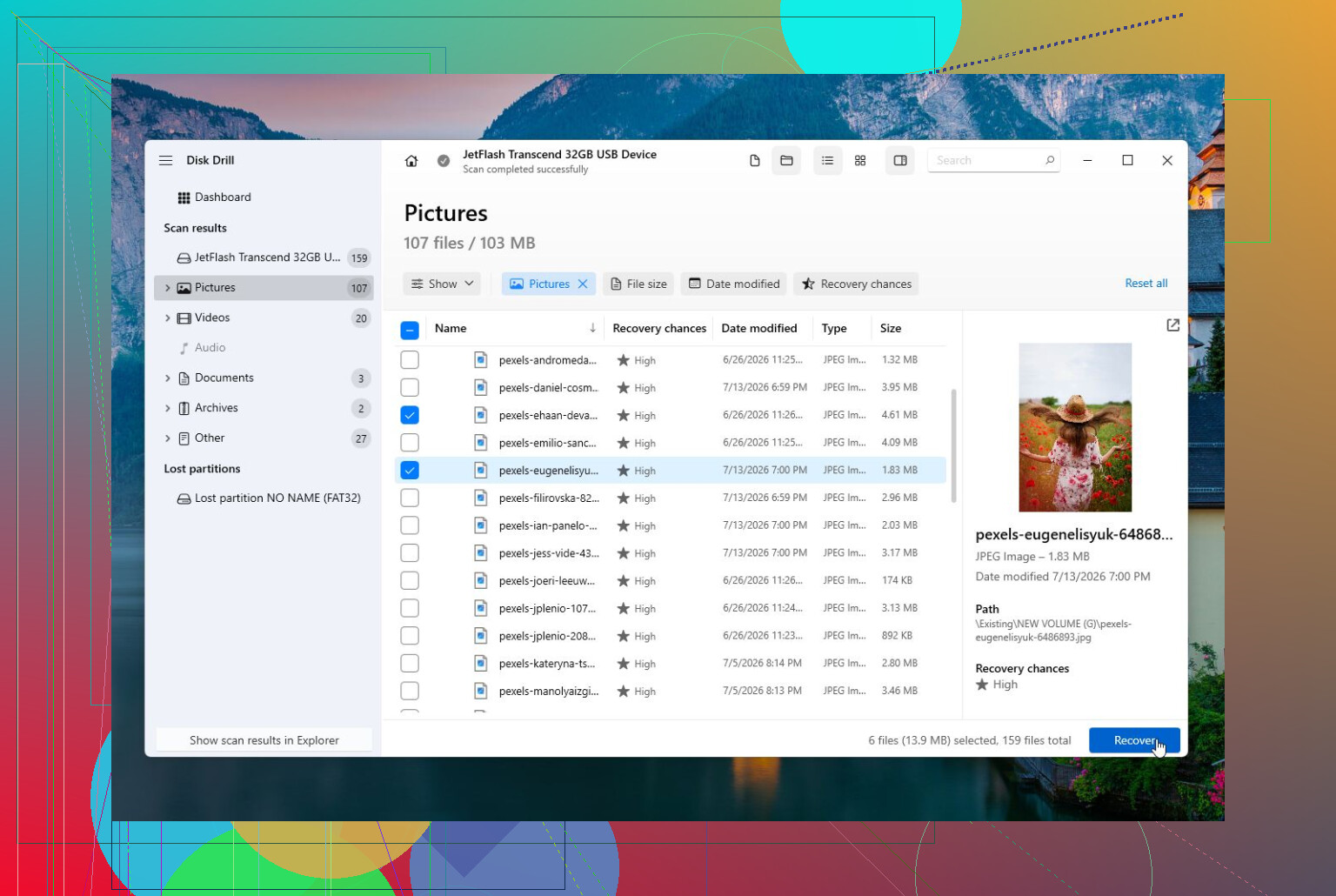
Disk Drill is also a pretty easy recommendation for beginners because it works with the usual stuff: external hard drives, USB sticks, SD cards, internal drives, and so on. You’re not juggling a different program for every device.
Disk Drill is the one I’d start with for recovery. If Windows is asking you to format the drive, the file system shows up as RAW, files vanished, or you deleted something by accident, this is usually the safer first move. It can run Quick and Deep Scan, lets you preview what it finds, and it has a disk image option, which is useful if the drive seems flaky. It also shows S.M.A.R.T. info, so you may get a clue whether you’re dealing with file system damage or an actual hardware problem.
Pros
- Easy to use if you haven’t done this before.
- Good for deleted files, formatted drives, RAW drives, and corrupted volumes.
- Can make a disk image before you start recovery.
- Includes S.M.A.R.T. health monitoring.
- The free Windows version can recover up to 100 MB.
Cons
- It’s not meant for repairing partition tables or boot sectors.
- You’ll need the paid version for more serious recovery work.
DiskGenius is better if you need a broader disk utility. It does more than file recovery. You can use it for partition management, lost partition recovery, cloning, backups, basic repairs, and checking disk health. It’s a good fit when a partition disappeared, the file system is damaged, or you want to clone the drive before touching anything.
It’s not as simple as Disk Drill, though. The interface has a lot going on, but it’s still a lot easier than trying to do the same kind of work from the command line.
Pros
- Handles recovery, partition work, cloning, and backup in one place.
- Can rebuild lost partitions.
- Supports RAID setups and virtual disks.
- Includes bad sector checks and drive health tools.
Cons
- Some of the better features are paid.
- New users may find the interface a bit much at first.
SeaTools is mainly for figuring out if the drive is dying. It’s a free diagnostic tool, and it’s useful when you’re not sure whether the issue is Windows, the file system, or the drive itself. It can run short and long tests, check S.M.A.R.T. status, and give you a better idea of whether repairs are even worth trying.
Pros
- Free.
- Simple enough for basic and extended diagnostics.
- Works with a lot of drives, not only Seagate models.
- A good first check before trying repair tools.
Cons
- It won’t recover your files.
- It won’t repair partitions or bring back lost data.
The big thing I’d avoid is throwing a bunch of repair tools at the drive one after another. If there’s anything important on it, recover or copy the data first. Once the files are safe, then it makes sense to try fixing logical problems, assuming the drive looks healthy.
If the drive is physically failing, treat it differently. Clicking or grinding, painfully slow reads, Windows freezing when you open the drive, I/O errors, random disconnects, or S.M.A.R.T. warnings about reallocated or pending sectors are all bad signs. In that situation, repeated scans and repairs can make things worse because they keep stressing the hardware.
- Copy or recover the important files as soon as possible.
- If the drive is unstable, make a full disk image before doing repair attempts.
- Replace the drive after your data is safe. Physical damage does not fix itself.
- If the drive is not detected at all, or it’s making strange mechanical sounds, skip DIY tools and talk to a professional recovery service. Software can’t repair damaged heads, motors, or controller boards, but a lab may still be able to recover the data.
8 Likes
Check the drive’s SMART status before running CHKDSK or any “repair” button. That’s the cheap reality check people skip. If CrystalDiskInfo, SeaTools, or the drive maker’s tool shows caution/bad, don’t try to fix the file system yet. Copy the important stuff or image the drive first, like @mikeappsreviewer said. Disk Drill makes sense if files matter and the drive is still readable, but I wouldn’t treat it as a disk repair tool. For an actually healthy drive with Windows errors, then chkdsk /scan is fine as a first non-destructive check. I’d avoid chkdsk /f or /r until after backup, because on a failing drive it can turn “mostly readable” into “why is this taking 19 hours and freezing.”

Free repair is mostly diagnosis, not repair.
The missing distinction is that a tool can fix Windows file system bookkeeping, but it cannot make a worn-out drive trustworthy again. If the machine is freezing when the drive is accessed, treat that as a warning sign first, not as a normal “run a cleaner app” situation.
For a no-cost route, I’d go in this order:
-
If it’s an external drive, try a different USB cable, port, and no hub. Bad cables and weak USB power can imitate drive failure pretty well.
-
Copy the important stuff before testing hard. Not “after I repair it.” Before. If the drive is slow or keeps disconnecting, copy the most important folders first instead of trying to grab everything at once.
-
Check SMART with CrystalDiskInfo, SeaTools, WD Dashboard, Samsung Magician, Crucial Storage Executive, or whatever matches the drive. You’re looking for obvious warnings like reallocated sectors, pending sectors, uncorrectable errors, or a health warning.
-
If SMART looks clean and the drive behaves normally, then use Windows’ built-in tools. The free tool that actually makes sense is still CHKDSK, but use it carefully. Start with a scan, not the most aggressive repair option.
-
If SMART looks bad, stop thinking in terms of “repair.” Replace the drive. If the files matter, image or recover first.
I agree with @shizuka on not jumping straight to chkdsk /f or /r. People treat CHKDSK like a magic fix button, but on a failing drive it can spend hours hammering weak sectors and leave you worse off. It’s useful when the drive is healthy and the file system is messy. It is not a health potion.
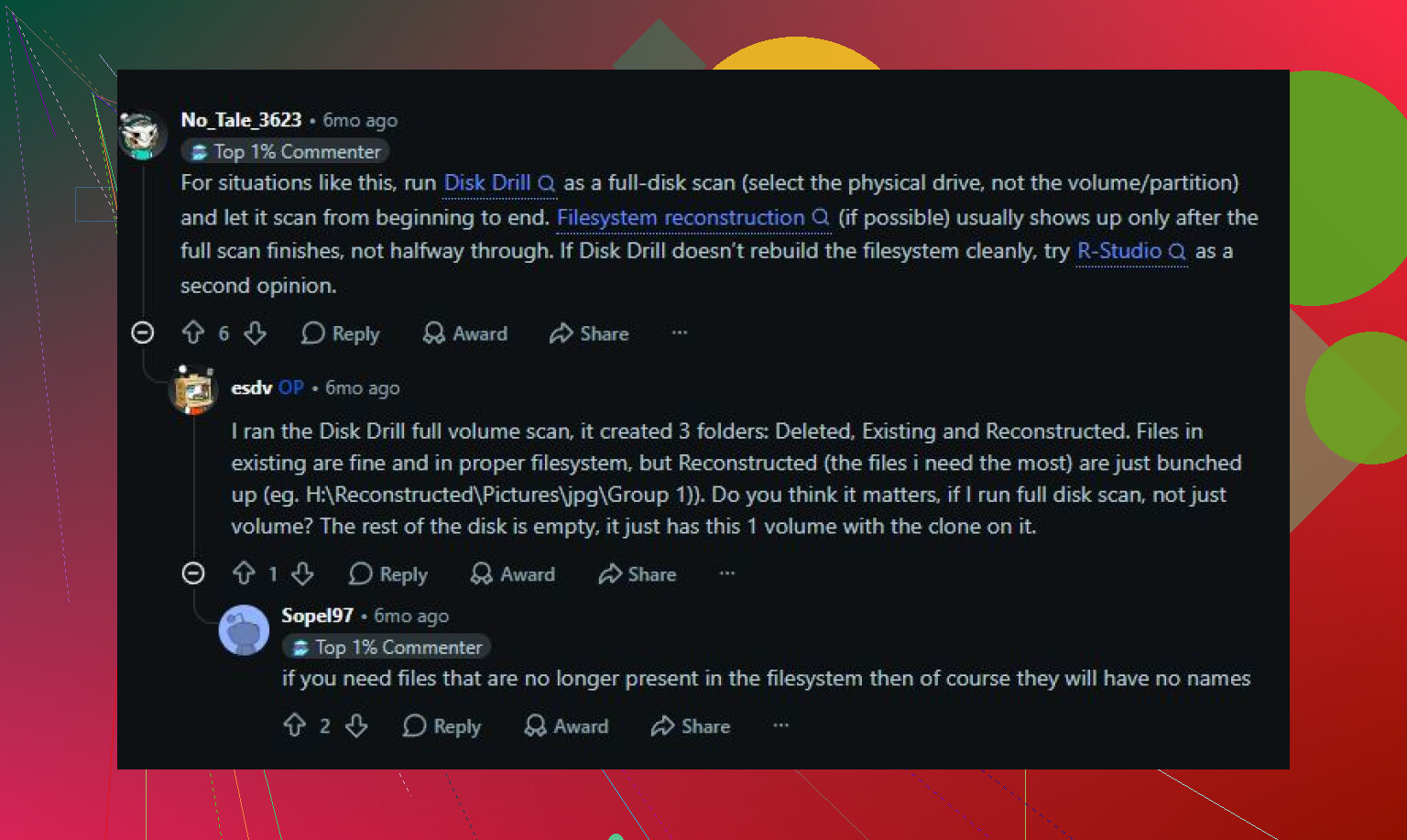
Disk Drill has its place, but I’d put it in the “get my files back” category, not the “repair my disk” category. If files vanished, a partition went RAW, or Windows wants to format the drive, recovery software is a better first move than trying to force repairs. Just don’t install it onto the problem drive or recover files back onto that same drive.
For SSDs, be extra skeptical of anything claiming to “repair bad sectors.” SSDs handle bad blocks internally. If the SSD is showing media errors, failing SMART, or freezing the system, software is not going to rebuild worn flash cells. The practical repair is backup, firmware check if the vendor tool recommends it, then replacement.
So yes, there are good free tools, but they are boring ones: SMART checkers, manufacturer diagnostics, Windows CHKDSK, and cloning/imaging tools. The safest “repair tool” is usually the one you run after your data is already somewhere else.
No, “free” is not the deciding line here. The dangerous line is read-only diagnosis versus anything that writes changes to the disk.
A decent free tool is fine if it is only checking the drive, reading SMART, or scanning the file system. CrystalDiskInfo, the drive maker’s diagnostic app, and Windows’ own error checking are all reasonable. But the moment a tool says it will repair sectors, rebuild structures, fix partitions, or run a long surface repair, assume it may make changes or put heavy load on a drive that is already struggling. That is not automatically bad, but it should not happen before the files are safe.
The thing I think gets missed in these threads is checking Windows logs. If the PC is freezing, open Event Viewer and look under Windows Logs > System for Disk, Ntfs, storahci, iaStor, or controller reset errors around the time the freezes happen. A SMART screen that says “good” is useful, but it does not always catch cable issues, controller timeouts, flaky USB enclosures, or a drive that only misbehaves under load. If you see repeated disk resets or bad block messages, stop treating it like a normal repair job.
For a practical free path, I’d do this: copy the most important files first, then check SMART, then check Event Viewer, then run the manufacturer’s short test. If those are clean, chkdsk /scan is a reasonable next step. If that reports file system errors, back up again before using /f. I would not run /r casually on a suspect drive. It can take forever, and on a failing HDD it spends a lot of time forcing reads from weak areas.
Disk Drill is useful if the problem has already turned into missing files, a RAW partition, deleted data, or Windows asking to format the drive. I would not put it in the same bucket as CHKDSK, though. It is more of a recovery-first tool. If you use it, install it somewhere other than the bad drive, and recover to a different disk. Recovering back onto the same damaged volume is one of those mistakes that sounds harmless until it overwrites what you were trying to save.
So yes, there are good free tools, but the good ones are mostly boring and cautious. They tell you what is wrong, they help you copy data, or they fix minor file system damage after backup. If the drive is freezing the whole PC, the “repair” may be a new drive, not a better app.