I accidentally formatted my USB drive before backing up important files, and now I’m trying to figure out if there’s any safe way to recover the data without making things worse. I need help with USB drive data recovery, restoring formatted flash drive files, and knowing what steps to avoid so I don’t lose everything for good.
I did this once with a 64 GB stick full of photos, and yeah, the stomach-drop part hits fast. The part people miss is this: a format does not always wipe the file data right away. Sometimes the file list is gone, while the data still sits there waiting to be overwritten.
First thing, stop touching the USB.
Do not copy new files to it.
Do not format it again.
Do not run CHKDSK.
Do not try random ‘fix’ tools.
If new data lands on the same space where your old files were, recovery drops hard. After overwrite, you’re done.
Also, one point people mix up all the time. You do not ‘unformat’ a flash drive. There is no rewind button for the file system. Recovery apps work by scanning the device for leftover file data and piecing it back together. The format stays. Your files might still come back.
What matters most is the kind of format:
-
Quick Format
This is the one you want, if you had to pick. It usually finishes fast, in seconds. Windows often rebuilds the file system and leaves the old file contents in place until something new overwrites them. If you stopped using the drive right after, your odds are often decent. -
Full Format
This takes longer. On newer Windows systems, a full format writes across the whole drive. When that happened, software recovery usually goes badly. -
Format done by another device
If a camera, TV, dashcam, console, or something similar formatted the USB, it was often a quick format. I’ve seen better recovery results in those cases than people expect.
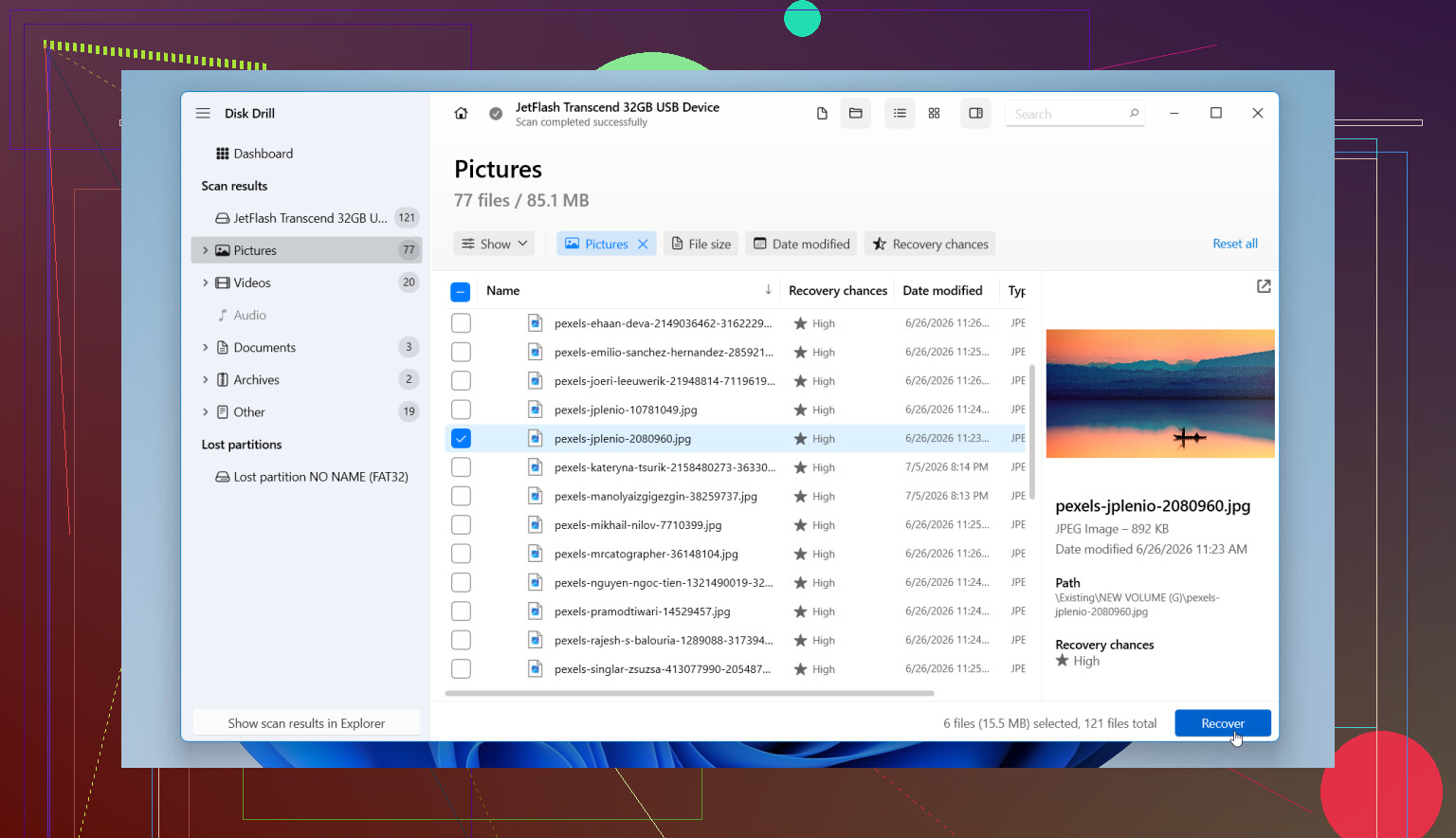
If you do not have a backup, the next move is recovery software. I’ve had better results with Disk Drill than with the usual free stuff people toss around in comments. It reads common USB file systems like FAT32, exFAT, and NTFS, and it sorts findings in a way that saves time.
This is how I’d handle it:
- Install Disk Drill on your computer’s internal drive. Not on the formatted USB.
- Plug in the flash drive and open the app.
- Pick the USB from the device list.
- Start Search for Lost Data, then use Universal Scan if it asks. For formatted drives, this tends to be the right path since it runs multiple scan methods together.
- Let the scan finish. You can peek early, sure, but I’ve had extra files show up later, so waiting pays off.
- Check the found items. It usually groups them into Pictures, Video, Documents, Audio, Archives, and so on. Filters help if the list is messy.
- Preview the important stuff first. If a photo opens cleanly, or a document renders right, that is a solid sign.
- Recover files to another drive. Not back to the same USB. People do this and wreck the rest of their chances.
One feature I would not skip if the drive looks shaky is the disk image option. If the USB keeps disconnecting, throws read errors, or acts weird, make an image first and scan the image instead of hammering the original stick. I’ve seen unstable drives get worse mid-scan. It sucks.
About Command Prompt stuff, a lot of posts push CHKDSK or ATTRIB like they fix everything. They don’t fit this case well.
CHKDSK repairs file system problems. It does not recover formatted files. Worse, it writes changes to the drive, which is the last thing you want when trying to save old data.
ATTRIB only helps when files were hidden, often by malware or a file attribute issue. It does nothing for files lost from formatting.
I’d only even look at those tools if the format never finished, or the USB corrupted itself during the process. Otherwise, recover first. Repair later.
One more thing, and this part matters. If the USB:
- is not recognized at all
- disconnects every few seconds
- shows the wrong size
- gets hot fast
- has bent or damaged hardware
then this might be failing hardware, not a plain format problem. At that point I would stop repeated scans. If the files matter, a pro recovery shop is safer than grinding the drive into the floor with ten more attempts.
So yes, recovery from a formatted flash drive is often possible, mostly after a quick format and mostly if you left the drive alone right after the mistake. Those two details matter more than anything else, the format type and whether anything was written to it after. If it was quick format and you stopped in time, you still have a shot.
7 Likes
Yes, if it was a quick format and you stopped using the USB right away, recovery odds are still decent.
I agree with @mikeappsreviewer on the main part, leave the drive alone. Where I differ a bit is this. Before you scan the USB itself, check if Windows assigned a new file system and size correctly. If the capacity looks wrong, like 0 bytes or some weird number, stop there. That points more to controller trouble than simple formatting.
Best safe path:
- Plug it into a stable USB port, no hub.
- Check Disk Management. Look at size, file system, and whether it shows healthy.
- If it looks normal, scan it with Disk Drill from your computer, not from the USB.
- If the scan finds your files, recover them to another disk.
- If the USB drops offline or freezes, clone it first, then scan the clone.
One more thing people skip. Sort results by original folder structure first, not file type. On formatted USB drives, raw recovery often brings back tons of files with lost names. Folder-based recovery saves time if metadata survived.
If the format was full, odds drop hard. If you copied new stuff onto it after formatting, odds drop more. Sad but true.
Also, if you want a simple visual guide, this helps: USB drive recovery video for corrupted or formatted pen drives
So yeah, don’t write anything new to it, check its health first, then use Disk Drill. Fast. Every extra write hurts your chnaces.
Yes, sometimes. But I’d push back a little on one thing from @mikeappsreviewer and @viaggiatoresolare: people focus a lot on the format type, and not enough on the USB itself. Flash drives fail in weird ways, and sometimes the “format accident” is just what made an already dying stick obvious.
So first, don’t keep retrying stuff. One scan is fine, ten scans on a flaky USB is how files turn into dust.
What I’d do differently:
- try the USB on one other computer only
- if it mounts, copy nothing to it
- check a few recoverable files with preview before doing a full recovery
- recover the most important files first, not everything at once
That last part matters. If Disk Drill shows 20,000 recoverable items, don’t waste time grabbing junk folders before the irreplaceable photos/docs. Triage it.
Also, if filenames/folder structure are gone, that does not mean recovery failed. Raw recovery can still bring back usable files, just messier. Annoying, yes. Hopeless, no.
If you want a plain-English guide for recovering data from a formatted USB drive, this is actually relevant: how to recover files from a formatted USB drive without making it worse
Short version: quick format = maybe recoverable, full format = much lower odds, reused drive = bad news. Disk Drill is a solid option for USB drive data recovery, just install it on your computer, not the stick. And yeah, if the drive keeps disconnecting, stop messing with it becuase that’s where DIY starts getting real dumb real fast.