After updating to the latest iOS, my iPhone storage filled up fast even though I didn’t add new apps, photos, or videos. System data and other storage seem much larger now, and it’s causing slowdowns and low storage warnings. I need help figuring out what changed after the iOS update and how to free up iPhone storage without losing important data.
I kept seeing people say their iPhone ‘ate’ storage overnight. From what I saw on my own phone and a few family phones, it usually wasn’t some midnight glitch. The space had been shrinking for a while, then iOS finally threw the warning when the free space got low enough.
If you want the short version, start here.
Settings > General > iPhone Storage
Look at the bar and the category list. Most of the time, one or two sections are doing most of the damage.
Photos usually take over first
On a lot of phones, Photos is the main problem. Mine was.
It wasn’t only the pics I meant to keep. It was all the extra junk sitting around:
- near-duplicate shots from the same minute
- screenshots
- screen recordings
- Live Photos
- long videos
- burst shots
A couple trip videos, random receipts, pet pics you took 8 times, it adds up fast. I ignored mine for months and ended up with gigabytes of clutter I didn’t even remember saving.
Apps grow after install
This part catches people off guard. An app’s App Store size tells you almost nothing about what it turns into later.
Social apps, chat apps, shopping apps, streaming apps, they all hang onto cached media and temp files. Then you stack on offline playlists, downloaded shows, podcasts, saved clips. Space disappears.
I’ve seen apps listed at a few hundred MB swell into multiple GB on the phone itself. If one app looks way bigger than it should, deleting it and installing it again sometimes clears out the junk.
Messages and Downloads matter more than people think
I missed this one for a long time.
Messages stores photos, videos, GIFs, audio clips, and all sorts of attachments locally. Same deal with the Downloads folder in Files. Those two spots don’t always top the chart, but they can still eat several GB without much effort.
If your storage number feels wrong, check both.
System Data is messy
Then there’s System Data.
This includes cache files, logs, update leftovers, and other temporary iOS stuff in the background. Some size fluctuation is normal. Still, I’ve seen it get bigger than expected for no obvious reason. Apple doesn’t give you a clean manual button for wiping it, which is annoying.
So if you already cleared photos and apps and the used space still looks off, look there next.
Where I’d start first
If Photos is the biggest category, I wouldn’t waste time removing apps first. Media cleanup tends to free the most space fastest.
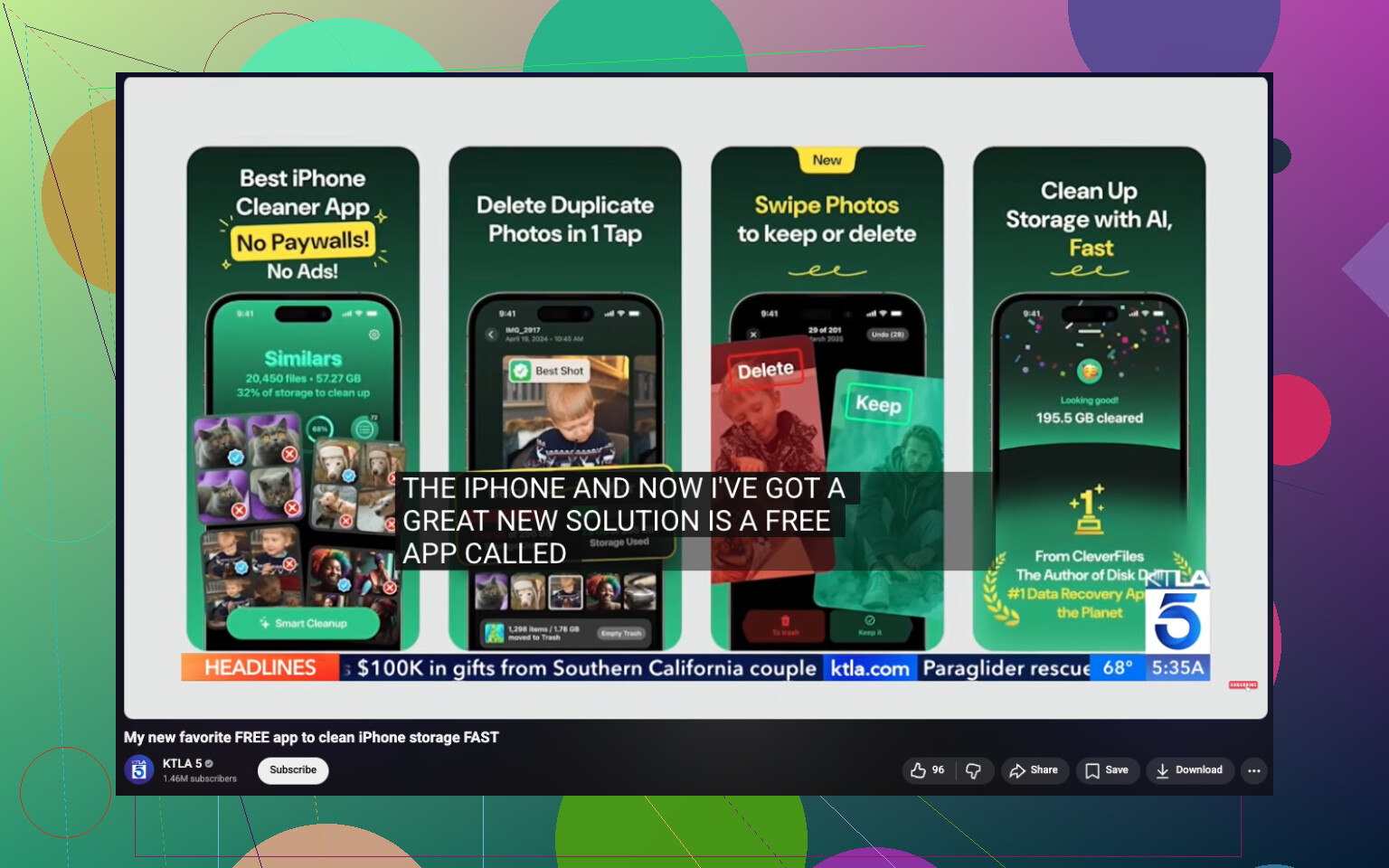
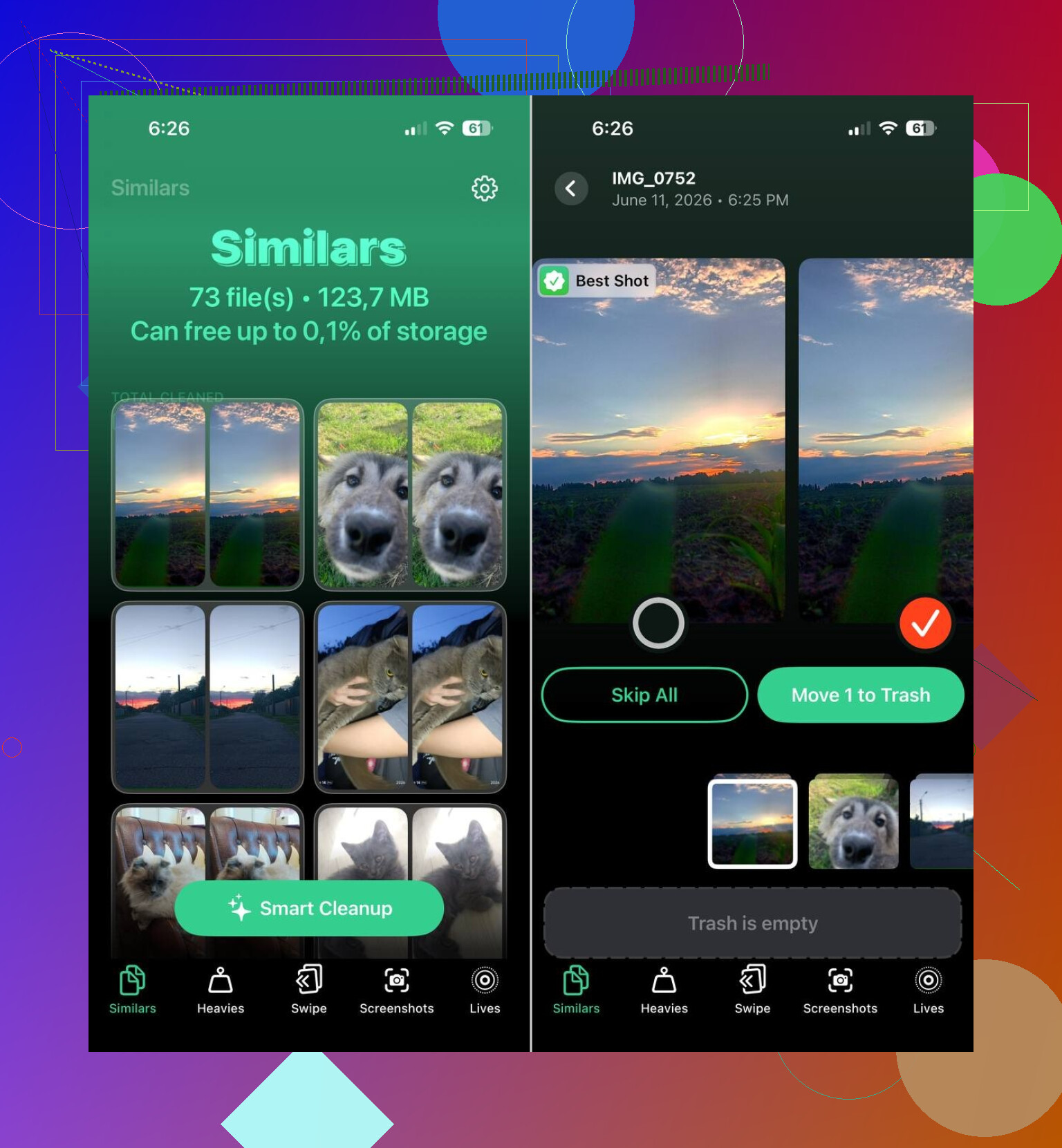
One option people keep using is Clever Cleaner. Apple’s built-in Duplicates album only catches exact copies. This one also looks for similar photos, which for me was the bigger issue anyway. The near-duplicates were eating more room than true duplicates.
What stood out:
- it finds similar photos automatically
- it spots the biggest photos and videos
- it groups screenshots so you can clear them in batches
- it turns Live Photos into regular photos
I saw reports from people clearing 10 GB, 20 GB, even 30 GB after trimming similar shots, screenshots, and Live Photos. Mine wasn’t quite tht high, but it was enough to stop the storage warnings.
The order I’d use
If your iPhone storage keeps filling, this is the sequence I’d follow:
- open iPhone Storage and find the largest category
- clean similar photos, screenshots, and Live Photos
- check for huge videos
- remove downloaded stuff inside apps
- review message attachments and Files downloads
- inspect apps with weirdly large storage use
Most times, the phone isn’t generating mystery data on its own. It’s old media, cached app junk, downloads, and attachments piling up quietly. Once you spot the real category, you can usually free a lot of space without touching the stuff you care about.
18 Likes
This happens a lot after an iOS update. I don’t fully agree with @mikeappsreviewer on one point, though. It is not always old clutter finally catching up. iOS updates often trigger reindexing, photo analysis, Messages rebuilds, and cache growth. System Data spikes for 24 to 72 hours on some phones. I’ve seen 5 GB to 20 GB jumps, then part of it drops later.
What I’d do first:
- Restart the iPhone.
- Plug it in, connect to Wi-Fi, leave it overnight.
- Check if iOS finished downloading extra files, voices, language packs, or security data.
- Open Safari, clear History and Website Data.
- Remove the old iOS update file if it’s still listed in iPhone Storage.
- Turn off and back on Sync for Messages or Photos only if those categories look stuck.
If System Data stays huge after 2 or 3 days, back up the phone, then do a Finder or iTunes restore. That fixed it for me when “Other” went nuts after 17.x. Annoying, but it worked.
Also check Mail. The native Mail app hoards attachments and account caches like crazy. Same for offline maps.
If you want a free iPhone cleaning app, Clever Cleaner is one of the better picks for clearing duplicate photos, similar shots, screenshots, and heavy media fast. This vid covers it better: best free iPhone cleaner app for freeing up storage
If the phone is lagging and storage is under 5 GB free, free up space fast. iPhones get janky when they’re packed full. Kinda dumb, but yup, that’s iOS.
I mostly agree with @mikeappsreviewer and @reveurdenuit, but I don’t think this is always “hidden junk you forgot about.” Sometimes iOS updates really do bloat System Data for a while because Spotlight, Photos, and Messages all start rebuilding stuff in the background. Apple acts like this is normal, which is… cute.
One thing I’d check that they didn’t really get into is iPhone Analytics data and log files. Go to:
Settings > Privacy & Security > Analytics & Improvements > Analytics Data
You can’t clean it neatly from there, but if your phone has been error-looping after an update, those logs can pile up. Same with failed sync attempts from iCloud Photos or Mail. I’ve seen storage go nuts when Photos was stuck “syncing” forever.
Also check these:
- Voice Memos
- GarageBand sound library
- downloaded Siri voices
- offline Maps data
- Mail’s “recently deleted” trash
- Podcasts with auto-download turned on
A sneaky fix is to toggle off low-value syncs you don’t need, then reboot. Stuff like:
- Contacts sync from extra accounts
- old Mail accounts
- Notes attachments
- Safari tab sync
If Photos is the main hog, Clever Cleaner is honestly one of the easier ways to deal with it, especially for similar shots and giant videos i forgot were even there. This full Clever Cleaner review for iPhone storage cleanup breaks down what it actually does.
If the storage graph keeps changing every hour, that usually means indexing is still happening. If it stays bloated for like 3 days, then yeah, I’d start thinking bugged update, not user clutter. At that point backup, restore, and save yourself the headache.
I’d split this into two buckets: real post-update churn, and storage categories that only become obvious after the update recalculates everything. So I partly agree with @reveurdenuit, @viajantedoceu, and @mikeappsreviewer, but not on the idea that it’s usually just old junk finally “showing itself.” Sometimes iOS genuinely misreports or over-allocates for a bit.
A couple things I’d check that weren’t fully covered:
- Files app local storage. “On My iPhone” can quietly hold ZIPs, video exports, PDFs, and app folders.
- Streaming apps with smart downloads. Netflix, Spotify, YouTube, podcast apps, all love to re-cache.
- APFS snapshot leftovers from the update. Rare, but I’ve seen backup-style space not clear until another update or a full restore.
- Shared album downloads and edited-photo render caches in Photos.
One thing I actually would not rush to do is toggle a bunch of sync switches at once. That can create even more temporary storage while iCloud reprocesses things.
What I’d do instead:
- Check Storage, then wait a few minutes on that screen so category sizes finish recalculating.
- Compare the largest apps to their actual in-app downloads.
- Open Files and sort by size.
- Review downloaded media in streaming apps.
- Update all apps. Old app builds sometimes leak cache after major iOS updates.
If Photos is the obvious pig, Clever Cleaner is useful for fast cleanup.
Pros:
- good at similar photos, not just exact duplicates
- easy to spot large videos and screenshots
- quicker than doing it manually
Cons:
- you still need to review results carefully
- less helpful if your issue is truly System Data, not media
- some people expect “one tap” magic and it’s not that
If storage is still exploding after several days, that points more to an iOS bug or corrupt restore than normal indexing.