I’m trying to free up iPhone storage by deleting all photos except my Favorites. I’m confused about whether the Recently Deleted album still counts or keeps using storage until it’s permanently cleared. What’s the safest way to delete everything without losing my favorite photos?
You can’t do this with a single built-in iPhone option. Photos does not have a “select everything except favorites” filter, so you have to work around it. The good news is you can still do it without tapping every photo one by one.
Option 1: Temporarily hide your favorites
This is usually the cleaner way because it does not need any third-party app.
- Open the Favorites album.
- Tap Select, then Select All.
- Tap the three dots and choose Hide. Your favorites will move into the Hidden album and disappear from the main Library view.
- Go back to the main Library tab. At this point, you should only be seeing the non-favorites.
- Tap Select, then tap and hold the last photo in the library.
- Keep that finger down, then use your other hand to tap near the clock at the top of the screen. Photos should jump to the top and select everything in between.
- Tap the trash icon and confirm the deletion.
- Go to the Hidden album, select everything there, and tap Unhide. Your favorites will go back into the main library.
Option 2: Use Recently Deleted as a temporary holding spot
This also works, but you need to pay closer attention because it is easier to mess up.
- Empty Recently Deleted first so there is nothing already sitting in there.
- Go to Favorites, select all, and delete them. They are not permanently gone yet. They are just in Recently Deleted.
- Go back to the main library and delete everything that is left.
- Open Recently Deleted and recover the favorites.
- After the favorites are recovered, whatever is still in Recently Deleted should be the non-favorite stuff. Tap Delete All to remove it permanently.
The important part with this method is keeping track of what is in Recently Deleted. If you recover the wrong batch, you basically undo the cleanup.
If your storage does not change right away
Deleting from Photos usually just moves items into Recently Deleted. The storage bar may not change much until you empty that folder manually.
After either method, go to Photos, then Albums, then Recently Deleted, and choose Delete All. Restarting the phone afterward can also help iOS recalculate the free space correctly.
If Photos freezes during the process
Big libraries can be annoying here. Once you get into something like 20,000 photos or more, Photos may lag, freeze, or crash while trying to select and delete a huge amount at once. The drag-select trick also gets less reliable at that size.
If that happens, do it in smaller chunks instead of trying to wipe the whole library in one pass. A few thousand at a time is usually safer.
One more thing: favorites cleanup may not free as much space as expected
Deleting non-favorites helps, but the biggest storage hogs are often still things like large videos, burst photo sets, and old screenshots. If the phone is already low on storage, iOS can start feeling slow because it needs free space for temporary files and background tasks.
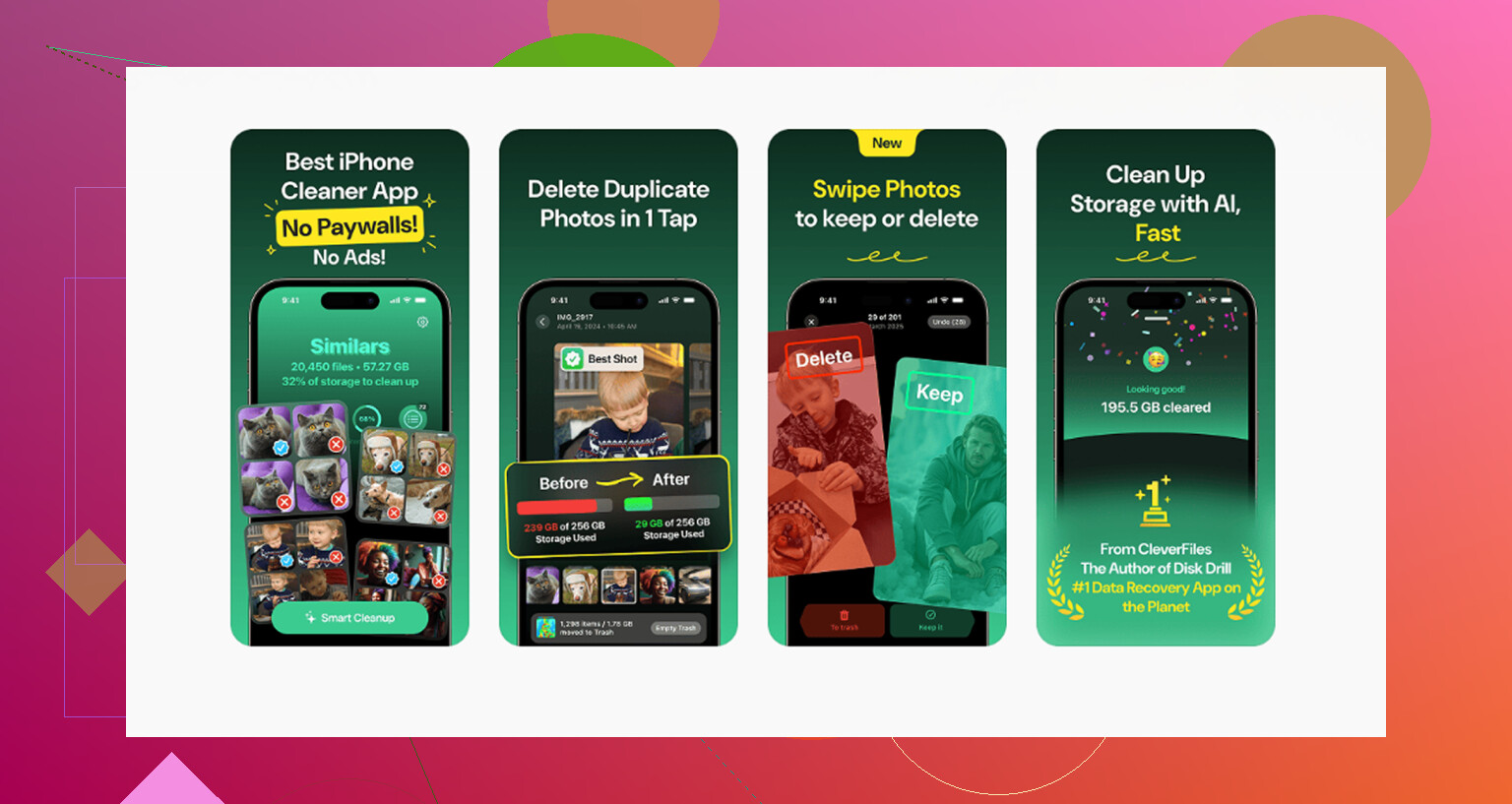
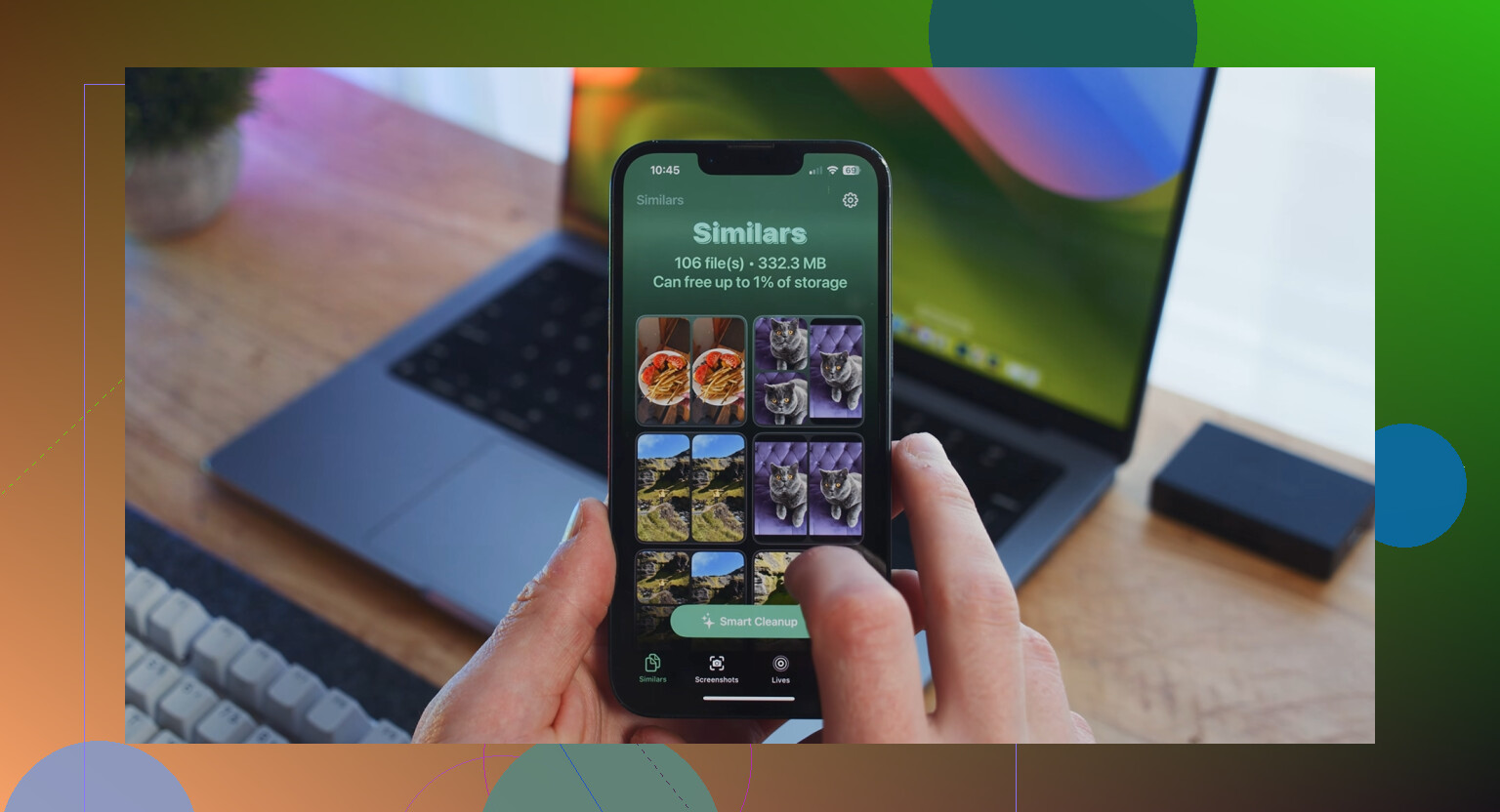
After the favorites cleanup, Clever Cleaner can help with the stuff the manual method does not really target. It is free, has no ads, and does not require a subscription. The Heavies tab sorts files from largest to smallest and shows exact file sizes, which is useful because a few old 4K videos can take more space than thousands of normal photos. The Similars tab groups near-duplicates and chooses a Best Shot from each group, so burst sequences are easier to clear. The Screenshots tab also shows the file size of each screenshot before you delete it. Processing happens on the device, so nothing gets uploaded externally.
Using Clever Cleaner after removing non-favorites can recover more space than the manual cleanup alone, especially if most of your storage is tied up in large videos, duplicates, and screenshots.
13 Likes
Check Recently Deleted before judging your free space, because those photos are still on the phone until they expire or you delete them permanently.
I’d be more cautious with the “delete favorites first” method than @mikeappsreviewer sounds, because one wrong recovery/delete tap can wipe the only set you meant to keep. Safest route is: back up favorites somewhere first, then delete non-favorites, then clear Recently Deleted when you’re sure.
Deleting the photo is not the same thing as freeing the storage.
For the storage question, yes, treat Recently Deleted as still taking space. Photos in there are still recoverable, so iOS has not really removed the files yet. If you delete 10 GB of videos and they all land in Recently Deleted, you should not expect to instantly get 10 GB back until you permanently delete them from there.
The bigger trap here is iCloud Photos. If iCloud Photos is turned on, deleting from the iPhone is usually deleting from your iCloud Photos library too, and from other devices syncing that same library. Recently Deleted then becomes your last safety net. Emptying it is the point of no return, not just a local cleanup step.
So before you do any “delete everything except Favorites” trick, I would check this first:
Open Settings, tap your name, then iCloud, then Photos. If Sync this iPhone is on, assume the changes are syncing everywhere.
That doesn’t mean you can’t do it. It just changes how careful you need to be. Favorites are not a separate copy of the photo. The little heart is just a label on the same item. If you make a mistake and permanently delete the item, the fact that it used to be a favorite will not save it.
I agree with @shizuka on backing up the favorites first, but I would be more specific: export them somewhere outside the Photos library. AirDrop them to a Mac, copy them to an external drive, save them to Files, Google Drive, Dropbox, whatever you trust. Do not count Hidden, Favorites, or Recently Deleted as a backup. Those are still parts of the same Photos system.
After that, the safe order is basically:
- Copy/export your Favorites somewhere else.
- Verify that the copied favorites actually open.
- Delete the non-favorites.
- Check Recently Deleted before touching Delete All.
- Permanently delete only when you are sure the favorites are safe.
Another annoying detail: the storage number may lag. Settings can take a while to update after a big photo cleanup, especially if the phone is low on space or iCloud Photos is syncing. Restarting can help, but don’t keep deleting random stuff just because the number didn’t move after 30 seconds.
And if you use Optimize iPhone Storage, the result may be smaller than expected. Some full-size originals may already be in iCloud rather than fully stored on the phone, so deleting a bunch of photos may free less local space than the library size suggests. Large videos are usually where the real space goes.
Short version: Recently Deleted still matters for storage, and emptying it is what actually frees the space. Just make sure your favorites exist somewhere else first, because once Recently Deleted is cleared, there is no “oops, restore my favorites” button.
No, moving photos to Recently Deleted is not the same as freeing the space. It is more like putting them in a trash can that still sits inside the Photos app. They can still be restored, so you should assume they still occupy storage until you delete them permanently or the countdown expires.
I’d be careful with the “use Recently Deleted as a holding area” method. It can work, but it is a bad place to do sorting if you are already nervous about losing favorites. Once you have mixed favorites and non-favorites in there, the whole cleanup depends on you recovering the right set before hitting Delete All. That is a lot of trust to put in one album.
The safer practical version is boring: make a real copy of your Favorites somewhere outside Photos first, then delete the rest, then open Recently Deleted and clear it only after checking that your favorites are still present and backed up. And don’t judge the result from the storage number immediately. Photos cleanup can lag, especially with iCloud Photos or a big library, so give it some time before assuming it didn’t work.