My iPad has gotten noticeably slower lately—apps take longer to open, pages lag, and storage is almost full. I’m trying to figure out if clearing out old files, unused apps, and cache will actually improve iPad performance or if something else could be causing the slowdown. Looking for advice on the best way to speed up a slow iPad without messing anything up.
An iPad that stutters in every app, hangs on app switches, or feels slow across the board usually has a plain cause. I ran into this on an older iPad and these were the fixes that moved the needle.
If the slowdown started right after an update
I would wait a bit before changing random settings. After a big iPadOS update, the system spends time rebuilding indexes in the background. That hits performance for a while. On mine, the lag eased up after about a day. Give it 24 to 48 hours. If it still drags after two days, I’d look elsewhere.
Settings worth changing first
- Turn off Background App Refresh
Go to Settings > General > Background App Refresh.
I shut this off first. Huge difference. A bunch of apps keep checking in with their servers when you are not even using them, and on a slow iPad you feel it. If you do not want it fully off, keep it only for apps you care about.
- Check Low Power Mode
If your battery icon is yellow, Low Power Mode is on. That means the iPad is holding back performance to save battery. Turn it off if speed matters more right now.
- Turn on Reduce Motion
Go to Settings > Accessibility > Motion, then enable Reduce Motion.
This swaps the heavier zoom effects for simpler transitions. On older iPads, it makes the whole thing feel less sticky. Small setting, but I noticed it.
- Stop force-closing apps all the time
I used to do this out of habit. Bad move. Suspended apps sit there in a low-power state. If you swipe them away, the iPad has to reload them from zero next time. More work, more waiting.
Why freeing storage helps more than people think
Once your storage gets packed, around 80 percent full or so, performance starts falling off. iPadOS needs free space for temp files, cache, and swap during multitasking. When space gets tight, apps lose breathing room and things bog down.
So yes, clearing storage is about more than making room for photos. It helps fix lag.
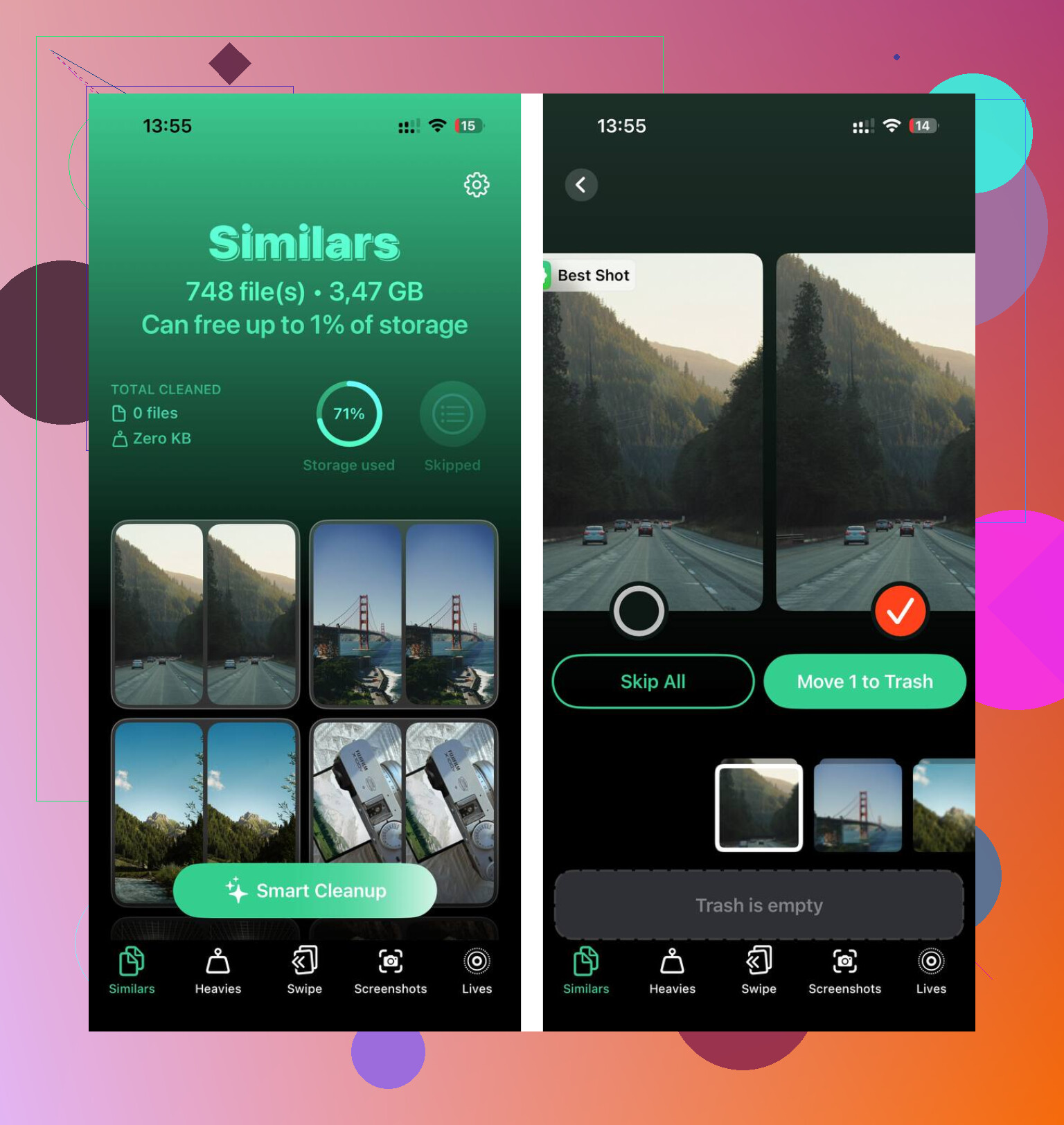
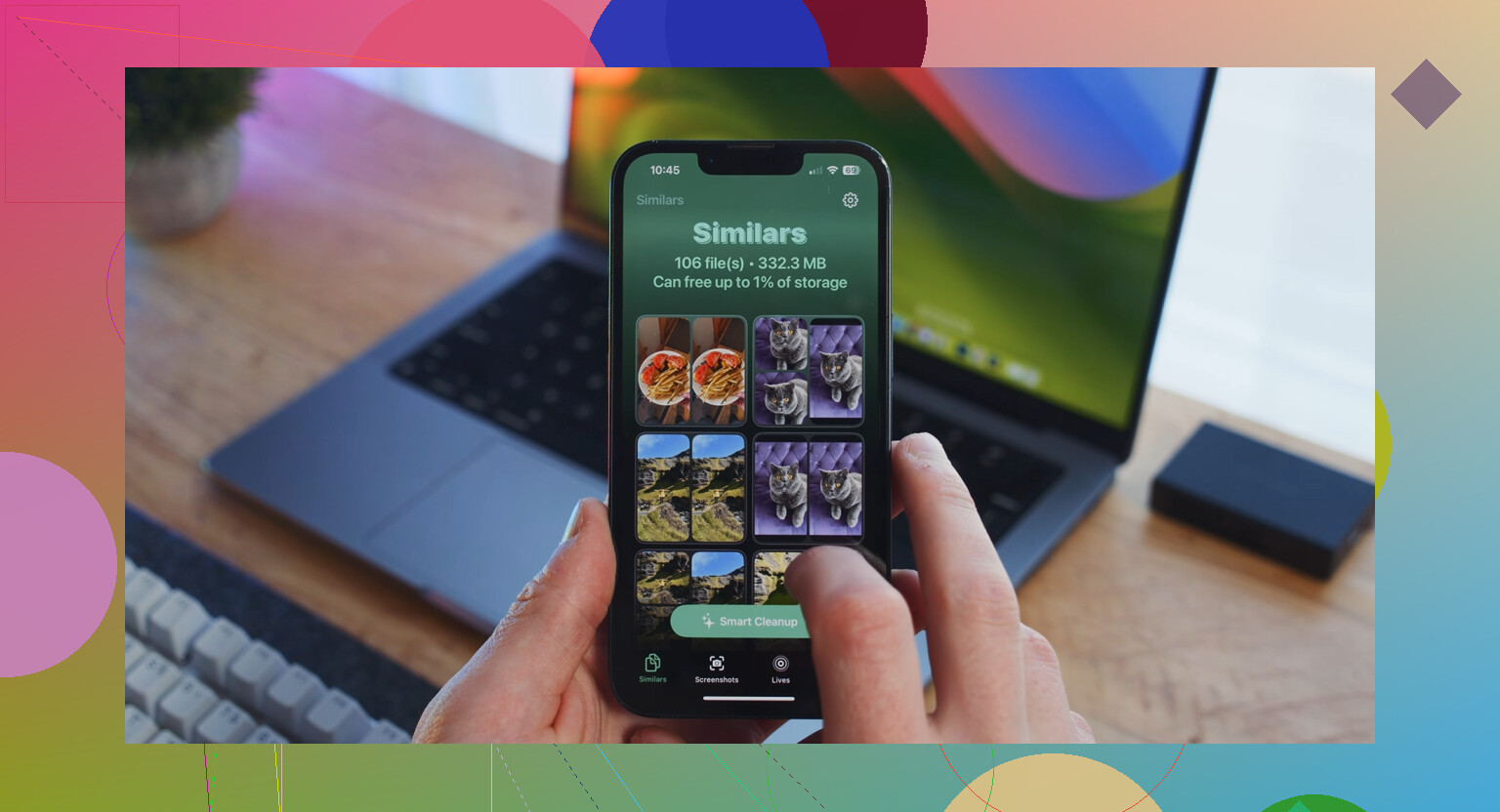
Clever Cleaner was mentioned for this. It focuses on media cleanup, and the useful part is how it surfaces the stuff manual cleanup usually misses.
Here’s how it breaks things down:
- Heavies tab
This shows your biggest files first, with sizes right there. The old screen recordings and giant videos rise to the top fast, which saves you from digging through a mess.
- Similars tab
It groups near-duplicate photos and picks a best shot in each set. I’ve had way too many burst photos and five versions of the same pic from slightly different angles. This cuts down review time a lot.
- Screenshots tab
Every screenshot shows its file size before you delete it. Sounds minor. It helps. Screenshots pile up quietly.
- On-device processing
Nothing gets sent off to some outside server. For some people, that matters a lot.
After I cleared about 15 GB, app launches sped up right away. The iPad stopped feeling jammed.
If you do not want to delete apps
Go to Settings > General > iPad Storage, tap an app, then choose Offload App.
This removes the app itself but keeps your documents and saved data. The icon stays on your Home Screen. When you tap it later, it downloads again and picks up where you left off. I used this for apps I barely touched but did not want to reset.
If Safari is the main thing dragging
Go to Settings > Safari > Clear History and Website Data.
This helps when browsing feels slow even if the rest of the iPad seems fine-ish. Safari piles up cached site data over time, and clearing it gave me a clean reset. A bit annoying if you like staying logged in everywhere, but it did help.
17 Likes
Yes, cleaning it up helps, but only if storage pressure is the main problem.
If your iPad is almost full, free space matters a lot. iPadOS needs room for temp files, updates, and memory swap. When you get down to a few GB free, lag gets worse fast. I’ve seen old iPads feel better after freeing 10 to 20 GB.
I agree with @mikeappsreviewer on the storage part. I disagree a bit on cache cleanup being a huge fix across the whole device. Safari cache helps Safari. It usually won’t fix system-wide slowness by itself.
What I’d do first:
-
Check battery health in practice.
If the iPad gets hot fast or drains fast, performance often drops to control heat. Speed tanks when the chip throttles. Remove thick case, charge it, let it cool, test again. -
Restart it.
Sounds dumb. Still works. A reboot clears stuck processes and memory junk. -
Leave at least 15 percent free storage.
If you have 64 GB, try to keep 8 to 10 GB open. Less than that gets rough. -
Look at the worst offenders.
Settings > General > iPad Storage shows which apps and media eat space. Big Messages attachments, downloaded Netflix files, Procreate files, and Photos are common hogs. -
Update apps, not only iPadOS.
Badly optimized apps cause lag and beachballs too. I had one note app make my whole iPad feel broken. Deleted it, problem gone. Kinda annoying tbh.
If photo clutter is the issue, Clever Cleaner is worth a look since it sorts heavy videos, duplicates, and screenshots faster than doing it by hand. This quick guide on cleaning up your iPad for better performance lines up with that.
If none of this helps, the bigger issue is age. Older iPads with 2 GB RAM or aging batteries slow down no matter how tidy you keep them. Cleanup helps, but it won’t turn a 6 year old iPad into a new one. Sad but truee.
Yes, but only up to a point.
I mostly agree with @mikeappsreviewer and @stellacadente on the storage issue. If your iPad is nearly full, cleaning it out can absolutely help because iPadOS needs working room. What I slightly disagree on is the idea that cleanup alone is the magic fix. If the iPad is old, has weak RAM, or the battery is throttling performance, deleting files won’t suddenly make it fly.
A couple things I’d check that they didn’t really hit:
- Open Safari and see if you have like 150 tabs open. Seriously, that can make it feel janky.
- Check if one specific app is the problem. Sometimes it’s not the whole iPad, just one bloated app hogging memory.
- Turn off widgets you never use. Some of them refresh more than people realize.
- If you use a lot of cloud photo syncing, pause it for a bit and see if performance improves. Background syncing can be sneaky.
If your storage is almost full, I would clean that first before anything else. Not just apps, but giant videos, duplicated photos, downloads, and old attachments. Clever Cleaner is useful for that kind of cleanup, especially if Photos is the messiest part. It’s easier than manually hunting through everything, and this article from Cult of Mac calls it a top truly free iPhone cleaner worth trying.
If you free space and it’s still sluggish after a restart, then it’s probly more about hardware limits than clutter. Cleaning helps, but it’s not a miracle lol.
Cleaning helps, but I’d put indexing and failing storage higher on the suspect list than cache. Small disagreement with @stellacadente and @sonhadordobosque there: when an iPad feels slow everywhere, it is often not “junk” so much as the system constantly juggling too little free space plus background tasks.
A few things not mentioned yet:
-
Check Analytics for crash loops
Settings > Privacy & Security > Analytics & Improvements > Analytics Data.
If the same app/process shows up over and over, that app may be hammering the system. -
Look at battery usage by app
Settings > Battery.
If one app is chewing power in the background, that can explain heat, lag, and drain. -
Disable auto-downloads for apps, books, updates on older iPads. Constant background installs can make them feel weirdly sluggish.
-
Mail accounts can be sneaky.
If you have several mailboxes on Push, switch to Fetch. Exchange and Gmail syncing can bog older hardware down. -
Free RAM indirectly
Remove a few heavy widgets, trim Safari tab groups, and reboot after charging to 100%. Not magic, but sometimes enough.
On cleanup itself: yes, do it if storage is nearly full, but prioritize large media over random app cache. That is where Clever Cleaner is actually useful.
Pros of Clever Cleaner
- Fast at spotting huge videos/screenshots
- Easier than digging manually through Photos
- Good for duplicate or near-duplicate clutter
Cons
- Mainly helpful if media is the problem
- Won’t fix old RAM limits or thermal throttling
- You still need to review before deleting important stuff
So I mostly agree with @mikeappsreviewer on freeing space first, just not on expecting cache cleanup alone to move the needle much. If you clear 10 to 15 GB and it still crawls, you’re likely hitting age, battery, or background-process limits, not clutter.