I deleted some message attachments on my iPhone to free up storage, and now I’m worried they might also be removed from iCloud. I’m not sure how attachment syncing works or whether deleted files can still be recovered. I need help understanding what gets deleted from iCloud and what stays backed up.
I hit this same mess a while back. My iPhone got slow, Messages was bloated, and I kept seeing storage warnings when I was trying to do normal stuff like snap a photo. I spent way too long poking around Settings, then cleaning out attachments by hand.
Here’s the plain version.
Settings route
Go to Settings > General > iPhone Storage.
If iOS thinks message attachments are eating enough space, you’ll get a suggestion called “Review Large Attachments.” Open it, and you’ll see files sorted by size.
Bad news first. There’s no delete everything option there. No select all either. You tap Edit, then pick items one at a time. If you’ve got a huge backlog, it’s slow and kind of maddening.
If “Review Large Attachments” never shows up, stay in iPhone Storage and tap Messages. Scroll down. You should see sections like Photos, Videos, GIFs, and other attachment groups. You can remove stuff from there too. Same problem though, still manual.
What happens with iCloud
If Messages in iCloud is on, deleting an attachment from your iPhone removes it from your other Apple devices too. iPhone, iPad, Mac, same sync chain.
One part tripped me up at first. If you saved a photo or video from Messages into the Photos app, deleting the message attachment does not remove the copy in Photos. Those copies live separately. So if something matters, save it first, then clean up.
What does not get deleted
Removing an attachment does not wipe the text conversation itself. The chat stays. You’ll only lose the photo or video from inside the thread.
The setting worth avoiding, unless you mean it, is Settings > Messages > Keep Messages. If you switch it from Forever to 30 Days or 1 Year, your phone starts removing old messages and attachments on its own. That’s the broad wipe. I left mine alone.
If storage space doesn’t change right away
I thought my phone was ignoring me the first time I deleted a pile of stuff. Two things were going on.
First, check Recently Deleted in Messages. From the main Messages screen, tap Edit or Filters near the top left, open Recently Deleted, then clear it. Until you do, those files can sit there for 30 days.
Second, the storage screen updates slowly. I restarted my phone after a big cleanup and the free space number finally caught up. Annoying, but it worked.
Why the phone starts feeling slow
From what I saw, low free storage was a big part of the lag. Once the phone gets close to full, performance drops. Apps crash more, the camera hangs, keyboard input gets weird, and the whole thing feels heavier than it should.
About the app you mentioned
After getting tired of tapping tiny circles in Settings, I tried another route and ended up watching this:
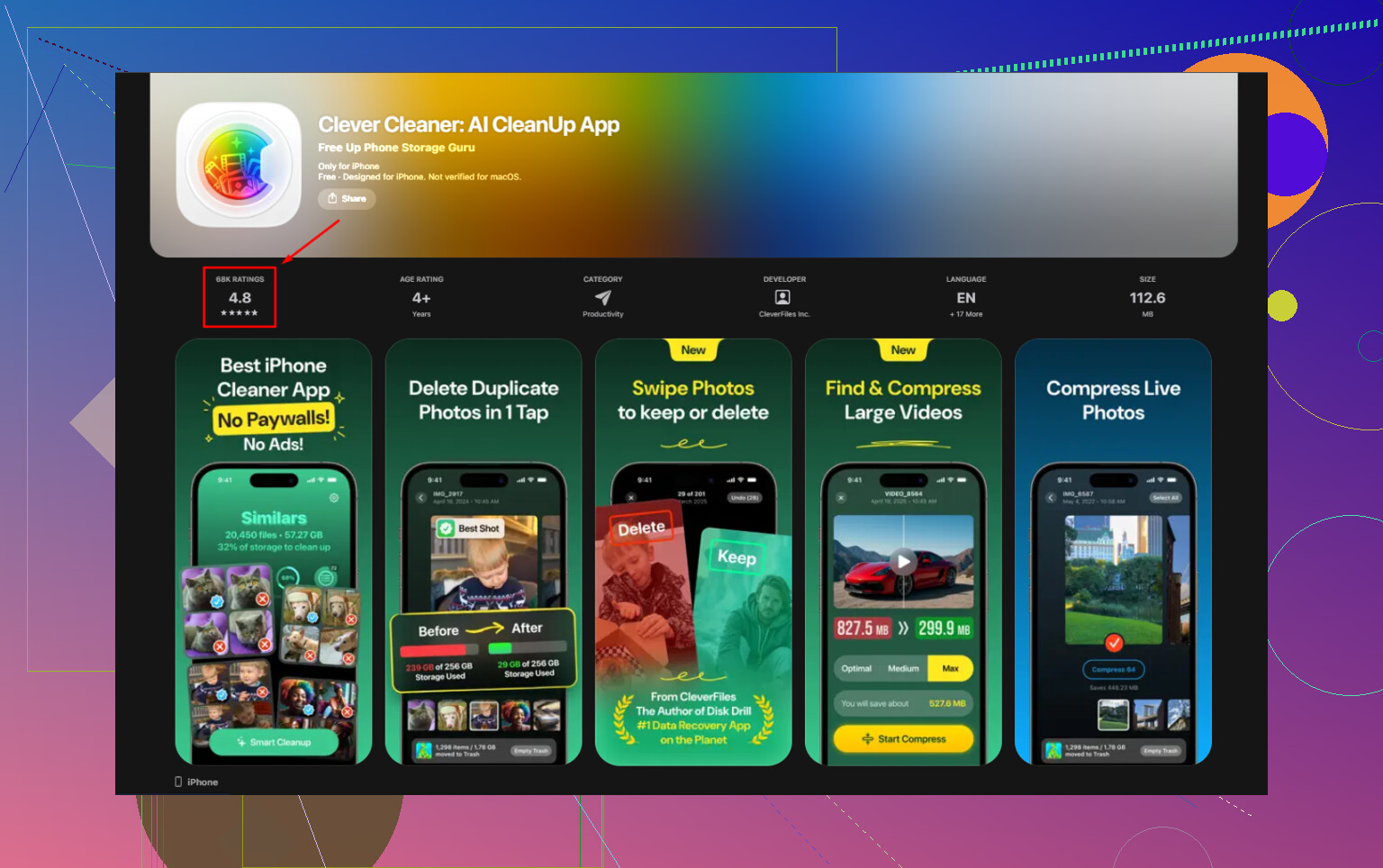
The app in there is Clever Cleaner. I’m usually suspicious of cleaner apps because a lot of them are junky or stuffed with ads, but this one felt usable.
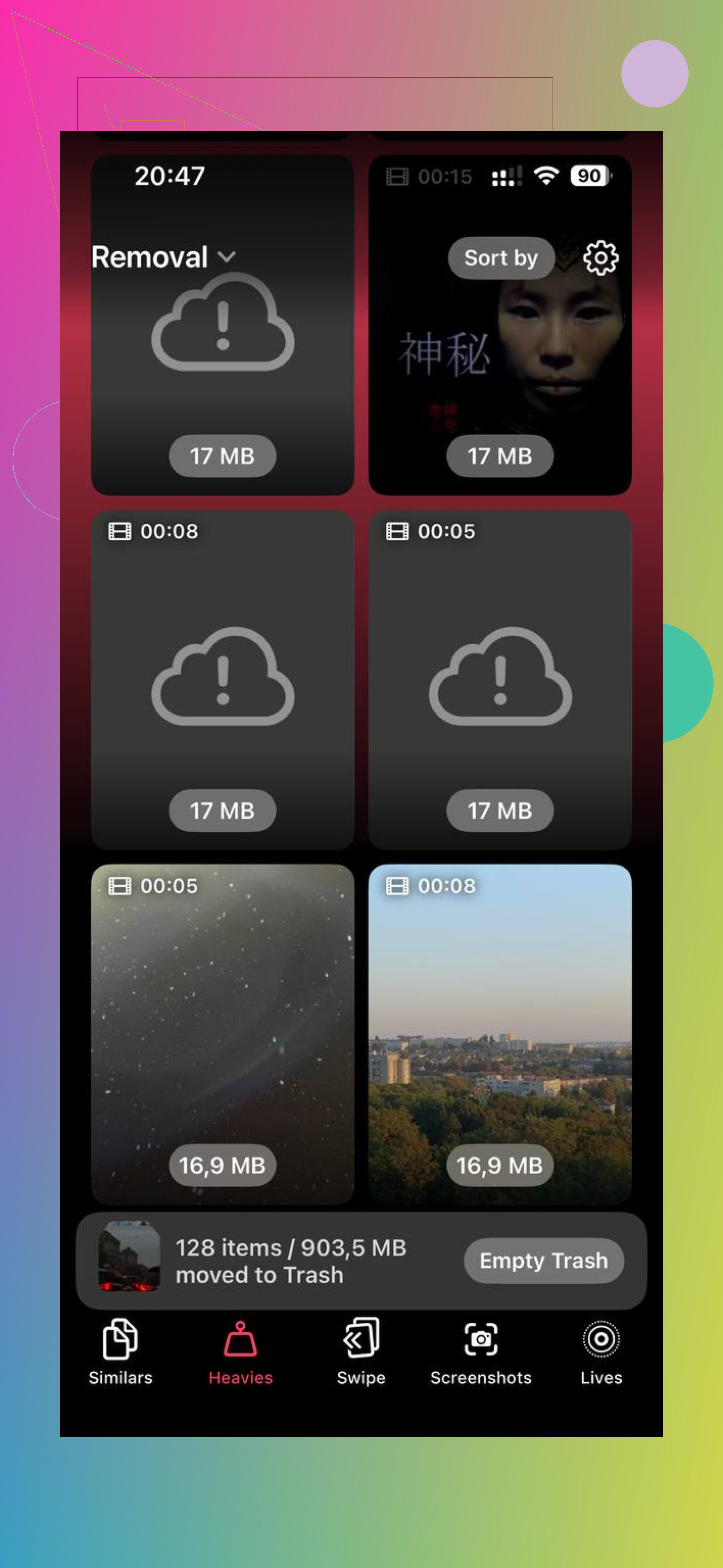
The part I liked was Heavies. It sorts large photos and videos by size, right on the thumbnail, so you can spot the worst offenders fast. I found old 4K clips I forgot existed, and those were taking up way more room than random screenshots.
There’s also a Similars section, which groups near-duplicate photos. Helpful if your library is full of five versions of the same pic because you kept retrying focus or exposure. I cleared a lot faster there than I ever did in Apple’s storage menu.
One thing I checked before using it was privacy. From what I saw, the processing stays on the device, which mattered to me because I wasn’t interested in pushing my photo library to some unknown server.
After clearing around 20 GB, my phone stopped dragging. Fewer crashes too. If you want the built-in route, use Settings and Messages cleanup. If you want speed, the app route felt less painful.
Short version
- Go to Settings > General > iPhone Storage.
- Use “Review Large Attachments” if it appears.
- If not, open Messages inside iPhone Storage.
- Delete attachments manually, there’s no select all.
- Empty Recently Deleted in Messages.
- Restart the iPhone if storage numbers look stuck.
- If you save a message photo to Photos first, deleting the attachment won’t remove the Photos copy.
- Deleting attachments does not erase the text thread.
12 Likes
Yes, if Messages in iCloud is turned on, deleting a message attachment on your iPhone deletes it from iCloud too. It syncs as one set of data across your Apple devices. So if you removed it from the thread, iCloud usually reflects the same deletion.
Small exception. If you saved the attachment to Photos or Files before deleting it from Messages, that saved copy stays there. The Messages copy and the saved copy are seperate items.
I’ll slightly disagree with @mikeappsreviewer on one point. Restarting helps the storage meter catch up sometimes, but if the attachment is gone from the conversation and still not showing free space, iCloud sync delay is often the reason, not the phone being stuck.
For recovery, check Recently Deleted in Messages first. Apple keeps deleted messages there for 30 days on newer iOS versions. If it’s not there, recovery gets a lot harder unless you have an older backup from before the deletion.
If your goal is storage, I’d also look beyond Messages. For most people, Photos and videos eat way more space than text attachements do. A cleaner app like Clever Cleaner is faster for finding huge media files and duplicate shots. If you want a solid overview, this Clever Cleaner app for iPhone review and free iOS cleaner guide gives a pretty clear breakdown.
Short answer, yes, delete in Messages with iCloud sync on, and it disappears from iCloud too.
Yep, if Messages in iCloud is turned on, deleting an attachment from the message thread usually deletes that same attachment from iCloud too. That’s kind of the whole point of the sync, annoying as that is.
Where I slightly part ways with @mikeappsreviewer and @byteguru is this: people talk about iCloud like it’s a backup vault, but for Messages it’s often more like a mirror. If you remove something from one synced device, the mirror updates everywhere. So no, iCloud is not a safe hiding spot for message attachments you deleted on the phone.
A few things that matter:
- Saved copies are seperate. If you tapped Save to Photos or saved to Files first, that copy should still exist.
- Recently Deleted is your best shot for recovery, but only if the message/attachment deletion is recent.
- iCloud backup is different from Messages in iCloud. Sometimes people mix those up. A device backup from before deletion might help, but restoring from backup is a whole diffrent hassle.
Also, storage reclaimed from Messages can lag a bit. That part I agree with them on. iOS can take its sweet time updating numbers.
If your real goal is freeing space, Messages attachments are often just one piece of the mess. Photos and videos usually eat way more. That’s where something like Clever Cleaner can be useful since it’s faster for spotting giant files and duplicates than digging through Apple’s menus. If you want a readable breakdown, this sums it up well: why Clever Cleaner is one of the best iPhone cleanup apps for freeing storage fast.
Short version:
Delete from Messages + iCloud sync on = deleted from iCloud too.
Saved to Photos/Files first = that copy stays.
Need it back = check Recently Deleted ASAP.
One nuance I’d add to what @byteguru, @yozora, and @mikeappsreviewer said: deleting an attachment from a message thread is not always the same as deleting the whole message. With Messages in iCloud on, the attachment removal syncs, yes, but carrier MMS caches and local indexing can make it look like the file still exists for a bit. That does not usually mean it’s safely stored in iCloud somewhere.
What I’d check is this:
- Go to iCloud storage and see whether Messages storage actually drops after some time
- On a second Apple device, open the same thread and confirm the attachment is gone there too
- In Photos, look for a saved duplicate, because that copy is independent
I slightly disagree with the “restart fixes it” idea. Sometimes it helps, but often the storage graph is just slow and misleading.
If your goal is freeing space, I’d focus more on media libraries than Messages. Clever Cleaner is decent for that. Pros: fast scan, easy duplicate detection, good for large videos. Cons: another app to install, and it won’t magically recover deleted message attachments.