I deleted all my photos to free up space, but my phone storage is still showing as full. I’ve checked the gallery, but the available storage barely changed. Could hidden files, recently deleted photos, cache, or backups still be taking up space? I need help figuring out what to clear next.
I’ve run into this too, and it’s maddening. You delete a ton of stuff, empty Recently Deleted, go back to iPhone Storage expecting a big win, and the bar barely changes. Sometimes the “used” number even goes up, which makes it feel like the phone is lying to you.
Usually it’s not that the photos are still sitting there in the obvious place. iOS can hang onto freed space under System Data for a while, especially if the phone is already almost out of storage. The storage screen also seems to lag behind reality. It may be showing an old cached calculation, then when you start deleting things it rescans and realizes the phone was even more full than it previously showed.
Here’s what I’d try before doing anything drastic:
Do a forced restart, not just a normal power cycle.
On newer iPhones, press Volume Up, press Volume Down, then hold the Side Button until the Apple logo appears. In some cases it takes doing this more than once before System Data finally shrinks and the available space updates.
Check for the weird Date & Time photo glitch.
Go to Settings > General > Date & Time, turn off “Set Automatically,” and move the date forward by a year. Then open Photos, wait a minute, and check Recently Deleted again. Sometimes old deleted items show back up there because the Photos database didn’t clean itself up correctly. Delete anything that appears, then turn automatic time back on.
Look at Messages and app caches.
Go to Settings > General > iPhone Storage > Messages and check the attachments. Old videos, GIFs, screenshots, and random stuff from text threads can eat a shocking amount of space. Apps like TikTok, Instagram, and WhatsApp can also build up huge caches. If one of those apps is taking 10GB or more, deleting and reinstalling the app is usually the simplest way to clear its cache.
Use something better than Apple’s built-in cleanup tools.
Apple’s storage tools are pretty limited, especially when the phone is already lagging so badly that Settings barely works. They don’t make it easy to sort media by size, and they miss a lot of clutter that isn’t an exact duplicate.
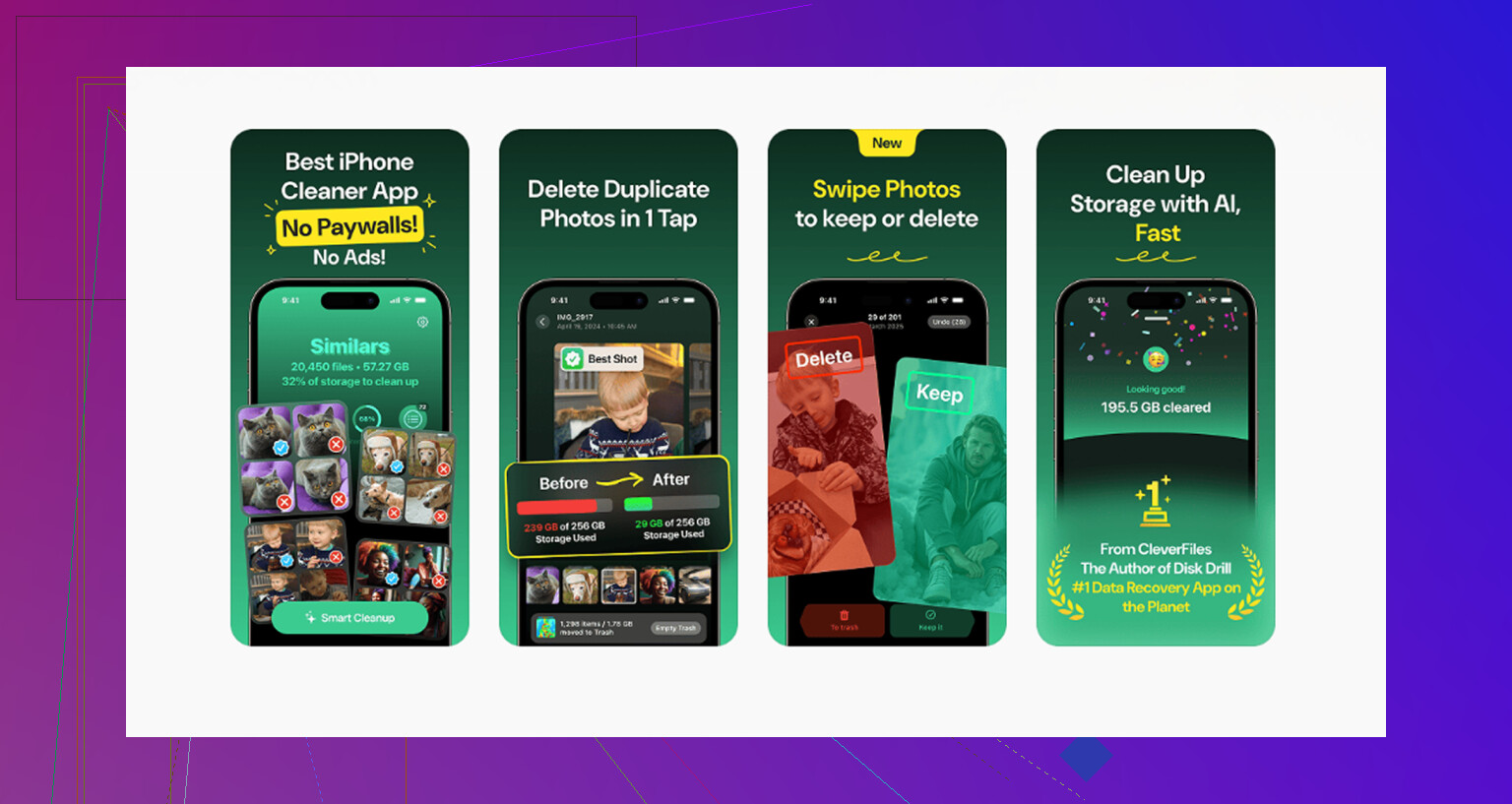
I ended up using Clever Cleaner, and it’s the only cleaner app I’d actually point people toward. A lot of cleaner apps are subscription traps, but this one is free, with no ads, no paywall, and no “free trial” that turns into a charge later.
The “Heavies” section is the part that helped most. It sorts your media by file size, so you can quickly find some forgotten 4K video taking up a couple gigabytes by itself. The “Similars” section is also useful because it finds photos that aren’t exact duplicates but are basically the same shot, like ten versions of the same sunset. It picks what it thinks is the best one and lets you delete the rest quickly. It also shows file sizes, which helps when you’re trying to clear space fast. Another nice thing is that it processes everything on the phone, so your photos aren’t being uploaded somewhere else.
For me, the lag didn’t really stop until I cleared a decent chunk of space with a dedicated cleanup tool. Once you get around 10 to 15GB free, iOS usually starts acting normal again and the Storage Full warnings tend to stop.
If none of this works, the last option is a full backup to a computer and then a factory reset. That should clear out whatever corrupted system files are keeping the storage stuck, but I’d only do that after trying the forced restart and a proper cleanup first.
9 Likes
Check the storage breakdown before chasing “hidden photos.” If Settings > General > iPhone Storage no longer shows Photos as the big category, then deleting more from the gallery will not help much. Look for Files, Messages, Podcasts, Music, WhatsApp, Telegram, Safari, or Mail instead, because saved downloads and chat attachments often sit outside the Photos app even if they originally looked like photos or videos. I agree with the restart advice, but I’d be careful blaming System Data too quickly. Sometimes the phone is full because a different app quietly kept its own copy. The Files app is a common one people miss: open Files > Browse > On My iPhone and iCloud Drive > Downloads, then sort by size if you can.
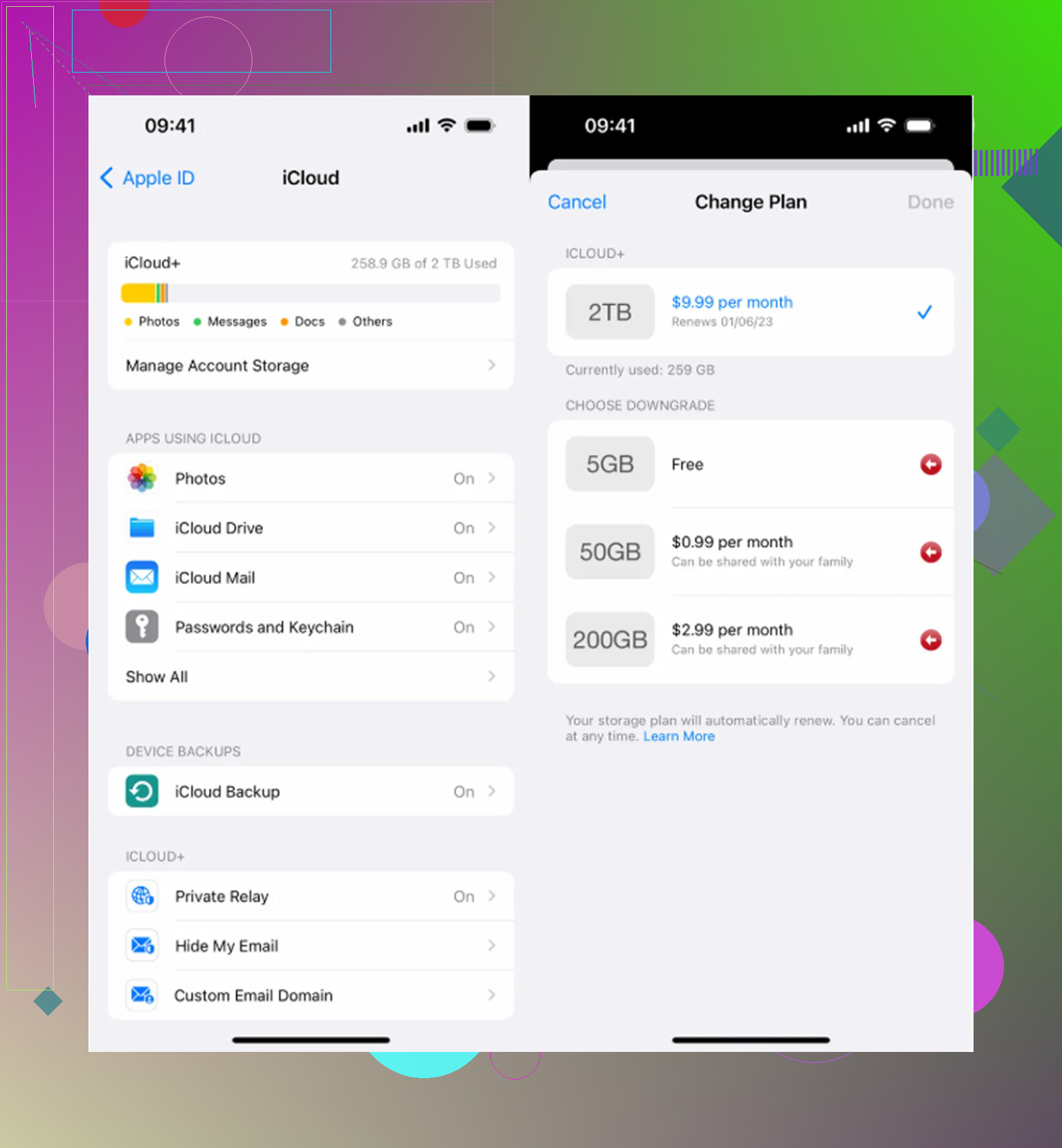
Don’t keep mass-deleting until you check iCloud Photos. If “Optimize iPhone Storage” was on, a lot of those photos may not have been stored full-size on the phone anyway, so deleting them won’t free as much space as expected and may just remove them from iCloud too. Go to Settings > your name > iCloud > Photos and see what mode you’re in before doing more cleanup. If Photos is no longer the big storage item, @viajantedoceu is probably right: the space is somewhere else, usually Messages, Files downloads, or app data. I’d avoid cleaner apps until you’ve checked that, because the wrong move with iCloud Photos can turn a storage problem into a lost-library problem.
Don’t use “Offload App” and expect it to clear the mess, because it usually leaves the app’s documents and data behind. If iPhone Storage shows one app taking a huge amount of space, delete the app completely, restart, then reinstall it if you still need it.