I took some photos on my iPhone with Live Photo turned on, but I only want to keep the still image and not the motion effect or sound. I’m worried about deleting the whole picture by mistake and I need help figuring out how to remove Live Photo without losing the original photo. Looking for the easiest way to do this on iPhone.
I ran into this with my iPhone too. Live Photos looked harmless at first, then a few years passed and my storage got chewed up. Each one is a photo plus a short video, so the total climbs faster than you expect.
If you want them gone entirely
This part is simple.
Go to Photos > Media Types > Live Photos. Hit Select, pick what you want gone, then delete them. After that, open Recently Deleted and wipe them there too. If you skip that step, your phone keeps holding the files for up to 30 days.
One thing tripped me up the first time. If you delete a Live Photo before making a still copy, you lose the image along with the motion part.
If you want to keep the picture and lose the motion
This is what I was after.
You need to turn the Live Photos into regular still images first, then remove the Live Photo versions. Apple does let you do it, but once you have more than a small batch, it gets annoying fast. I had to duplicate images as stills, then circle back and delete the originals one by one. Kinda a slog.
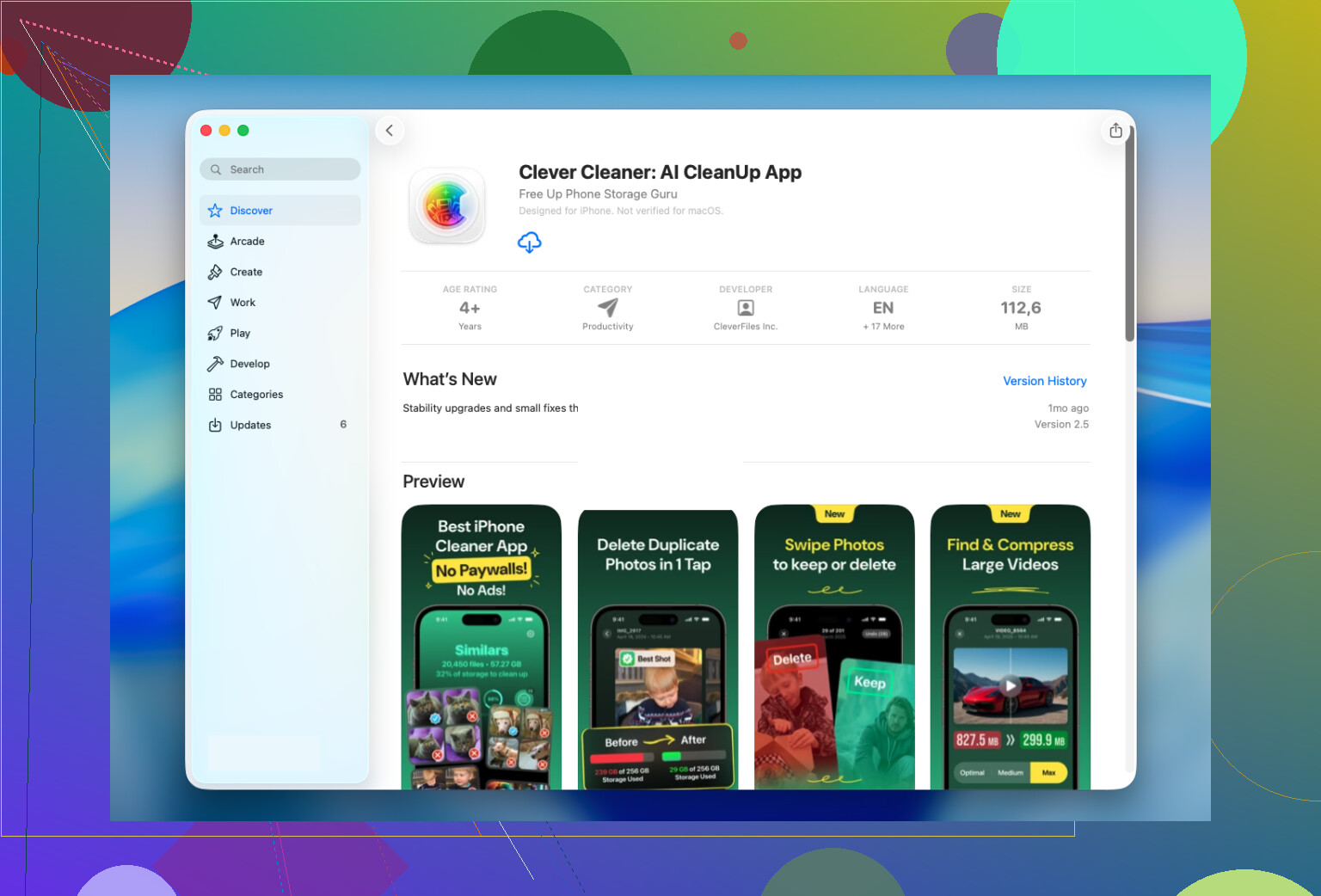
Why I ended up using Clever Cleaner
I tried the manual route first. For a big library, I gave up.
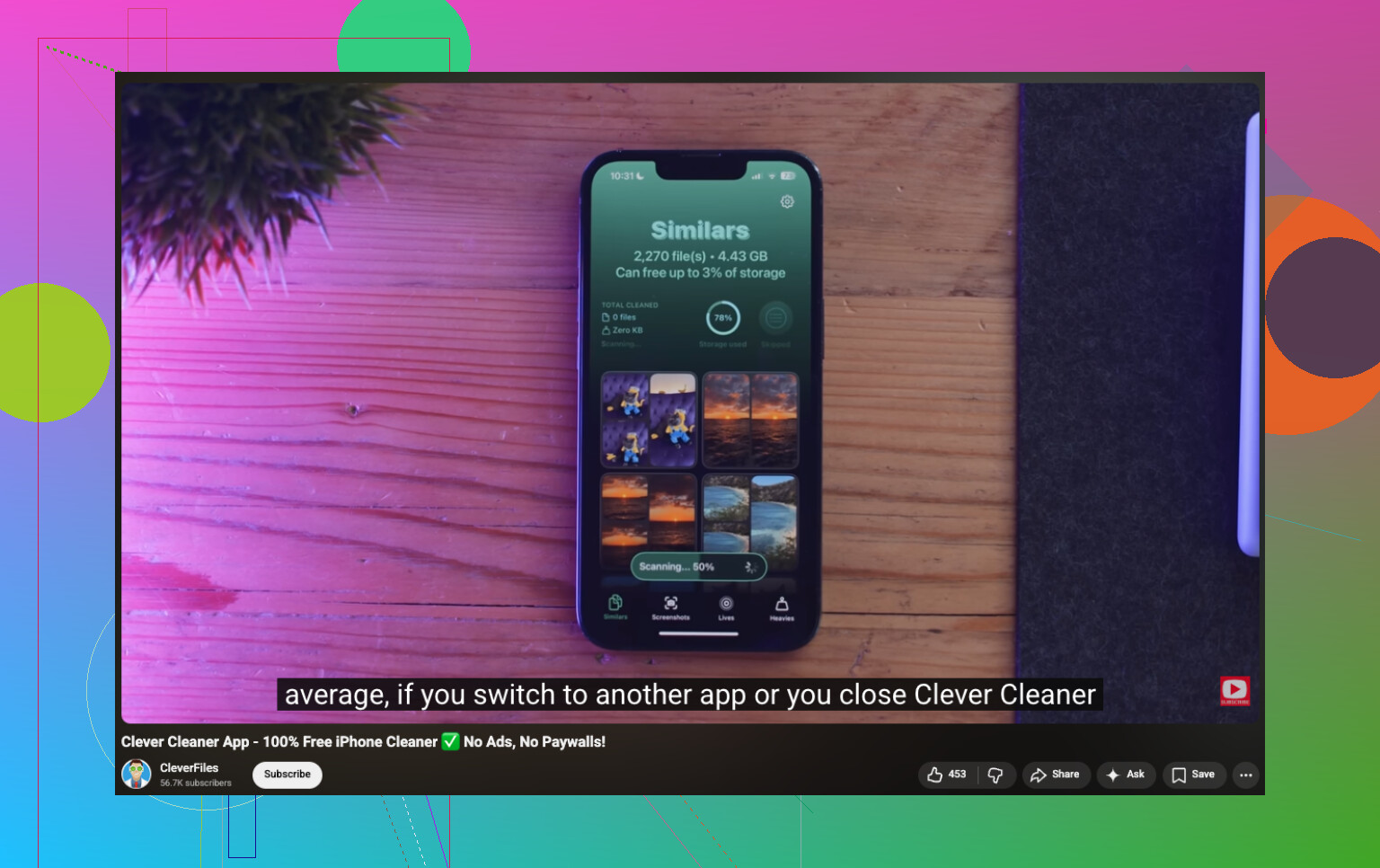
What helped was the app’s Lives section. It pulls all Live Photos into one spot, so you’re not bouncing through albums hunting them down. I sorted mine by size first, because I wanted the biggest space hogs out of the way. You can sort by date too, or select the whole stack at once.
The useful part for me was seeing the storage number before doing anything. I like knowing what I’m getting back. When you run the conversion, it makes still-image versions, then asks what you want done with the original Live Photos. Keep them for now, send them to the app’s Trash, or delete them.
I liked having that pause before removal. I checked a few converted shots first, made sure nothing looked off, then cleared the originals.
It does more than handle Live Photos
I kept the app installed because I ended up using the other sections more than I expected.
- Similars found duplicate shots and near-duplicates my Photos app never surfaced
- Heavies showed me the biggest videos and helped trim storage there too
- Screenshots dumped all my random saved images into one place for fast cleanup
- Swipe let me sort photo by photo without much friction
For me, Similars and Heavies freed more space than the Live Photos cleanup did. I wasn’t expecting tht.
What I’d do in your spot
If you’ve got a small number of Live Photos, stick with Apple’s built-in tools. It’s slower, but fine for a short job.
If your library has hundreds or thousands, I’d use Clever Cleaner. The Lives section is built for this exact mess. It converts in bulk, keeps the still images, and turns a long cleanup into a short one.
2 Likes
You do not need to delete the photo.
Open the picture in Photos. Tap Edit. Tap the Live button at the top. Turn Live off. Tap Done.
That keeps the same image and removes the motion and audio effect from your library view. For most people, this is the safest first move because you are editing the photo, not deleting it.
Small catch, and this is where I differ a bit from @mikeappsreviewer. If your goal is storage savings, turning Live off on the photo does not always work out like people expect. On some iPhone setups, it disables the effect but does not free as much space as you hoped. If space is the main issue, test it on 2 or 3 photos first and check iPhone Storage before and after.
If you want a plain still file with no Live data at all, share the photo to Files or save it out from another app as a JPEG. Then keep the still copy and remove the original Live Photo. Slower, yep, but more foolproof for a few images.
If you have a lot of them, Clever Cleaner makes more sense. It groups Live Photos so you can convert and clean them in bulk without geting lost in the Photos app.
Also, this step by step guide to remove Live Photos on iPhone walks through the process pretty well.
If you’re scared of deleting the whole pic, the safest trick is not to start with delete at all.
One option people skip: on iPhone, open the Live Photo, tap Share, then Duplicate or export/save it into Files as a regular image, then move that still back into Photos if you want. After you confirm the still looks right, then remove the original Live Photo. It’s slower, yeah, but for a handful of photos it’s the least nerve-wracking methd.
I slightly disagree with @mikeappsreviewer on one part though. I would not jump straight into mass deletion unless you’ve verified the still copy exists outside the Live version. Photos can be weirdly easy to mess up when you’re moving fast.
Also, if your issue is really storage, check this out for best ways to free up iPhone storage.
For big batches, @suenodelbosque has the right idea that manual gets old fast. That’s where Clever Cleaner is actually useful, because it can organize Live Photos and help convert/clean them in bulk without you hunting through your library like a maniac. If you’ve got, like, 12 photos, do it manually. If you’ve got 1,200, don’t torture yourself lol.
One thing I’d add to what @suenodelbosque, @hoshikuzu, and @mikeappsreviewer covered: if you only care about how the photo behaves when you send it to people, you often do not need to permanently change anything in your library.
When sharing a Live Photo, some apps and share targets let you send it as a still automatically. That means you keep the Live version on your phone, but the person receiving it gets just the normal image. I actually prefer this for favorite shots because you keep your options open instead of flattening everything right away.
Where I slightly disagree with the bulk-cleanup angle: if these are important photos, I would test your workflow with one throwaway image first. iCloud Photos can make edits sync everywhere, which is great until you realize you wanted the original behavior on another device too.
If you do want to clean up a large batch, Clever Cleaner is the kind of tool that makes the library easier to review.
Pros of Clever Cleaner
- easier to sort Live Photos in one place
- useful for batch cleanup
- can help spot other storage hogs too
Cons of Clever Cleaner
- another app to grant photo access to
- overkill for a tiny batch
- always double-check results before deleting originals
So my vote: for a few photos, use sharing/export behavior strategically first. For a huge library, Clever Cleaner is more practical.