I accidentally deleted an Outlook PST file that had important emails, contacts, and old work data in it. I already checked the Recycle Bin and can’t find it, so I need help with the best way to recover the deleted PST file before the data is gone for good.
I ran into this after Outlook threw the usual “file cannot be found” message, and in my case the missing piece was a PST I had deleted while cleaning out old folders. Downloads, Documents, and the Outlook Files folder are easy places to break things without noticing. Outlook keeps pointing at one exact file, and once it is gone, things get messy fast.
First thing, stop poking around the PC more than you need to. When Windows deletes a file, it often only frees up the space for reuse. If you keep installing stuff, copying files, or even doing a bunch of browsing, you raise the odds of the old PST getting overwritten. I learned this the hard way years ago. Less activity gives you a better shot.
Here’s the order I’d use.
1. Check the obvious stuff first
Open the Recycle Bin. A normal delete often leaves the PST there. If you used Shift+Delete, then no, it won’t be in the bin.
After that, check any sync or backup service tied to your user folders. If Documents was synced with OneDrive, Dropbox, or something similar, sign in through the web interface and look through deleted items or version history. I’ve seen OneDrive save people from a dumb cleanup mistake more than once.
2. Look for older folder snapshots in Windows
Sometimes Windows kept an older copy of the folder through File History, restore points, or shadow copies.
The common location is:
C:\Users\YourName\Documents\Outlook Files
Go to the folder where the PST used to live. Right-click it, then choose “Restore previous versions.” If you see a snapshot from before the file vanished, open it and copy the PST somewhere safe. Don’t restore blindly over the top of everything. Copy it out first. Safer that way.
3. If it’s gone, run file recovery
If the Recycle Bin is empty and Windows has no earlier version, then you’re in recovery-tool territory.
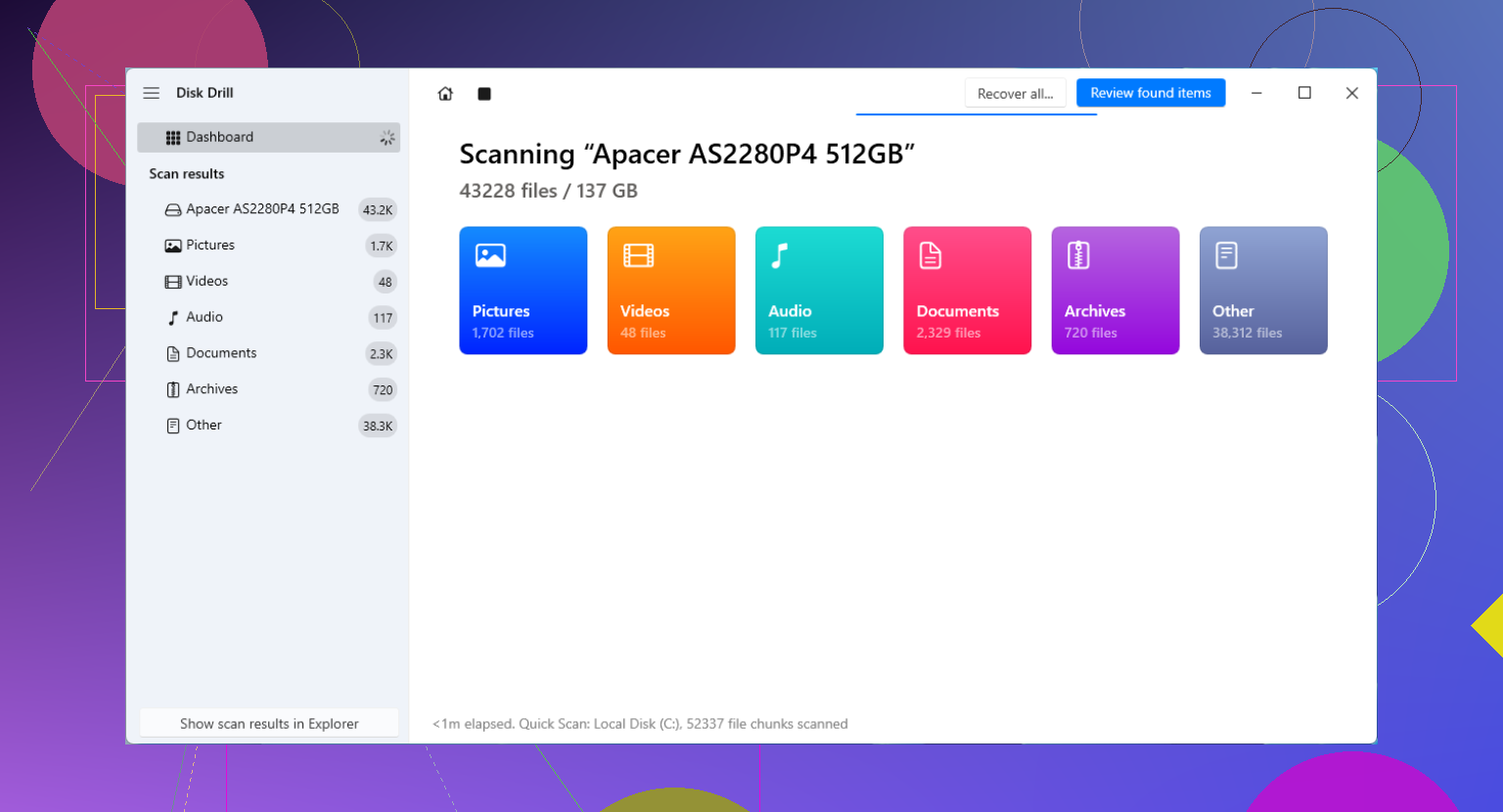
I’ve seen people use Disk Drill for this sort of thing. It scans for files Windows no longer shows. The big rule here is simple. Don’t install the recovery app onto the same drive where the PST was deleted if you have another option. That write activity can wreck your chances.
This is the workflow I’d follow:
Install the recovery app on another drive, a USB stick, or an external disk if you have one.
Scan your Windows drive, usually C:.
Filter or search for PST files.
Check file sizes before restoring. A fresh blank Outlook data file is often tiny, maybe a few hundred KB. The real one with years of mail is often hundreds of MB, sometimes multiple GB.
Recover the big PST to a different place, like an external drive or even the Desktop if needed.
Size matters here. If you find three PSTs and one is 265 KB while another is 1.8 GB, I’d start with the 1.8 GB file. Sounds obvious, but when you’re stressed, people miss stuff.
4. Outlook may have made a fake replacement
One thing Outlook likes to do, annoyingly, is create a new empty data file when the old PST is missing. So Outlook opens, but your folders are gone and it looks like years of mail evaporated. Sometimes it’s not gone. Outlook is simply looking at the wrong file.
After you recover the old PST, open it by hand:
File > Open & Export > Open Outlook Data File
Pick the recovered PST. If it worked, your old folders should show up in the left pane. Look through them before changing anything else. Once you confirm the mail is there, go into Account Settings and switch the recovered PST back to the default data file.
5. If the account used IMAP, your server mail might still be fine
This part trips people up. If the account was IMAP, your inbox and synced folders often still exist on the mail server. Re-adding the account to Outlook makes Outlook build a new OST and pull mail back down.
The trouble is with mail stored only on the PC. Old archives, imported folders, local-only folders, random saved mail from years ago, that stuff often lived only inside the deleted PST. If you care about those, the recovery scan matters a lot.
What I’d do after getting it back
Once the PST is recovered, back it up somewhere outside the PC. External drive, cloud backup, both if you want less future pain. PST files get ignored until the day they vanish.
If your scan finds a large PST, start there first. In my expereince, the biggest file is often the one with the real history in it, while the tiny one is the blank replacement Outlook made when it panicked.
13 Likes
If the deleted Outlook email archive file is important, skip Outlook repair tools first. They fix damaged files, not missing ones. I slightly disagree with @mikeappsreviewer on one part too. I would not spend long inside Outlook before recovery, becuase opening and syncing stuff keeps writing to disk.
My order would be:
-
Check backup sources from Outlook itself.
If you ever exported mail before, search your PC and external drives for:
*.pst
Also check old Windows user profiles if you had one. -
Search mail providers.
If this was POP mail, the lost Outlook data file often held the only copy. If it was Exchange or Microsoft 365, server data might still be there. Log into webmail and export what still exists now. -
Use Windows File Recovery first if you want a free option.
Microsoft has a command line tool called Windows File Recovery. It is ugly, but it works on some NTFS deletes. Search syntax example:
winfr C: D: /regular /n *.pst
Recover to a different drive. -
If you want a GUI, use Disk Drill.
It is easier for most people. Search by file type and by size. Old Outlook archive files are often large. Recover to another drive, not C:. If the file name is gone, sort by extension and file size. That helps a lot. -
After recovery, test the file before importing.
Open Outlook, File, Open and Export, Open Outlook Data File. If Outlook says the file is corrupt, then run scanpst.exe on the recovered file.
Also, for anyone reading who wants a plain explainer on what an Outlook email archive file is, this helps:
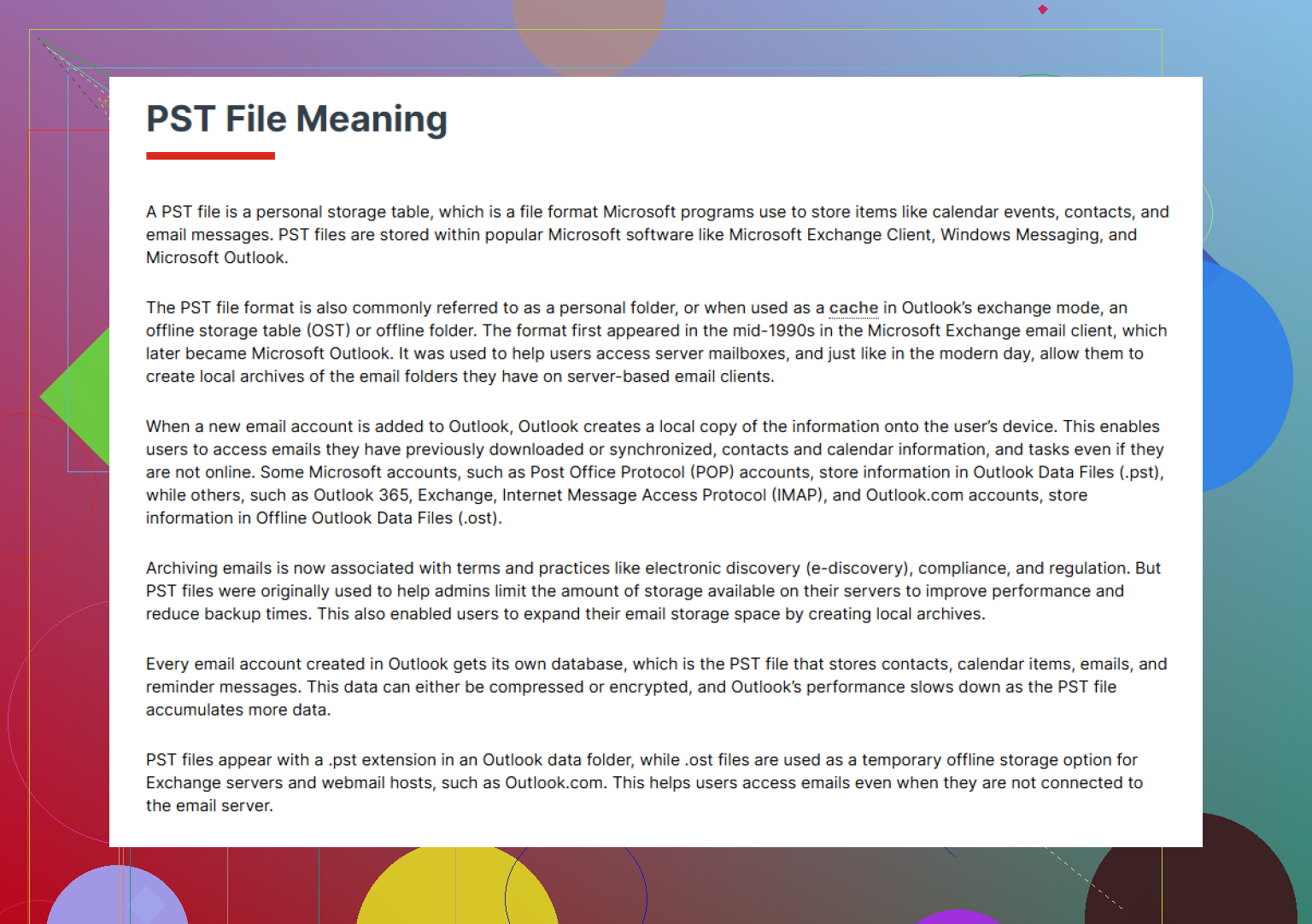
what an Outlook PST email archive file does
Small tip people miss. Search for .ost too. If your account was Exchange or IMAP, an OST is not your archive, but it helps confirm what was synced vs local-only. That tells you how bad the loss is. If the PST had old contacts and local folders, focus on recovery fast. Time matters a lot here.
One angle I’d add to what @mikeappsreviewer and @reveurdenuit said is to verify whether the PST was actually deleted or just moved/renamed by Outlook or Windows Search indexing weirdness. I’ve seen Outlook keep the profile entry, then the file turns up buried in a different folder with a slightly changed name. Use Windows search with:
*.pst
and sort by Date modified and Size. Also check hidden locations like:
C:\Users\YourName\AppData\Local\Microsoft\Outlook
Not every missing PST is truly gone.
I slightly disagree with jumping straight into Outlook after recovery. Before opening anything, make a copy of the recovered PST first. PST files can be fragile, and testing the only recovered copy is kinda asking for trouble. Work on a duplicate.
Another thing people skip: if this was from an older drive and you have System Protection enabled, try mounting a restore point with a shadow copy browser, not just “Previous Versions.” Sometimes Windows shows nothing in the folder UI even though the snapshot exists. It’s annoyng, but it happens.
If you do need recovery software, Disk Drill is a solid choice because it can find deleted PST files by signature even when the filename is gone. That matters a lot with Outlook archives. Just recover to another disk, not the same one. If you want to vet it first, here are real Disk Drill user reviews and ratings.
Last bit: once you recover it, do not import it right away. Open it in Outlook as a secondary data file first. Importing can duplicate mail and make the mess worse. Open, inspect, then decide what to merge. Tiny detail, big diff.

One extra angle: check Outlook profile pointers before assuming total loss. I partly disagree with spending too much time on scans first. Sometimes the PST still exists, but Outlook’s profile is referencing a dead path.
Try Control Panel > Mail > Data Files and note the exact missing path. Then search that folder’s parent for similarly sized PSTs. Also check whether the file was redirected to another drive letter after a USB or external disk changed.
If recovery is needed, make a sector-level image of the drive first if the data is really critical. That gives you one safe shot and preserves deleted-file remnants. Most home users skip this, but it is the cleaner move.
On the replies above, @reveurdenuit is right about not relying on repair tools yet, and @nachtschatten is right about opening a recovered PST instead of importing. @mikeappsreviewer covered the common folder paths well.
For Disk Drill specifically:
Pros
- Easy PST filtering
- Good preview and file metadata
- Better for non-command-line users
Cons
- Best features are not fully free
- Deep scans can return lots of junk
- Recovery quality still depends on overwrite level
If you use Disk Drill, recover everything PST-shaped, then sort by size/date and test copies only.