I accidentally formatted the memory card in my Nikon camera before backing up my pictures, and now all of my photos are gone. These were important images, and I need advice on the best way to recover deleted photos from a Nikon camera after an accidental format without making things worse.
I’d not write the card off yet. I’ve seen Nikon shots come back after a delete, and I’ve seen them come back after a quick format too. What mattered in my case was simpler than people make it sound. If new data had not been written over the old files, recovery still had a shot.
First thing, stop using the SD card now. Don’t shoot more photos. Don’t record video. Don’t format it again. Every new file eats into the space where your deleted NEF, NRW, or JPEG images might still be sitting.
Quick format is often recoverable. Full format is worse. Secure erase is worse again. If you only did a quick format by mistake, your odds are still decent.
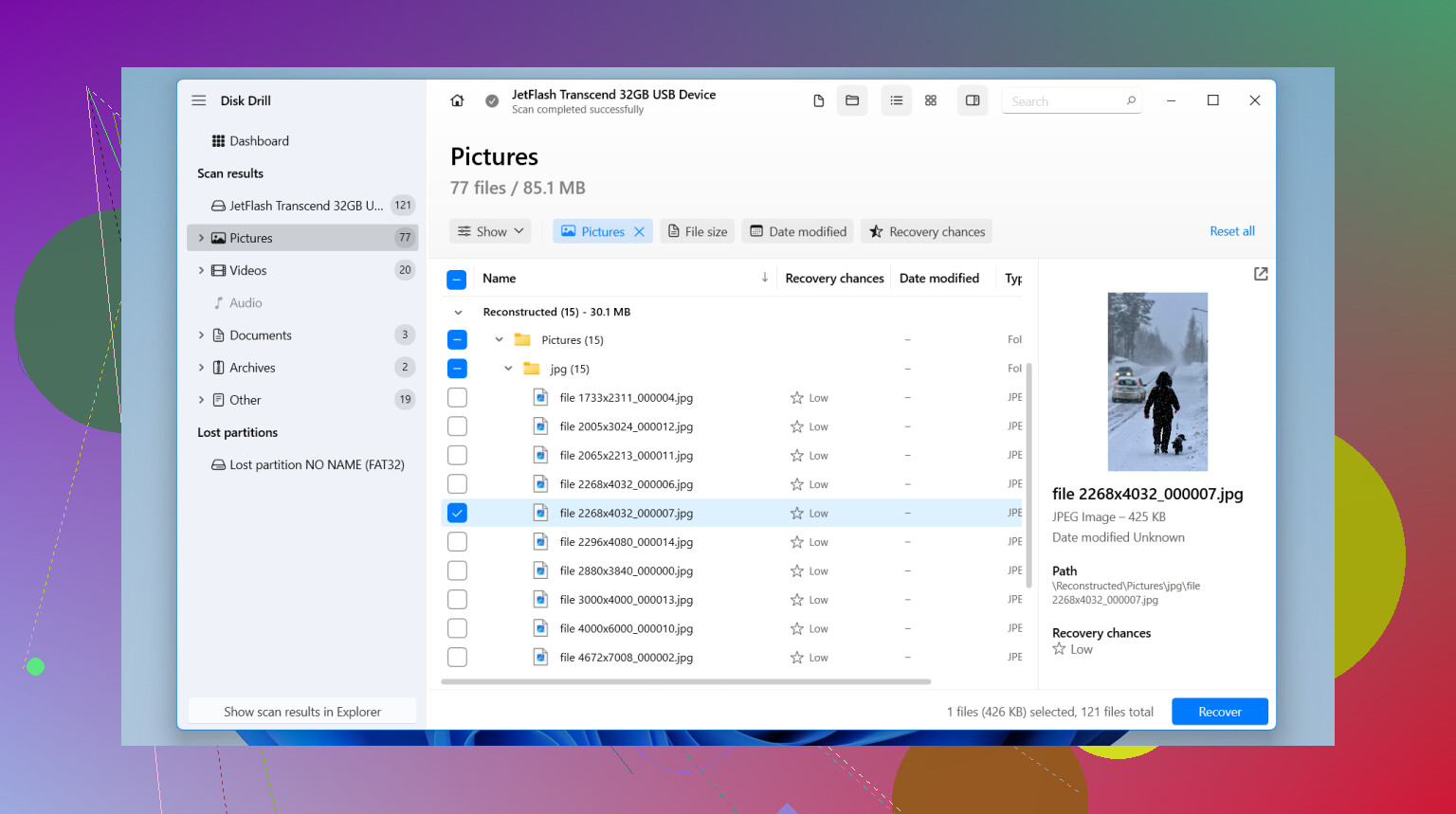
If there’s no backup, I’d go straight to recovery software. I’ve had solid results with Disk Drill. I used it on Nikon RAW files, including NEF and NRW, plus normal JPEGs. Setup was easy, which mattered because I didn’t want to make a bad situation worse.
Basic steps I’d follow:
- Pull the SD card out of the camera.
- Connect it to your computer with a card reader.
- Install Disk Drill on your computer, not on the SD card.
- Pick the SD card in the app.
- Click Search for lost data.
- Run Universal Scan. That’s the one I’d start with for deleted or formatted cards.
- Let the scan finish, then preview what it found.
- If the RAW files preview fine, I’d take that as a good sign.
- Recover the files to your computer or a different drive. Do not save them back onto the same SD card.
If you lost videos too, I’d also try Advanced Camera Recovery after the first scan. I’ve seen standard scans miss camera video files, especially when they were fragmented. That extra pass sometimes pulled in stuff the first one skipped.
One thing people don’t expect, recovered RAW files often come back with ugly generic names and no original folder layout. I’ve had folders turn into a mess of numbered files. Annoying, yes. Normal too. Recovery tools often rebuild files from signatures instead of restoring the old file system exactly.
Also, don’t panic if NEF files refuse to open in the default Windows Photos app. I hit this once and thought the files were busted. They were fine. Windows support for Nikon RAW is patchy. Open them in software with proper NEF support before calling them corrupt.
Before you scan, check your other places too. I missed this once and wasted an hour. Look at:
- Your computer, if you imported the trip earlier.
- SnapBridge, if it was set up.
- Any cloud photo sync you left on.
- External drives, old export folders, or backup software.
If the card does not show up at all, keeps disconnecting, or looks physically damaged, I’d stop there. Same if the scan starts and the card drops offline. A failing card gets worse fast. At that point, a pro recovery service is the safer move.
So yeah, there’s still a chance. Deleted photos, quick-formatted cards, missing vacation shots, I’ve seen all three end better than expected. The main thing is speed. Stop writing to the card, scan it from a computer, and recover anything you find to a different drive.

4 Likes
If the format happened on the camera, your best shot is to treat the card like evidence. Put the write-protect switch on the SD card, if it has one. It does not stop recovery, but it helps prevent a dumb mistake while moving it around.
I agree with @mikeappsreviewer on one big point, stop using the card. I disagree a bit on one part though. I would not spend much time checking cloud sync first unless you know SnapBridge was active. If these were Nikon RAW files, most people never had a cloud copy anyway, so I’d spend my first hour on recovery, not on a scavenger hunt.
A few Nikon-specific things matter:
- Nikon bodies often do a quick format, not a full wipe.
- NEF files are large, so partial overwrite kills them fast.
- XQD or CFexpress cards often need a better reader, cheap readers fail more often.
- If your camera used dual slots, check the second card before doing anything else. People miss this all the time.
My order would be:
- Remove the card.
- Use a quality reader.
- Make a byte-for-byte image of the card first, if the card seems flaky.
- Scan the image, not the original card.
This is where Disk Drill is worth a look. I prefer imaging first because if the card starts throwing read errors, you still have one stable source to work from. Some people skip this step. I would not.
Also, expect mixed results. JPEG recovery rates are often better than RAW when parts of the card got overwritten. If the scan finds files with the right size, like a 25MB NEF instead of a weird 128KB stub, your odds go up.
If your Nikon saved photos and video on the same card, recover photos first. Video fragments eat time and clutter scan results. Small tip, but it helps.
For a simple walkthrough, this best SD card photo recovery guide for deleted and formatted files covers the general process in plain english.
If the card clicks, disconnects, or shows 0 bytes, skip software and go to a recovery lab. DIY at tht point makes things worse fast.

One thing I’d add to what @mikeappsreviewer and @cacadordeestrelas said: don’t judge recovery by filenames alone. Nikon format jobs often wipe the directory structure first, so a scan can look messy even when the actual image data is still there. If you see generic file names but the previews open, that’s still a win.
I’d also disagree slightly with the “always image first” crowd. Imaging is smart if the card is unstable, but if the card is healthy and you’re not super technical, fumbling with extra tools can slow you down. For a normal accidental camera format, a direct read-only scan is usually fine. Just keep the process simple and don’t overcomplicate it.
Another thing worth checking on Nikon cards is whether the camera had been set to create smaller JPEG copies alongside RAW. People forget this and only search for NEF files, then miss perfectly usable JPEG versions.
If you want a practical software option, Disk Drill is one of the better choices for Nikon SD card photo recovery because it handles formatted cards and usually recognizes NEF/JPEG pretty well. I’d focus on preview quality and file size, not on folder names.
Also, if you’re comparing tools, this thread on best SD card recovery software recommendations for deleted or formatted memory cards is worth a look.
One more boring but important point: recover to your computer, then open a handful of files in actual Nikon-aware software before celebrating. I’ve seen people think the recovery faield, and it was just their default viewer choking on RAW files.
One extra Nikon angle: check whether the camera was set to write to both slots as Backup or RAW/JPEG split. I’ve seen people panic over a formatted SD card while the second card still had either RAWs or JPEG companions intact. That’s faster than any recovery app.
I’d also push back a bit on “scan immediately” as a universal rule. If the card is acting even slightly weird, slow mounts, read hiccups, disappearing in Explorer, you want stability over speed. In that case, image first if you can. If the card is perfectly healthy, then sure, a direct read-only recovery is fine.
As for software, Disk Drill is a reasonable pick for Nikon cards.
Pros:
- Good NEF/JPEG detection
- Simple preview flow
- Handles formatted cards decently
Cons:
- Recovered names/folders can be a mess
- Preview success does not always mean a perfect file
- Paid recovery limit can be annoying depending on version
Also, don’t test recovered NEFs only in Windows Photos. Use Nikon Studio NX, Lightroom, Capture One, or anything RAW-aware before deciding they’re broken.
The advice from @cacadordeestrelas, @boswandelaar, and @mikeappsreviewer is mostly on point. My addition is just this: verify dual-slot behavior, verify small JPEG sidecars, and judge results by actual openable files, not by filenames or folder structure. That’s where people misread recovery results all the time.