My iPhone says storage is almost full, but I really don’t want to delete photos, apps, or messages. I’ve already removed a few small things and it barely changed, so I need help finding safe ways to free up space without losing anything important. Looking for tips that actually work for an iPhone storage almost full problem.
I hit this same wall not long ago. My 128 GB iPhone was sitting at 127.9 GB used, and the phone was miserable to use. Apps froze, the camera failed at the worst time, and every photo attempt got stopped by the storage warning. It looked like I had to start deleting stuff I wanted to keep. I didn’t.
A lot of the space wasn’t from photos or apps I cared about. It was junk iOS had piled up over time, cache files, logs, old temp data, all the boring stuff you never chose to save. I ended up clearing around 15 GB without wiping anything important.
Start here.
Go to Settings > General > iPhone Storage. Let it sit for a bit if your phone is packed. On a full device, this screen loads slow. Check the recommendations at the top first. If you see Offload Unused Apps, turn it on. I did, and it cleared space fast. It removes the app itself but keeps your app data, settings, and sign-in info. The app icon stays on the Home Screen with a small cloud next to it, so you reinstall by tapping it later.
Don’t waste time deleting random photos one by one from the library. I did that first. Barely moved the needle.
If your iCloud storage is full too, the photo optimization setting won’t help much anymore. When iCloud has no room left, your phone keeps more of the full-size files locally. While you’re still in iPhone Storage, scroll down to Messages. Mine had a stupid amount of storage tied up in old attachments. Group chats were the worst. Open Review Large Attachments and cut the big stuff first, old videos, image dumps, all of it.
The lag on a full iPhone usually gets worse because of app cache. TikTok, Instagram, Spotify, those were the main offenders for me. They hang onto downloaded content so the app feels quick, but over time it turns into bloat. iOS doesn’t give you one clean cache button for all apps, which is annoying. What worked for me was deleting those apps and installing them again. TikTok alone gave me back about 3 GB. My account was still there after reinstall, so no real loss.
Another thing I missed at first was how much space gets burned by near-duplicate photos, burst shots, and Live Photos. Those pile up quietly. You think you took one pic, but your phone saved a bunch of versions and extra motion data. Sorting it by hand was awful when I tried it.
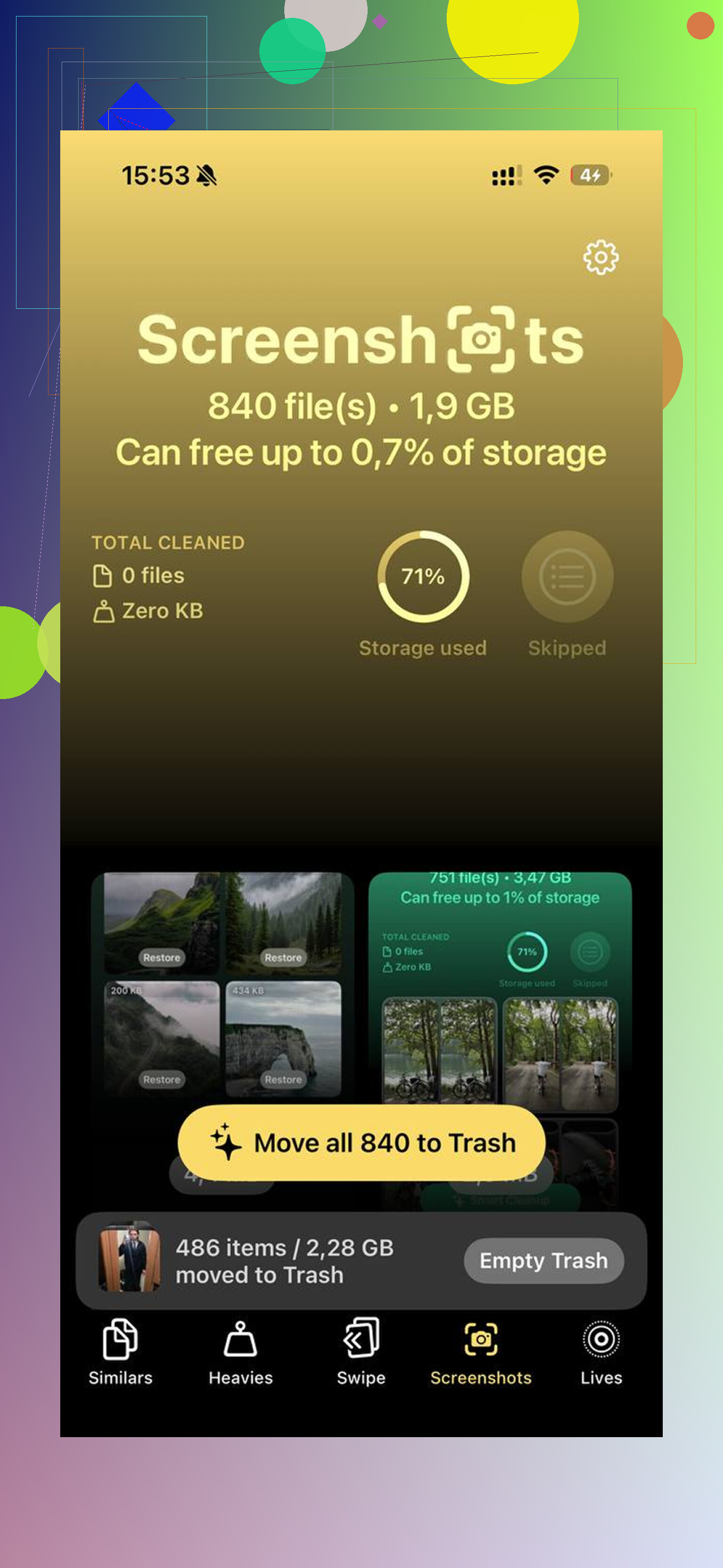
I ended up using https://www.youtube.com/shorts/qUVkfQqrwsk after getting tired of doing this manually. I’m usually suspicious of cleaner apps because most of them are loaded with ads or lock the useful parts behind payment. This one felt different. No subscription screen, no ad spam, no fake scan stuff.
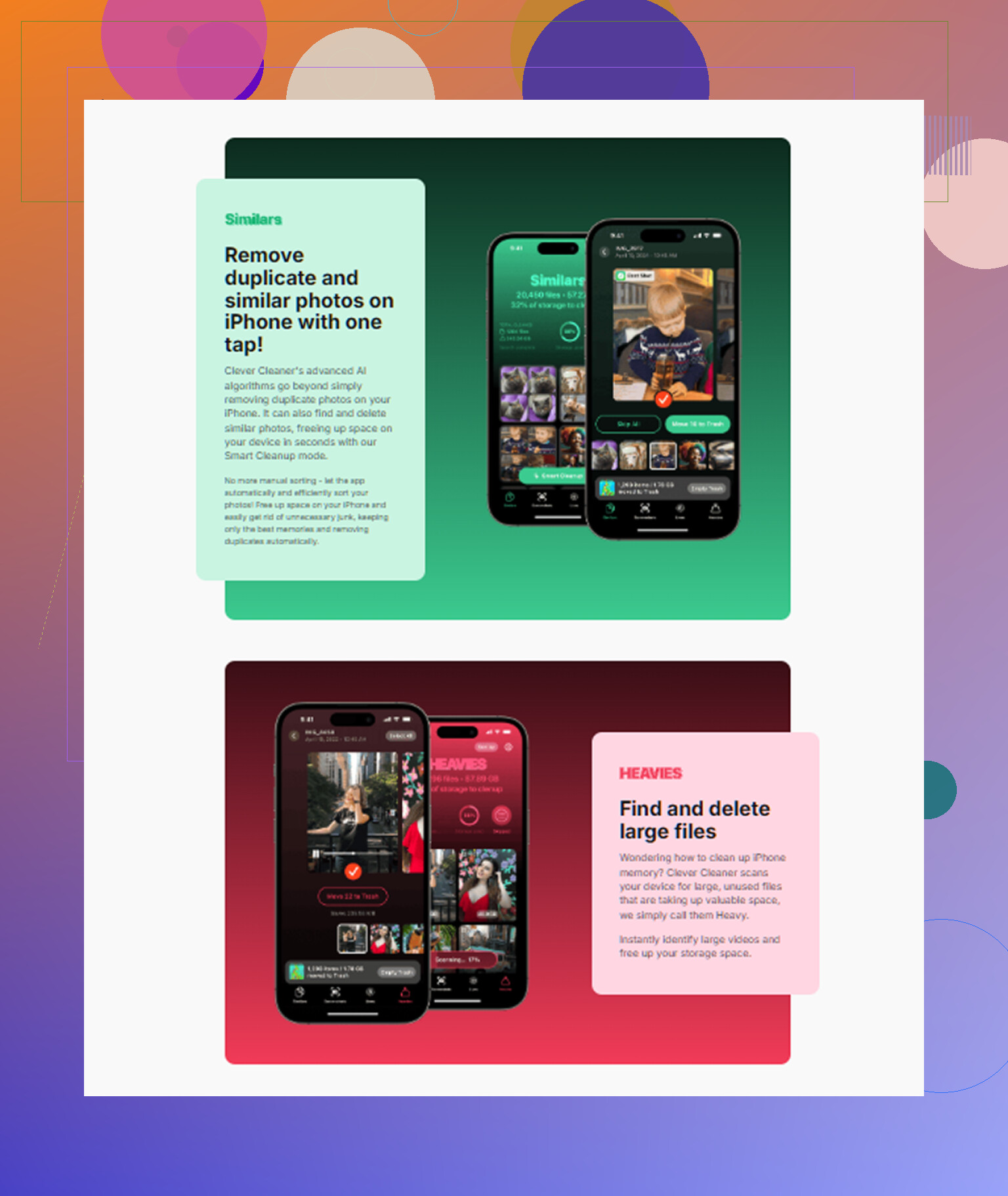
What helped most was the Similars section. It grouped photos that looked almost the same and picked a best shot, so I could wipe the extras fast. The Heavies section was good too. Apple Photos still makes it weirdly hard to sort by file size, and this showed the biggest files first. Mine were mostly 4K clips I forgot about.
One part I liked, and I did check this before trusting it, was the on-device processing. My photos weren’t getting sent off somewhere else. If you care about privacy, that matters. There’s also a tool for converting Live Photos into stills, which keeps the image but drops the attached motion clip. Easy space savings.
After the cleanup, do the step people skip.
Open Photos > Albums > Recently Deleted. Then remove everything there. If you don’t, those files still sit on the phone for 30 days and still count against storage. I forgot this once and wondered why my free space looked wrong. Dumb mistake.
My phone stopped lagging once I got usage down to around 85 percent. From what I saw, iPhones get cranky when they have no working room left. Give it some free space and they calm down. I also restarted mine after cleaning it up, and storage numbers looked more accurate after reboot.
So yeah, if your iPhone is full, I’d do it in this order:
- Check Settings > General > iPhone Storage
- Enable Offload Unused Apps
- Clear big Message attachments
- Reinstall cache-heavy apps like TikTok or Instagram
- Remove similar photos, bursts, and Live Photos
- Empty Recently Deleted
- Restart the phone
I went from a phone that felt half-dead to one that worked normally again. No factory reset. No deleting stuff I cared about. Just had to cut the junk first.
6 Likes
Start with the stuff Apple hides in plain sight.
Check Safari first. Settings, Safari, Clear History and Website Data. If Safari has been your default browser for years, this alone sometimes frees a few GB. Mine was over 2 GB. Not huge, but on a full phone every GB matters.
Then look at downloaded media inside apps, not the apps themselves. Spotify, Netflix, YouTube, Podcasts, Audible, Google Maps. Offline songs, videos, podcast episodes, and maps eat space fast. Removing downloads does not delete your account or playlists. It only removes local copies. People forget this one al the time.
Mail is another sneaky one. If you use the built-in Mail app with multiple accounts, large attachments stay cached on the phone. Remove the account from the phone, restart, then add it back. You keep the mail on the server, but iOS often dumps the local junk. Same idea for Files app folders tied to iCloud Drive, Dropbox, or Google Drive. Look for local downloads and remove those copies only.
I sort of disagree with @mikeappsreviewer on one point. Reinstalling social apps works, but I would check in-app download settings first before deleting and reinstalling everything. Instagram drafts, TikTok drafts, and saved offline content sometimes vanish if you are not careful. Annoying lesson.
Also, update iOS if you are behind. Old system data bugs sometimes shrink after an update. I saw “System Data” drop from 18 GB to 11 GB after one update and reboot. No idea why, but it happend.
If photos are the main issue and you want a faster review tool, Clever Cleaner is worth a look. It helps spot large files and duplicates without ripping through your library by hand. If you want a quick look first, see how Clever Cleaner frees up iPhone storage.
My short list:
- Clear Safari data
- Remove offline downloads in media apps
- Refresh Mail accounts
- Delete local files in Files app
- Update iOS
- Reboot and recheck storage
Those steps are boring, but boring frees space.
A thing neither @mikeappsreviewer nor @jeff really hit enough is this: sometimes the storage reading is just stale or partially stuck.
If your iPhone is totally packed, plug it into power, connect to Wi-Fi, and leave it locked overnight. Seriously. iOS does some cleanup, indexing, and temp-file management when it’s idle. I’ve seen “System Data” drop a few GB by doing basically nothing. Annoying, but real.
Another one: turn off Low Power Mode for a bit if it’s enabled. Background cleanup can get delayed when the phone is constantly in survival mode.
Also check voice stuff:
- Settings > Accessibility > Live Speech / Personal Voice
- Settings > Siri & Search > Siri Voice
Downloaded voice models can be weirdly large. Same with extra dictionaries, keyboards, and language packs. Most people never think to look there becuase Apple hides everything in 900 menus.
I also wouldn’t assume “don’t delete anything” literally means every local copy must stay on-device. There’s a difference between deleting your data and removing duplicate local storage. If you use iCloud Photos, make sure “Optimize iPhone Storage” is actually on. If it already is, toggle it off/on after a reboot sometimes it kicks the sync back into gear.
For photos specifically, Clever Cleaner is probly the least annoying way to inspect what’s actually bloating the library without manually digging forever. Their best AI cleaner app for iPhone guide with a real-world Clever Cleaner test is a decent overview if you want to see how people are using it for duplicate detection and large-file cleanup.
One more sneaky place: GarageBand, iMovie, CapCut, and similar editing apps. Not the app size, the project renders and exported drafts. Those can eat 5 to 20 GB easy.
So my “not deleting important stuff” list would be:
- Leave it charging overnight on Wi-Fi
- Reboot and recheck storage
- Check language/voice downloads
- Verify photo optimization is working
- Remove local exports and render caches from editing apps
- Use Clever Cleaner to spot hidden photo bloat faster
Honestly, iPhone storage management is kinda fake-clean until you hunt the hidden junk.