I imported photos from my iPhone to my computer and now I want to remove them from my iPhone to free up space. The problem is iCloud Photos is turned on, and I’m worried deleting them from my phone will also delete them from iCloud and my other devices. I need help figuring out the safest way to delete imported iPhone photos when iCloud Photos is enabled.
I burned a stupid amount of time on this exact mess. Deleting photos off an iPhone feels fine right up until you realize your Mac library changed too. The answer is not a clean yes or no. It comes down to your iCloud Photos setting. If sync is on, you can wipe the same shots from every device without meaning to.
Here’s the part Apple never explains in plain English. With iCloud Photos enabled, your iPhone and Mac are tied to one shared library. I checked this under Settings > Photos. When I removed a picture on the phone, the Mac removed it too. Same with the iPad. It is one pool, not separate stacks. Good for consistency. Bad if your only goal is to clear space on the phone.
If your plan is, keep photos on the Mac, delete them from the iPhone, stop sync first. That is the move. On the iPhone, open Settings > Photos and switch off iCloud Photos. You’ll get the usual prompt, either Remove from iPhone or Download Photos & Videos. If you already copied everything to your Mac with a cable, pick Remove from iPhone. The Mac copies stay where they are. Once sync is cut, the phone stops bossing the rest of your library around.
I also went hunting for the old delete-after-import option in Photos on Mac. Thought I was losing my mind. If you do not see it, iCloud Photos is often the reason. Apple hides a lot once sync is active. What worked better for me was Image Capture, which sits in Applications and gets ignored by almost everybody. Plug the iPhone in with USB, open Image Capture, and you get a plain file view of what is on the device. Import to a folder, then hit the small delete button, the red circle, to remove files from the phone after.
One more thing tripped me up. You delete a bunch of photos, then storage barely moves. Looks broken, but it isn’t. They sit in Recently Deleted for around 30 to 40 days. So if your phone is choking and throwing Storage Almost Full alerts, go finish the job. Open Photos, Albums, Recently Deleted, then Delete All. Until you do, the space is still tied up.
I learned this the hard way when my phone got so full it turned sluggish. Apps started closing. The camera took forever to open. I missed a short video I wanted of my kid because storage was packed and the phone stalled. I tried cleaning things by hand, but going through 15,000 photos was brutal. Duplicates, screenshots, random blurry junk, all mixed together. Felt endless tbh.
I ended up trying an app called Clever Cleaner after putting it off for a while. I do not trust most cleanup apps. Too many are stuffed with ads, weird popups, or some subscription trap. This one felt different from what I saw because it was free and I did not hit a paywall in the middle of cleanup.
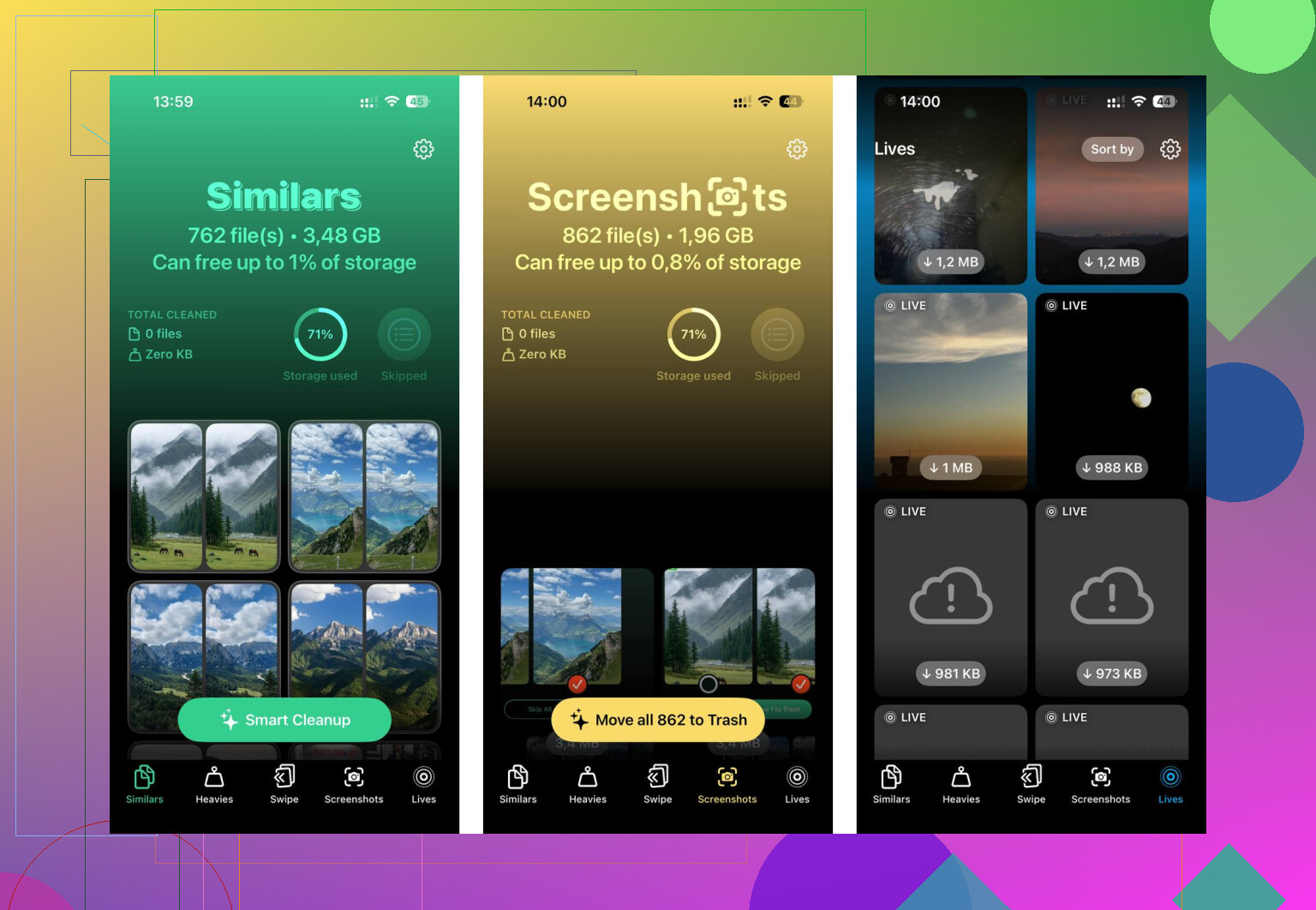
The part I used most was the Heavies section. It sorts by file size, which made the huge videos jump out first. I found old 4K clips I forgot existed. There is also a Similars section for near-duplicate photos, useful if your camera roll is packed with five versions of the same shot. It also kept one cleaner pick in cases where I had a burst of near-identical images. What I liked most, honestly, was privacy. The processing happens on the device, so your photos are not being shipped off somewhere else. After one pass, I freed around 12GB. The phone felt normal again, no joke.
If your storage is a mess right now, I’d do it in this order. Import one last full batch to your Mac first. Turn off iCloud Photos if you want the Mac copy left alone. Empty Recently Deleted. Then clean the leftovers, whether by hand or with something like Clever Cleaner. Way less painful than pecking through every duplicate one by one.
5 Likes
If iCloud Photos is on, deleting from your iPhone deletes from iCloud too. Then your Mac, iPad, and other synced devices lose those photos as well. So your concern is valid.
I agree with @mikeappsreviewer on the main risk, but I would not rush to delete right after a normal import. First check where the imported files went. A lot of people import into the Mac Photos app and think they made a separate backup, but if Photos is also syncing with iCloud, you are still looking at the same library. That trips people up all the time.
Safer path:
- Import photos to a separate folder on your computer, not only into Photos.
- Confirm the files open from that folder while the iPhone is disconnected.
- Make a second copy to an external drive if the pics matter.
- Then turn off iCloud Photos on the iPhone.
- After sync is off, delete from the iPhone.
- Empty Recently Deleted to free the space for real.
If your goal is storage, I’d also check Settings, General, iPhone Storage, Photos. If “Optimize iPhone Storage” is enabled, deleting stuff might save less local space than you expect at first.
Also, if your library is cluttered after import, Clever Cleaner is worth a look for finding large videos, duplicates, and similar shots before you wipe things. Less manual sorting, less oops.
If you want a quick walkthrough, this Clever Cleaner iPhone photo cleanup video is easy to follow.
Short version, if iCloud Photos stays on, do not delete from the iPhone unless you want them gone everywhere. Thats the key part.
Short answer: yes, if iCloud Photos is still ON, deleting from the iPhone usually deletes from the shared iCloud library too. So your worry is legit.
Where I slightly differ from @mikeappsreviewer and @espritlibre is this: importing to your computer is not automatically a real backup unless those files now live outside the synced Photos ecosystem. If you imported into the Mac Photos app and that app also uses iCloud Photos, you may have just copied references into the same cloud library. Super annoying, but that’s how Apple set it up.
What I’d do instead:
- verify the imported pics exist in a normal Finder folder or on an external drive
- if they matter, make a second copy before deleting anything
- then on your iPhone, use Settings > your name > iCloud > Photos and turn off Sync this iPhone
- after that, wait a bit and confirm the phone is no longer syncing
- then delete from the iPhone
Big extra point: if your main goal is space, first try Optimize iPhone Storage before going nuclear. That can shrink local photo storage without removing full-res versions from iCloud. Not perfect, but for some ppl it’s enough.
Also, if your library is packed with duplicates, giant videos, screenshots, and junk after the import, Clever Cleaner is honestly useful for trimming the leftovers faster. It’s better for cleanup than for backup strategy, if that makes sense.
And if you want another visual explainer on cleaning up storage and photos, this is actually pretty easy to follow: watch this iPhone photo storage cleanup walkthrough
Also don’t forget Recently Deleted. People delete 8GB of stuff and then wonder why storage didn’t move. Apple gonna Apple lol.

One angle I think @espritlibre, @sternenwanderer, and @mikeappsreviewer only touched indirectly is the difference between “delete” and “offload”.
If your real goal is space, I would not default to deleting at all. With iCloud Photos on, the cleaner play is often:
- keep iCloud Photos enabled
- turn on Optimize iPhone Storage
- leave the originals in iCloud
- let the phone keep smaller local versions
That avoids the whole risk of breaking your photo archive setup just because the phone is full.
Where I slightly disagree with the “turn off sync, then delete” advice is that it can create a messy split library later. Fine as a one-time emergency move, not great if you want Apple’s ecosystem to stay tidy long-term.
A better long-term test:
- check how much storage Photos is actually using on the iPhone
- see whether large videos are the real culprit
- remove only those first
That is where Clever Cleaner can help.
Pros:
- good for spotting huge videos, duplicates, similar shots
- faster than hand-cleaning
- useful if your import is done and now you just want to trim junk
Cons:
- it is a cleanup tool, not a true backup tool
- you still need to understand iCloud sync before deleting
- auto-suggestions can make people delete too aggressively if they rush
So yeah, imported does not always mean safely archived, and deleted does not always mean smart. For many people, selective cleanup beats mass deletion.