After updating my iPhone to the latest iOS, I can’t figure out how to permanently delete photos from the Hidden album. The Photos app layout seems different, and I want to make sure the hidden pictures are removed from my device and not still sitting in Recently Deleted or iCloud. What steps should I follow?
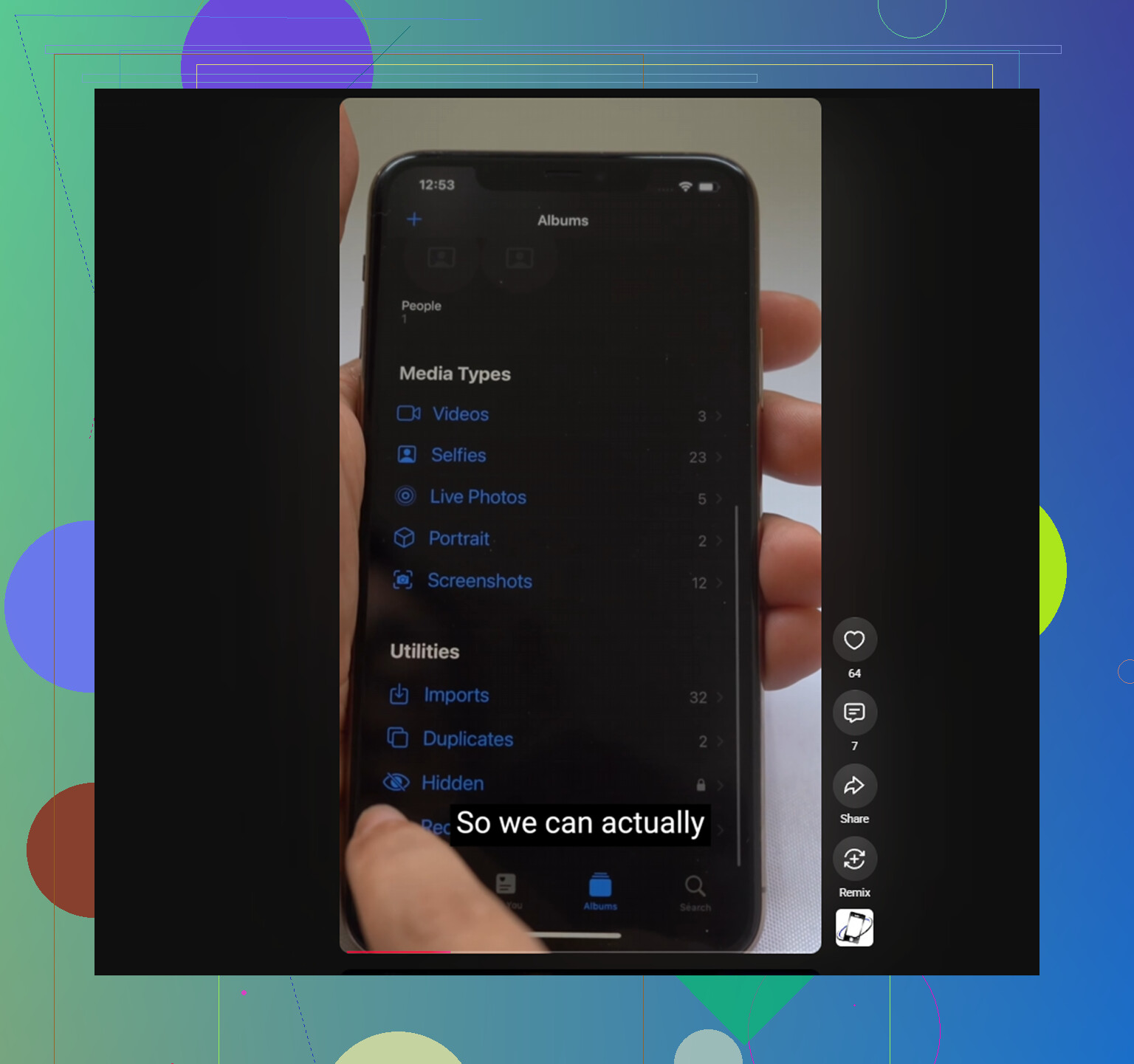
The Hidden album can be weirdly easy to lose track of, especially after an iOS update changes where things show up. The first thing to check is simple: go to Settings, then Photos, and make sure Show Hidden Album is turned on. If that switch is off, the album disappears from Photos completely. The pictures are still there, but the folder will not show under Utilities until you turn it back on.
If Face ID is not popping up
Since iOS 16, the Hidden album is supposed to be protected with Face ID or Touch ID. If you tap it and nothing happens, or the biometric prompt never appears, try a hard restart. That fixes this issue most of the time. There is not really a Photos app setting that bypasses the lock, so if the prompt is stuck, restarting the phone is usually the quickest fix.
Deleting everything from Hidden
Once you can get into the album, you do not have to delete items one by one. Tap Select in the top-right corner, then drag across the photo grid to select whole rows faster. After that, tap the trash icon.
But do not stop there. Deleted photos go to Recently Deleted, which is also under Utilities, and they still take up the same storage for 30 days. If you are trying to actually free space, go into Recently Deleted right away and use Delete All.
What happens with iCloud Photos
The Hidden album is not a separate local vault. It is part of the same iCloud Photos library, just filtered into its own view. So yes, if you delete something from Hidden on your iPhone, it deletes from the other devices signed into the same Apple ID too.
If the same photos keep showing up again after you delete them, it is probably a sync issue. Turning iCloud Photos off and back on in Settings can force the library to re-index, which usually clears that loop.
Hidden is usually only part of the mess
A big Hidden album often means the main library is cluttered too. Old screenshots, burst shots, duplicate-looking photos, untrimmed videos, and random files tend to pile up quietly. Then storage gets tight and the phone starts feeling slower in normal use, like opening the camera, switching apps, or even typing.
Clearing Hidden can help, but it may not be enough if the rest of the Photos library is packed with the same kind of stuff.
Cleaning up the rest of the library faster
One thing to know first: Clever Cleaner cannot access the Hidden album. Apple does not allow third-party apps to read that folder, so the Hidden album cleanup has to be done manually.
For the regular photo library, though, it can help speed things up. The app is free, with no ads, no subscription, and no paid cleanup features locked away.
The Similars tab is useful after you clear Hidden because it usually finds the same pattern in the main library: a bunch of near-identical shots taken seconds apart. It groups those together and marks the sharpest one as the keeper, so the extras can be removed in one tap.
The Heavies tab is good for finding the files that are actually eating storage. Instead of digging through years of photos and videos, it ranks everything by file size, with the biggest videos and files at the top.
It also shows the exact size of screenshots before you delete them, which makes bulk cleanup a lot easier when you see how much space they are using.
The scan and cleanup happen on the iPhone itself. Nothing gets uploaded during the process.
12 Likes
Permanently deleted means clearing it from Recently Deleted too, not just removing it from Hidden.
Mike’s steps are right, but check that iCloud Photos has finished syncing before you assume it failed, because a weak connection or Low Power Mode can make deleted hidden photos look like they “came back” for a while.
Check whether the photo is hidden because it’s actually in a Shared Library or shared album before you delete it. That can make this more confusing after an iOS update, because removing a photo from one view is not always the same as deleting your own copy from the library. Open the photo, look at the info/details, and make sure you are deleting from your Library, not just taking it out of an album or shared place.
I agree with the point above about Recently Deleted being the real final step. Hidden is just a label/view in Photos. Delete from Hidden, then go to Recently Deleted, unlock it if asked, select the items, and delete them there. If you skip that second step, they are still recoverable for a while and may still count against storage.
Small warning: if you use iCloud Photos, give it time before checking another device. People sometimes delete on the phone, immediately open an iPad or Mac, and think it failed because syncing has not caught up yet. I would avoid turning iCloud Photos off and on unless you really need to, since it can create a long re-sync on large libraries. For normal cleanup outside Hidden, an app like Clever Cleaner can be useful, but Hidden itself has to be handled inside Apple Photos.

Turning iCloud Photos off and on to fix a ‘photos came back’ problem is bad advice for most people, and @sonhadordobosque already flagged why. On a big library that re-download can run for hours and eat data, and half the time the real issue was just sync lag like @yozora said. Give it ten minutes on decent wifi before you touch that switch. Reindexing should be a last resort, not the first thing you try.
The bit nobody mentioned: Recently Deleted is locked behind Face ID now too, same as Hidden. So people delete from Hidden, feel done, and never realize the second vault is sitting there asking for authentication before it’ll show anything. If your Delete All looks greyed out or empty, that’s usually why. Unlock it first, then the option works.
On the whole ‘is it actually mine or a shared copy’ thing, that’s the part that trips people up after the update, and I’d take it more seriously than the storage stuff. If a photo lives in a Shared Library or shared album, removing it from your view does nothing to the owner’s copy, and deleting your own copy can yank it from everyone. Open the photo, check the details, know which library it’s in before you hit trash.
@mikeappsreviewer’s point about the main library being the real mess is fair. Clever Cleaner is fine for that pass, and it being free with no locked features is a genuine plus, but it can’t touch Hidden and it won’t tell you whether something is shared or personal. So it handles volume, not the tricky decisions. Do the Hidden and shared checks by hand, then let a tool like that clean up the obvious duplicate pile afterward.