My iPhone storage is almost full, and I think old downloads are taking up a lot of space. I’ve deleted a few files, but the available storage barely changed, so I’m not sure if I’m removing them the right way. I need help figuring out how to delete downloads on my iPhone and clear storage so I can update apps and keep my phone running normally.
If you’re trying to wipe downloads on an iPhone, the annoying part is this, there isn’t one place for all of it. I ran into this after my storage filled up and nothing I deleted seemed to matter. iOS splits downloaded stuff by app, so you have to check a few spots.
Where your downloads end up
What I found was split up like this:
- Safari saves downloads in the Files app
- Downloaded songs stay inside the Music app
- Netflix, Spotify, YouTube, and similar apps keep offline files inside their own apps
- Chrome and Firefox often stash downloaded files in their own folders inside Files
So if you delete a PDF from Files, your Spotify albums and Netflix episodes stay right where they were.
How I cleared the Files app downloads
This is the spot people miss first, me included.
- Open the Files app
- Tap Browse
- Go into On My iPhone
- Open Downloads
- Check for browser folders too, like Chrome or Firefox
- Tap the three-dot menu, hit Select, pick the files, then delete them
Small gotcha here. Those files usually move to Recently Deleted first. They still eat storage until you empty it.
- Go back to Browse
- Open Recently Deleted
- Delete everything there too
I missed this once and thought iPhone storage stats were broken. They weren’t. I was.
Safari download list is separate
Safari keeps a download history list, and clearing it does not remove the files.
Path:
Safari, Downloads icon, Clear
This only removes the visible list in Safari. If you want storage back, you still need to remove the files from Files.
How I removed downloaded music fast
Doing songs one by one is miserable. There’s a quicker route.
Open:
Settings, Music, Downloaded Music
Then tap Edit and use the red minus button next to All Songs.
This wipes the local copies from the phone, but your music library still stays tied to your account for streaming later.
How to find app downloads hiding outside Files
This part catches a lot of people. App downloads do not show in Files if the app keeps them internally.
I check it this way:
Settings, General, iPhone Storage
Wait a few seconds for the storage bar and app list to load. Then scroll through the apps by size. If one app is sitting at 15GB, 20GB, or more, there’s a decent shot it’s packed with offline content.
Open the bloated app and look for sections named things like Downloads, Offline, Saved, or Smart Downloads. Delete from there.
Why this helps when the phone feels slow
When free storage gets too low, the whole phone starts acting off. I saw apps close out, the camera hesitate, and scrolling get choppy. Clearing downloads helps because iOS needs free space for temp files and normal background work.
Still, if you’re low by tens of gigabytes, downloads often aren’t the biggest problem. Photos and videos usually are.
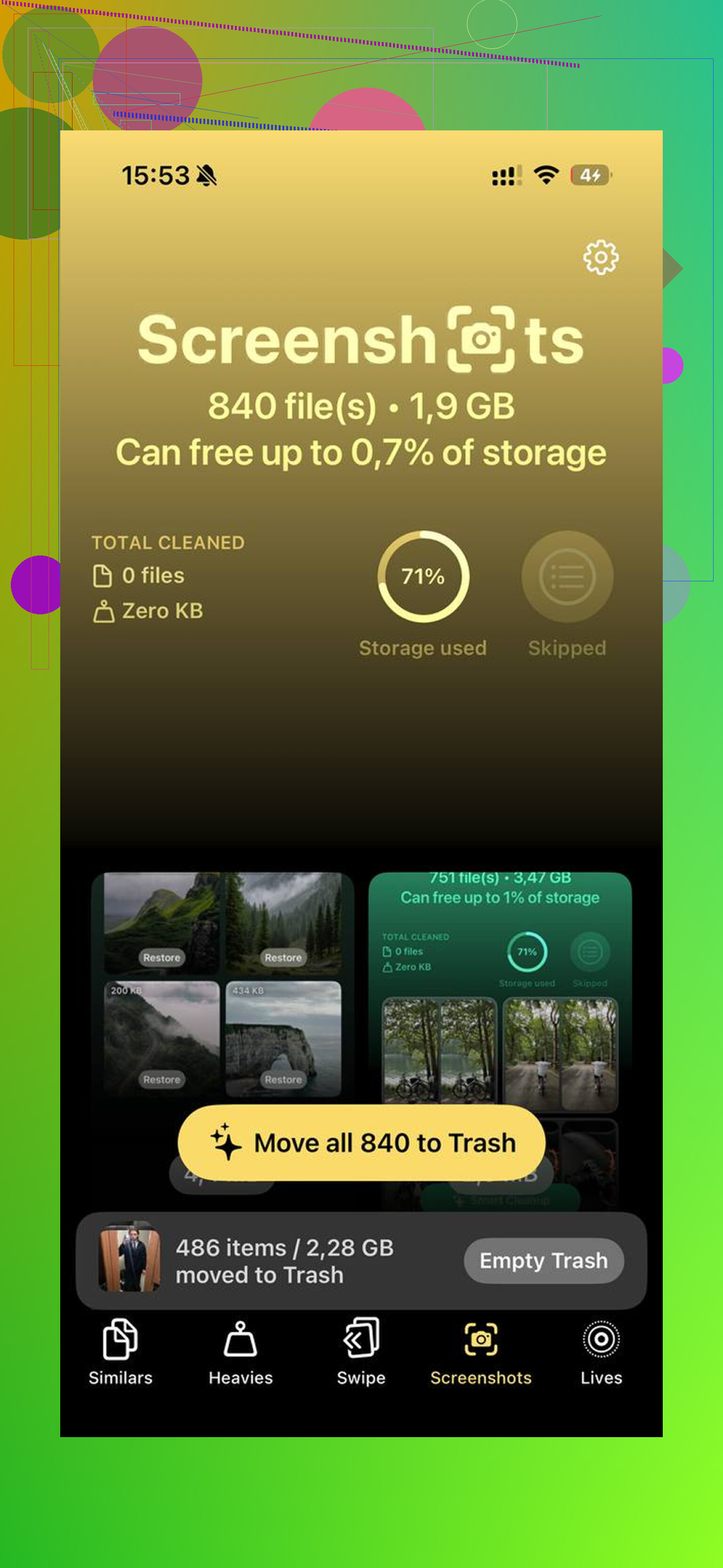
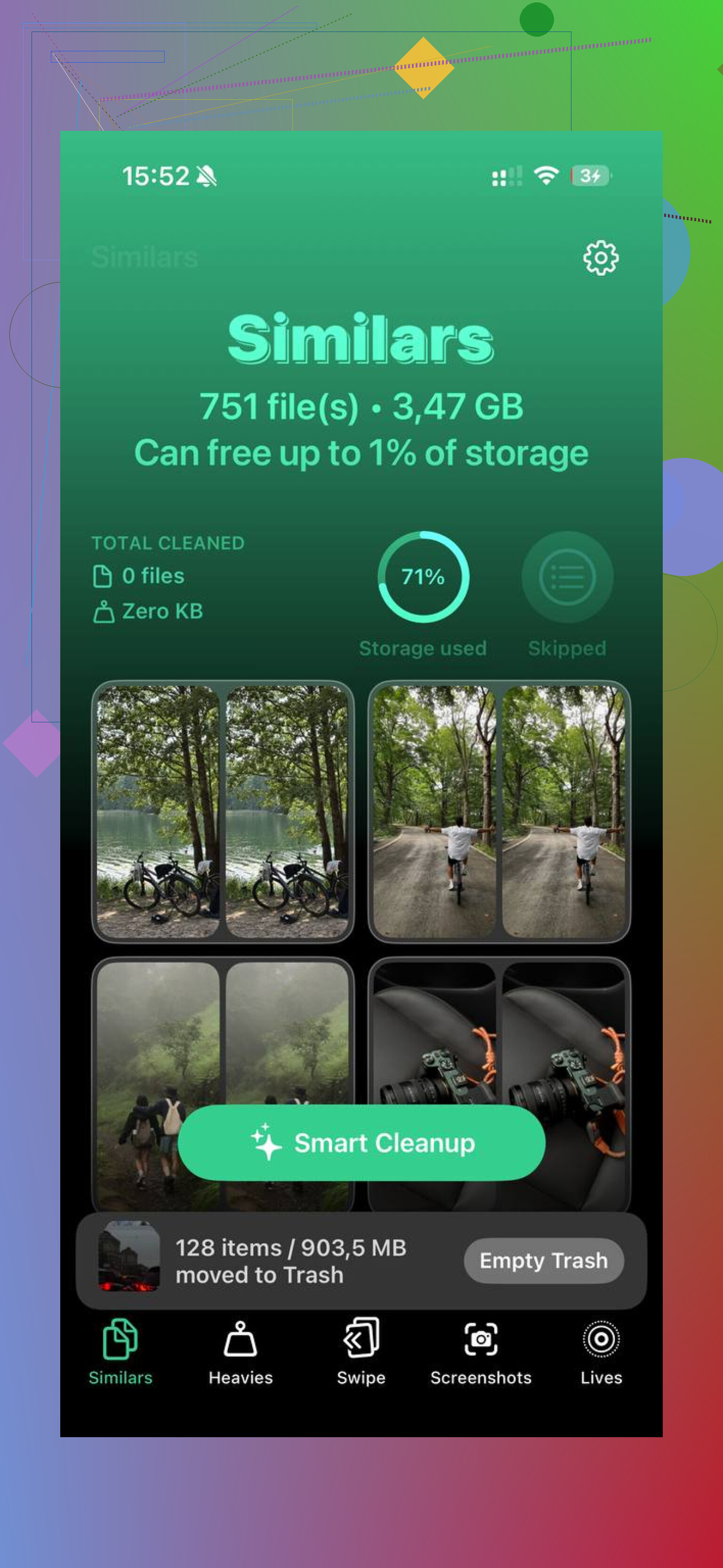
I used Clever Cleaner after the manual cleanup. The part I liked was how it sorted the biggest media first, so the giant videos showed up fast instead of being buried. It also grouped similar photos, which helped with old burst shots and duplicates I forgot about. From what I saw, it processed things on the phone itself.
After clearing Files, wiping app downloads, and running Clever Cleaner on my photo library, I got back around 40GB. The lag stopped after thta.
13 Likes
Deleting the file is only half the job. iPhone storage often updates late, and some apps keep a cache after you remove downloads.
A few things I’d do, beyond what @mikeappsreviewer already covered:
- Restart the iPhone after deleting stuff. Storage totals often refresh after a reboot.
- Check Messages. Saved videos, voice notes, and attachments eat space fast. Go to Settings, General, iPhone Storage, Messages, Review Large Attachments.
- Turn on Optimize iPhone Storage for Photos if iCloud Photos is enabled. Path, Settings, Photos, Optimize iPhone Storage.
- Clear podcast downloads. Podcasts app is sneaky with storage.
- For apps with huge “Documents & Data,” delete the app and reinstall it. Offload App keeps docs, so it won’t help much if the junk lives there.
I disagree a bit with focusing on downloads first. On most iPhones, photos, videos, and message attachments are the bigger hogs.
If you want a faster cleanup pass, Clever Cleaner is worth a look for iPhone storage cleanup. It helps remove duplicate photos, large videos, and other media junk fast. This page shows it well, see how Clever Cleaner frees up iPhone storage fast.
Also, wait 5 to 10 mins after cleanup. iOS sometiems takes a bit to recalc the free space.
One thing I’d add to what @mikeappsreviewer and @voyageurdubois said: check sync behavior before assuming the delete “failed.”
If the file came from iCloud Drive, Google Drive, Dropbox, or OneDrive, sometimes you’re only removing the local copy, and sometimes you’re deleting it everywhere. That’s why storage results can feel random as hell. In Files, tap and hold the item and look for options like Remove Download vs Delete. “Remove Download” frees iPhone space but keeps the file in the cloud. That’s usually the better move if you still need the file later.
Also, go to Settings > Safari > Clear History and Website Data if Safari is huge in iPhone Storage. Different from downloads, but website data/cache can stack up more than people think. Same idea for browsers like Chrome, you clear that inside the app.
Another sneaky one is Mail. Big attachments you opened can linger. If Mail storage is bloated, removing and re-adding the account sometimes clears cached junk faster than digging manually.
I slightly disagree with “downloads are usually not the main problem” because on some phones, offline Netflix, music, podcast episodes, and Files junk absolutely are the problem. Just depends how you use it.
If you want the fastest second pass after manual cleanup, Clever Cleaner is useful for the stuff downloads cleanup misses, mostly duplicate pics, similar shots, and large videos. This review gives a solid breakdown of the app’s tools for iPhone storage cleanup: see how Clever Cleaner helps free up iPhone storage.
Last part people forget: if you deleted a bunch and space still looks stuck, plug in the phone, reboot it, and wait a few mins. iOS storage math is weird sometiems.
One extra angle the others did not really stress, including @voyageurdubois, @himmelsjager, and @mikeappsreviewer: check Recently Deleted inside Photos and Voice Memos too, not just Files. A lot of people clear downloads, then keep wondering why storage barely moves because deleted videos are still sitting there for 30 days.
Also, I slightly disagree with the “just reboot and wait” crowd as the main fix. If storage does not change much, it often means the biggest space hog is media libraries or app data, not downloads.
Quick places worth checking that are easy to miss:
- Photos > Albums > Recently Deleted
- Voice Memos > Recently Deleted
- TV app downloaded movies/shows
- Books app for downloaded PDFs and audiobooks
- GarageBand if you ever used it, project files can get weirdly large
If you want a faster cleanup after manual deletion, Clever Cleaner is decent for finding duplicate photos and large videos.
Pros:
- fast scan for media clutter
- good for duplicate and similar photos
- helps spot huge videos quickly
Cons:
- not really for deleting in-app downloads like Netflix or Spotify
- less useful if your storage issue is mostly documents, not photos
- you still need manual cleanup for some apps
So yeah, delete downloads, empty Recently Deleted everywhere, then verify the biggest categories in iPhone Storage. That usually tells the real story.