My iPhone shows that Photos is using a lot of storage, but I don’t want to lose any pictures. Is there a safe way to clear photo data, cache, or unnecessary files while keeping my entire photo library?
The fastest way I found to clear the “iPhone Storage Almost Full” warning was to focus on the photo library. Random storage tricks didn’t make nearly as much difference.
I’d start with duplicate and similar photos, then check large videos. A few long or 4K recordings can eat up several gigabytes by themselves. Live Photos and old screenshots are also worth reviewing since they tend to pile up quietly.
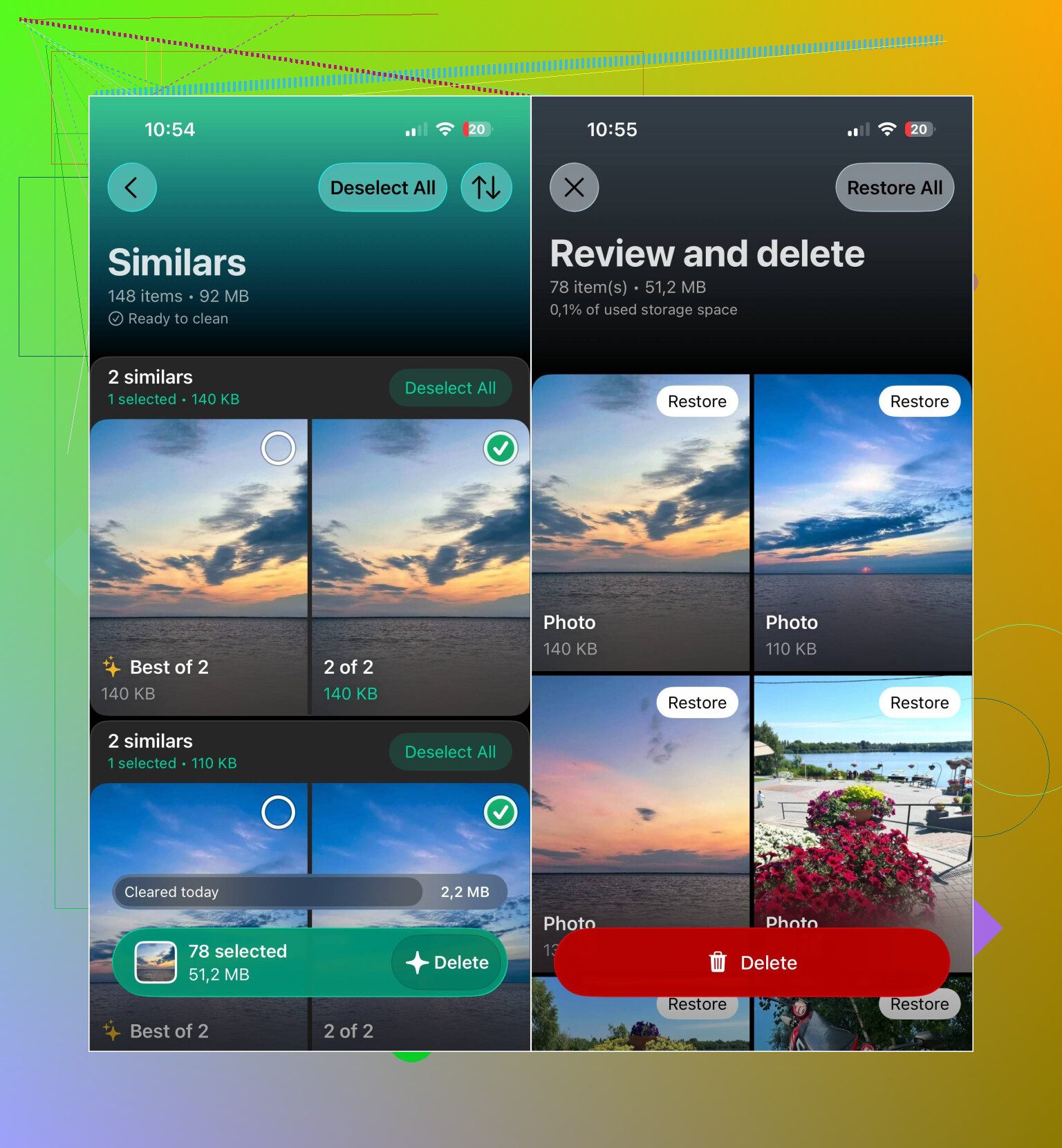
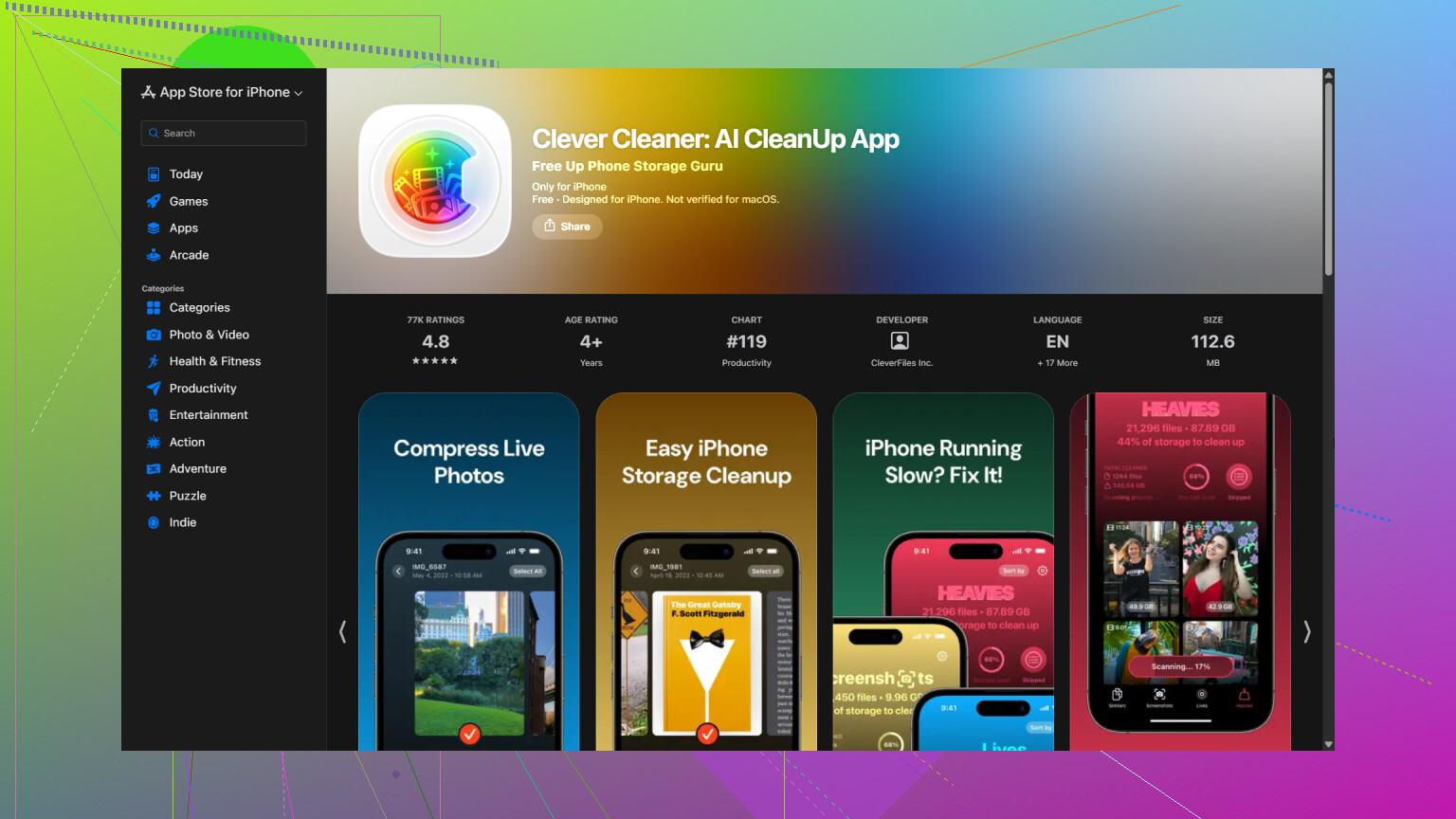
Sorting all of that manually can take forever, so I used Clever Cleaner. It groups duplicate and similar photos, duplicate videos, Live Photos, screenshots, and large files so you can review them separately.
A practical cleanup order would be:
- Scan the photo library with Clever Cleaner.
- Review duplicate and similar photos first.
- Check large videos and duplicate videos.
- Delete unwanted Live Photos, or compress the ones you want to keep.
- Clear out screenshots you no longer need.
- Compress photos and screenshots that don’t need to stay at full size.
- Open Photos and empty the Recently Deleted album. Otherwise, the files will still take up space for a while.
The app also has Smart Cleanup for handling several categories together. If you’d rather decide on every photo yourself, Swipe mode lets you review the gallery one image at a time and remains unlimited. The app is free to use, has no ads, and doesn’t require a subscription to get started, though some cleanup features now come with a fairly generous daily limit for new users.
If you use iCloud Photos, turn on Optimize iPhone Storage under Settings > Photos. That keeps smaller copies on the phone while the originals remain in iCloud, which can recover a decent amount of local storage without deleting your pictures.
Duplicates, large videos, Live Photos, and forgotten screenshots were the biggest storage drains in my case. Once those are dealt with, keeping the library under control is much less work.
14 Likes
Don’t delete photos from the Photos app while iCloud Photos is syncing, because that removes them from iCloud and your other synced devices too. There isn’t a separate photo cache you can safely clear, so back up the originals first, then use Optimize iPhone Storage to reduce local space without removing the library.
iCloud Photos is synchronization, not a separate backup. If you delete something on the phone, that deletion usually syncs everywhere, including the Recently Deleted album. Before cleaning anything, make a separate copy on a Mac, PC, or external drive and verify that the files actually open.
Optimize iPhone Storage is the safest space-saving option, but it is not an instant “clear cache” button. The phone replaces full-resolution originals with smaller local versions when space is needed, so the storage number may take time to drop. Leave the phone connected to Wi-Fi and power, and confirm the upload has finished and your iCloud plan has enough room.
There is no supported Photos cache purge that will recover several gigabytes while keeping the same full-resolution library stored locally. Apps such as Clever Cleaner can help identify files to delete or compress, but they cannot remove meaningful storage without changing or removing something. If the Photos total looks stuck, restart the phone and give iOS time to recalculate before taking more drastic steps.

Photos copied to the iPhone through Finder or older iTunes syncing are a separate case. iCloud’s “Optimize iPhone Storage” may not reduce those, since they came from a computer rather than iCloud. Look for albums labeled “From My Mac” or similar. To reclaim that space safely, change the photo-sync selection on the original computer. The copies disappear from the phone, while the source files remain on the computer.
For photos taken on the iPhone, @smarthacker7552sync is right that there is no useful cache-clearing button. Check that iCloud Photos has finished uploading, select Optimize iPhone Storage, and let iOS manage the local originals. Avoid the common trick of turning iCloud Photos off, choosing “Remove from iPhone,” and immediately turning it back on unless you have verified backups. A stalled or incomplete upload can turn that shortcut into a missing-photo problem.
Compressing photos to save space is the part I’d slow down on. A couple of people mentioned it like it’s free, but compressing a photo means replacing the original with a lower quality copy. That’s not clearing cache, that’s throwing away detail you can’t get back. Fine for random screenshots, not great for shots you actually care about. So if you go that route with any tool, only aim it at the junk.
@dave_tech nailed the thing everyone keeps missing: iCloud Photos is sync, not backup. I’d hammer that harder. Optimize Storage only helps once the full uploads finish, and if your free 5GB iCloud is maxed out the upload just sits there doing nothing while your Photos number stays fat. Check the bar at the bottom of Settings > Photos and make sure it says the library is uploaded before you touch anything.
The Clever Cleaner suggestion is reasonable for one job, spotting the duplicates and giant videos fast so you’re not scrolling for an hour. But it doesn’t magically recover space without you deleting or shrinking something, and there’s no hidden Photos cache it can wipe. Treat it as a sorting tool, not a cleanup button.
Honestly, for a lot of people the quickest real win is boring: find your longest 4K videos, offload the handful you don’t need to a computer or drive, then empty Recently Deleted. Videos beat photos for eating storage by a mile, and one or two clips can free more than deleting hundreds of pictures.