I’m running low on storage and my iPhone keeps slowing down, especially in Safari and some social media apps. I’ve deleted photos and unused apps, but it didn’t help much. Can someone explain the best way to clear the cache on an iPhone, what’s actually safe to remove, and how to avoid accidentally deleting important data or settings?
Short answer. You clear cache on iPhone by clearing data inside each app, offloading big apps, and resetting Safari data. iOS does not have one global “clear cache” button, so you need to hit it from a few angles.
Here is a simple way that keeps your data safe:
-
Clear Safari cache only
- Settings
- Safari
- Tap “Clear History and Website Data”
- Confirm
This removes website cache, cookies, history. Your bookmarks and saved passwords stay. If you use iCloud for Safari, it syncs across devices.
-
Clear website data without killing history
If you want to keep your history:- Settings
- Safari
- Advanced
- Website Data
- “Remove All Website Data”
This frees storage from sites that store a lot of stuff, but your history list stays.
-
Offload apps instead of deleting them
This frees storage while keeping documents and app data. Your icon stays on the Home Screen.- Settings
- General
- iPhone Storage
- Wait for the list to load
- Tap a big app
- Tap “Offload App”
When you tap the app again, iOS downloads it and your data links back in. Safe for games, social apps, etc, if they sync with an account.
-
Manually clear big “Documents & Data” apps
Some apps (Instagram, TikTok, Reddit, etc) build huge caches. iOS does not let you clear that directly inside Settings. Options:
• Open the app settings inside the app and look for “Clear cache” or “Storage”
• If no option, log out, delete the app, reinstall it, then log back inYou do not lose data tied to your account. You might lose offline content or temporary files.
-
Use “Offload Unused Apps” for future
- Settings
- App Store
- Toggle “Offload Unused Apps” on
iOS removes rarely used apps but not your app data. This helps keep storage under control without you thinking about it.
-
Clean message attachments
Messages can eat gigabytes.- Settings
- General
- iPhone Storage
- Tap “Messages”
- Check “Photos”, “Videos”, “GIFs and Stickers”
- Delete old large attachments you do not need
Your text history can stay, you only remove fat media.
-
Background stuff that slows your phone
Low storage leads to slower iPhones. Keep at least 5 to 10 GB free if possible. Quick steps:
• Settings → General → Background App Refresh → turn off for apps you do not care about
• Settings → Privacy & Security → Analytics & Improvements → turn off things you do not want
• Restart the phone after a clean up so iOS reindexes stuff -
Use a cleaner app for photos and videos
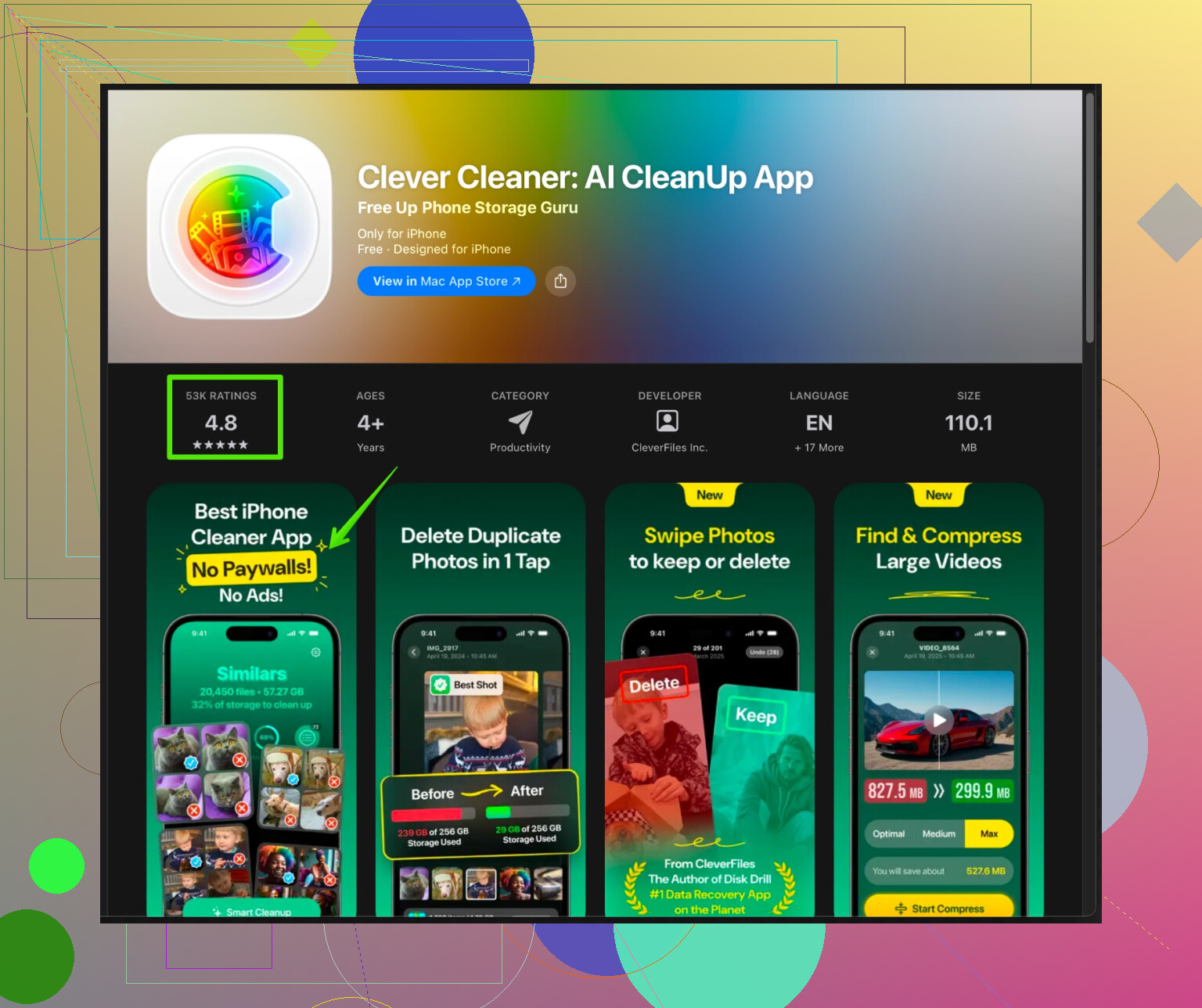
Since you already deleted some photos, the next step is to remove duplicates, similar photos, huge videos, and junk screenshots, but without touching important stuff.For that, try an app like the Clever Cleaner App. It helps find duplicate and similar photos, big videos, and random screenshots that eat storage. It sorts things in a clear way so you pick what to remove. No guesswork.
Check it here:
smart iPhone storage and cleanup helperIt focuses on cleaning junk safely, not nuking your personal data.
-
Things to avoid
• Do not erase “All Content and Settings” unless you plan a full reset
• Do not delete apps that hold local only data if you have no backup
• Do not rely on “Other System Data” shrinking instantly, it often drops only after a restart or update
If your phone still slows down after all this and storage is under 10 percent free, you might need to clear more video content or move stuff to iCloud or a computer.
3 Likes
You’re not crazy, iPhones are terrible at giving us a simple “clear cache” button. @mike34 covered most of the “official” stuff, so I’ll skip repeating menus and tap-by-tap junk and hit a few angles they didn’t really lean on.
1. Check what’s actually filling your storage
Before nuking more photos or apps, figure out what’s guilty:
- Go to Settings → General → iPhone Storage and just wait.
- Look at the colored bar at the top:
- If “Media” is huge, your problem is photos/videos, not cache.
- If “Apps” is big, it’s likely social apps storing temp files.
- If “System Data” (or “Other”) is huge, that’s usually caches, logs, and iOS being messy.
If System Data is like 10+ GB, your iPhone is basically hoarding trash.
2. Use the “System Data shrink” trick
Not official, but it tends to help when cache gets out of hand:
- Make sure you have a recent iCloud or computer backup.
- Plug into power and Wi‑Fi.
- Go to Settings → General → Software Update.
- If an update is available, install it.
- Even if you’re already on the latest version, sometimes:
- Turn the phone off for a full minute.
- Turn it back on, then check iPhone Storage again.
System Data often drops a few GB after an update or reboot cycle. It’s not instant magic, but it does clear a chunk of hidden cache.
3. Tweak Safari without killing everything
I actually don’t always agree with just hitting “Clear History and Website Data” like @mike34 suggested. That can log you out, mess up some sites, and wipe useful history.
Instead, try:
- In Safari settings, turn off:
- Preload Top Hit
- Make sure “Close Tabs” is set to something sane like “After One Week” so you don’t have 200 tabs open forever.
- Then manually close Safari tabs you don’t need.
- If you really MUST clear stuff, use the Website Data list and only delete the big offenders instead of all of them.
Less convenient, but you keep more of your normal browsing life intact.
4. Social media apps: the real villains
Those apps are absolute cache monsters. iOS won’t show it as “cache,” it hides inside “Documents & Data.”
Try this pattern:
- Inside the app:
- Check the in‑app settings for “Storage,” “Cache,” “Media,” etc.
- Clear “temporary files,” “downloaded media,” “offline content” only.
- If the app has no useful option and is 2+ GB:
- Log out (if you’re paranoid).
- Delete the app.
- Restart the phone.
- Reinstall and log in.
You won’t lose your stuff if it’s tied to an account (Instagram, TikTok, etc.), but you’ll lose locally cached reels, videos, saved offline stuff. That’s usually what you want anyway.
5. Messages & iCloud tweaks that don’t kill your data
You can keep your actual conversations and still free space:
- In iPhone Storage → Messages:
- Sort by “Large Attachments” and just remove ancient videos/memes you don’t care about.
- Turn on “Messages in iCloud” if you have iCloud space:
- It stores messages in iCloud and can lighten the local copy a bit over time.
Also, if you’re using iCloud Photos with “Optimize iPhone Storage,” your phone keeps smaller versions locally and full versions in the cloud. If you’re not using that yet and you have iCloud storage, it’s worth it.
6. Use a cleaner app for photos & videos only
I’m usually skeptical of “cleaner” apps that pretend to clear iOS system cache. They can’t really touch system cache because Apple blocks that. But they can help with:
- Duplicate photos
- Blurry or near-duplicate shots
- Huge videos
- Useless screenshots
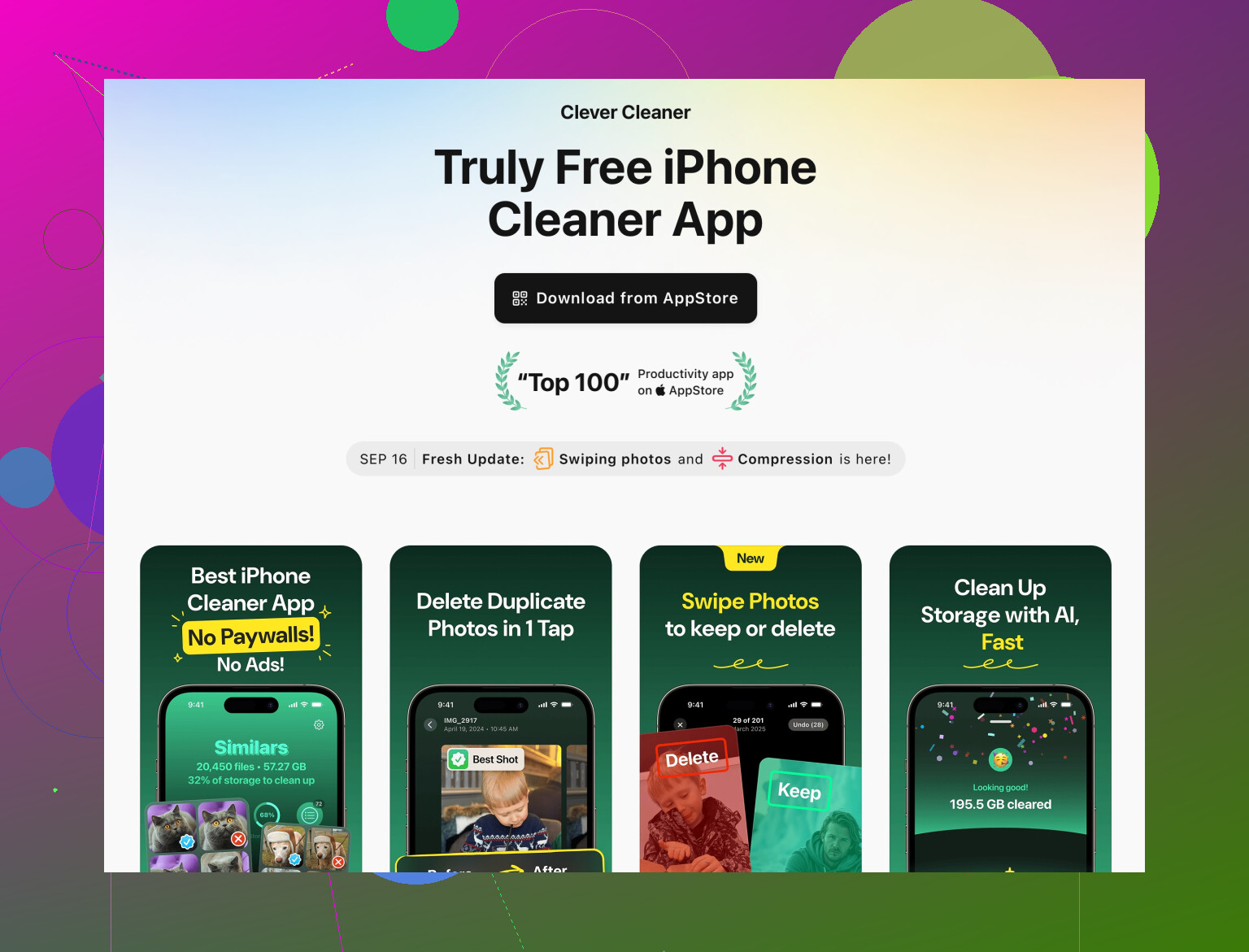
That’s where something like the Clever Cleaner App is actually useful. Instead of just manually scrolling through 10,000 pics, it groups:
- Similar and duplicate photos so you can bulk-remove the worst ones
- Large videos hogging multiple GB
- Old screenshots you don’t even remember taking
If you want a solid option, check out
smart tools to clean up your iPhone’s storage
It focuses on organizing and cleaning your photo and video clutter without messing with your personal data or pretending to be a magic “clear cache” button.
7. Performance: storage is only part of the slowdown
iOS behaves badly when storage is super tight, but if you’ve freed a few GB and it’s still laggy:
- Turn off Background App Refresh for apps you rarely use.
- Reduce stuff like live wallpapers and extra widgets.
- Restart the phone after a cleanup so Spotlight and Photos can reindex.
You don’t need to go nuclear with “Erase All Content and Settings” unless the phone is utterly cursed.
TL;DR:
There is no single “clear cache” switch. You attack it from:
- iPhone Storage review
- Trimming System Data via update/restart
- Smarter Safari cleanup instead of wiping everything
- Reinstalling bloated social media apps
- Cleaning old message attachments
- Using a photo/video cleaner like Clever Cleaner App for junk media
Takes a bit of fiddling, but you can free several GB without losing actual data or your mind.
Your deleted photos might still occupy storage for 30 days.
Open Photos, scroll to Recently Deleted, unlock the album, tap Select, then Delete All. Check the items first, since removal is permanent. Back up anything important before deleting.
Large videos often free the most space. Ten 4K clips might consume several GB. Restart your iPhone afterward, then wait a few mins before checking Settings, General, iPhone Storage. iOS needs time to recalculate the total.
If your iPhone is a few years old, the slowdown might not be storage at all. Check Settings, Battery, Battery Health and Charging. Below around 80 percent capacity iOS can throttle performance, and no amount of cache clearing will fix that.