I accidentally emptied the Trash on my Mac and deleted important files I still need. I’m looking for the best way to recover permanently deleted Mac files after emptying Trash, including any built-in options or reliable recovery methods that might still work.
I’ve done this once, and the first few minutes mattered more than anything after. If you emptied the Trash on your MacBook, stop using it now. Don’t open apps. Don’t save files. Don’t install stuff. Leave it alone.
What changed when you emptied Trash was mostly the file map. macOS marked those blocks as free space. The data often stays on the SSD for a bit, until new writes land on top of it. So every click, every tab, every background task eats into your odds.
There’s one ugly part with newer MacBooks. SSDs use TRIM, and macOS runs it in the background. Once TRIM clears those deleted blocks, software recovery gets a lot harder, sometimes dead end hard. So yeah, time matters here.
Before you install anything, check the places people forget.
- Cloud accounts
If the files ever synced with iCloud Drive, Dropbox, or Google Drive, check from your phone or a different computer. Each service keeps its own deleted-items area, often for around 30 days. That bin is separate from your Mac’s Trash. - Photos and Notes
If you lost pictures or notes, open those apps and look in Recently Deleted. Apple keeps deleted items there for roughly 30 to 40 days. - Time Machine
If you had Time Machine turned on at any point, look there next. Go back to the folder where the files used to live. Even without the backup drive attached, macOS sometimes keeps local snapshots from the last day on the internal drive.
If none of those pans out, then you’re down to recovery software.
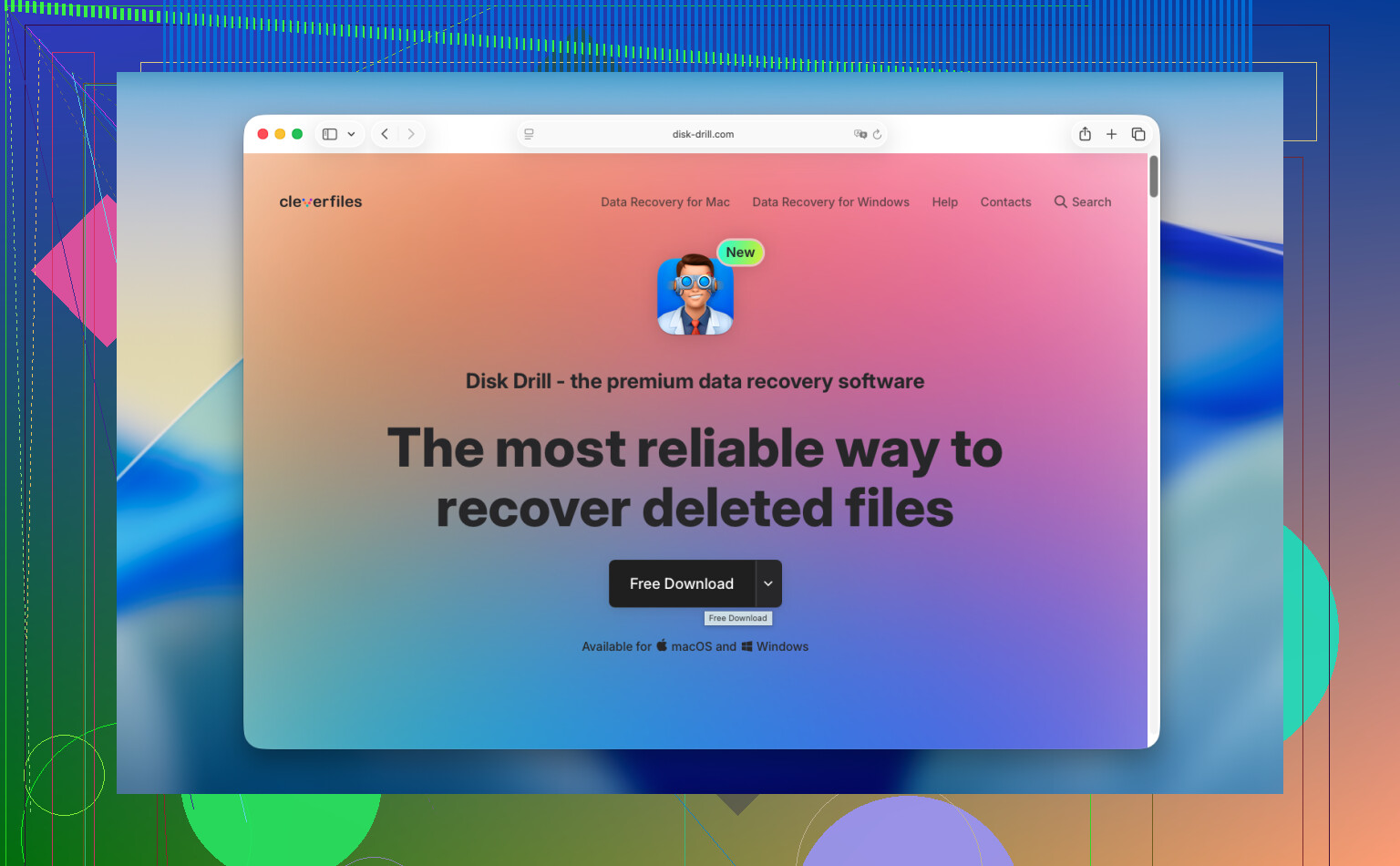
I’d start with Disk Drill. On newer Macs, especially Apple Silicon models and machines with the T2 chip, recovery from the internal drive gets messy because of encryption and system protections. A lot of random tools choke there. This one tends to handle modern Macs better.
What I’d do, in order:
- Do not install it on the MacBook you’re trying to save.
This part trips people up. Installing software writes new data. New data is the enemy. Use another computer, download the app there, and put it on a USB drive. - Make a disk image first.
Skip this and you risk losing your second shot. A full byte-for-byte image gives you a frozen copy of the drive in its current state. Save that image to an external drive. Then scan the image instead of hammering the original disk over and over. - Run the scan.
Point the tool at the internal drive, or better, at the image you made. Let it crawl the storage and look for recoverable files. - Preview the results before paying.
This matters. If the tool shows proper thumbnails, readable docs, and intact videos, you know the files aren’t garbage before you spend money. - Recover to external storage.
Do not write recovered files back onto the MacBook’s internal SSD. Use an external drive or USB stick.
If you want a free route first, PhotoRec exists. It works, I’ve seen people pull data back with it, but it’s rough. No friendly interface. No original folder layout. File names often come back mangled or generic. If you recover 6,000 files, you get to sort that mess by hand. Fine for stubborn people, less fine if you want your evening back.
If software finds nothing and the files matter, call a recovery lab. They do this all day. Most places start with an evaluation, then quote you before doing the full job. Turnaround is often a few days to a week. Cost is usually somewhere around $300 to $1,500, sometimes more if the case is ugly. Painful price, yep. Still cheaper than losing irreplaceable work or family photos.
Short version. Stop using the MacBook. Check cloud bins, app-specific deleted folders, and Time Machine. If those fail, run recovery from an external device and save anything recovered to external storage too. Move fast. TRIM doesn’t wait.
9 Likes
If Trash is already emptied, your best built-in shot is not Finder. It’s version history and backups.
First, check app-level recovery:
Pages, Numbers, Keynote often keep prior versions.
Open the app, then File, Revert To, Browse All Versions.
Office apps sometimes have AutoRecovery copies in:
~/Library/Containers/com.microsoft.Word/Data/Library/Preferences/AutoRecovery
Same idea for Excel and PowerPoint.
Second, check Time Machine snapshots with Terminal, not the normal UI.
Run tmutil listlocalsnapshots /
If you see dates, you might be able to mount and pull files from a snapshot. This works in some cases even when people think they never set up backupes.
Third, look for temp exports and duplicate copies.
Mail attachments, Downloads, app caches, project folders, Adobe autosave folders. I’ve recovered “deleted” files this way more than from raw disk scans.
I differ a bit from @mikeappsreviewer on one point. If your Mac has been on for hours after deletion, software recovery from the internal SSD often drops fast, especially on APFS. Still worth trying, but don’t expect miracles.
If you need a scanner, Disk Drill is one of the few Mac data recovery tools I’d bother with. I’d use it after checking snapshots, app autosaves, and cloud version history. Preview files first. Recover to an external drive.
Also worth watching this Mac deleted file recovery tutorial after emptying Trash. Short, but decent.
If the files are business-critical, stop DIY fast and send it to a lab. That saves time, and sometmes money too.

One thing I’d add to what @mikeappsreviewer and @codecrafter said: check whether the files were ever duplicated by macOS itself before you go full recovery-mode. A lot of apps create hidden working copies, especially if the file was recently opened, attached to an email, AirDropped, or edited from iCloud Drive. I’ve found “lost” PDFs sitting in Mail Downloads, Preview’s recent temp storage, and app sandbox folders when the original was gone.
Also, if the deleted files were on an external drive and you emptied Trash later, look for a hidden .Trashes folder on that drive. People miss that all the time. Emptying Trash from Finder can wipe it, sure, but sometimes remnants are still there depending on how the drive was handled.
I slightly disagree with the blanket “software recovery is hopeless” vibe people sometimes give for internal SSDs. The odds are bad on modern Macs, yes, but not always zero. It depends on whether TRIM has already done its thing, how much write activity happened after deletion, and whether the file lived in synced or cached storage. So I wouldn’t assume dead-on-arrival.
My order would be:
- Search for duplicate/local copies with Spotlight and Finder smart search
- Check app autosave/version folders
- Check hidden Trash locations on any external drives
- Then use Disk Drill to scan, ideally from another drive and save recovered files externally
If you want more user experiences on recovering permanently deleted Mac files after emptying Trash, this thread is pretty relevant: real-world Mac Trash recovery tips and deleted file solutions
If the files are super important, stop poking around too much. Every “lemme just check one more thing” can make it worse. Learned that the dumb way myself lol.