My iPhone storage keeps filling up even after I delete apps, photos, and messages, so I think temporary files or cached data are still stuck on it. I need help figuring out how to clear temp files for good because my phone is running low on space and starting to slow down.
I ran into the same mess after an iOS update. Storage looked fine at first glance, then System Data swelled up and the phone turned sluggish. Typing lagged. Apps paused on launch. So yes, iOS is supposed to clean up temp files on its own. In my case, it did a poor job.
Low free space hits performance fast on iPhone. Once storage gets cramped, the phone starts dragging because cached files, temp junk, and old app data pile up. If your device started feeling slow right after an update, I’d bet leftover system junk is part of it.
A basic restart helps less than people hope, though I still do a full shutdown and power back on every week or so. It clears RAM and stops some background processes for a while. It won’t wipe all the junk, but I saw fewer hiccups after doing it regularly.
One place people miss is Safari. Mine had been sitting on a pile of old site data for months. Go to Settings > Safari > Clear History and Website Data. If you use Chrome, clear it from inside Chrome under Settings > Privacy and Security. It sounds small. It isn’t always small.
Then check Settings > General > iPhone Storage. This is where the ugly stuff shows up. Social apps were the worst for me. Instagram and TikTok had ballooned far past the listed app size. Apple still doesn’t give a proper clear-cache option for most apps, which is annoyng. Offload App keeps documents and removes the app binary, so it helps some. Deleting the app and installing it again worked better for me when I wanted the cache gone for real.
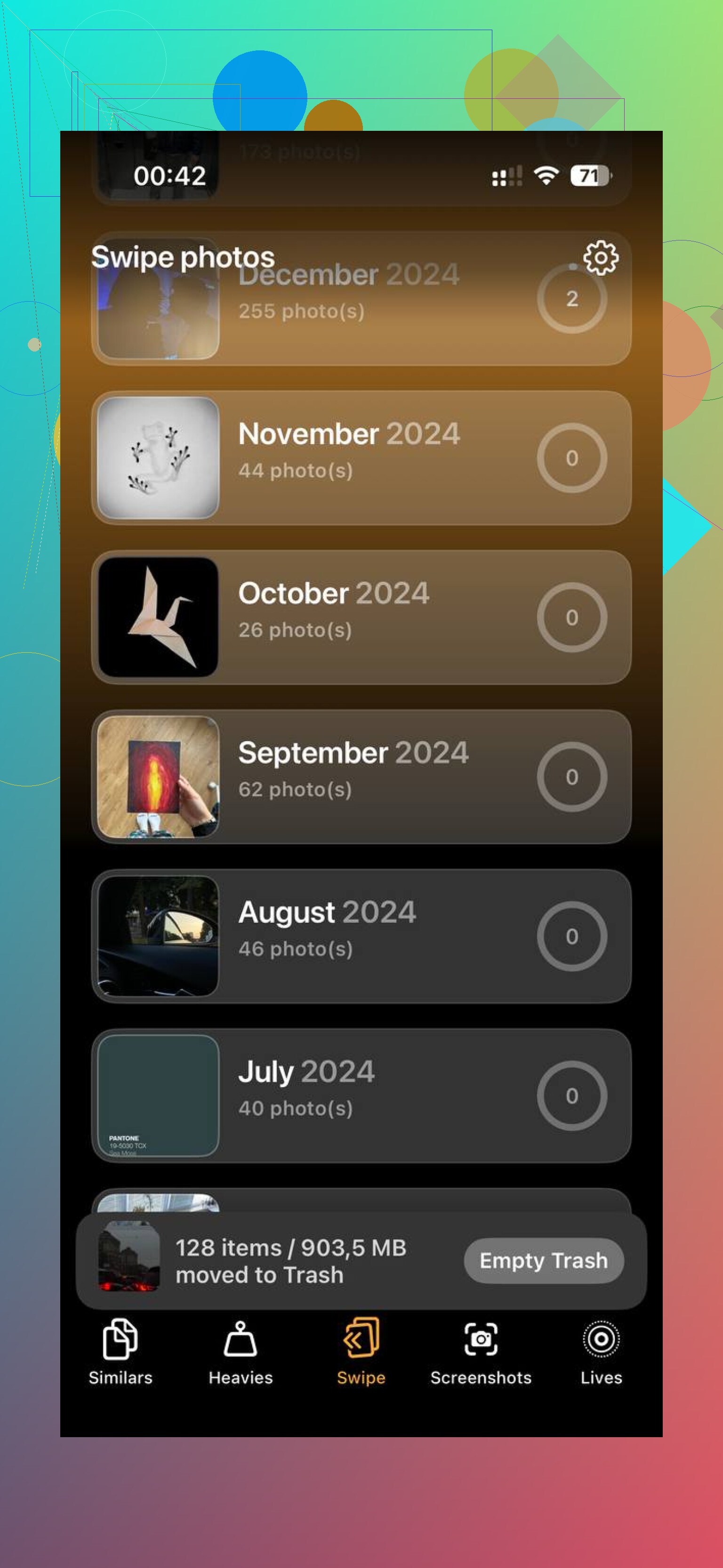
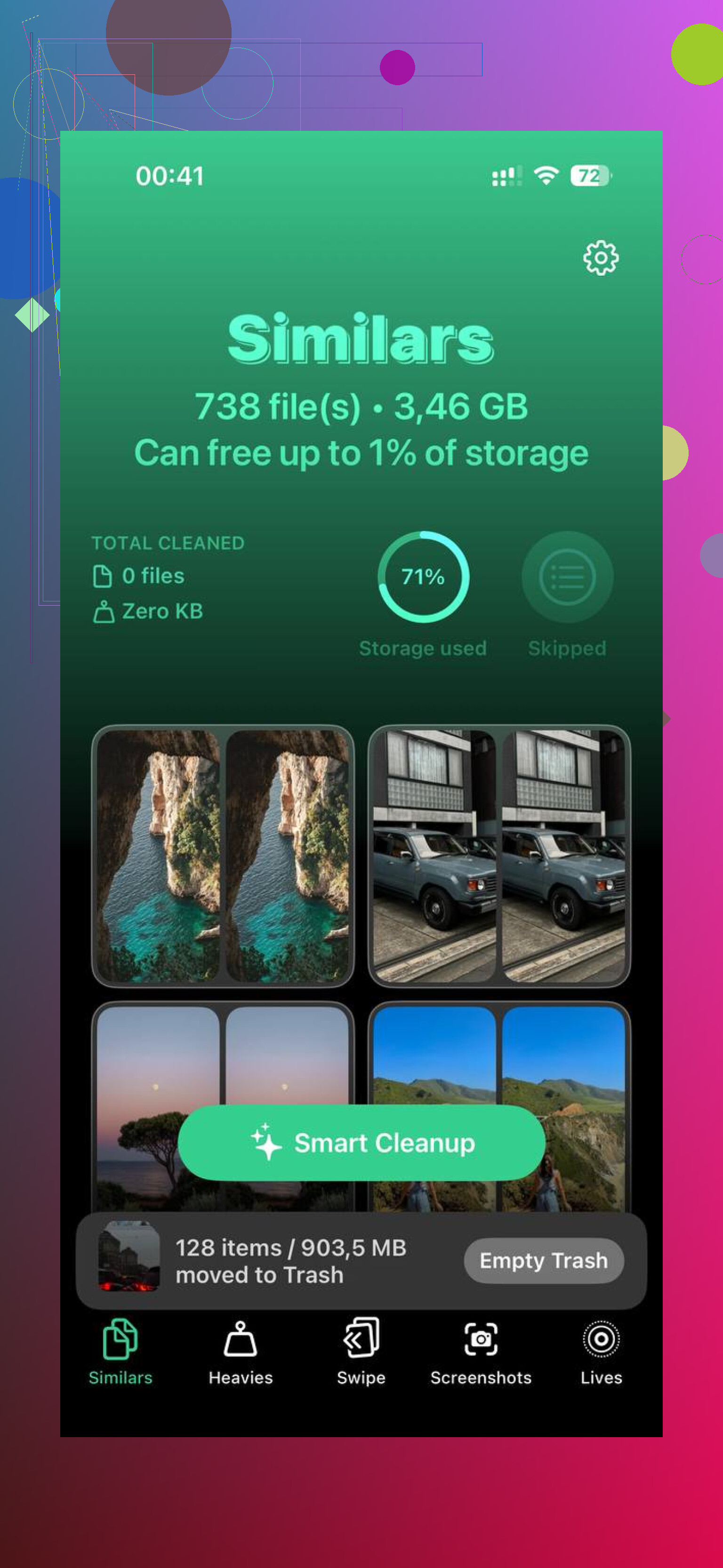
I spent way too long testing cleanup apps because most of them felt shady, packed with ads, or tried to push a subscription almost right away. The one I stuck with was Clever Cleaner. I liked it because it was free and didn’t hit me with the usual junk.
What helped most was the media cleanup. On my phone, photos and videos were the bigger problem, not the OS alone. The Similars section flagged near-duplicate photos, which was useful for those bursts where I took six shots of the same thing and forgot about them. The Heavies section sorted media by size, so I found old videos eating multiple gigabytes in about a minute. It also listed screenshot sizes one by one, which made cleanup less blind.
The privacy part mattered to me too. From what I saw, processing stays on-device. I wasn’t into the idea of shipping my photo library off somewhere for analysis.
After I cleared out around 12GB, the phone felt normal again. Lag dropped off. System Data also shrank later, which made me think iOS finally had room to manage itself better.
If I were doing it again, I’d go in this order.
- Power the phone fully off and back on.
- Clear Safari data.
- Clear Chrome data too, if you use it.
- Open iPhone Storage and look for bloated social apps.
- Delete and reinstall the worst offenders.
- Clean up large photos, videos, duplicates, and screenshots with Clever Cleaner.
For me, keeping at least 15 percent of storage free made a noticeable difference. Under that, things got weird fast. If your phone turned into a brick after an update, I’d start there.
3 Likes
You won’t find a single “delete temp files” button on iPhone. iOS hides most of it. Some junk clears itself, some does not.
I agree with parts of what @mikeappsreviewer said, but I think people overrate restarts. They help RAM, not long-term storage much. If your “System Data” stays huge for days, use stronger steps.
Try this order.
-
Force iOS to rebuild storage data.
Go to Settings, General, iPhone Storage, wait 2 to 3 minutes. The size bars often recalc slowly. I’ve seen System Data drop 1GB to 4GB after a sync or cleanup. -
Remove downloaded offline content.
This gets missed a lot.
Check:
Music downloads
Netflix, Prime Video, YouTube downloads
Spotify podcasts and playlists
Google Maps offline maps
Files app, Downloads folder
These caches eat tens of GBs on some phones. -
Delete old iOS update files.
Go to Settings, General, iPhone Storage.
If you see an iOS update file listed, delete it. I found one once taking 1.3GB. -
Turn off and back on iCloud Photos if sync got stuck.
Sometimes deleted photos stay in limbo while sync stalls. Check Photos, Recently Deleted too. Leave items there and they still count. Dumb, but true. -
Reset network settings.
This sounds unrelated, but it wipes some saved system junk like network caches. Settings, General, Transfer or Reset iPhone, Reset, Reset Network Settings. You lose saved Wi-Fi passwords, so write them down first. -
Last resort, encrypted backup, erase, restore.
This is the closest thing to deleting temp files “for good.”
Backup to Finder or iTunes with encryption on, erase the phone, restore the backup. On older iPhones I saw “System Data” drop from 18GB to 6GB after this. Annoying, yes. Effective too.
If media clutter is part of the problem, Clever Cleaner helps more with hidden photo waste than iOS does. Stuff like duplicate shots, giant videos, old screenshots. This review from Fossbytes covers how the free iPhone cleaner app works in plain English, see how Clever Cleaner helps free up iPhone storage.
Short version. If storage keeps refilling, the usual culprits are offline downloads, stuck photo sync, bloated System Data, and app leftovers. If none of those fixes it, erase and restore is the cleanest path. It’s a pain, but it works mor ethan most “cleanup” tricks.
There isn’t really a true “delete all temp files” button on iPhone, and that’s the annoying part. iOS hides a lot of cache management from you. I actually disagree a bit with @mikeappsreviewer and @byteguru on one thing though: people jump to erase-and-restore too fast. That works, sure, but it’s a massive hassle if the issue is just one broken app or sync process.
What I’d check that they didn’t really dig into:
- Mail app cache. If you use Apple Mail with multiple accounts, old attachments can pile up. Remove and re-add the mail account.
- Messages attachments. Even after deleting chats, big attachments can linger. In Settings > General > iPhone Storage > Messages, review large photos/videos/stickers.
- Voice Memos, GarageBand, Podcasts. These are sneaky space hogs.
- Files app trash. Also check “On My iPhone,” not just iCloud Drive.
- Third-party apps with bad cache behavior. Reddit, Facebook, Discord, and shopping apps are usual suspects.
Also, if Photos is enabled with “Optimize iPhone Storage,” your phone can look like it freed space, then refill while syncing. That confuses a lotta people.
For media junk, Clever Cleaner is probly the easiest shortcut because iPhone doesn’t surface duplicate photos and giant videos very well. That’s different from temp files, but in real life it solves the same storage problem faster.
If you want the nuclear option, back up, erase, restore. But before that, I’d inspect hidden media and app-specific storage first. Also this video is decent if you want a visual walkthrough: see the full iPhone storage cleanup walkthrough.
I’d skip one common suggestion from @byteguru and @mikeappsreviewer: obsessing over “System Data” as if all of it is deletable. Some of it is just iOS doing normal file indexing, logs, and swap. If that number moves around a lot, that’s not always a bug.
What I’d do that complements the other replies:
- Check app-specific download folders inside the apps themselves. Telegram, WhatsApp, Discord, and podcast apps often keep media long after you think it’s gone.
- Remove and re-add bloated mail accounts if Apple Mail is huge.
- In Photos, make sure Shared Library and hidden albums are not quietly holding large videos.
- Open Files and empty Recently Deleted there too. People forget it has its own trash.
One thing I disagree with @caminantenocturno on: restart-first is fine, but if storage is truly jammed, I’d hunt the exact offender before doing generic cleanup.
For photo clutter, Clever Cleaner is useful if the real problem is duplicate pics, screenshots, and giant videos rather than temp files. Pros: free, simple, good at surfacing heavy media. Cons: it won’t magically clear deep iOS system caches, and any cleaner app is only as helpful as what you actually delete.
So the blunt truth: there is no permanent “delete temp files for good” button on iPhone. The closest permanent fix is finding the app or media category recreating the junk, not just clearing space once.