My iPhone says there isn’t enough storage to install the latest iOS update, even after I deleted some apps and photos. I need help figuring out what else I can clear or if there’s another way to update without losing important data.
I hit this mess more than once. The phone says you still have a few gigs left, then iOS refuses to install and throws the storage warning anyway. Annoying, yep.
What tripped me up at first was this. The update size Apple shows is not the full amount of free space your iPhone wants. If the update says 2 GB, the phone usually needs a lot more room while it downloads the file, unpacks it, and swaps files during install. For a big version jump like iOS 26, I’d try to get 20 GB to 30 GB free if you want fewer install errors.
If you want to see what is eating your storage before deleting random stuff:
- Open Settings
- Tap General
- Tap iPhone Storage
- Wait for the chart and app list to load
- Check your free space and look at the biggest storage hogs
From there, I’d go after the stuff with the highest payoff first.
Start with a cleaner app if your Photos library is a mess
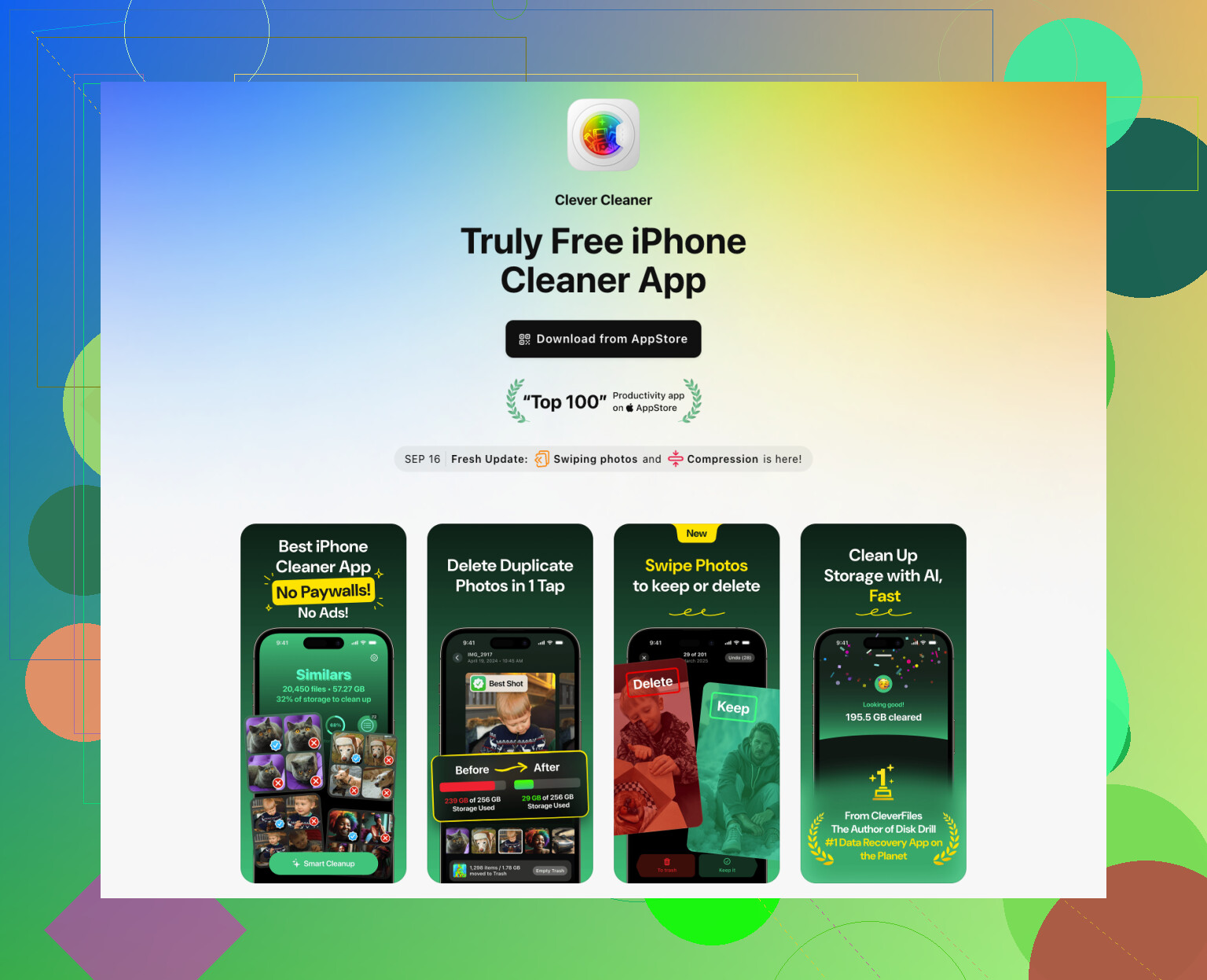
I wasted way too much time doing this by hand before I gave up and used a cleanup app. Scrolling through thousands of photos on a phone screen gets old fast. I’ve had decent results with Clever Cleaner because it gets you to the largest junk first instead of making you sort forever.
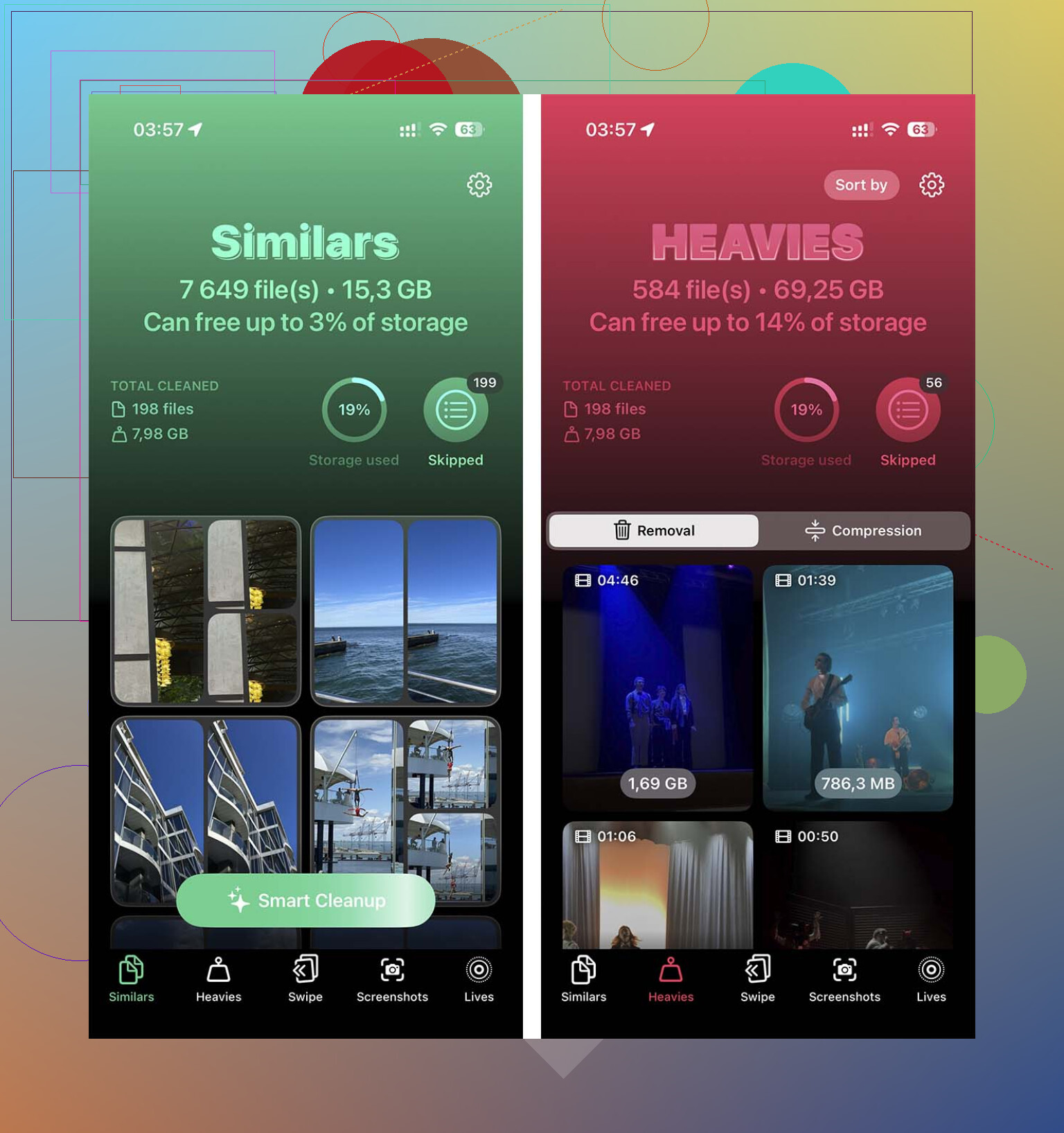
The part I liked most was the Heavies section. It puts your biggest videos at the top, which matters because one forgotten 4K clip from a concert or vacation can eat several gigabytes by itself. The Similars section also helps if your camera roll is full of ten near-identical photos of the same thing.
What I’d do:
- Open the cleaner app
- Check Heavies first
- Delete large videos you do not need
- Open Similars
- Remove duplicate or near-duplicate photos
- Open Photos
- Go to Recently Deleted
- Tap Delete All
Small gotcha. Storage is not freed right away unless you empty Recently Deleted. If you skip that, iPhone keeps holding the space for 30 days.
Remove apps with bloated data
This one works better than people expect. Some apps are not huge on their own, but their saved data gets stupidly large over time. Social apps, streaming apps, and games are usual offenders. I’ve deleted an app I barely used and got back multiple gigabytes in one shot.
Here’s the path:
- Open Settings
- Tap General
- Tap iPhone Storage
- Scroll through the app list
- Tap an app you hardly use
- Check how much space App Size and Documents & Data take
- Tap Delete App
- Repeat with other space-heavy apps
If you reinstall later, a lot of the junk cache is gone. Tha’ts the part you want.
Check the stuff people forget
Some of the worst storage offenders are hidden in places most people never open.
Files app
The Downloads folder in Files collects old PDFs, zip files, work docs, random attachments, all of it. Mine had years of junk sitting there.
- Open Files
- Tap Browse
- Open On My iPhone
- Open Downloads
- Delete what you no longer need
Messages attachments
This one sneaks up on you. Old videos, GIFs, memes, screenshots, voice notes. They pile up quietly.
- Open Settings
- Tap General
- Tap iPhone Storage
- Tap Messages
- Look through documents and attachment categories
- Delete large photos, videos, GIFs, and other attachments
- Check Recently Deleted in Messages too and clear it
I found old group chat videos from years ago still sitting there. No reason to keep em.
Safari data
This will not solve a huge storage problem by itself, but when you are short by 500 MB or 1 GB, it helps.
- Open Settings
- Tap Apps
- Tap Safari
- Tap Clear History and Website Data
- Confirm
If the phone still refuses, use a computer
This is the part a lot of people skip, and it often fixes the whole problem. Updating through a Mac or Windows PC lowers the storage pressure on the phone because the computer handles the download and unpacking work.
Steps:
- Connect your iPhone to a Mac or Windows PC
- Open Finder on Mac, or iTunes on Windows
- Select your iPhone
- Click Check for Update
- Follow the prompts
I’ve had updates fail on-device, then go through fine from a computer with no extra cleanup.
Last resort, wipe and restore
If nothing above gets you enough space, the brute-force fix is:
- Back up your iPhone to iCloud or a computer
- Erase the device
- Install the iOS update on the clean phone
- Restore your backup
It’s annoying. It takes time. Still, if you are boxed in by storage and the update will not budge, this usually ends it.
If you want the shortest version, I’d do this in order: large videos, duplicate photos, unused apps, Files downloads, Messages attachments, then update with a computer. That order got me out of this hole more than once.
23 Likes
One thing I’d add to what @mikeappsreviewer said, don’t chase some random 20 to 30 GB target unless your phone is packed to the brim. A lot of iPhones update fine with less. The bigger issue is often “System Data” being bloated, or a stuck update file.
Try these first.
Go to Settings, General, iPhone Storage. If you see an iOS update file listed, tap it and delete it. Then restart the phone. This fixes weird failed-download loops more often than people think.
Next, force down System Data a bit:
- Restart iPhone
- Turn off Low Power Mode if it’s on
- Make sure you have stable Wi-Fi
- Plug into power
- Wait 15 to 30 mins after a restart, storage sometimes recalculates
Also check if “Optimize iPhone Storage” is off for Photos. Turn it on if you use iCloud Photos. Your full-res photos get swapped out for smaller versions on the phone, which frees space without deleting them.
Another sneaky one, remove downloaded media inside apps. Netflix, Spotify, YouTube, Podcasts. Deleting the app works, sure, but sometimes wiping downloads inside the app is faster if you need the login/session intact.
If your Mail app is huge, remove and re-add the mail account. Old attachments stick around.
Best no-drama route is still a computer update. Less temp space needed on the phone.
If you want a fast photo cleanup before trying again, Clever Cleaner is decent. This easy review of all Clever Cleaner features shows what it does without wasting time.
If all else fails, backup, update from Finder or iTunes, then restore. Kinda annoying, but it works.
I’d actually push back a little on @mikeappsreviewer’s “aim for 20 to 30 GB” thing. Nice if you have it, sure, but for a lot of people that’s just not realistic on a 64 GB phone. Usually the issue is not just raw free space, it’s where the space is tied up.
A few things they didn’t really get into:
- Check Voice Memos. People forget this one and some old recordings are huge.
- In Apple TV, Music, Podcasts, remove downloaded stuff there specifically. App deletion is overkill if you just need 2 or 3 GB fast.
- If you use WhatsApp/Telegram, clear large media from inside the app settings. Those apps hoard videos like crazy.
- Turn off and back on Sync Library or photo syncing only if you know what’s in iCloud. Sometimes local copies hang around longer than expected.
- If you have a lot of Safari tabs, close them. Sounds dumb, but I’ve seen storage recalc after doing that plus a restart.
Also, one trick that sometimes works: start the update at night while plugged in, locked, on Wi-Fi. iOS does some cleanup on its own when it has time. Kinda annoyng, but true.
If you want a faster photo cleanup before trying again, Clever Cleaner is worth a look, esp if your camera roll is a war zone. And if you want extra iPhone storage cleanup tips and update prep, that covers a few more spots people miss.
Still though, computer update is the least painful route if the phone keeps being stubborn.