My iPhone saved a large batch of pictures as Live Photos, and I need to convert them all to still images without editing each one individually. I’m trying to save time and free up storage, but I can’t find a quick bulk option. Is there an easy way to batch change Live Photos to still photos on iPhone?
I get why you want this gone. Live Photos are nice when you catch the one frame where nobody blinked, then you look at storage and it starts feeling dumb fast. Each one is a still photo plus a short video and audio clip, so they eat a lot more room than a normal image. If your library is packed with them, the wasted space adds up fast.
If you need to deal with a big batch, I’d do it in this order, from least painful to most tedious.
Option 1, use a cleanup app
If you have a huge photo library, doing this inside Apple’s own menus gets old fast. I tried the manual route before. It works, sort of, but it turns into a slog when you have hundreds or thousands of Live Photos.
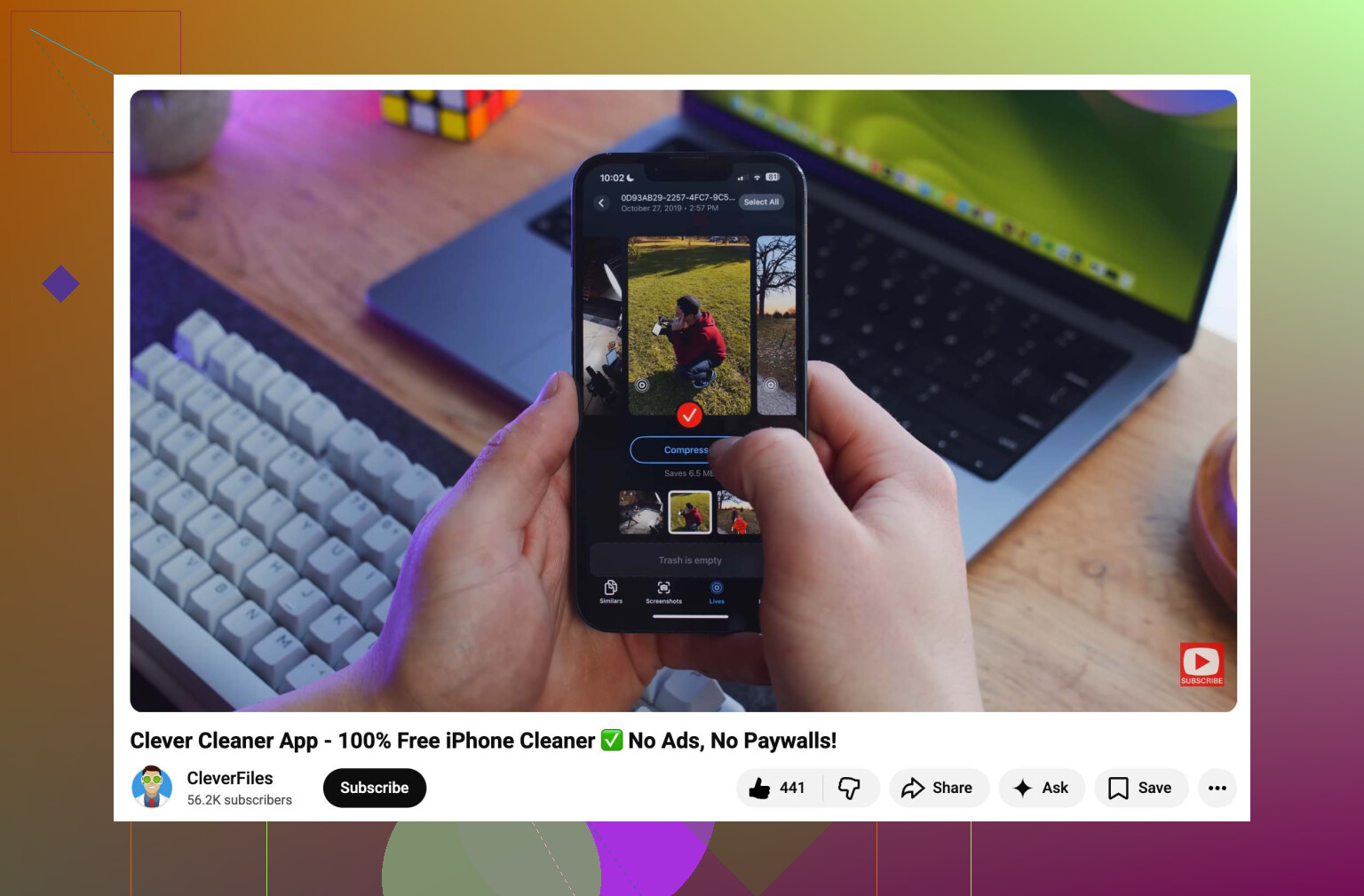
Out of the stuff I tested, Clever Cleaner was the one I kept coming back to. It’s free, no ads popping up, no feature locks, no nagging purchase screen every five taps. The app is built around the stuff Apple leaves half-finished, mainly storage cleanup.
How I’d do it:
- Install it and give it Photos access.
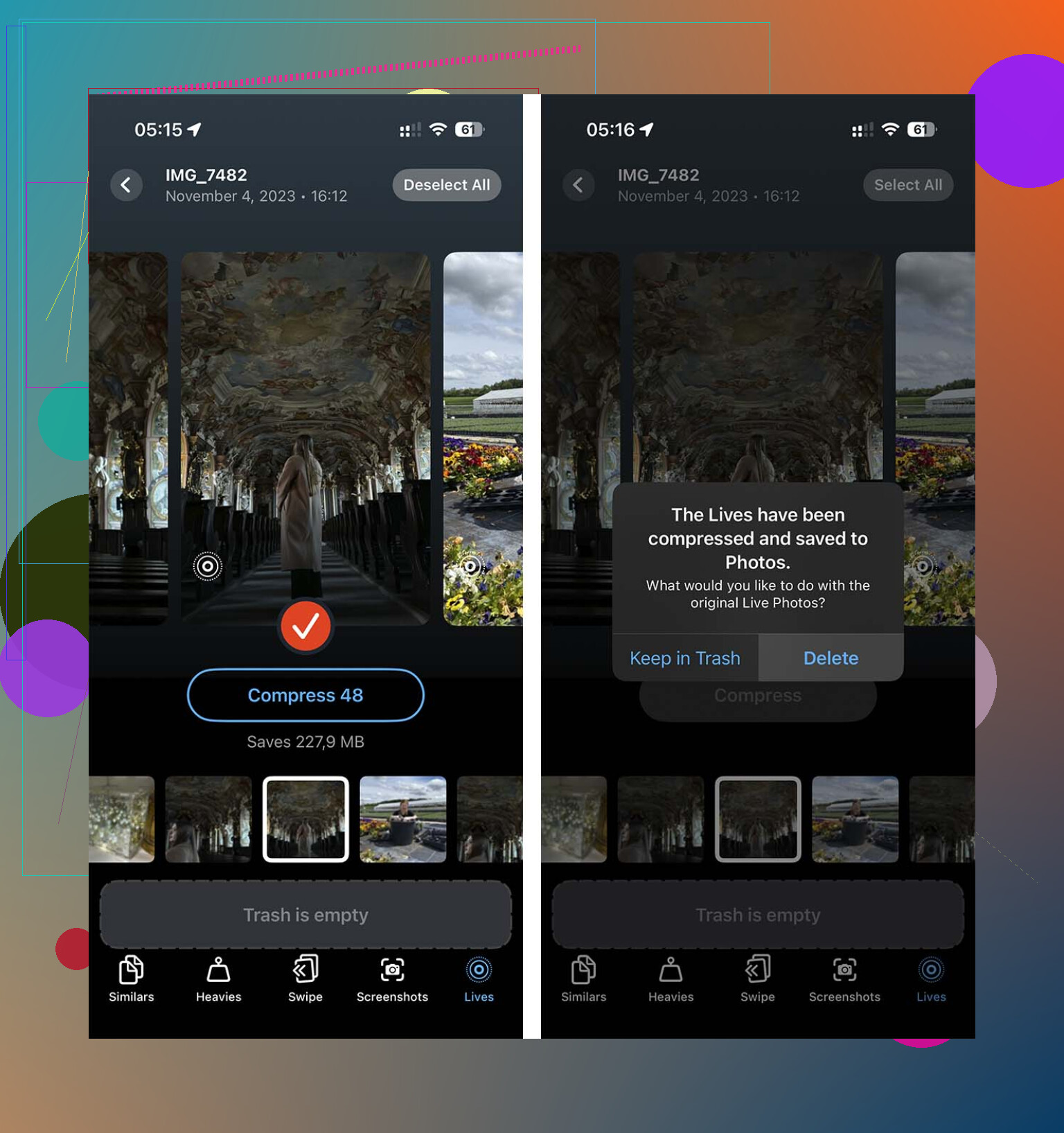
- Open the Lives section. You can sort by date or file size, which helps if you want to clear the biggest offenders first.
- Tap Select All, or pick a smaller group, then hit Compress. The label says compress, but what it’s doing here is removing the motion part and keeping a high-quality still.
- When it finishes, delete the original Live versions from inside the app flow. This matters, because duplicates pile up if you skip this step.
Option 2, build a Shortcut
If you don’t want another app on your phone, Shortcuts is the cleaner workaround. I messed with this once because I didn’t want to resort to screenshotting photos, which ruins the whole point since screenshots don’t keep the original image quality.
Set it up like this:
- Open Shortcuts and make a new shortcut with the plus button.
- Add Find Photos, then filter it so Photo Type is Live Photo.
- Add Repeat with Each.
- Inside the loop, add Convert Image. Pick JPEG or PNG.
- Add Save to Photo Album so the converted stills stay in your library.
- Run it and give it time.
The annoying part is this method does not remove the original Live Photos. You still need to go back into the Live Photos album and delete those by hand, or your storage barely changes.
Option 3, use Apple’s built-in duplicate tool
Apple does give you a native way to turn Live Photos into stills, though it feels awkward if you’re doing a lot at once.
- Open Photos and go to the Live Photos album.
- Tap Select and choose the photos you want.
- Tap the three-dot menu.
- Choose Duplicate.
- Pick Duplicate as Still Photo.
One thing to watch: this makes a second file. So for a bit, storage use goes up, not down. You’ll have the Live version and the still version sitting there together until you delete the originals yourself.
Stop your iPhone from doing it again
After you finish cleaning things up, go to Settings > Camera > Preserve Settings and turn on Live Photo there. Then open Camera and switch off the Live Photo icon once. After that, your phone should remember the setting instead of turning it back on later. Mine did, finaly.
14 Likes
Best fast route on iPhone, export the still frame out of all Live Photos, then remove the Live originals.
I’d skip the duplicate trick @mikeappsreviewer mentioned if storage is your main goal. Duplicating spikes space first, which is annoying on a full phone.
What tends to work better is batch conversion:
- Use Shortcuts to find all Live Photos.
- Convert them to JPEG.
- Save them into a new album like “Still Copies”.
- After you confirm the copies look fine, bulk delete the Live Photos from the Live Photos album.
If you want less setup, Clever Cleaner is one of the few iPhone cleanup apps focused on photo clutter, including Live Photos, large files, duplicates, and similar shots. It’s easier for big batches and less fiddly than building your own shortcut.
If you want a quick look at how it handles photo cleanup, watch how Clever Cleaner speeds up iPhone photo cleanup.
Short version on storage, a Live Photo is a still image plus a short motion clip. Delete 500 Live Photos after saving still copies, and you usually free a noticeable chunk of space. I did this once, took a bit, but way less pain than editing one by one. Kinda dumb Apple still makes bulk cleanup this awkward tbh.
One thing I’d add to what @mikeappsreviewer and @waldgeist said: if your main goal is freeing storage, the fastest route might actually be doing this on a Mac, not on the iPhone at all. Apple makes a lot of “simple” iPhone tasks weirdly clunky in bulk, and this is one of them.
If you have a Mac, open Image Capture or the Photos app, export the Live Photos as stills only, then import those back if needed. It’s a lot less annoying for giant batches, esp if your phone is already low on space and starts lagging halfway through. I honestly think this is cleaner than relying only on duplicate/save-back-to-library workflows.
Also, small reality check: converting Live Photos to stills won’t always save a massive amount unless you actually delete the original Live versions and then empty Recently Deleted too. People forget that part and wonder why storage barely moved. Been there, super dumb.
If you want to stay on iPhone only, yeah, Clever Cleaner is probly the easiest “do this in bulk without babysitting it” option. And if you want a quick visual on iPhone photo cleanup, this TikTok demo of Clever Cleaner for clearing Live Photos and photo clutter is easier to follow than Apple’s menus.
Also disable Live Photo in Camera after you finish, or your phone will happily start this nonsense again lol.
I’d push back a little on the Mac/export advice from @espritlibre if your goal is fastest with least cleanup afterward. It’s great if you already manage photos on a Mac, but for a lot of people it turns into export, re-import, check metadata, then manually clean originals anyway.
What I’d look at instead is whether you actually need new still files at all.
If you just want the Live part gone, some cleanup tools handle this more directly than Apple does. Clever Cleaner is one of the few that’s actually built around photo-library cleanup instead of generic “phone booster” fluff.
Pros of Clever Cleaner
- easier on huge batches than Photos app
- can surface Live Photos quickly
- useful beyond this one job, duplicates, large videos, similar shots
- less manual tapping than the native route
Cons
- you’re giving a third-party app photo access
- you should double-check the output before deleting originals
- batch jobs can still take a while on a nearly full phone
So I mostly agree with @waldgeist that iPhone-only is possible, and with @mikeappsreviewer that duplicates are a bad move when storage is tight. My added take is: before doing any mass delete, test on 10 to 20 Live Photos first and confirm the still copies keep the date, quality, and album behavior you want. That’s the part people skip, then regret.
Also, after deleting, empty Recently Deleted or your storage numbers won’t change much right away.