I need help recovering files from my SD card after it suddenly stopped showing my photos and videos. I’m worried that trying random fixes could overwrite the data and make recovery harder. What’s the safest way to recover SD card files without losing anything else, and are there trusted tools or steps I should follow first?
I know how bad this feels. I wiped a card once after a long weekend shoot because I thought I had already copied everything. I had not. If your photos were deleted by mistake, your first move matters more than anything else.
Pull the SD card out now. Set it aside. Do not shoot more photos on it. Do not copy files onto it. Do not let your phone or camera keep using it.
What I learned the hard way is simple. Deleting a photo usually removes the file entry, not the photo data sitting on the card. The space gets marked free. Your images often stay there until new data lands on top of them. Once that happens, recovery drops off fast. So the job is to avoid writing anything new.
The cleanest way I’ve done this is below.
- Use a real SD card reader
Skip the camera-to-computer USB cable if you can. A lot of cameras and phones show up in transfer mode and hide the raw storage layout, which gets in the way of deeper scans. Put the card into your laptop’s SD slot or a USB card reader.
- Scan it with recovery software
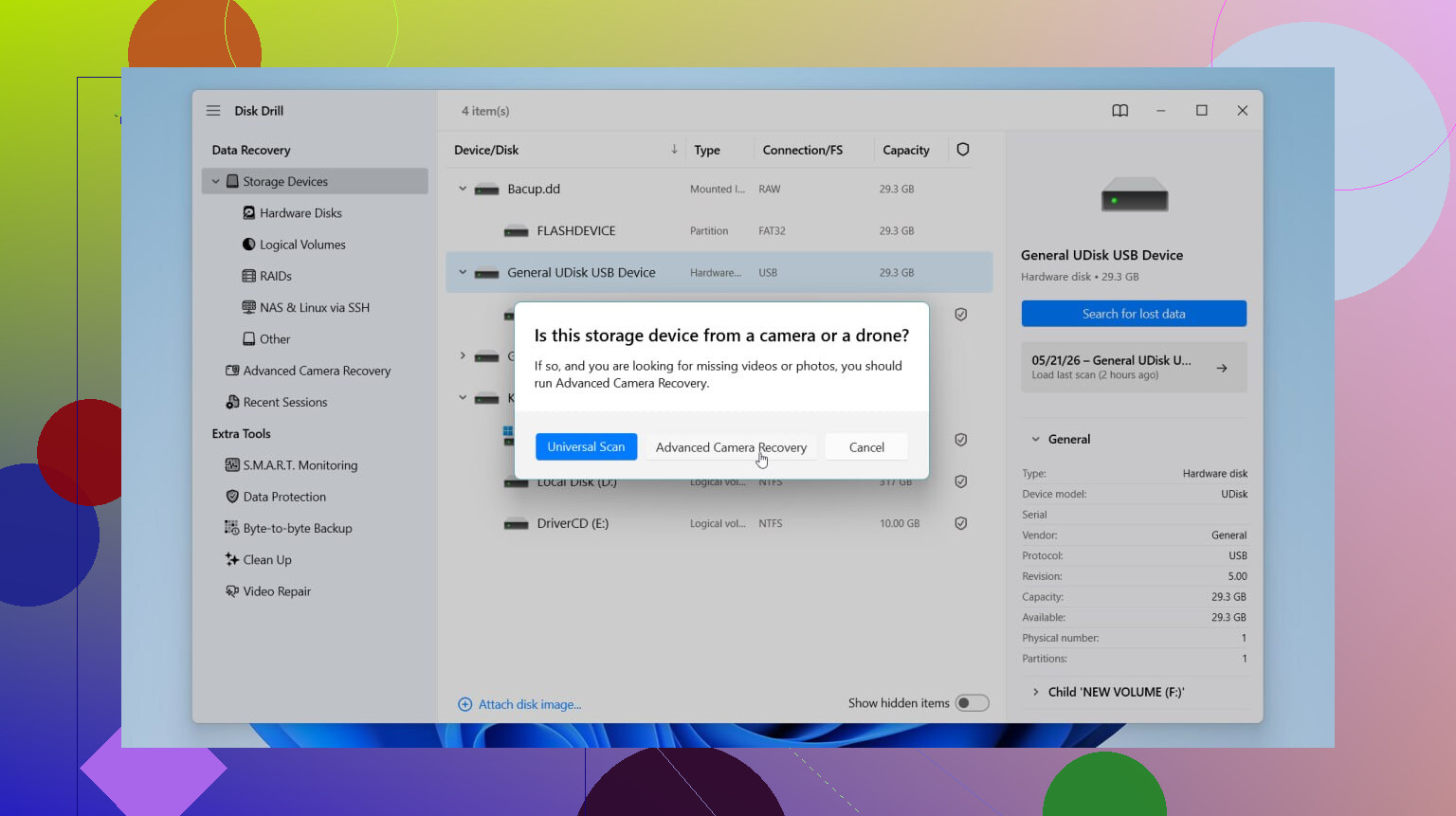
I’ve tried a bunch over time. The one I had the least friction with was Disk Drill. On SD cards, it was easy to preview what it found before restoring anything. That saved me from pulling back junk files with broken names. For video, it also has a camera recovery mode aimed at footage from devices that split or fragment files. I’ve seen cheaper tools choke on those clips.
On Windows, the free tier lets you recover up to 100 MB, so you can check whether your files are still visible before paying.
- Restore to a different drive
This part gets messed up all the time. When the app asks where to save recovered files, do not send them back to the SD card. Save them to your computer’s internal drive or a separate external drive. If you write recovered files onto the same card during recovery, you risk overwriting the stuff you are still trying to pull off. It’s a self-own, honestly.
If you want other routes, these are the ones I’d look at.
R-Studio
Good pick if your card has large RAW files like NEF or CR2 and you don’t mind a steeper setup. One thing I liked is disk imaging. You make a full byte-for-byte copy of the card first, then scan the image instead of stressing the card over and over. Downside, the interface is not friendly and the trial has limits.
TestDisk
Old school, free, open source, no pretty interface. It runs in a text window. If the partition itself is damaged, it has a solid rep for a reason. For browsing lots of deleted photos one by one, it’s rough. I only use it when other tools miss the structure of the card.
DiskDigger
Small, light, and on Windows you don’t even need a full install. It recognizes a lot of image and video file signatures. The annoying bit is the free version slows you down with per-file confirmation, which gets painful if you’re sorting through hundreds or thousands of shots. There’s an Android version too, though it works best on rooted phones.
One more thing, and I’d take this seriously. Do not run repair tools like CHKDSK on Windows or First Aid on macOS if your goal is photo recovery. Those tools try to repair filesystem damage. They are not built for undelete work. I’ve seen them clean up “bad” entries and take recoverable files with them.
So, short version. Stop using the card. Use a card reader. Scan with recovery software. Save recovered files somewhere else. Those four steps gave me the best shot when I messed this up myself.
10 Likes
First, stop mounting the card over and over. Repeated reads are less risky than writes, but a failing SD card often gets worse with each reconnect. This is where I differ a bit from @mikeappsreviewer. Scanning the original card first is not my favorite move if the card seems unstable.
Safer path:
- Put the little lock switch on the SD card to read-only, if your card has one.
- Use a reader on a computer.
- Make an image of the card first. Full sector copy. Save it to your PC or an external drive.
- Run recovery on the image, not the card.
- Save recovered files to a diffrent drive.
If the card disconnects, shows 0 bytes, or asks to format, skip DIY repair. Go straight to imaging or a pro lab.
For imaging, look at USB Image Tool, R-Studio, or ddrescue on Linux. ddrescue is great for weak media because it logs bad areas and retries smartly. If the card is healthy but files vanished, Disk Drill is easier for photo and video recovery, and previews help sort out what is intact. This Disk Drill review for SD card and photo recovery is a decent quick watch too: watch this Disk Drill review for photo and SD card recovery
One more thing. Clean the card contacts first. Dry microfiber only. No random “fixes.” Thats where people lose data.

I’d add one thing to what @mikeappsreviewer and @caminantenocturno said: figure out what kind of failure you have before you start throwing tools at it. People treat “files disappeared” and “card is dying” like the same problem, and they’re not.
If the SD card still shows the correct size and mounts normally, that’s usually a softer failure: deleted files, damaged file system, corrupted directory. In that case, recovery software like Disk Drill is a pretty reasonable first pass because it’s easy to preview photos and videos and recover them to another drive. That matters more than people think.
If the card is acting weird, like:
- asks to be formatted
- shows 0 bytes
- disconnects randomly
- gets super slow
- causes read errors
then I actually lean more toward @caminantenocturno’s approach than @mikeappsreviewer’s. At that point, less poking is better. Image first if possible, then work from the copy.
Also, tiny but important point: avoid using your phone for recovery if you can. Phones love to “help” in dumb ways, cache stuff, remount storage, and generally make the situation messier. Use a desktop or laptop.
My personal rule:
- stable card = scan with Disk Drill
- unstable card = clone/image first, then recover
- physically damaged card = stop DIY stuff
And if recovered files come back with weird names, don’t panic. File carving often loses original filenames/folder structure, but the image/video data may still be fine. Ugly recovery is still recovery, lol.
If you want more opinions, this Reddit thread on recovering deleted files from an SD card has some useful real-world cases too.
Biggest mistake people make is trying “repair” before “recover.” Thats backwards. Recover first, fix later.