I accidentally deleted important photos from my SD card while moving files, and now I can’t find them anywhere. These pictures matter to me, and I need help figuring out the best way to recover deleted photos from an SD card before they’re gone for good.
I ran into this more than once. If you deleted photos from an SD card and then stopped using it right away, your odds are still decent.
What usually happens is boring but useful to know. Deleting a photo often removes the file entry, not the image data itself. The card forgets where the file is listed. The bytes often stay there until something else writes over them. So first move, stop using the card. No more photos. No video. Don’t copy a single thing onto it.
I usually start with Disk Drill. I used it on camera SD cards, drone footage cards, a Switch microSD, and one dash cam card with weird corruption. It’s easier than most recovery apps I’ve tried, and it tends to handle removable storage without much fuss.
Why I keep going back to it: it’s not limited to files deleted five minutes ago. It also reads cards gone RAW, cards your computer wants to format, and cards with damaged file systems. I’ve seen it pull up JPG and PNG files, plus camera RAW formats like CR2, NEF, ARW, and DNG. If your card came from Canon, Nikon, Sony, Fujifilm, or something close, it usually recognizes the file types.
Video is where cheap tools often fall apart. SD cards from GoPros, drones, and mirrorless cameras tend to store video in pieces. Some recovery apps find fragments and hand you junk. Disk Drill did better for me there, especially on cards with mixed photo and video use.
What I’d do
Pull the SD card out right now.
Use a proper card reader and connect it to your computer. I avoid plugging the whole camera in if I have a choice.
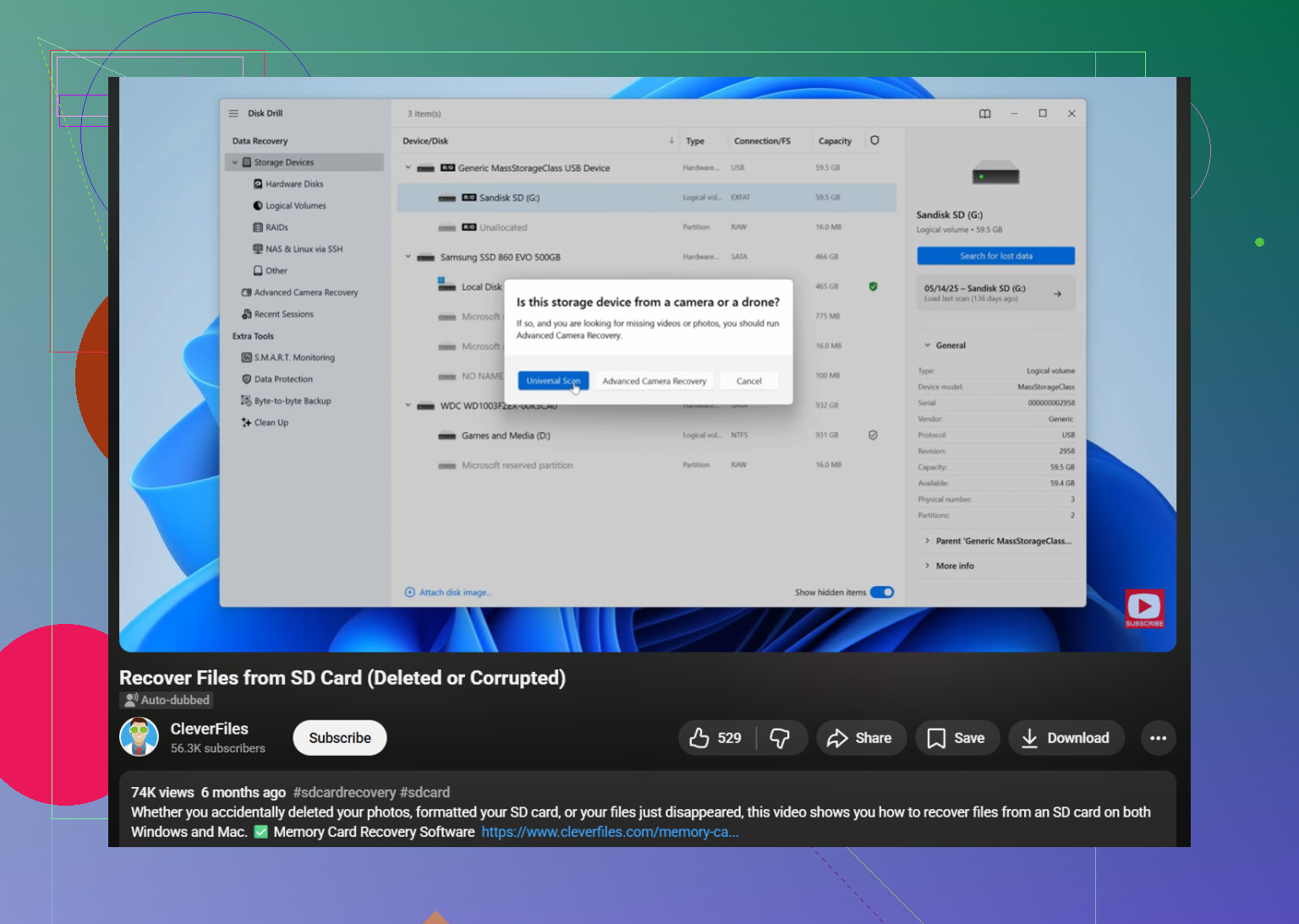
Install Disk Drill and open it.
Pick the SD card from the drive list.
Hit “Search for lost data” and run the Universal Scan.
Let it finish. I know, waiting sucks. Still, cutting it short is a bad move.
Open “Review found items” and check the Pictures section first.
Preview files before restoring them. If a photo previews cleanly, I treat it as a good sign.
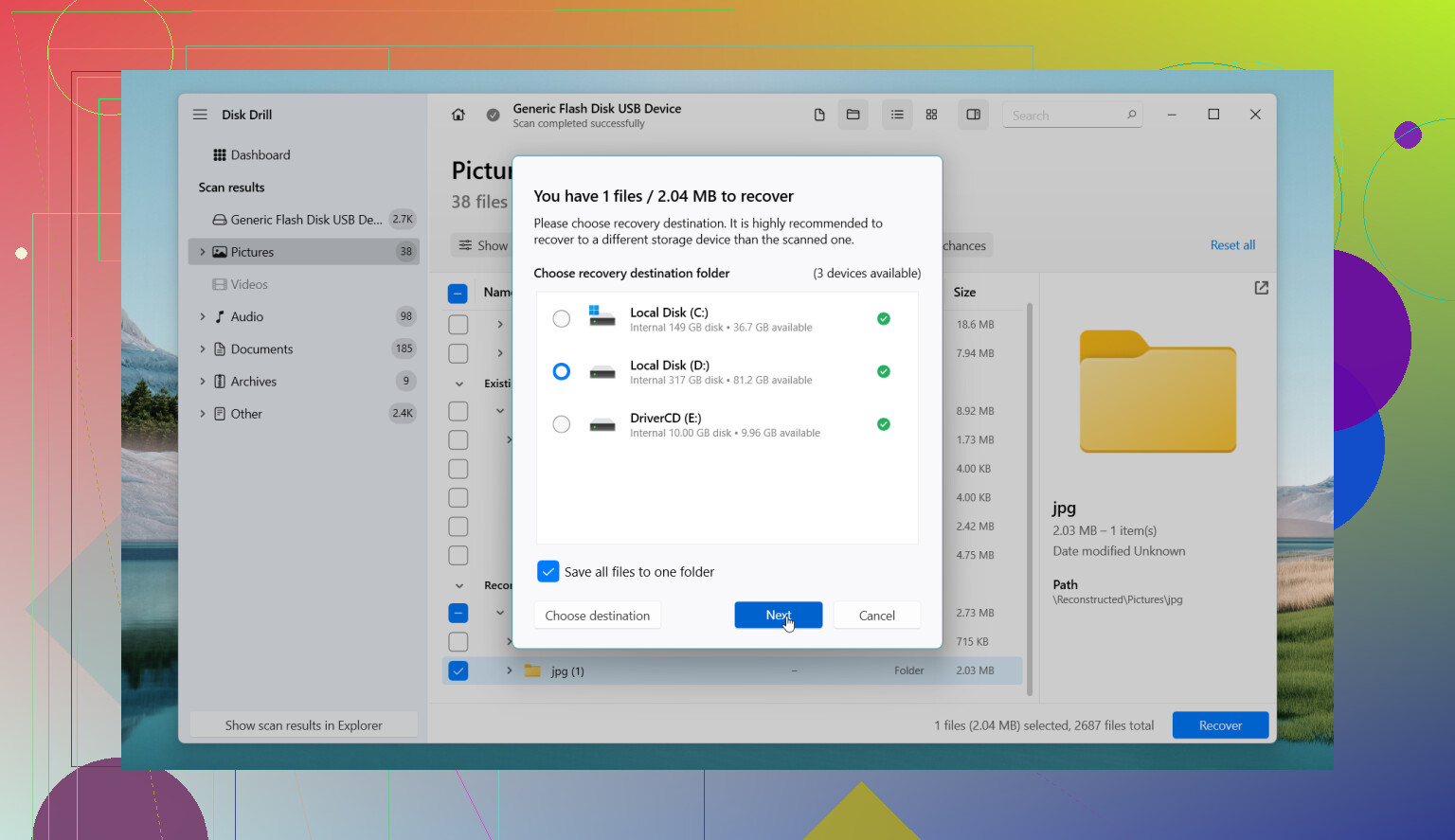
Save recovered files somewhere else. Not back to the same SD card. Never there.
If the card shows up empty, unreadable, or asks to be formatted, I still wouldn’t give up. A lot of the time the file system is what broke, not the image data. I’ve had cards look dead and still cough up photos after a scan.
One practical note. Disk Drill’s free tier lets you scan and preview files. On Windows, you get free recovery up to 100 MB. On Mac, the free side is more for previewing, so big restores usually mean paying. If the card keeps disconnecting, freezes mid-scan, or acts flaky, make a byte-for-byte image first and work from that copy. I learned this the hard way. Hammering a dying card makes things worse fast.
Other tools I’d keep in mind
PhotoRec
Free, ugly, effective. I’ve used it when I didn’t care about folder names. It often recovers a lot, but filenames and structure are usually gone, so cleanup gets messy.DiskGenius
More technical. Better if your problem is tied to partitions or damaged card structure, not only deleted files. Feels less friendly, but it does serious work.DiskDigger
Useful if the card is tied up in an Android phone and you don’t have a PC nearby. I wouldn’t rank it above desktop tools. Deeper scans often need root, and results are more limited.
One last bit. If the SD card is physically damaged, disappears at random, or your computer never detects it, software tends to hit a wall. At that point I’d stop poking at it and look at professional recovery. I’ve seen cards go from unstable to unreadable after too many retry attempts, so this is one of those times where doing less is smarter.
17 Likes
First, check the obvious thing people skip. Look in your computer’s trash or recycle bin. If you deleted while moving files from the SD card to a PC, the photos sometimes ended up there, not gone from the card. Also check any import folder like Pictures, DCIM, or your photo app library.
I agree with @mikeappsreviewer on one big point, stop writing to the card. I disagree a bit on starting with deep recovery right away. I’d do the fast checks first, because they take 2 minutes and save time if you got lucky.
My order would be:
- Stop using the SD card.
- Put the write-protect switch on, if your card has one.
- Check Recycle Bin, Trash, Photos app, OneDrive, iCloud, Google Photos.
- If nothing is there, scan the card with Disk Drill.
- Recover files to your computer, not back to the SD card.
If the card is important, make an image of it first, then scan the image. That reduces wear on a shaky card. This matters if the card disconnects, reads slow, or acts wierd.
Disk Drill is a solid pick because it previews found photos before recovery, which saves a lot of time. If you want a visual guide, this step by step SD card photo recovery tutorial shows the workflow clearly.
One more thing. If you used Cut instead of Copy during the move, look on the destination drive for hidden temp files or partial transfers. I’ve seen photos show up there after a failed move. Annoying, but fixable.
I’d add one thing to what @mikeappsreviewer and @nachtschatten said: check whether the files were actually moved into a hidden or broken transfer folder on the computer, not just deleted. Windows Explorer and some camera import tools are weirdly good at making files look gone when they’re sitting in a temp folder with bad names.
A few places worth checking before you do a full recovery scan:
- search your computer for
*.jpg,*.png,*.cr2,*.nef,*.arw,*.dng - sort by date modified
- check
AppData\Local\Tempon Windows - check the destination folder for files with 0 KB size or incomplete names
- if you used a Mac, look in Photos imports and Recently Deleted
I slightly disagree with going straight for the deepest possible scan first. Sometimes a partition search or a lighter pass finds the original folder structure better than file carving does. File carving is great, but it can dump hundreds of “found” pics with nonsense filenames. Big pain.
If the easy checks fail, yeah, use Disk Drill. It’s one of the better options for SD card photo recovery because previews help you figure out what’s real before restoring. I’d also filter results by file type and date so you don’t drown in old junk from the card’s past life.
Important bit people forget: if the card is exFAT and you only deleted recently, recovery odds are often better than people think. If you formatted the card after deleting, not so much, but still maybe not game over.
Also, if the card came from a phone or camera that does background cleanup, stop putting it back in there. Devices can overwrite deleted space without you noticing. That’s how recoverable turns into nope real fast.
If you want another discussion on this exact kind of mess, this thread is pretty relevant: Reddit SD card photo recovery help and deleted file fixes
If the card keeps dropping connection, skip more scans and image it first. Seriously. People keep “trying one more time” until the card is toast. Been there, did the dumb thing lol.
One angle I’d add to what @nachtschatten, @viajantedoceu, and @mikeappsreviewer covered: check whether the card was used in a camera or phone that supports an internal “protect” or “lock” flag for images. Some cameras mark files in a way that confuses transfer apps, so the photos are not always truly gone. If the card is still readable, try browsing it with a different file manager before assuming full deletion.
I also would not keep reseating the card over and over if it mounts inconsistently. I know people say “try another adapter” ten times, but if the card is unstable, too many read attempts can make recovery harder.
About Disk Drill, it makes sense here, mostly because photo preview helps separate real recoverable images from junk.
Pros
- easy to use
- good preview support for photos
- decent filtering by type and date
- useful on corrupted or formatted SD cards too
Cons
- free recovery limits depend on platform
- deeper scans can return lots of old deleted clutter
- not my first pick if the card has severe hardware failure
If Disk Drill finds files but previews are broken, that usually means partial overwrite, not necessarily bad software. In that case, recover everything to a computer first, then sort. If the card is physically failing, stop with software and go pro recovery lab territory.