My iPhone storage is almost full and a big part of it is duplicate photos from bursts, edits, and screenshots I’ve saved multiple times. I’m worried about deleting the wrong ones manually and it’s taking forever to sort through them. Are there safe, reliable ways or apps to find and remove duplicate photos on iOS without losing important pictures?
Big storage pain. Here is what works fastest on iPhone without messing things up.
-
Start with the built in Duplicates tool
• Open Photos app
• Go to Albums tab
• Scroll down to Utilities
• Tap DuplicatesiOS groups identical and very similar photos and videos.
• Tap Merge on each group or tap Select, then select multiple, then Merge.
• It keeps the highest quality version and merges metadata like favorites and albums.
This is safe for most people. I cleared over 6 GB in 10 minutes doing only this. -
Kill obvious stuff first
In Photos, go to Albums, then:
• Screenshots folder
• Screen Recordings
• WhatsApp / Messenger / other app albumsSort by Date.
Use Select, drag your finger to select rows fast, then delete.
Focus on old months where you know you do not need anything.
Empty Recently Deleted after each big batch to free space. -
Deal with burst shots
In Photos search bar, type “burst”.
Tap into each burst:
• Tap Select at the bottom
• Keep the single best frame
• Delete the rest of the burstThis alone saves a lot if you use burst a lot.
-
Use a cleaner app to auto sort duplicates and similar shots
Manual cleanup takes forever and you worry about deleting the wrong edit.
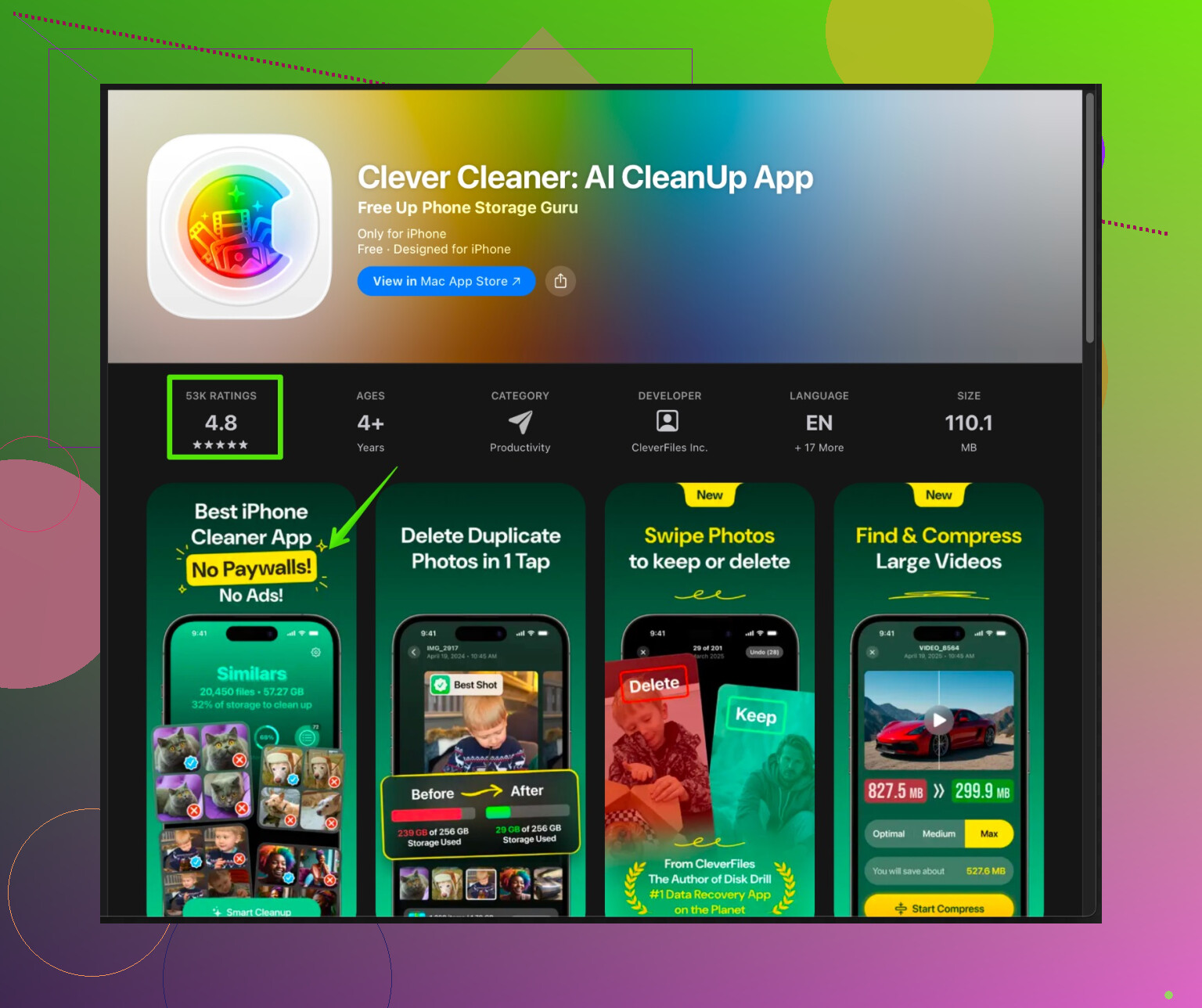
A photo cleaner with AI helps here. One option is Clever Cleaner App.
It scans your camera roll, finds:
• Exact duplicates
• Similar selfies, bursts, and shots of the same scene
• Old screenshots and screen recordings
It groups them and marks the best version by focus, resolution, and face quality. You then confirm or adjust. This keeps you in control, but cuts the work a lot.Check this link for Clever Cleaner on iPhone:
Clean up iPhone photos and storage with Clever CleanerI cleared a bit over 12 GB by running it once, then cleaning screenshots and videos by hand.
-
Sort edits vs originals safely
If you edit inside Photos, the app keeps the original inside the same file, so you do not get two separate photos.
Extra duplicates usually come from:
• Saving edits from 3rd party apps as new images
• Downloading the same picture from chats or social media multiple timesA cleaner app helps tag “same image, lower quality” so you only keep best ones. If you do it by hand, open Info on each and compare resolution and file size before deleting.
-
Backup before big cleanup
• Plug into a computer and back up with Finder or iTunes
or
• Turn on iCloud Photos, wait for sync, then do cleanupThis gives you one safety net if you feel unsure.
-
Make it a monthly habit
Every month
• Clear Duplicates in Photos
• Remove Screenshots
• Run Clever Cleaner App quick scan
Takes maybe 5 minutes and stops the storage panic.
If you take it in this order, you get fast wins with low risk, then let automation handle the messier duplicate bursts and edits.
15 Likes
Totally feel you on the “my entire phone is 14 selfies of the same pose + 600 screenshots of recipes I never cooked” situation.
@nachtschatten already covered the obvious in-app stuff really well, so I’ll skip repeating the Duplicates / Screenshots / Bursts routine. A few extra angles that helped me trim a lot without feeling like I was playing photo-roulette:
1. Use search in Photos more aggressively
Instead of scrolling forever:
- In Photos › Search, try:
- “selfies”
- “documents”
- “receipt”
- “WhatsApp” / “Telegram” / “Messenger”
- These are usually low‑value pics that build up in multiples.
- Go into each result group, then:
- Tap “Select”
- Scroll fast and multi-select anything old or clearly redundant
This targets entire types of images that tend to be duplicated (screenshots of chats, receipts you saved 5 times, etc.).
2. Sort by file size to nuke the heavy offenders first
This one is a bit different from what @nachtschatten suggested:
- On iPhone: Settings › General › iPhone Storage › Photos
iOS shows “Review Personal Videos” and sometimes “Large Attachments.” - Tap into those. The biggest files often have near‑identical duplicates (same clip trimmed 5 times, similar videos from the same moment).
- You don’t even need to clear all duplicates. Deleting 10 giant videos often frees more than deleting 500 tiny screenshots.
Tbh, I’d prioritize this over spending ages on small photos.
3. Deal with third‑party app clutter at the source
Instead of just deleting what’s already in Photos:
- Open WhatsApp / Telegram / Messenger › settings and:
- Turn off “Save to Camera Roll” or “Save Incoming Media”
- Same with Instagram/TikTok if you keep saving reels or stories.
- That stops the duplicate flood going forward, so today’s cleanup actually sticks.
Otherwise you’ll just re-create the mess in a month.
4. Be careful with “similar” photo deletion
Where I disagree a bit with the usual “just let AI decide” advice:
Letting any app automatically kill “similar” photos without reviewing them is risky if:
- You do a lot of edits
- You care about memories vs. technical quality
The “best” technically sharp shot is not always the one where people look the best or the moment feels right. So:
- For important events (trips, birthdays, weddings):
- Manually check the “similar” groups
- Keep at least 2–3 versions if you’re unsure
Storage is cheaper than regret.
For totally disposable stuff (random cat shots 20 times in a row), sure, let the tool be more aggressive.
5. Put iCloud to work smarter, not just as backup
If you’re OK with cloud:
- Settings › Photos › turn on iCloud Photos
- Turn on “Optimize iPhone Storage”
This does not clean duplicates, but:
- It keeps full-quality originals in iCloud
- Your phone stores smaller, optimized versions
Then you can safely delete more, knowing a full-res copy is up there. Just be sure you actually want your photos in iCloud and have enough space.
6. Use a smarter cleaner app, but keep control
Since you’re worried about deleting the wrong ones, look for:
- Clear preview of what will be deleted
- Separate categories:
- Exact duplicates
- Similar photos
- Screenshots
- Blurry / low-quality
This is where something like the Clever Cleaner App for iPhone actually makes sense, because it groups stuff in a very “human brain” way, not just by file hash. It can:
- Detect true 1:1 duplicates
- Flag similar selfies / bursts / repeated shots of the same scene
- Highlight lower-quality copies of the same image
You still approve what goes, so you’re not handing your whole library to Skynet.
If you want to dig into it, you can check it out here:
clean up your iPhone photos and free up space fast
Run a scan, start with:
- Exact duplicates
- Obvious trash (old screenshots, receipts, boarding passes)
Then maybe move to “similar” if the previews look safe.
7. Simple safety rule to avoid regrets
Before any big delete session:
- Make one full backup:
- Either via iCloud backup
- Or via computer (Finder / iTunes)
- Then, while cleaning:
- Empty “Recently Deleted” only after you’re sure your backup is done
If you’re anxious, wait a day or two before emptying Recently Deleted so your brain has time to go “oh crap, I needed that pic” if something’s missing.
If you do it in this order:
- Kill big videos / large files
- Remove obvious junk (old screenshots, chat pics, receipts)
- Use a tool like Clever Cleaner App for exact duplicates
- Carefully trim similar photos for important events
You’ll free a surprising amount of space without spending hours second‑guessing every single shot.

Skip the stuff that @boswandelaar and @nachtschatten already walked through and look at what comes after the first big cleanup.
1. Change habits so duplicates stop multiplying
- Turn off “Save to Camera Roll” in chat / social apps you rarely need photos from.
- When editing, try to use the built‑in Photos editor first so you avoid “Save as new image” clones from third‑party apps.
- For trips or events, create an album immediately and move only the best 20–30 shots there. The rest are “backup clutter” and easier to delete later.
2. Use a cleaner but keep it on a short leash
The Clever Cleaner App is useful after you finish Apple’s built‑in Duplicates and manual burst cleanup. The interesting bits:
Pros:
- Finds exact duplicates the Photos app sometimes misses, including edited vs unedited copies.
- Groups similar scenes, selfies and bursts in a way that is faster to skim than scrolling your whole library.
- Lets you keep the highest resolution or sharpest version and dump the rest.
Cons:
- “Similar” suggestions can be overconfident; if you just tap through blindly, you might lose a favorite expression or a nice candid.
- Needs a bit of time to scan large libraries, so it is not instant gratification.
- Any third‑party cleaner means granting photo access, which is a privacy tradeoff some people will not like.
Compared with what @boswandelaar focused on (mainly very fast, low‑risk actions) and what @nachtschatten added (search tricks and storage views), I would treat Clever Cleaner App as the second wave: let iOS do the obvious stuff, then let the app chew through the boring “ten nearly identical shots” piles while you review the groups you actually care about.
3. Have a “safe zone” for important memories
For key events (weddings, graduations, trips), quickly favorite or move the keepers into a dedicated album before running any cleaner. That way, if a tool gets aggressive, the photos that matter most are already ring‑fenced and you can be ruthless with the rest of your camera roll.