My iPhone storage is almost full, even after deleting unused apps, old photos, and large videos. System Data and app storage still take up a lot of space, and I need practical tips to free up iPhone storage without losing important files.
You can’t really upgrade an iPhone’s internal storage chip in any normal, safe way. If a repair shop says they can solder in a bigger chip, I’d be very careful. That kind of work can easily brick the phone, and Apple is not going to support it afterward.
What you can do is clear out the stuff that makes a 64GB iPhone feel unusable. A lot of the time, the space is not being taken up by anything important. It’s duplicate photos, huge videos, old message attachments, cached browser data, and apps you barely touch.
Start by checking what’s actually using the space
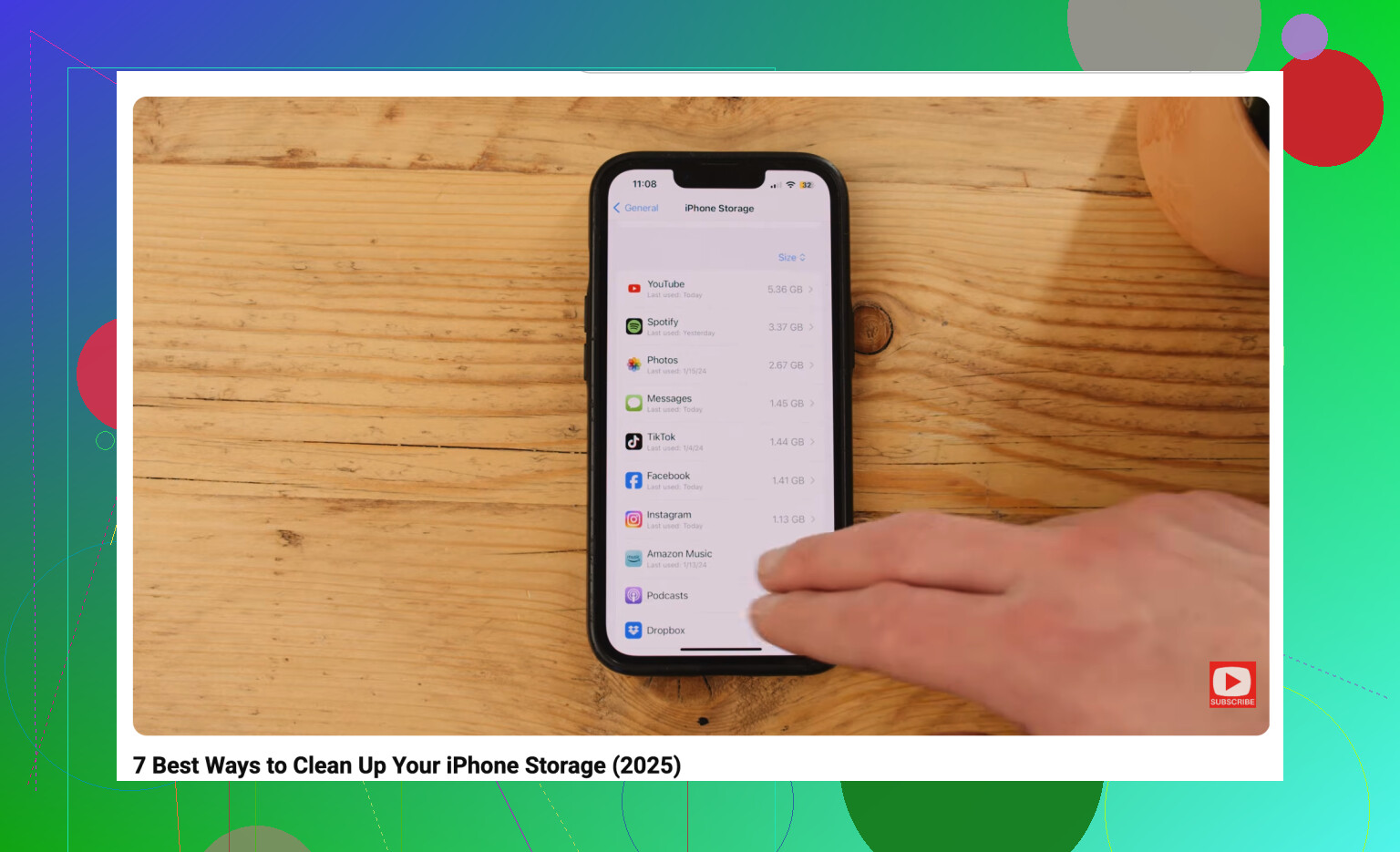
Go to Settings > General > iPhone Storage and look at the storage bar. That usually tells you the problem pretty quickly. For a lot of people, Photos and System Data are the big ones.
The built-in Duplicates section in Photos can help, but it’s pretty limited. It mostly catches exact copies. If you took ten nearly identical shots and only need one, Apple’s tool usually won’t clean that up for you.
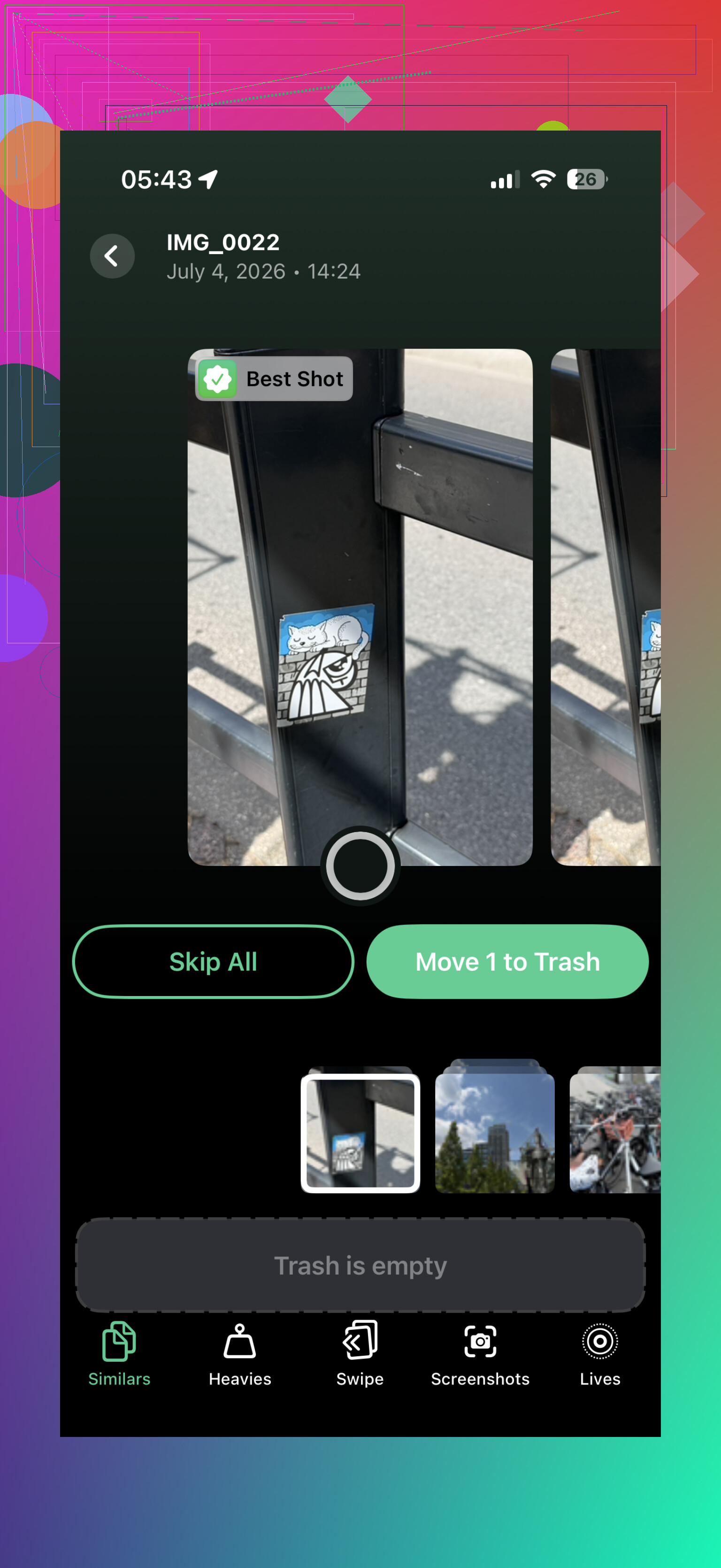
For that, a cleaner app is useful. I’d look at Clever Cleaner. A lot of apps in this category act free until you try to delete anything, then they push a subscription. Clever Cleaner is actually free, has no ads, and its developers have said early users can keep using it for free.
The useful part is the “Similars” section. It groups photos that are basically the same, suggests the best one, and lets you delete the extras together. The “Heavies” section is also worth checking because it sorts videos by file size. A couple of forgotten 4K clips can eat several gigabytes by themselves.
Turn on iCloud photo optimization
If you use iCloud Photos, go to Settings > Photos and turn on “Optimize iPhone Storage.” That keeps smaller versions on your phone while the full-resolution originals stay in iCloud.
When you open a photo, the full version downloads when needed. It’s probably the closest thing to adding storage without buying a new phone, though the free iCloud plan only gives you 5GB. If you need more no-cost cloud space, Google Drive gives you 15GB, so it can be useful for older files you don’t need sitting on the phone all the time.
Offload apps instead of deleting them
For apps you only use once in a while, like airline, hotel, or travel apps, use Offload Unused Apps. It removes the app itself but keeps its documents and data.
So when you need the app again, you tap the icon, it downloads again, and your stuff is still there. It’s much less annoying than deleting apps completely and setting them up from scratch later.
Don’t forget Messages and Safari
- Messages can quietly take up a ton of space. Years of videos, memes, GIFs, and random attachments add up. If you don’t need old threads forever, set messages to delete after 30 days or one year.
- Safari can also build up a decent amount of junk. Go to Settings > Safari > Clear History and Website Data. It might only save a little, but if you haven’t cleared it in a long time, it can be more than you expect.
Use external storage if you shoot a lot of video
If your main issue is filming long videos, TikToks, or other large files, an external drive may help. Depending on your iPhone model, you can get a Lightning or USB-C flash drive. Some setups even let you record straight to the drive through certain camera apps, so the video does not fill your internal storage first.
If you’re on 64GB and use your phone heavily, storage management is always going to be annoying. Once the phone is sitting near full all the time, it can start feeling slow, updates become a pain, and apps may crash more often. iPhones generally need some free space to handle background tasks and updates smoothly.
Still, before spending $800 or more on a new phone, do a real cleanup first. Clear similar photos and large videos with Clever Cleaner, offload apps you rarely use, turn on iCloud photo optimization, and clean out Messages. You may get back more space than you expected.
10 Likes
Empty “Recently Deleted” after you remove photos and videos, because they can sit there for 30 days still taking space. I agree with the app/photo cleanup advice above, but for System Data specifically, sometimes the fastest safe fix is a full iCloud or computer backup, restart, then update iOS if one is pending.
System Data is not a normal folder you can go into and clean by hand. A lot of people waste time looking for a magic “clear System Data” button, but iOS mostly manages that itself, and it usually shrinks only after you give the phone enough breathing room.
The cleaner-app/photo advice above can help with Photos, but don’t expect any cleaner app to fix System Data. Apps like Clever Cleaner are useful for finding similar photos or giant videos, which is a real problem for a lot of people, but they are not going to erase iOS caches, update files, logs, Siri voices, streaming caches, and other stuff Apple lumps into System Data.
The bigger thing I’d check is app documents, not just the app size. In Settings > General > iPhone Storage, tap the apps that look big. Sometimes the app itself is 200 MB but “Documents & Data” is 8 GB. Offloading that app won’t clear the documents. If the app is mostly cache and you don’t need anything stored inside it, deleting and reinstalling it can free more space than offloading.
Common offenders:
- TikTok, Instagram, Facebook, Reddit, and browsers with huge caches
- WhatsApp, Telegram, Discord, and Messages full of videos and stickers
- Spotify, Apple Music, Podcasts, Audible, Netflix, YouTube, Disney+, etc. with downloads
- Files app downloads sitting under “On My iPhone”
- Mail if it has tons of attachments cached
- GarageBand, iMovie, CapCut, Lightroom, or any editor app with old projects
Be careful with chat apps before deleting them. Some keep media in the cloud, some don’t, and some need their own backup turned on first. For WhatsApp, use its storage manager before deleting the app. For Telegram, clear cache inside Telegram instead of deleting chats if you want to keep the conversations.
Another trap is iCloud Photos. “Optimize iPhone Storage” is good, but deleting a photo from the Photos app usually deletes it from iCloud too. If your goal is “move these off my phone but keep them somewhere,” export them to a computer, external drive, or a separate cloud service first. Then delete from the phone and empty Recently Deleted. Otherwise you may just be deleting your only synced copy.
For a fast cleanup that doesn’t involve much thinking, I’d do this order:
- Empty Recently Deleted in Photos.
- Empty Recently Deleted in Files if you use the Files app.
- Remove downloaded movies, shows, podcasts, music, and offline maps.
- Go through Messages attachments from iPhone Storage.
- Delete and reinstall apps with huge Documents & Data, but only if you know the data is backed up or disposable.
- Restart the phone.
- Install any pending iOS update if you can make enough room for it.
If System Data is still ridiculous after that, the annoying but usually effective route is an encrypted computer backup, erase the iPhone, then restore the backup. That can force iOS to rebuild a lot of cached junk. I wouldn’t do that as step one because it takes time and you need to be sure the backup is complete, but it’s more realistic than trying to manually hunt System Data.
And if this is a 64 GB iPhone, there’s a point where the honest answer is that you’re managing a closet that’s too small. You can make it usable, but if you shoot lots of video or keep years of messages and photos, you’ll be back here again unless you change what stays on the phone.