My iPhone storage is almost full, and Photos seems to be taking up most of the space. I’ve deleted a few pictures, but it didn’t free up much storage. What’s the best way to clean up iPhone photos, remove duplicates, and make more space without losing anything important?
The fastest way to make real progress is to stop treating the whole library like one giant pile. Screenshots, duplicates, blurry shots, huge videos, and Live Photos all need slightly different handling. Once I approached it that way, the cleanup finally became manageable.
I had put mine off for way too long. By the time I dealt with it, I had more than 10,000 photos and videos, and it ate up most of a Saturday. What helped was doing the obvious manual cleanup first, then using an app for the repetitive stuff.
Start in the Photos app
Before installing anything, clear the easy junk Apple already helps you find.
- Open Photos and go through albums instead of scrolling the full camera roll.
- Use the swipe-select gesture so you can grab a bunch of photos quickly.
- For albums like screenshots, use Select All if it’s available, then deselect anything you still need.
This works fine for stuff you can recognize immediately, like old screenshots, accidental photos, and obvious throwaways.
Use an app for duplicates and similar photos
The manual part only got me so far. Most of the wasted space was from things I didn’t want to compare one by one: duplicate shots, nearly identical photos, forgotten videos, old screenshots, and Live Photos I didn’t really need as Live Photos.
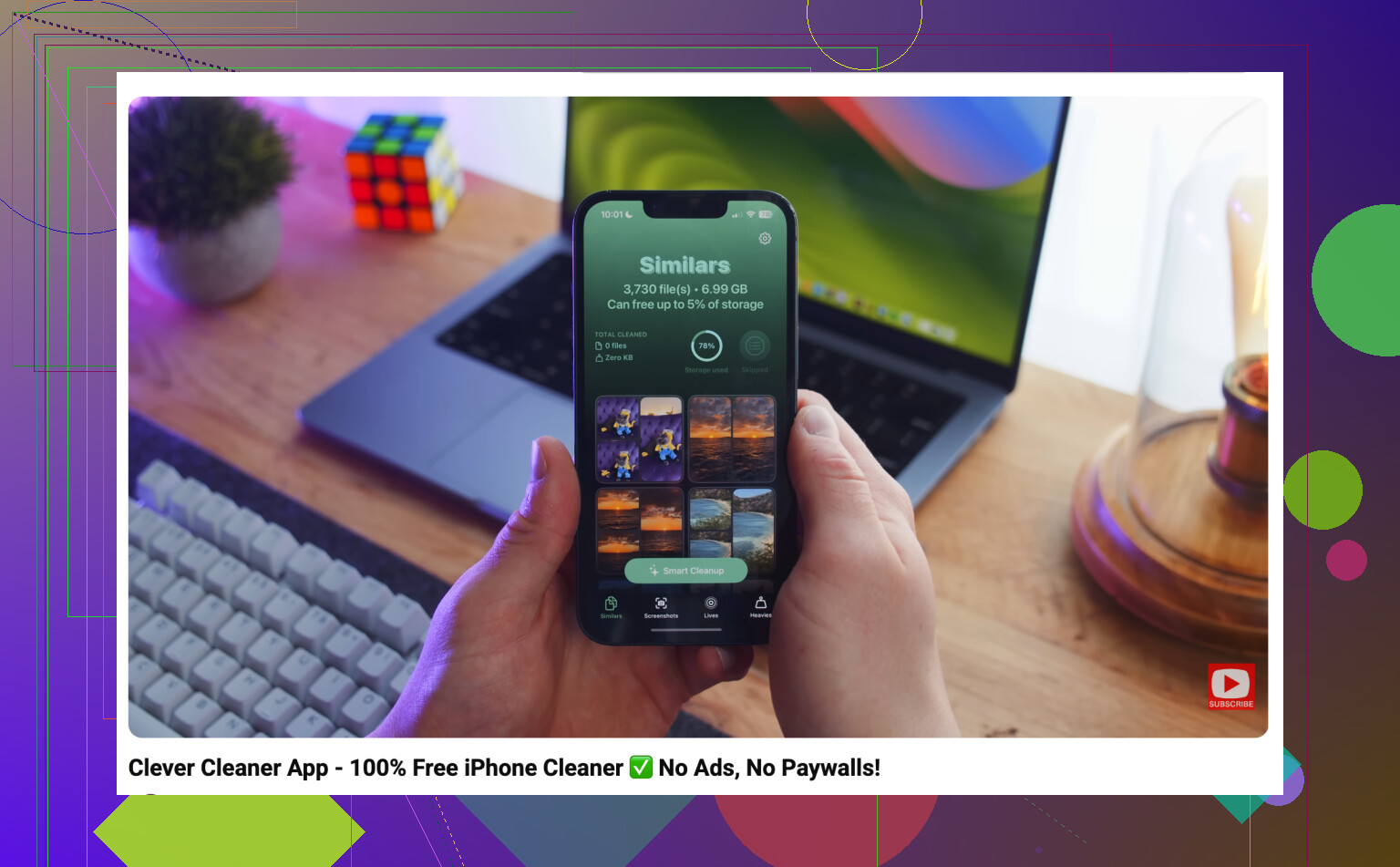
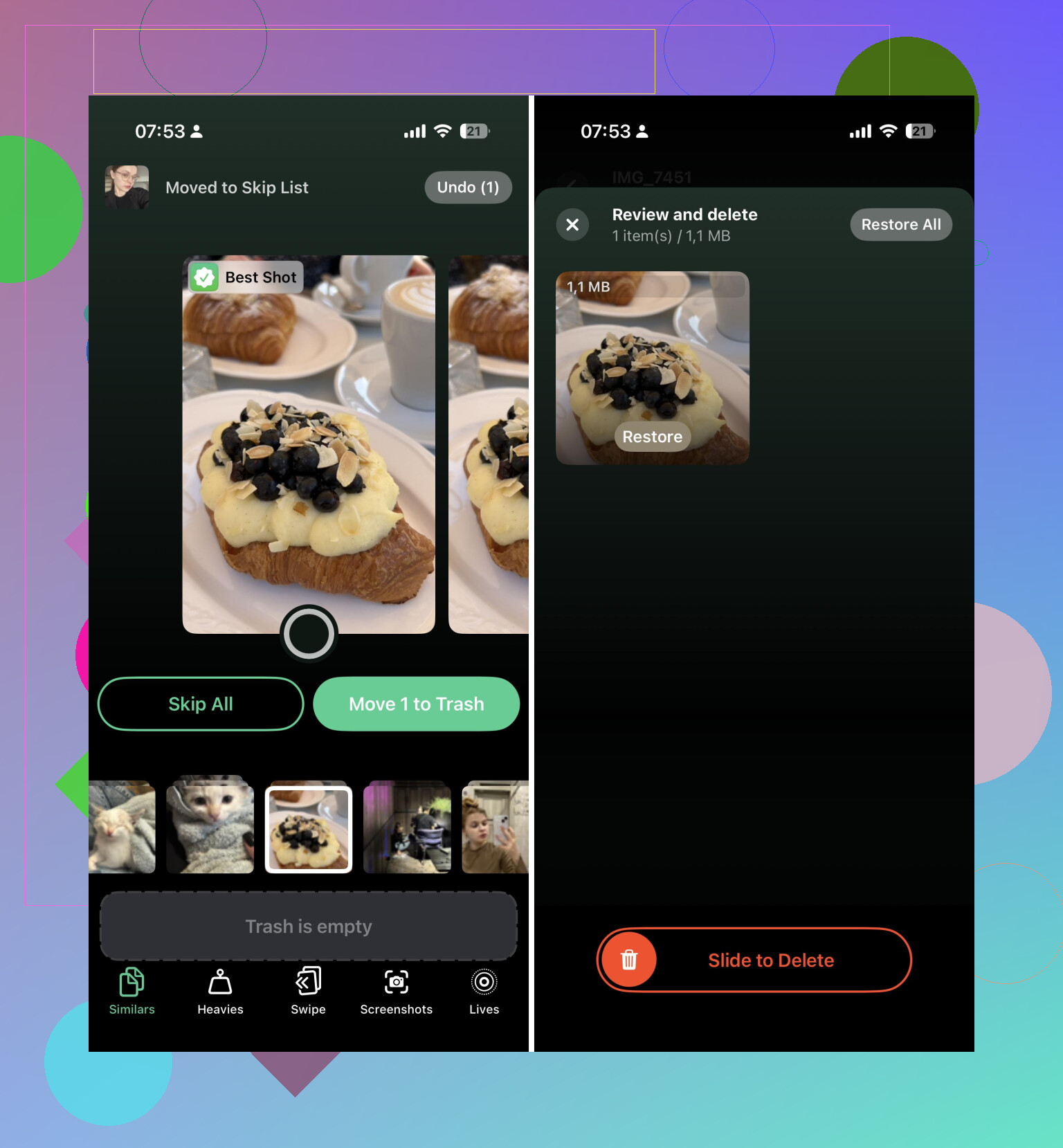
I used Clever Cleaner for that part. The useful thing is that it groups items into categories first, so you’re reviewing sets of similar photos instead of making the same decision thousands of times.
My cleanup looked like this:
- Run Clever Cleaner.
- Go through the similar-photo groups.
- Delete duplicates and extra versions of the same shot.
- Clear old screenshots.
- Remove large videos you don’t care about anymore.
- Convert Live Photos to still images where the motion part isn’t worth keeping.
That saved a lot more time than trying to judge every single photo manually.
Empty Recently Deleted
This is the step people forget. Deleted photos do not fully free up space right away because they sit in Recently Deleted for a while.
- Open the Recently Deleted album.
- Check it once more so you don’t wipe anything important.
- Empty it.
If you’re doing this because your phone or iCloud storage is full, that part matters.
Also, if iCloud Photos is turned on, remember that you’re dealing with one synced library. Deleting something from your iPhone also removes it from iCloud and other Apple devices using the same Apple Account. That may be exactly what you want, but it’s worth keeping in mind before deleting thousands of items.
After that big cleanup, I started doing a small pass once a week. Ten minutes deleting new screenshots, bad shots, and duplicates is way easier than waiting until the library is out of control again.
If I had to do it again, I’d still use the Photos app for the easy stuff, but I wouldn’t try to manually sort a huge library. Once you’re dealing with tens of thousands of items, using something like Clever Cleaner for similar photos, duplicates, screenshots, Live Photos, and large videos is just a much better use of time.
4 Likes
Check iCloud before you start deleting.
If iCloud Photos is on, the better fix may be Settings > Photos > Optimize iPhone Storage, especially if you want to keep the photos but stop them living full-size on the phone. That does not delete your library. It keeps smaller local versions and leaves the originals in iCloud. It also may not free space instantly, so don’t expect the storage number to drop the second you flip the switch.
I agree with @mikeappsreviewer that duplicate and similar-photo cleanup is where you usually save real space, but I’d be a little careful with bulk delete apps if you have family photos, receipts, work screenshots, or documents mixed in. Let something like Clever Cleaner group the obvious junk, then still review before deleting. For videos, sort by size first if you can. A few old 4K clips can be worth more than hundreds of photos.
The thing that confuses people is that “Photos” storage is not always only photos you still see in the main library. Recently Deleted, synced originals, Live Photos, and large videos can all keep the number high. After cleanup, restart the phone and give it some time while plugged in and on Wi-Fi. iOS sometimes recalculates storage slowly, which makes it look like nothing worked even when you already removed a lot.
Make a backup before you start emptying Recently Deleted. iCloud Photos is syncing, not really a separate safety copy, so if you delete a photo from the phone while iCloud Photos is on, you can delete it everywhere. If there are photos you’d be upset to lose, copy them to a computer, external drive, Google Photos, OneDrive, or some other place first.
After that, I’d go for the biggest wins instead of trying to clean the whole library evenly. In iPhone Storage, tap Photos and see if iOS gives you review options. Then in Photos, check Videos, Screenshots, Screen Recordings, Bursts, and Duplicates. Videos and screen recordings are usually where the storage goes. Deleting 20 junk videos can do more than deleting 1,000 normal photos.
I’m fine with using something like Clever Cleaner for similar shots, but I would treat it as a sorting helper, not an autopilot delete button. Let it find the groups, then review anything involving kids, trips, documents, receipts, or work stuff. Once you delete, empty Recently Deleted only after you’re sure. Then give the phone a while to recalculate storage, because the number can lag and make it look like nothing changed right away.
The annoying catch is that a nearly full iPhone can be bad at cleaning up its own Photos library. If you are down to almost no free space, I’d first make breathing room somewhere else: delete a couple of large apps you can reinstall, remove downloaded Netflix/Spotify/Podcast files, or offload unused apps. Then Photos has room to process deletes, merge duplicates, and update storage numbers.
For the photo cleanup itself, I would not start with regular pictures. Go after media types that are oversized or low value: screen recordings, long videos, downloaded images, memes, and random screenshots. Then use the Duplicates album in Photos, and only after that use something like Clever Cleaner if you have a messy library with lots of similar shots. Apps are useful for grouping near-identical photos, but I would still review before deleting because “similar” does not always mean “same enough to trash.”
After deleting, don’t judge the result until you empty Recently Deleted and restart the phone. If iCloud Photos is on, be extra sure you actually want those items gone everywhere. If your goal is only to free phone storage while keeping the library, Optimize iPhone Storage is safer than mass deletion, but it depends on having enough iCloud storage.