I’m trying to free up space on my iPhone, but I’m worried that emptying Trash or Recently Deleted might also remove those files from iCloud. I need help understanding how iPhone deleted files sync with iCloud before I permanently delete anything.
The annoying thing about iPhone “trash” is that it is not one place. Apple spreads deleted items across different apps, so clearing Photos does not clear Files, Mail, Messages, or Notes.
If you are trying to recover space, start with Photos. That is usually where the big stuff is hiding.
Photos
Open Photos, go to Albums, then scroll all the way down to Utilities and open Recently Deleted. You will need Face ID or your passcode. Deleted photos and videos stay there for 30 days unless you remove them sooner. You can recover single items, or use Select and Delete All if you are sure you want them gone permanently.
Files
Open Files, tap Browse, and look under Locations for Recently Deleted. It works more like a normal trash folder. You can restore files back to where they came from, or delete them for good.
Notes
In Notes, back out to the main folders view. Recently Deleted shows up as its own folder, and notes stay there for 30 days.
Messages
In Messages, tap Edit or Filters at the top, then choose Show Recently Deleted. Anything deleted in the last 30 days can be recovered or permanently deleted from there.
Mail
Mail is a little different because each account has its own Trash folder. You will find those in the Mailboxes list. Also, Mail trash usually syncs with your email provider, so deleting something there can remove it from the server too. If you are cleaning it out, tap Edit, then Select All, but actually skim the list before confirming.
iCloud matters here
For Photos and Notes, yes, emptying Recently Deleted also deletes the item from iCloud if syncing is turned on. That means it disappears from Apple’s servers and from your other devices using the same Apple ID.
Files has a safer option if the file is in iCloud Drive. Instead of deleting it, long-press the file and choose Remove Download. That clears the local copy from your iPhone, but keeps the file in iCloud so it can download again later.
Checking what is actually using space
Go to Settings > General > iPhone Storage. The bar at the top gives you the category breakdown, and the app list shows how much space each app is using. At the bottom, System Data can also take up a lot of room with caches, logs, and temporary files that iOS does not always clean up right away.
When your iPhone gets down to the last few GB of free space, it can start acting sluggish. Apps open slower, the camera can lag, and switching between apps may feel choppy. Emptying Recently Deleted helps, but it usually does not solve the whole problem because the photo library is often the real storage hog.
Clever Cleaner is useful for the part Apple’s built-in trash folders do not cover. It is free, has no ads, and does not require a subscription.
A decent cleanup order would be:
- Clear Recently Deleted in Photos first, since videos and old deleted media can take up a surprising amount of space.
- Then check Files, Notes, Messages, and Mail so you are not leaving old deleted stuff sitting around.
- Open the Heavies tab in Clever Cleaner and look at the largest videos and files first. Deleting one huge video can free more space than clearing a bunch of small items.
- Use the Similars tab for near-duplicate photos. It groups similar shots and marks a Best Shot, so you are not reviewing ten almost identical pictures one by one.
- Check Screenshots too. They pile up quietly, and the app shows the file size before you delete anything.
Everything is processed on the device, so the cleanup does not require uploading your photos to an outside server. After that, try to keep at least 10 to 20 percent of your iPhone storage free. iOS tends to behave much better when it has some breathing room.
5 Likes
If iCloud Photos is turned on, emptying Recently Deleted is not just “clearing my phone.” It is telling iCloud you want those photos and videos gone everywhere. Same basic idea applies to iCloud Drive files, synced Notes, and Messages in iCloud. The 30-day folder is more like a last-chance holding area than a local trash can.
The trap here is mixing up iPhone storage and iCloud storage. If your phone is full because Photos is keeping originals locally, the safer setting is usually Settings > Photos > Optimize iPhone Storage. That can reduce what is stored on the phone without deleting the iCloud copy. Emptying Recently Deleted may free space too, but only because you are permanently deleting the items, not because you found a magic local-only cleanup button.
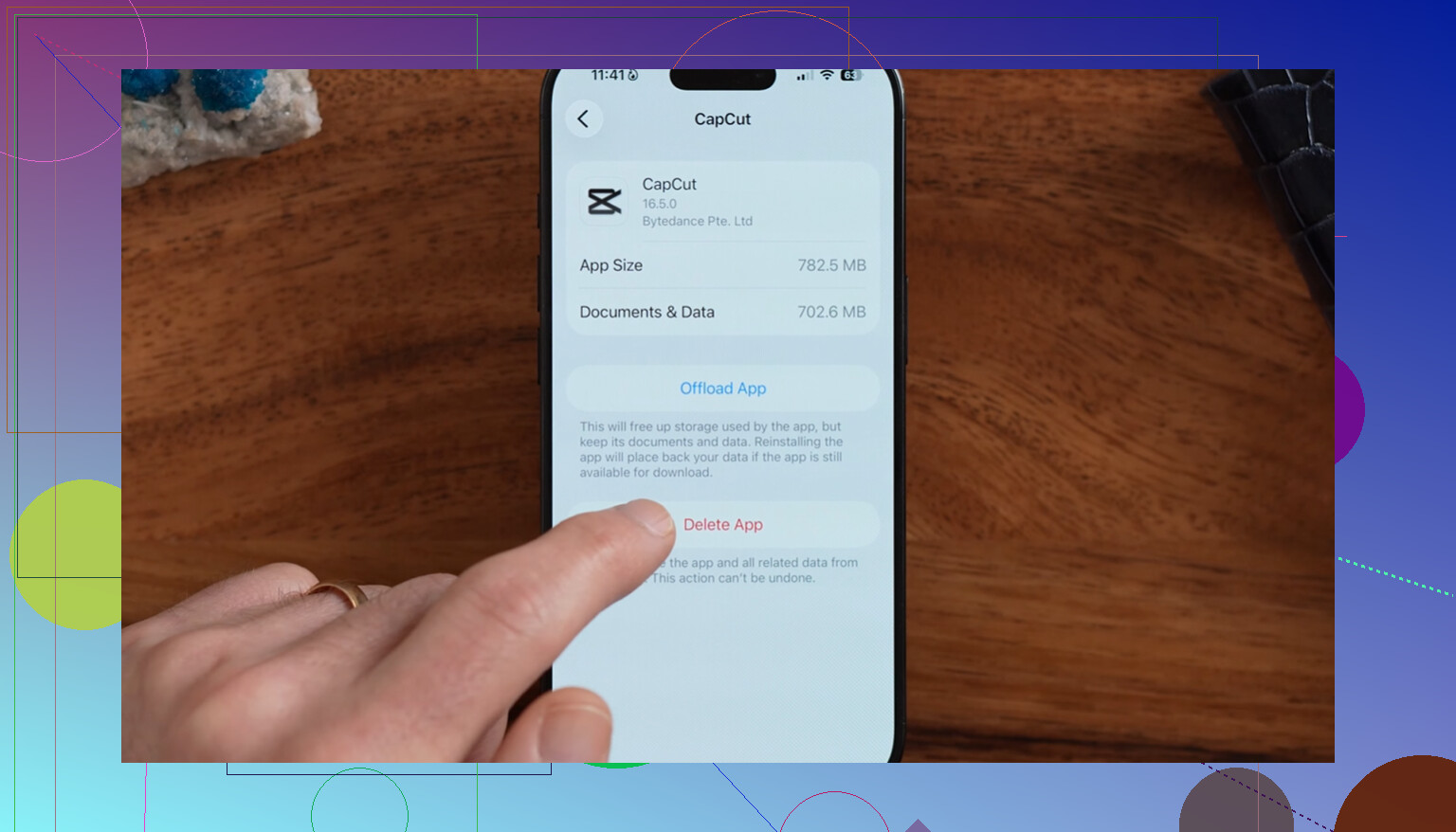
Mike’s point about Files is the one I’d treat differently from Photos. In Files, “Remove Download” is your friend when the file lives in iCloud Drive. Delete means delete from iCloud Drive. Remove Download means keep it in iCloud and take the local copy off the phone. For Photos, there is no identical per-photo “remove local copy only” button, so be much more careful there. If you want to clean without risking originals, start with app offloading, downloaded videos/music, Safari downloads, and local Files downloads before you empty any Recently Deleted folder.
Don’t empty Recently Deleted until you know whether that app is syncing through iCloud. On an iPhone, “delete” usually means “delete from the synced library,” not “remove from this device only.” Photos is the big danger zone: if iCloud Photos is on, deleting and then emptying Recently Deleted removes the photo from iCloud and from your other Apple devices too.
The missing catch is that iCloud Backup is not a safety net for most of this. If iCloud Photos, iCloud Drive, Notes in iCloud, or Messages in iCloud are turned on, those items are being synced, not simply backed up as a separate frozen copy. So you usually can’t delete a synced photo everywhere, empty Recently Deleted, and then expect tomorrow’s iCloud backup to restore it like nothing happened.
A safer cleanup check is: Settings > your name > iCloud, then see what is actually enabled. If you want phone space back without losing cloud copies, use Optimize iPhone Storage for Photos and Remove Download for iCloud Drive files. For videos, duplicates, and screenshots, a cleaner app can help you find candidates, but treat anything it deletes from Photos as a real Photos delete. Something like Clever Cleaner may be useful for spotting large junk, but it does not change the iCloud rule: synced deletions still sync.
Make a separate copy of anything important before you empty a Recently Deleted folder. If you are even slightly unsure, export the photos/files to a computer, external drive, Google Drive, Dropbox, or another non-iCloud place first. Once you hit “Delete All” in Recently Deleted, you are usually past the easy undo stage.
The simplest way to think about it is this: if the app is using iCloud sync, the “trash” is shared too. So clearing Photos Recently Deleted while iCloud Photos is on clears it from iCloud Photos. Same idea for iCloud Drive files, Notes, and Messages if those are syncing. I agree with Mike on the backup point because people assume iCloud Backup is like a time machine, and it really is not for items that are already syncing separately.
A small caveat people forget: emptying trash may not give back as much iPhone space as you expect right away. iOS can take time to recalculate storage, and Photos may already be optimized so the full-size originals were not all sitting on the phone anyway. If your goal is phone space, check Settings > General > iPhone Storage first and look for downloaded media, offline maps, podcasts, app caches, and local Files downloads. Clever Cleaner can be handy for finding big videos or duplicate-looking photos, but treat its delete button the same as deleting in Photos. It helps you choose what to remove, it does not make iCloud deletion safer.