I deleted a large batch of screenshots on my iPhone because my storage was almost full, but the available space barely changed. I already checked Photos and expected more storage to free up, so I’m confused about what’s still taking up space. I need help figuring out why my iPhone storage isn’t updating after deleting screenshots and what I should do next.
I hit this wall on my own iPhone a while back. Opened Photos, saw page after page of junk grabs. Boarding passes from trips I already took. Login codes I used once. Recipes I saved and ignored. Random memes. Screenshots pile up because the action is too easy. Press two buttons, move on. A year later, your storage is gone and you barely remember why.
The part that trips people up is deletion. You remove stuff from the main library, check storage, and nothing much changes. I thought my phone was bugged the first time. It wasn't. iOS moves those files into Recently Deleted in the Photos app, under Utilities. They sit there for 30 days, still taking space the whole time. If you want storage back now, open Recently Deleted, tap Select, then Delete All. If you skip this, the cleanup is only half done.
If you have a huge screenshots mess
Doing it one image at a time is miserable. The faster built-in route is Photos, Albums, Media Types, Screenshots. Hit Select in the top-right corner. Tap the first image, then drag your finger across and downward. You can grab a long stretch of screenshots in one sweep. I used this on a backlog of a few thousand, and it saved a ton of time.
One thing I noticed, and other people have seen it too, Photos starts choking if you try to erase too much in one shot. Around 1,000 items, sometimes less on older phones, it freezes or kicks you out. Smaller chunks work better. Around 300 to 500 per batch felt safer when I did it.
An app route that isn't annoying
I tried a few cleaner apps before giving up on most of them. Same pattern every time. Scan your phone, show a bunch of clutter, then stop at a paywall. One app I found that avoids this mess is Clever Cleaner, and there’s a decent breakdown here: https://www.reddit.com/r/DataRecoveryHelp/comments/1d733gm/best_iphone_cleaner_apps_and_why_you_shouldnt_use/
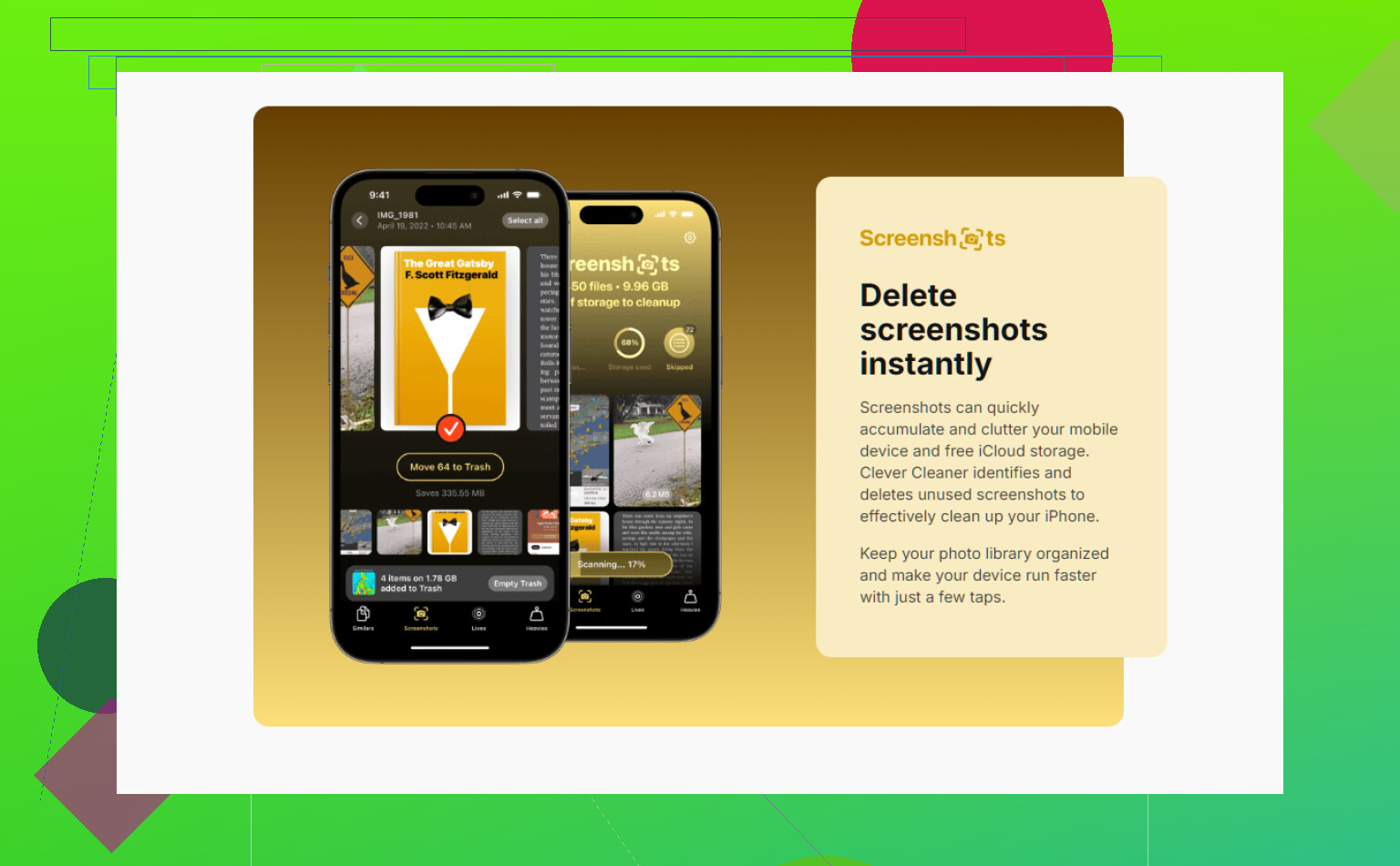
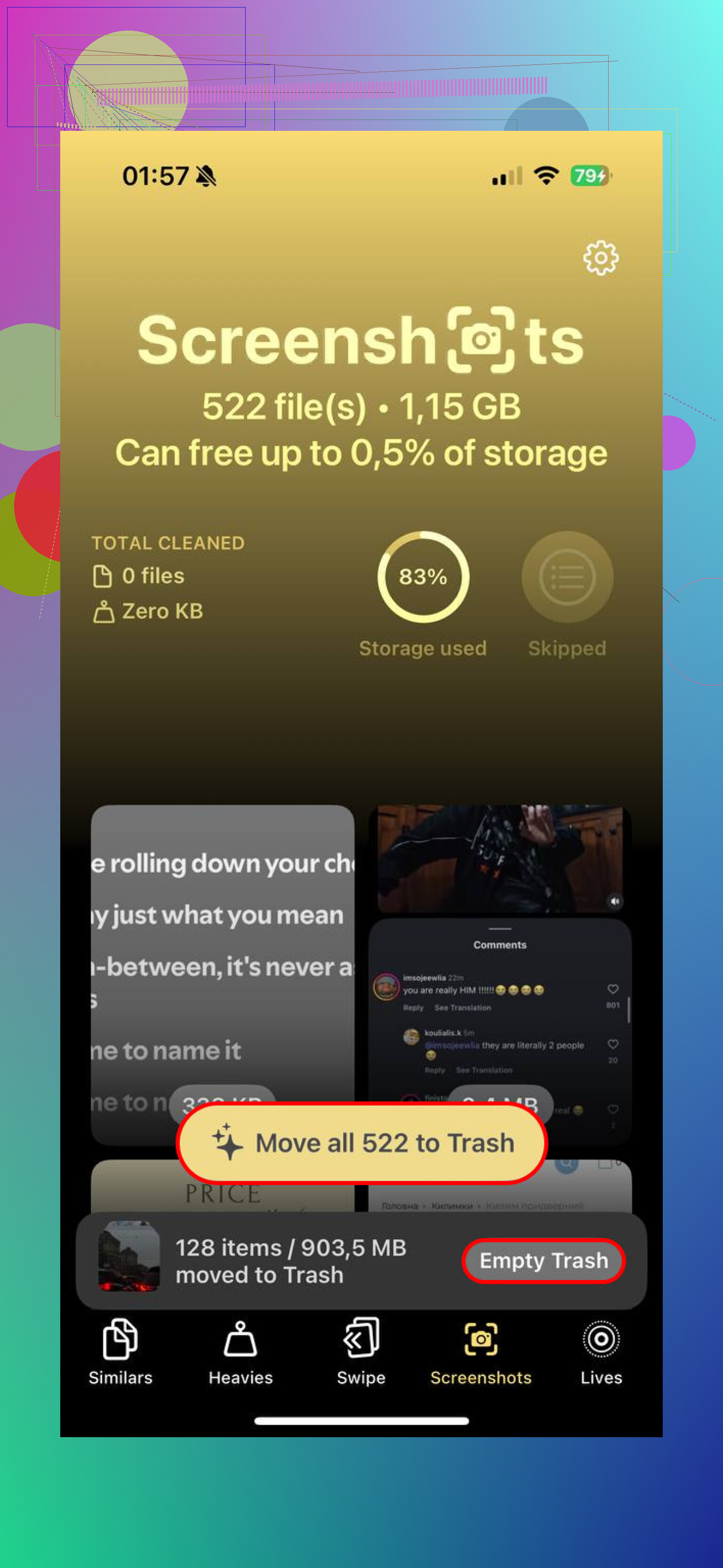
It comes from the CleverFiles team. No ads when I used it. No fake free trial timer. It scans the library and splits screenshots into their own group. Better part is it shows file size per item, so you see what you're getting rid of before you touch delete.
The bit I liked most was Heavies. It sorts media by size, biggest first. So instead of hunting through endless junk, you go after the worst offenders first. Full-page screenshot PDFs. Big HDR images. Weird giant files you forgot existed. If your goal is fast storage recovery, starting with the heaviest files makes more sense than mass deleting blind.
If you want it automated
I messed with Shortcuts for this, and it works once it's set up right. In Shortcuts, add Find Photos. Filter it by 'Is a Screenshot.' Add another rule for age, like older than 30 days. Then place Delete Photos under it. Save the shortcut. After that, you run it yourself or trigger it through Siri when you feel like clearing house.
There’s one setting people miss. Go to Settings, Apps, Shortcuts, Advanced, then turn on Allow Deleting Large Amounts of Data. If you leave that off, the shortcut fails. I missed it the first time and wasted ten min trying to figure out why.
Before you wipe everything
I wouldn’t nuke the whole folder without at least scanning it once. Screenshots are messy, but some of them hold stuff you meant to keep. Tickets. Backup codes. A shipping label. A password you saved in a panic. Once Recently Deleted is emptied, recovery gets harder fast. If you need something back after permanent deletion, dedicated recovery software is usually the next move. Waiting and hoping iCloud still has a copy is not a plan I’d trust.
One habit change helped me stop making the same mess again. After taking a screenshot, tap the preview, hit Share, then use Copy and Delete. The screenshot goes to your clipboard, so you can paste it into Messages, Mail, Notes, wherever. It never stays in the library. No saved file, no cleanup later. I wish I started doing this sooner tbh.
16 Likes
If storage barely moved, I’d look outside Photos first.
@mikeappsreviewer is right about Recently Deleted, but I don’t think it explains every case. On iPhone, the Storage screen lags a lot. I’ve deleted 5 to 10 GB before and the number stayed weird until after a restart and a few mins on charger. iOS has to reindex stuff, and it does not update instantly. Annoying, but normal.
Check these next.
-
Settings, General, iPhone Storage.
Wait for the color bar to finish loading.
See which category is still huge.
If Photos dropped but System Data went up, your free space got eaten by cache, temp files, or indexing. -
Make sure iCloud Photos is not confusing the numbers.
If Optimize iPhone Storage is on, your phone stores smaller local copies and swaps files around. Deleting screenshots does free space, but not always in the clean 1:1 way people expect. The phone might refill some space with other synced items. -
Look at Messages.
Screenshots sent in iMessage often sit there too. Go to Settings, General, iPhone Storage, Messages, Review Large Attachments. I found like 2 GB of old image junk there on my own phone. Kinda dumb, but yup. -
Restart the phone.
Sounds too simple, still works more often than people admit. -
If storage is critically full, plug in, lock it, connect to Wi-Fi for 20 to 30 mins.
iOS does cleanup tasks when idle.
If you want a faster way to spot what is still taking space, Clever Cleaner is worth a look. It’s a free iPhone cleaner app with screenshot sorting and size-based cleanup. This is the App Store page for free iPhone storage cleanup with Clever Cleaner. Better than guessing through albums one by one.
Short version, if you deleted screenshots and emptied Recently Deleted, but storage still looks stuck, the usual culprits are iPhone Storage lag, iCloud Photos behavior, Messages attachments, or System Data bloat. Not fun, but fixable.
I’d actually push back a little on @mikeappsreviewer and @espritlibre here. If you already cleared the screenshots and the number barely moved, sometimes the issue is that those screenshots were never the real storage hog in the first place. People see 2,000 images and assume “huge space,” but a lot of screenshots are tiny compared to 4K videos, downloaded Netflix stuff, Safari website data, offline maps, or app caches.
A few places people miss:
- Files app, especially Downloads
- Safari, Settings > Safari > Clear History and Website Data
- streaming apps with offline content
- social apps that balloon cache size
- Voice Memos, GarageBand, CapCut, etc.
Also, check the Photos app for duplicates of the same screenshot saved into chats/apps. Deleting from Photos doesn’t remove copies embedded elsewhere. That’s the annoyng part.
If you want a faster visual way to find the actual big offenders, Clever Cleaner is decent for that, especially for sorting heavy files instead of just mass deleting blindly. This discussion on a truly free iPhone cleaner with no ads or paywall traps explains it pretty well.
So yeah, screenshots might’ve been clutter, but not neccesarliy the reason storage stayed full.