I’m trying to free up storage on my iPhone, and Messenger is taking up a lot of space. If I clear the Messenger cache, will it delete my chat history, photos, or messages? I want to clean up the app without losing anything important.
Clearing Messenger on an iPhone can help, but it’s worth knowing what it actually does before you start deleting things. The cache is mostly temporary stuff Messenger keeps around so chats load faster, like thumbnails, stickers, profile photos, and similar files. Your real conversations are tied to your Meta account and stored on Meta’s servers, so clearing the app cache does not erase your chat history.
The annoying part is that iOS doesn’t give Messenger a simple Clear Cache button like you might see on Android. On an iPhone, you basically have two practical choices.
Option 1: Offload Messenger
This is the safer, less annoying option. It removes the app itself but keeps its documents and data, so you usually keep things like login state and app-related data.
- Open Settings.
- Go to General > iPhone Storage.
- Find Messenger in the list and tap it.
- Tap Offload App, then confirm.
- After it finishes, tap Reinstall App.
That should clean out some of the junk without making the process too painful.
Option 2: Delete Messenger and reinstall it
If Messenger has been glitchy, slow, or weird after an update, deleting and reinstalling is the cleaner reset. It removes the whole app container and gives you a fresh install.
- Long-press the Messenger icon.
- Tap Remove App, then Delete App.
- You can also do this from Settings > General > iPhone Storage > Messenger > Delete App.
- Download Messenger again from the App Store.
Just make sure you know your password and have your two-factor login method ready before doing this. You’ll be signed out, but once you log back in, your chats should sync back from your account.
The thing is, Messenger cache comes back pretty fast. You can delete it when it hits 2GB or 3GB, but as soon as you start using the app again, it starts rebuilding those files. That’s partly how the app avoids reloading the same icons, images, and stickers constantly. Right after clearing it, Messenger may even feel a little slower for a bit while it downloads things again.
If the real problem is your iPhone yelling about storage before an iOS update, Messenger might not be the biggest offender. Check Settings > General > iPhone Storage and look at what’s actually using space. In my case, Messenger was taking a few gigs, but Photos was close to 60GB. That was the real storage drain.
Manually cleaning Photos is rough because Apple still doesn’t make it easy to sort your library by file size. You end up guessing which random video or screenshot is eating the most space.
One app that helped with that is Clever Cleaner. A lot of cleaner apps are sketchy or lock everything behind subscriptions, but this one is actually free, with no trial trap or paywall for the useful parts.
The Heavies section is probably the most useful part because it shows your biggest videos and files first. That makes it much easier to delete the stuff that actually frees up space. The Similars section also helps find photos that are basically the same shot, even if they’re not exact duplicates. It shows file sizes too, including for screenshots, which makes cleanup less of a guessing game.
It also processes everything on the device, so your photos aren’t being uploaded somewhere else for analysis.
So yes, delete and reinstall Messenger if the app is acting broken or bloated. It can free up some space and fix weird app behavior. But if you’re trying to make enough room for an iOS update, look hard at your photo library too. Using something like Clever Cleaner to clear out large videos, similar photos, and forgotten screenshots will usually save way more space than constantly chasing Messenger cache.
10 Likes
If you have end-to-end encrypted chats without a recovery method set up, treat reinstalling Messenger as riskier than just clearing temporary files. Normal Messenger conversations usually come back after you sign in again, but encrypted chat history can depend on Messenger’s secure storage, PIN, or device setup. Before deleting the app, open Messenger settings and check anything related to privacy, end-to-end encryption, secure storage, or chat backup/recovery.
Clearing cache itself should not delete messages. Deleting a conversation, deleting photos from inside a chat, using “unsend,” or removing downloaded media is different. That is the stuff that can actually affect what you see in the thread. iPhone storage cleanup is more about app data sitting on the phone, not wiping your Meta account.
I’d be a little cautious with the “delete and reinstall” advice unless you are sure you can log back in and pass any 2FA checks. Offloading is the softer first try. If Messenger is only taking a couple of GB, though, you may spend more time fighting it than it’s worth, since the cache will rebuild. For a real storage problem, videos in Photos, old downloads, podcasts, and large message attachments usually matter more than Messenger’s temporary files.
Do not tap anything that says Delete Chat, Delete Conversation, Remove for You, or Unsend if your goal is only freeing storage. Those are not cache actions. They change what appears in the thread, and in some cases you will not get it back just by reinstalling Messenger.
Small pushback on the offload idea: Offload App is safer, but it may not save much space if the big number is under “Documents & Data,” because iOS keeps that part when it offloads the app. It removes the Messenger app file, not necessarily the pile of local Messenger data that is annoying you. If you want the biggest local cleanup, deleting and reinstalling is usually the thing that actually clears more of it, but that is where @sterrenkijker’s encrypted-chat warning matters.
For normal Messenger chats, your messages and shared photos are account-based and should still be there after signing back in. The stuff you are clearing is mostly local copies, previews, downloaded media, and other app clutter. Before you delete the app, make sure you can log back into Facebook/Messenger, check your 2FA method, and check encrypted chat secure storage/PIN settings if you use them. Otherwise you might solve a storage problem and create a login or missing-history problem.
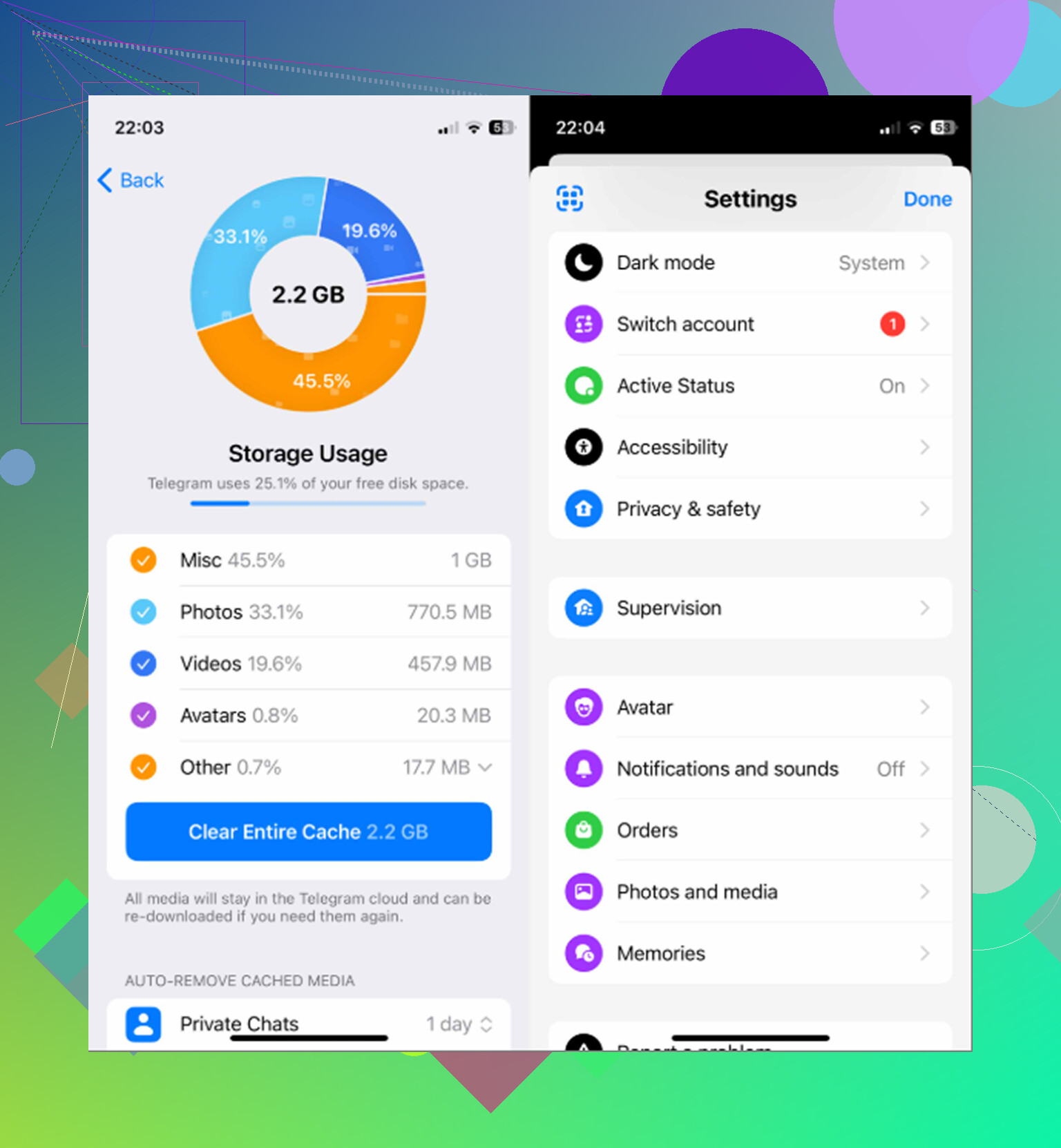
Take a screenshot of the Messenger storage screen before you touch anything. Then you’ll know whether the cleanup actually did anything, because iOS storage numbers can be slow to update and sometimes look worse before they look better.
Clearing Messenger cache should not delete your actual chat history, normal messages, or shared photos from the conversation. Those are tied to your Messenger/Meta account, not just the local files sitting on your iPhone. What usually gets cleared is local junk: previews, thumbnails, temporary media, stickers, cached profile images, and other stuff Messenger can download again later.
The trap is the wording. “Clear cache,” “offload app,” and “delete app” are storage actions. “Delete chat,” “remove for you,” and “unsend” are chat actions. Those are very different. If you want to free storage, stay out of the conversation options and do it from iPhone Settings or by reinstalling the app.
I agree with the warning above about login and encrypted chats. Before deleting Messenger entirely, make sure you can sign back in, your two-factor method still works, and any encrypted chat backup/PIN setting is sorted. That is the part people forget, then the storage cleanup turns into an account recovery headache.
A realistic expectation: this may only be a temporary win. Messenger will rebuild some of that data as soon as you start scrolling old chats and opening photos again. If you need a lot of space fast, check large videos in Photos, downloaded Netflix/Spotify/Podcast files, and big iMessage attachments too. Messenger can be annoying, but it is not always the main storage hog.
Everyone jumped to iOS Settings, but Messenger itself has a storage manager buried in its own settings where you can clear downloaded photos and videos per chat. That often frees more than offloading and skips the whole reinstall/2FA gamble @codecrafter warned about. Check that before you nuke the app.