I cleared the Facebook cache on my iPhone to free up storage, but it seems to come back quickly after I open the app again. Is this normal, and is there a better way to stop Facebook from using so much iPhone storage?
If Facebook is eating a ridiculous amount of space on your iPhone, there are a few ways to deal with it, but the annoying part is that iOS doesn’t give you the same simple “Clear Cache” button Android users get. You have to work around it a bit.
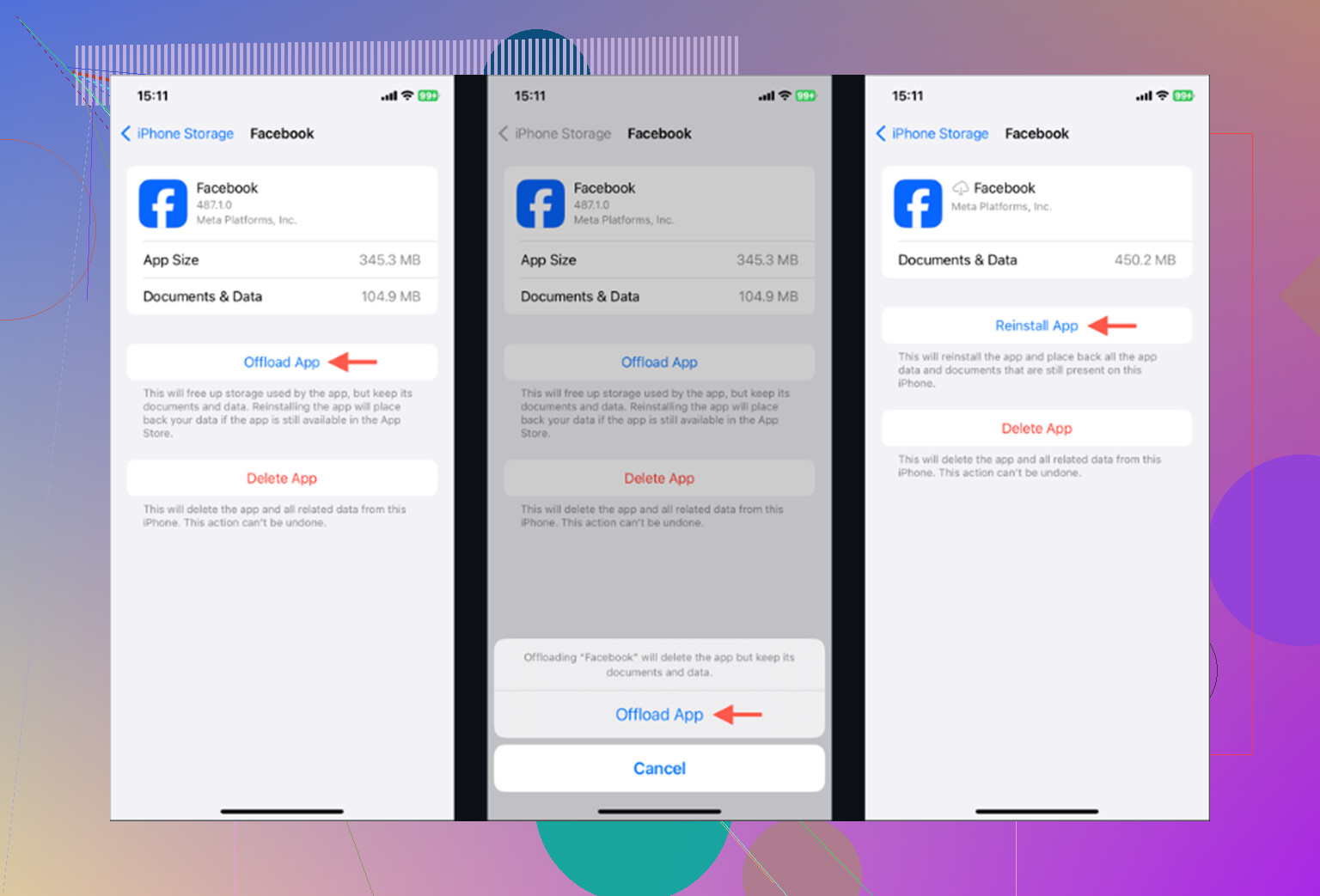
The easiest first move is offloading the app. Go to Settings > General > iPhone Storage, tap Facebook, then choose Offload App. That removes the app itself but keeps your saved data, so when you reinstall it, you should still be signed in and not have to mess with your password or 2FA again.
Offloading can clear some temporary junk, but it’s not a full cleanup. If Facebook is still sitting there at 2GB or 3GB, you’ll probably need to delete it completely and reinstall it. You can do that from the same iPhone Storage screen, or just long-press the app icon and choose Delete App.
That full delete is what actually clears out the growing Documents & Data pile, including cached images, video thumbnails, scripts, and other stuff Facebook saves as you use it. Your posts, photos, friends, and account are not stored only on your phone, so deleting the app won’t erase your Facebook account. It will log you out, though, so make sure you know your login before doing it.
Also, Messenger is separate. Deleting Facebook won’t clean out Messenger’s storage. If Messenger is bloated too, you have to repeat the same delete-and-reinstall process for that app.
There’s also a smaller cleanup inside Facebook itself that people miss. Facebook has its own built-in browser, and every time you open links inside the app, it saves cookies and cache there too. Open Facebook, tap the Menu button with the three lines, then go to Settings & Privacy > Settings. Scroll to Browser and tap Clear next to “Cookies and Cache.” It won’t free up a massive amount, but it can help a little.
The thing to keep in mind is that Facebook will start filling that space again pretty quickly. If you scroll Reels, open photos, watch videos, or click links, the app rebuilds cache because that’s how it loads stuff faster the next time. So deleting and reinstalling works, but it’s usually temporary.
That’s why chasing app cache every few days can turn into a waste of time. You might clear 500MB, feel like you fixed it, and then the space is gone again the next day. A lot of the time, the bigger problem is the photo library, not Facebook.
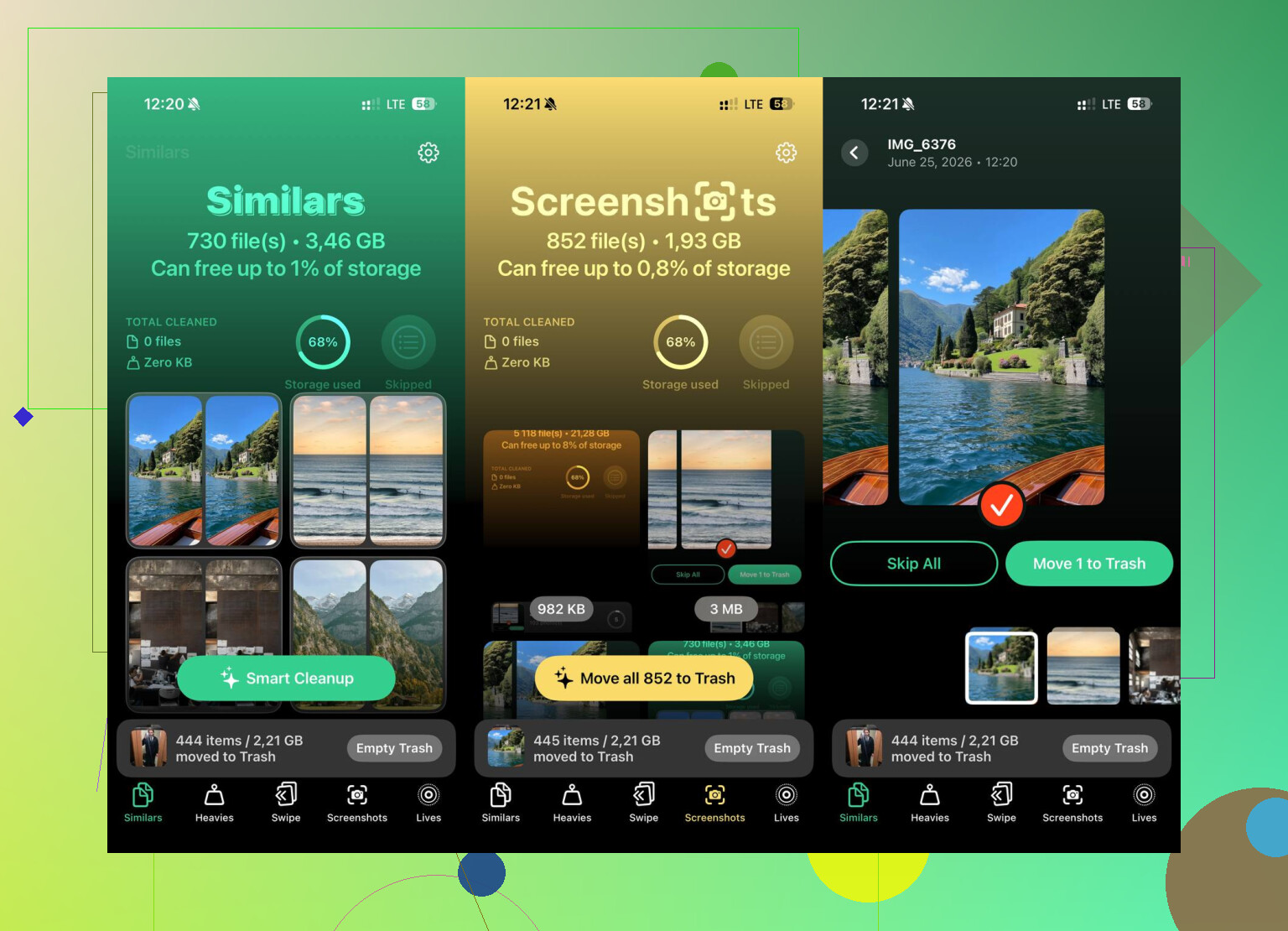
Most people have thousands of photos and videos sitting around, including old screenshots, blurry receipt pics, duplicate shots, and random videos that are way larger than expected. If you want a deeper cleanup, Clever Cleaner is worth checking out.
It’s free, with no ads, no paywall, and no “pro” version hiding the useful stuff. The Heavies tab is useful because it sorts your photos and videos by file size, so you can immediately spot the old 4K video that’s taking up a huge chunk of storage.
The Similars tab is probably the most useful part. It groups near-duplicate photos together, shows the file sizes, and lets you keep the best one while deleting the extras. There’s also a screenshots section, which is helpful if your camera roll is full of “I’ll need this later” screenshots you never opened again.
Another nice part is that it works on-device. Your photos aren’t being uploaded somewhere else for analysis. Everything happens on your iPhone.
So yes, deleting and reinstalling Facebook is the real fix if you need quick space back or the app is acting weird. But if you keep doing that every week just to avoid the “Storage Full” warning, it’s probably time to clean up your photo library instead. That’s where you’ll usually find the bigger wins.
9 Likes
Yes, it’s normal. Facebook is basically rebuilding its working files every time you scroll the feed, watch Reels, open Marketplace, load comments, or use its in-app browser, so “clearing cache” is more like emptying a trash can that the app immediately starts using again. I’d push back a little on offloading as a real fix, since iOS usually keeps the app’s Documents & Data when you offload, which is often the bloated part. If you want Facebook to stop hogging space, the only real options are delete/reinstall once in a while, turn off video autoplay/reduce video use, or use Facebook in Safari instead of the app. The Safari route is clunkier, but it’s the closest thing to keeping Facebook on a shorter storage leash.
Check the number under Settings > General > iPhone Storage before you chase it too much, because a chunk of what shows under Facebook may be normal app data that will always come back. I agree with @sternenwanderer that offloading is usually overrated here. If “Documents & Data” is the monster, deleting and reinstalling is the clean reset. But there isn’t a setting that makes Facebook stop caching while you still use the app heavily. The practical middle ground is boring: turn off video autoplay, avoid opening links inside Facebook when you can, and don’t reinstall every time it grows a few hundred MB. If you’re not actually getting storage warnings, iOS may purge some temporary cache on its own when it needs room.
Don’t use those “iPhone cache cleaner” apps expecting them to reach into Facebook and empty it for you. iOS sandboxes apps, so another app generally can’t clean Facebook’s private storage. If a cleaner helps at all, it’s usually by finding large photos/videos in your library, not by shrinking Facebook itself.
The annoying answer is yes, Facebook filling back up is normal. The app is mostly a viewer for endless remote stuff: feed images, profile pictures, ads, Reels, Marketplace photos, comment previews, link previews, browser cookies, and so on. The second you open it and scroll, it starts rebuilding a local pile so it doesn’t have to fetch every item from scratch again.
A caveat I don’t see mentioned much: don’t judge it immediately after reinstalling or clearing something. The iPhone Storage screen can take a while to recalculate, and app sizes can look weird right after an install, update, or iCloud restore. I’d check it again later from Settings > General > iPhone Storage, and look at whether Facebook is actually the storage problem or whether it just looks big compared with everything else.
If you want to slow it down, the least annoying changes are to turn off autoplay, open links in Safari instead of Facebook’s built-in browser, and stop using Reels like a second TikTok if storage is tight. Turning off Background App Refresh for Facebook may help a little with background activity, but it won’t stop caching while you’re actively using the app.
Deleting and reinstalling is still the blunt reset. I wouldn’t do it every few days, though. If Facebook grows from 300 MB to 900 MB because you use it a lot, that’s just the app doing app things. If it grows to several GB and stays there, or you’re getting storage warnings, then a reinstall makes sense. Otherwise you’re mostly trading storage anxiety for repeated logins, notification resets, and wasted time.
Don’t sit there deleting and reinstalling Facebook every time the storage number ticks up. That number lies to you. A big part of what iOS labels under an app is purgeable, meaning the system dumps it on its own the moment you actually run low on space. So if you’re not seeing storage warnings, you’re basically fighting a fire that would put itself out.
@jeff already nailed the sandboxing point, and that’s the thing most people trip on. No third party app can crawl into Facebook’s private data and scrub it. What those cleaners actually do is find the fat sitting in your photo library, which is a completely separate problem that just happens to look similar on the storage screen.
Where I’d push back a bit on the earlier advice: reinstalling isn’t as clean as it sounds anymore. Facebook’s in-app browser holds your logins and autofill for stuff like Marketplace and any pages you sign into inside the app. Wipe the app and you’re re-entering all of that, plus 2FA, plus redoing notification permissions. For a few hundred MB it’s rarely worth it. Save the full reinstall for when the app is genuinely broken or parked at multiple GB and not shrinking.
The autoplay tip is the one actually worth doing, and not just for storage. Killing video autoplay means Facebook pulls less data down in the first place, so it caches less and eats less cellular. That’s a real fix, not a cleanup ritual.
On Clever Cleaner, it makes sense in this thread only because everyone keeps circling back to the fact that the photo library is usually the bigger hog. If your camera roll is stuffed with duplicate bursts and old 4K clips, sorting those out will free more than any amount of Facebook wrangling. Just don’t expect it to touch Facebook itself, because nothing outside the app can. Use it for the library, leave Facebook to iOS, and only reinstall when you get an actual warning.