My iPhone storage keeps getting low, and Twitter/X seems to build up a huge cache again soon after I clear it. I’m trying to figure out why the Twitter cache grows so quickly on iPhone and the best way to clear it without deleting important app data.
When Twitter is taking up multiple gigabytes on an iPhone, it usually looks worse than it is. A lot of that space is temporary stuff the app saved while you were scrolling, opening links, watching clips, and loading images. You can clear it without wiping your account.
Your Twitter account is not stored on the phone
Your tweets, followers, bookmarks, and DMs are tied to your Twitter account on Twitter’s servers. Clearing cache only removes local temporary files from the iPhone. It does not delete your posts, messages, saved items, or account data.
Clear Twitter cache from inside the app
The setting is a little buried, but it is there:
- Open Twitter and tap your profile icon in the upper left
- Go to Settings and Support, then Settings and Privacy
- Tap Accessibility Display and Languages
- Open Data Usage
- Scroll down to the Storage section
You should see two storage options there.
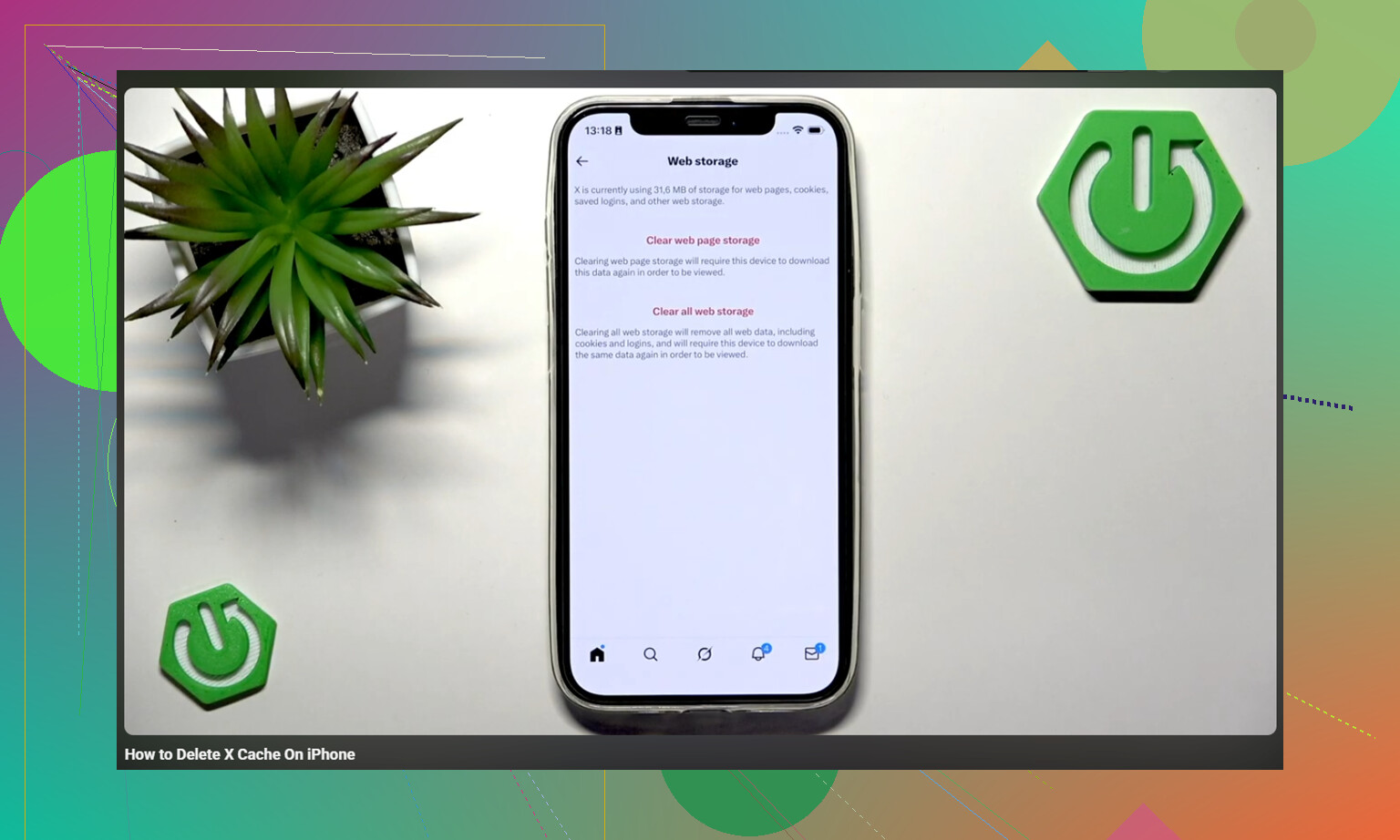
Media storage is the safe one to clear first. It removes cached photos, GIFs, video thumbnails, and similar files Twitter saved while you were using the app. You stay signed in.
Web storage is for pages and cookies from links opened inside Twitter. Clearing web page storage just removes cached site data in most cases. Clearing all web storage also removes cookies, so that can sign you out. Make sure you know your password before using that option.
If that does not free enough space, offload the app
For a stronger cleanup, use the iPhone storage settings instead:
iPhone Settings → General → iPhone Storage → Twitter → Offload App
Offloading removes the app but keeps its documents and login-related data. After that, tap Reinstall App. This can clear out cached video preloads and other junk the in-app cache buttons do not always catch. In many cases, Twitter opens again with the account still signed in.
Twitter cache may not be the real storage problem
Clearing Twitter cache can help, but it usually only gives back something like 1 to 3GB. If your iPhone still feels slow, or the storage warning comes back right away, Twitter probably was not the main issue.
iOS needs free space to work properly. When storage is almost full, the whole phone starts feeling worse. Apps open slower, the camera can lag, and switching between apps gets choppy. Twitter cache can add to the problem, but photos and videos usually pile up much faster over time.
The photo library is often where the real storage is hiding
After clearing Twitter cache, the bigger problem may still be old screenshots, huge videos, burst shots, and repeated photos that have been sitting around for months. That stuff can eat way more space than Twitter cache.
Clever Cleaner helps with that part. It is free, has no ads, and does not require a subscription. It does not clear Twitter cache or touch Twitter data, so you still need to do the Twitter steps manually. What it does is make the photo cleanup less painful.
The Heavies tab sorts your photo library by file size, largest first, with the size shown for each item. One old video near the top can take up more room than a whole pile of Twitter cache.
The Similars tab groups photos that look almost the same and picks a Best Shot from each set. That makes it easier to remove burst photos or repeated attempts without checking every single image one by one.
It also shows file sizes on screenshots before you delete them, which makes it pretty obvious when old screenshots have grown into several gigabytes.
Everything runs on the device, so your library is not sent off to an outside server.
The practical order
Start by clearing Twitter media storage. If the phone still feels full or sluggish, check the photo library next instead of obsessing over Twitter. Use the manual Twitter cache steps for the quick cleanup, use Clever Cleaner for the bigger photo and video clutter, then open Photos and empty Recently Deleted. Deleted photos and videos can sit there for 30 days and still count against your storage until you clear that folder.
3 Likes
Clearing the cache can actually make Twitter feel worse for a bit, because it has to re-download the same avatars, images, videos, and link previews as soon as you start scrolling again.
If it fills back up fast, that usually means your usage is video-heavy, not that the clear button failed. Turning off autoplay or using Data Saver inside X will slow the rebuild more than repeatedly clearing storage.

Expect it to come back within a day if your timeline is full of videos, GIFs, ads, image previews, and link cards. That is normal behavior for the app, not usually a sign that something is broken.
The thing people overlook is that X is not only caching posts you deliberately open. It can store thumbnails, profile pictures, video previews, ad media, embedded browser data, and pieces of the timeline it thinks you might scroll into next. The “For You” feed makes this worse because it keeps feeding you media from accounts you do not follow. If autoplay is on, the app may start loading video before you ever tap it.
I agree with the point above about turning off autoplay or using Data Saver. That matters more than clearing the cache every morning. Clearing cache is a reset button. Data Saver changes how quickly the mess gets rebuilt.
The small caveat I would add: iPhone Storage can make this look more confusing than it really is. The number shown under Twitter/X is not always a clean “cache” number. It can include the app itself, local documents/data, web data, crash logs, login/session files, and cached media. So if Settings says X is using several GB, the in-app cache buttons may not remove all of that. Sometimes the number also does not update instantly until iOS gets around to recalculating storage.
If you need a quick cleanup, I would do it in this order:
- Turn on Data Saver in X first, or at least turn off video autoplay.
- Clear media storage inside X.
- Clear web storage only if you are okay with possibly being signed out of sites opened inside X.
- Restart the phone if the storage number still looks wrong.
- If you still need space right now, delete and reinstall the app rather than endlessly clearing cache.
That last point is where I slightly disagree with relying on Offload App as the stronger fix. Offload can help in some cases, but its whole purpose is to remove the app while keeping its documents and data. If the junk is sitting in that saved data, offloading may not be as clean as people expect. Delete App is more aggressive. The downside is obvious: you should know your X password and have access to your two-factor method before doing it.
A low-effort workaround is to stop using the X app for a while and use x.com in Safari instead. It is not as smooth, notifications are worse, and some app features may be clunkier, but it keeps the dedicated app from ballooning again. Safari still caches things too, but it is easier to manage if you are just trying to survive on a nearly full iPhone.
The main fix is not “clear cache harder.” It is “make the app download less stuff.” Data Saver, no autoplay, less video scrolling, and avoiding the in-app browser will slow it down. If your phone is constantly under 5 to 10 percent free storage, though, X is probably just the app you noticed first. Photos, videos, Messages attachments, and downloaded music/podcasts are usually where the bigger long-term space problem is hiding.
Nobody’s mentioned Background App Refresh, and that’s part of why the cache comes back before you’ve even opened the app again. If it’s on for X, iOS lets the app wake up and pull fresh timeline content in the background, so you clear storage at night and by morning it’s already refilling on its own. Settings, General, Background App Refresh, then switch it off just for X. Won’t fix everything, but it slows the silent rebuild that @stellacadente was describing.
On the Offload vs Delete argument, I lean toward @stellacadente here. Offload keeps the Documents and Data, and with X that saved data is exactly where a lot of the bloat hides. I’ve seen the reported number barely move after an offload and reinstall because iOS restored the same data blob. Delete App wipes it properly. Just have your password and 2FA sorted first, like they said, because getting locked out of X to reclaim 2GB is a bad trade.
One correction on expectations though. Turning on Data Saver helps, but it mostly kills autoplay video and drops image quality, it doesn’t stop caching entirely. You’ll still accumulate thumbnails and profile pics. It’s a slower faucet, not a closed one.
The photo library point from @mikeappsreviewer is genuinely the bigger issue for most people, and it’s the thing folks avoid because scrolling through years of screenshots is tedious. Something like Clever Cleaner is fine for the sorting-by-size part so you’re not doing it blind, but don’t expect it to touch anything X related. It’s a photo tool, so treat it as the step you do after the Twitter cleanup, not instead of it.
If your phone is chronically sitting near full, honestly the app cache is a symptom. Clear X, kill background refresh, then go find the 4GB video you forgot you recorded. That’s usually where the real space went.