I noticed a lot of duplicate photos in the Photos app on my iPad and I’m trying to figure out if iPadOS can automatically find and remove them without using a third-party app. I don’t want to accidentally delete anything important, so I need help understanding the safest way to clean up duplicate photos on an iPad.
I’d start by figuring out whether you’re dealing with true duplicates or just a bunch of almost-identical photos. Those are different problems. Apple’s built-in duplicate finder is pretty strict, so it may miss things like repeated selfies, burst-like shots, cropped versions, edited copies, or photos saved again from Messages.
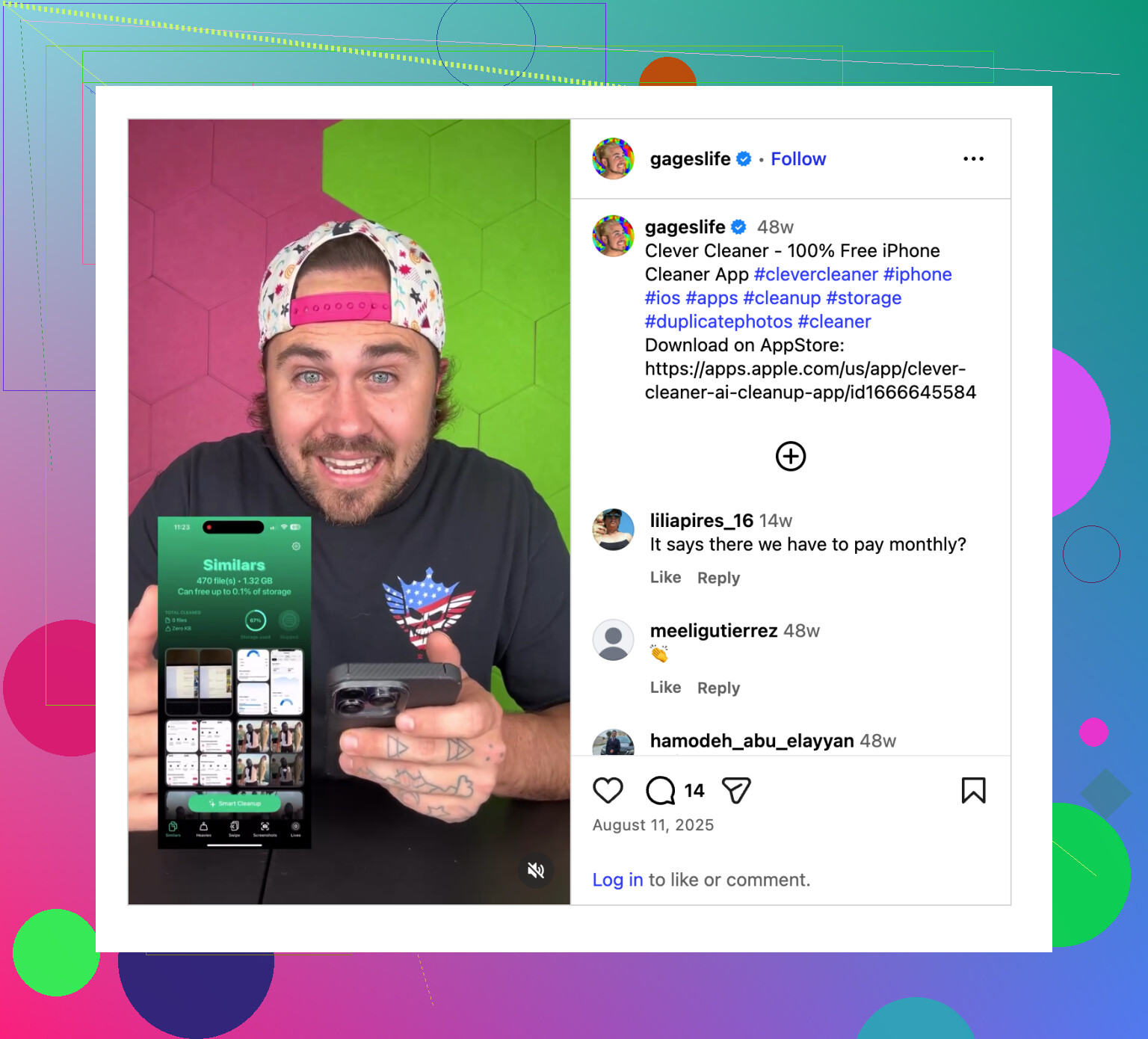
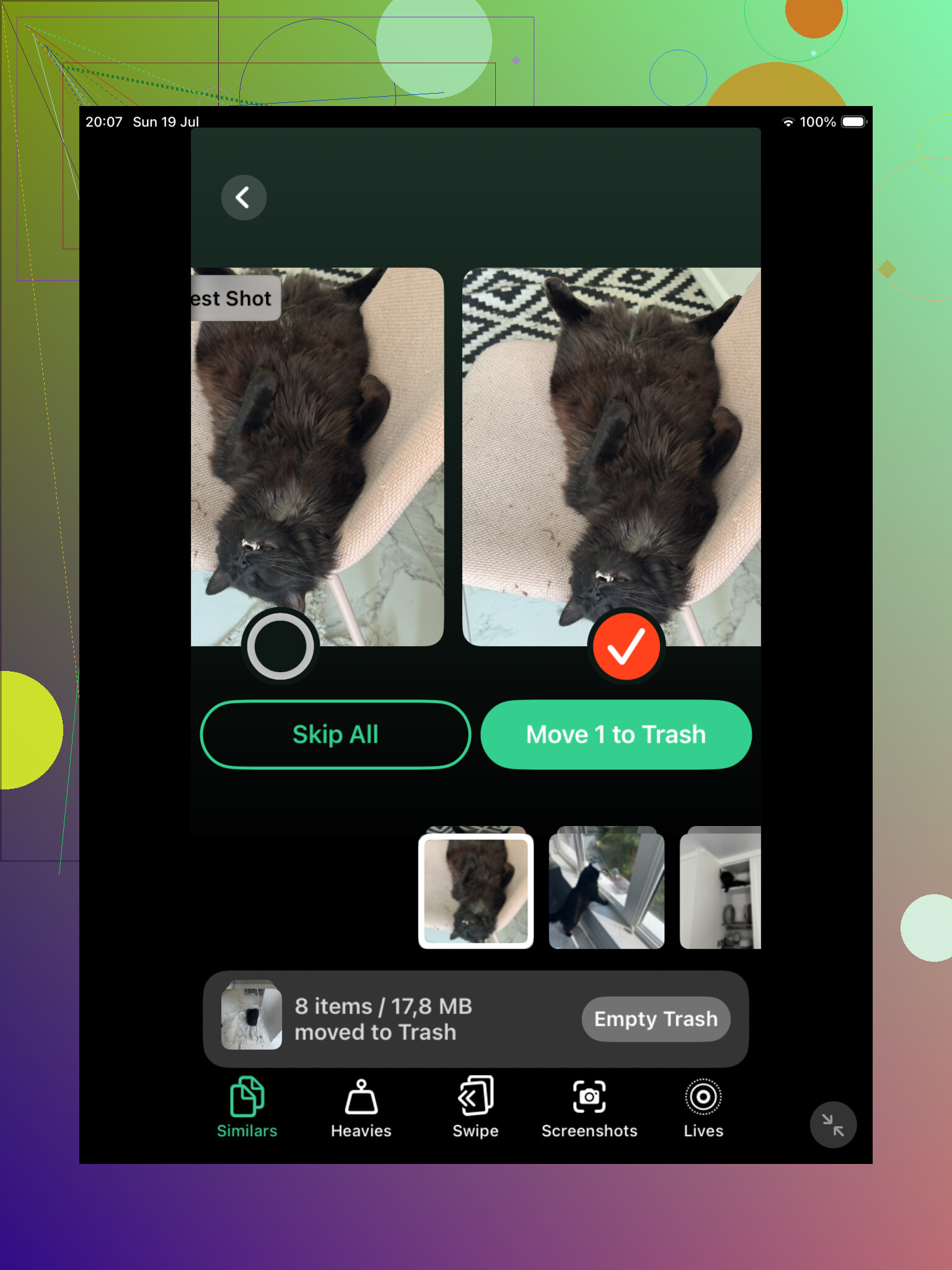
For a big photo library, Clever Cleaner is probably the better first pass. Its Similars section looks for photos that are visually close, even if they are not the exact same file. That helps with the usual clutter: several shots of the same view, five slightly different selfies, or multiple versions of one image that ended up saved in different ways.
It also picks a Best Shot from each group, but I would not just accept those blindly. Open the group and compare them yourself. The useful part is that everything similar is already grouped together, which is a lot faster than hunting through the Photos app and zooming into each image one by one.
Clever Cleaner can find exact duplicates too, so it works well as a first cleanup if your library has been building up for years and you have no idea what is in there. The big difference is that it checks for both duplicates and near-duplicates, while Apple mostly sticks to files that match closely enough for its own rules.
After that, I’d still check Apple’s Duplicates album. On iPadOS 16 or newer, open Photos, scroll to Utilities, then tap Duplicates. Apple will group matching items and show a Merge option. When you merge, it keeps the best-quality version with the useful metadata and sends the extras to Recently Deleted.
That tool is fine if you actually have the same files copied multiple times. Just do not be surprised if it only finds a handful. If one image was edited, compressed, cropped, or taken a second later, your iPad may not count it as a duplicate even if it looks basically the same to you.
If you do not see the Duplicates album, the iPad might still be scanning your library. That can happen after a big iCloud sync, a large import, or an iPadOS update. Leave it locked and plugged in for a while. With a large library, it can take a day or two. Also, the Duplicates album is not available on iPadOS 15 or older.
If your library is small, Apple’s tool may be all you need. If you have thousands of photos, Clever Cleaner will usually catch more of the messy stuff.
You can also do it manually, although it is slower. In Photos, search for things like “screenshots,” “dog,” “beach,” or a city name. Browsing by Months or Years can also help with trips, events, and other times where you probably took the same shot over and over.
One last thing: deleted or merged photos stay in Recently Deleted for up to 30 days, and they still use storage until you remove them from there. Check that album before emptying it. And if iCloud Photos is turned on, deleting photos will sync across your iPhone, Mac, and other Apple devices too, so make sure you really want them gone everywhere.
2 Likes
Whether iCloud Photos is on matters, because deleting duplicates on the iPad is not just an iPad cleanup if your library syncs. If you merge or delete something there, that change can travel to your iPhone, Mac, and iCloud library too.
No, iPadOS will not quietly remove duplicate photos by itself. It can find some duplicates in the Photos app and offer Merge, but you still have to approve it. That is a good safety feature, not a limitation. I would not want the system deciding on its own that two photos are “close enough” and deleting one, especially with edited copies, Live Photos, screenshots, or images with different metadata.
I agree with the earlier point that Apple’s Duplicates album is best for obvious matches. I’d be more cautious about running any cleaner app as the first move unless you already have a backup or you are willing to review every group. Apps like Clever Cleaner can be useful for finding similar shots Apple ignores, but that is exactly where mistakes are easier to make. For the built-in route, use Merge, then wait before emptying Recently Deleted. That gives you a buffer if you realize later that the “duplicate” was actually the version you wanted.
If your iPad is still syncing or has not had time to analyze the library, it may look like the duplicate feature does not exist even though it does. The Photos app is not doing an instant file scan the moment you open it. It has to process the library in the background, and that can lag behind after an iPadOS update, a restore, or a big iCloud Photos download.
The short answer is: iPadOS can find duplicates, but it will not remove them by itself. You have to go into Photos and choose what to merge. That distinction matters because “find” and “delete” are very different things here. Apple gives you a Duplicates section, but it does not silently clean your library in the background.
The practical route is:
Open Photos, go to Albums, scroll down to Utilities, then look for Duplicates. If it shows up, tap into it and review the groups. You can merge individual groups or use Select if you want to handle a bunch at once. Merge is usually safer than plain deleting because Photos tries to keep the best version and preserve useful info like captions, keywords, and metadata when possible.
If Duplicates is missing, it does not always mean you have no duplicate-looking photos. It can mean one of these:
Your iPadOS version is too old.
Photos has not finished scanning yet.
The pictures are similar, but not close enough for Apple to call them duplicates.
The duplicates are in places Apple is not treating the same way as your main library.
Your iPad has been off, low on battery, or not sitting idle long enough for Photos to do its background work.
I would not panic-delete manually just because Apple’s Duplicates album is empty. A lot of people expect it to catch “same pose, same dog, same sunset, three seconds apart” photos. That is more like similar-photo cleanup, not duplicate cleanup. Apple is conservative, which is annoying, but probably better than having it decide that your edited version and original are disposable.
The iCloud point from earlier is the one to take seriously. If iCloud Photos is on, you are not only cleaning the iPad. You are changing the library everywhere that uses the same Apple Account. So before you merge a huge batch, check Settings > your name > iCloud > Photos and make sure you understand whether this is a local cleanup or a synced-library cleanup.
My safe order would be: let the iPad sit plugged in and locked overnight, check the Duplicates album again, merge a small batch first, then look in Recently Deleted before emptying anything. If you later want to clean up similar shots, then a tool like Clever Cleaner can make sense, but I would treat that as a review tool, not an automatic trash button. Near-duplicates are where the “oops, that was the better one” mistakes happen.