I accidentally deleted files from an APFS-formatted external SSD on my Mac and need to recover them if possible. I haven’t written much new data to the drive, but I’m not sure which Mac data recovery tools or steps are safest for APFS SSD file recovery.
user 1
Don't write anything else to that drive yet. That's the big thing. If the deleted files are still sitting in unused space, every new file, app install, scan cache, or repair attempt can make recovery worse.
Whether you can get the files back mostly comes down to two things: what happened after deletion, and what kind of drive it is.
If this was an APFS drive and you only deleted files or even did a quick format in Disk Utility, there's still a real chance. A quick format usually rebuilds the file system structure, it doesn't necessarily overwrite every bit of the old data right away. So if you haven't copied a bunch of new stuff onto it since then, recovery software may still find a lot.
The rougher case is an SSD with TRIM enabled. Internal SSDs in modern Macs usually have TRIM, and once those deleted blocks are cleared, normal recovery tools can't bring them back. External SSDs are less predictable because TRIM depends on the enclosure and connection. Some pass TRIM through, some don't. So an external SSD can sometimes be more recoverable than you'd expect, but you still want to act fast.
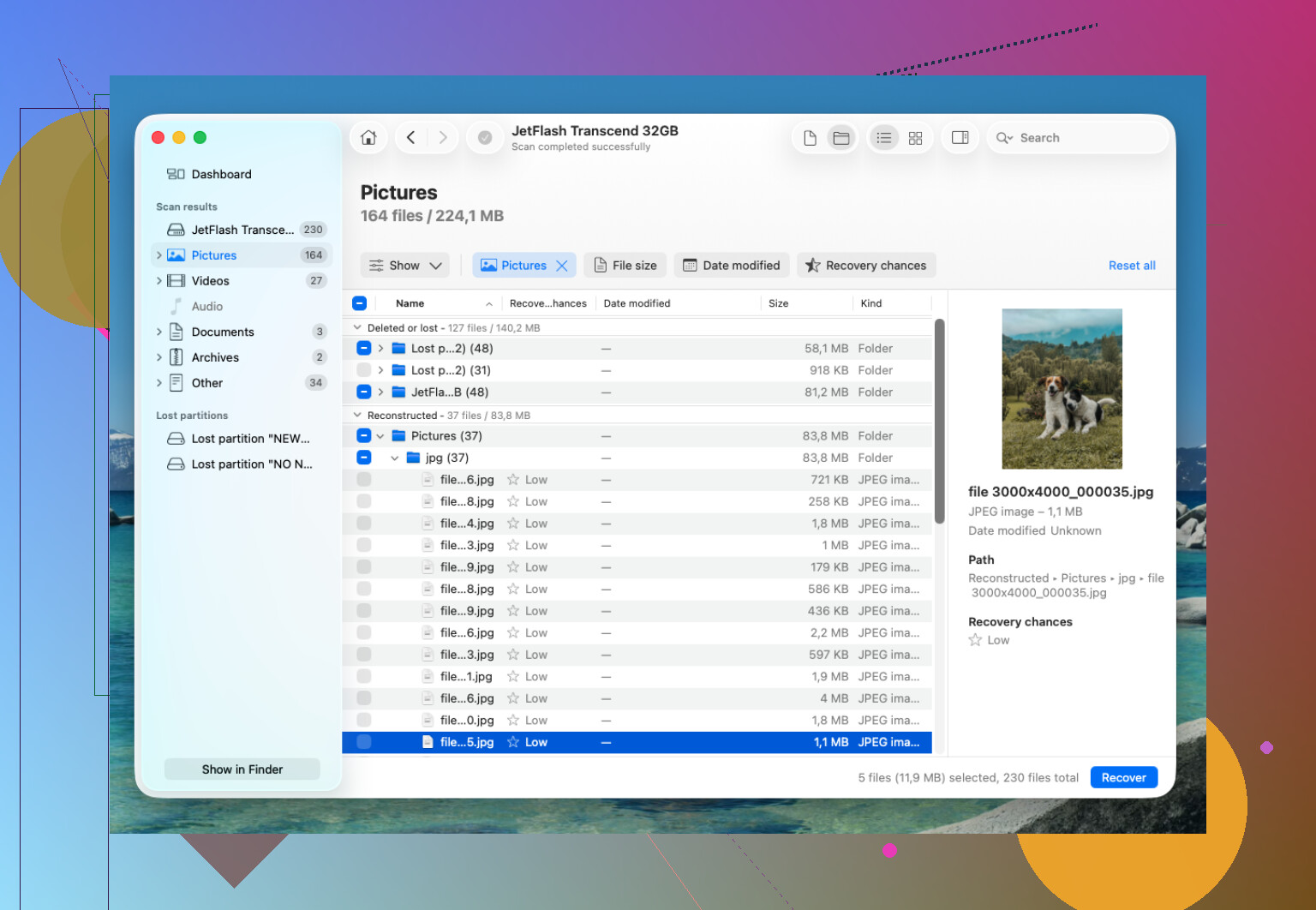
When I accidentally deleted an APFS folder and emptied the Trash, I had the best luck with Disk Drill. I didn't install it on the problem drive, which matters.
What I did was basically this:
- Installed Disk Drill on a separate drive.
- Connected the APFS drive that had the deleted data.
- Allowed Full Disk Access when macOS asked for it.
- Scanned the whole APFS volume, not just a random folder.
- Let the scan finish completely before recovering anything.
- Previewed files first to make sure they were actually readable.
- Recovered the files onto a different drive.
The folder structure was a big help. It brought back a lot of my files with the original names and folders, instead of throwing everything into one giant pile of unnamed files.
If you don't have a Time Machine backup, recovery software is probably the next thing to try. Also check for APFS snapshots before giving up. macOS can keep local snapshots even when the Time Machine drive isn't connected. They may not exist in your case, but it's worth looking.
I would not run Disk Utility First Aid first unless you've already recovered the important stuff. Repair tools can change the file system, and sometimes that makes recovery harder. Recover first, repair later.
If the drive is physically acting weird, that's different. If it isn't detected, disconnects randomly, clicks, hangs during scans, or freezes the Mac, stop messing with it and talk to a recovery lab. Good labs usually offer an evaluation, and many work on a “no data, no fee” basis. It costs more than software, but if the drive itself is failing, it's the safer route.
11 Likes
Do not let recovery software “fix” or save anything back to that SSD, even if it offers to rebuild folders or create a recovery vault. I agree with @mikeappsreviewer that stopping writes is the main move, but if the files matter, I’d clone/image the external SSD first and scan the copy. That way if Disk Drill or any other tool hangs, crashes, or the drive starts acting flaky, you have not burned your only shot on the original. For APFS, filenames and folders may come back if the file system records are still there, but if TRIM already cleared the blocks, previews will usually tell the truth pretty fast. Recover to your Mac’s internal drive or another external disk, never the same one.
Mount the SSD read-only if you can, because Finder itself can create little metadata writes when you browse around. The earlier advice about scanning a clone is the safest route, but if you are trying the quick DIY route, do not “test” the drive by opening folders and moving things around first. I’d skip First Aid, skip Spotlight indexing if macOS starts chewing on it, and go straight to a recovery scan from another disk. Disk Drill is a reasonable option for APFS, but judge it by previews, not by the number of files it claims to find. If the previews are corrupt or missing, paying for recovery usually will not magically fix TRIM-wiped SSD data.