I pulled the hard drive from an old laptop and realized it was formatted before I backed up some important photos and documents. I’m trying to find out if there’s a good way to recover data from a formatted laptop hard drive and what steps I should avoid so I don’t make it worse. I really need help figuring out the best recovery options.
I know the punch-in-the-stomach moment. I wiped the wrong drive once because I was moving too fast and clicked through the format prompt without reading. If this happened to you, the first move is simple. Stop touching the drive.
If it is an external disk, unplug it. If it is the internal drive in your computer, do not install stuff, do not copy files onto it, do not keep using it like normal. Every write lowers your odds.
Start with backups, seriously
Before running scans or paying for recovery apps, check whether your files already exist somewhere else. A lot of people have sync turned on and forget about it until a mess like this.
What I checked first:
- OneDrive, Google Drive, or iCloud trash and recently deleted areas
- Time Machine on Mac
- File History on Windows
If your files are sitting in a backup, you skip the whole recovery circus. Faster, cleaner, less pain.
Recovery software is the next step
If no backup shows up, I would move to recovery software fast. In my use, Disk Drill did a better job than most beginner-friendly tools I tried. It reads formatted drives, runs on Windows and Mac, and deals with common file systems without much setup.
The safe way to do it:
- Install Disk Drill onto a different drive, not the one you formatted
- Scan the formatted disk and look through what it finds
- Save recovered files to another device or partition
I also tried the free route before. PhotoRec digs up a lot, but it feels rough and spits files back with missing names or messy organization. Recuva is easier on Windows, though I saw it struggle when the partition had been hit harder.
When software is not enough
If the lost files matter more than the cost, a recovery lab is the next move. This gets expensive fast, but labs have tools regular users do not. If the drive has work records, family photos, legal docs, stuff like that, I would stop experimenting and send it in.
One detail changes your odds a lot. The type of format matters.
- Quick Format usually removes the file system map, so the data is often still sitting on the drive until new data replaces it
- Full Format is worse. On newer Windows systems, it writes zeros across sectors and checks for errors. Once old data gets overwritten, recovery software is done
So, the short version. Stop using the drive right away. Look for backups before anything else. If no backup exists, scan with a recovery tool and recover files onto a separate disk. Speed matters here. I waited too long once, and yeah, some of it was gone for good.
11 Likes
Yes, if the format was quick and the drive has not been written to much since, your odds are decent. If it was a full format on a newer Windows system, odds drop hard.
One thing I’d add to what @mikeappsreviewer said, check the drive type first. Old laptop HDD and SSD do not behave the same.
-
HDD, better recovery odds.
Deleted data often stays until overwritten. -
SSD, worse recovery odds.
If TRIM ran after the format, many sectors get cleared fast. Recovery gets ugly, sometmes impossible.
Best move for a drive you care about:
- Connect it as a secondary drive with a USB adapter or dock
- Make a sector-by-sector image first, use ddrescue or similar
- Run recovery scans on the image, not the original
- Export recovered files to a different disk
I disagree a bit with jumping straight into repeated scans on the original disk. Imaging first is safer, esp if the drive is old or clicking.
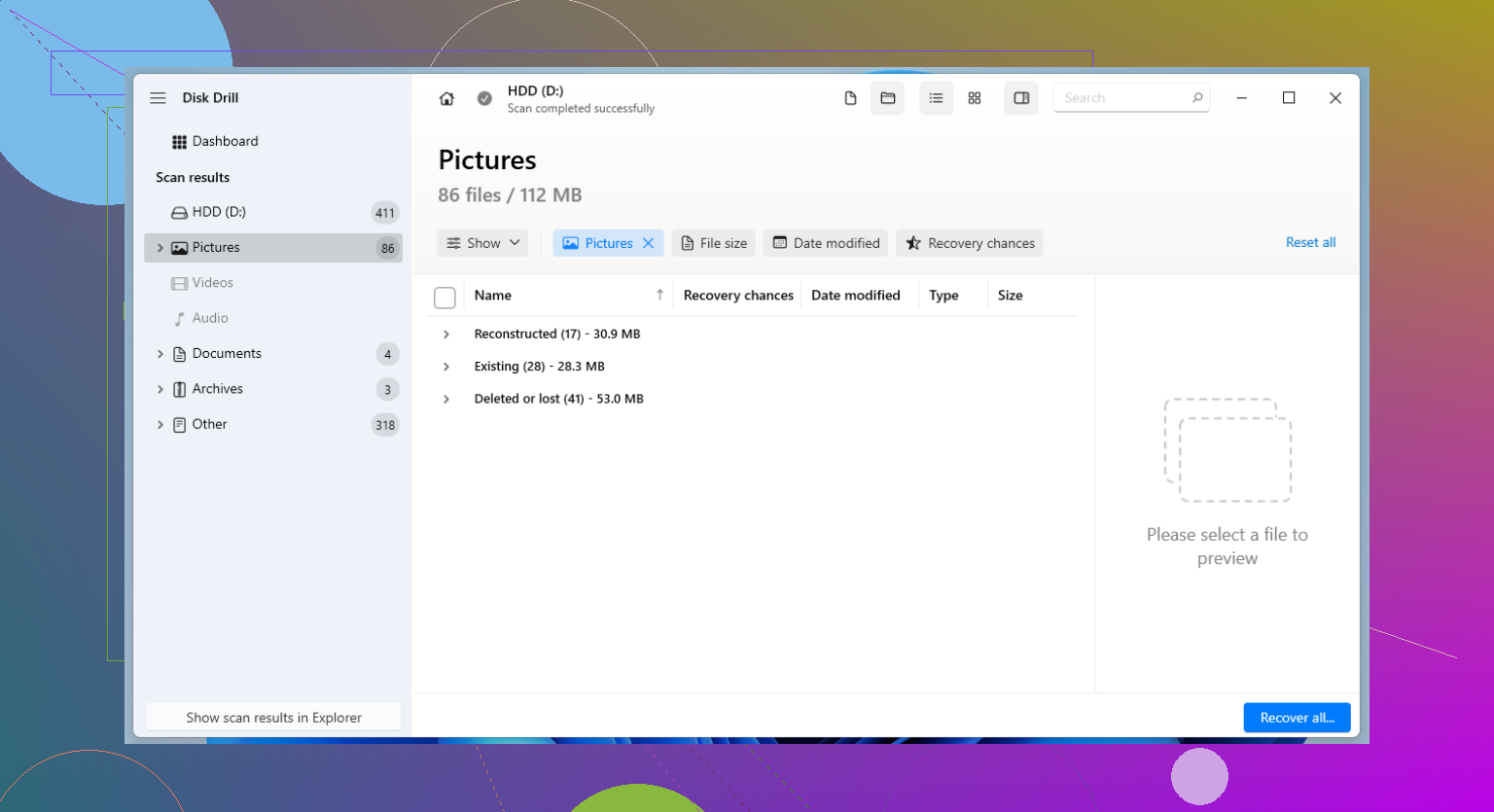
Disk Drill is a solid option here because it handles formatted partitions well and lets you preview found files before recovery. That saves time when you only want photos and docs. If you want a quick walkthrough, this Disk Drill recovery guide and feature overview is easy to follow.
If the drive makes noises, disappears randomly, or SMART shows bad sectors, stop. At tht point a lab is the safer route.
Yep, sometimes. But I’d push one extra point that @mikeappsreviewer and @nachtschatten only touched lightly: the file system matters almost as much as quick-vs-full format.
If that old laptop drive was NTFS or HFS+ and only quick-formatted, recovery can be pretty decent because a lot of metadata may still be partially there. If it got reformatted from one file system to a completely different one, recovery gets messier and filenames/folder structure may be toast even if the raw photos survive. That’s why people say “recovered” and then end up with 8,000 files named FILE000123.jpg. Fun times.
Also, if the drive was encrypted with BitLocker or FileVault before formatting, software recovery may find basically useless encrypted blobs unless you still have the key. That part gets missed a lot.
Personally, I would not boot from it, and I also would not keep plugging it into random machines trying ten diffrent tools. One clean read attempt path is smarter. If you want a user-friendly option, Disk Drill is one of the better choices for scanning a formatted hard drive and previewing recoverable photos/docs before you save anything. That helps avoid wasting hours.
One small disagree from me: people rush to labs a bit too early sometimes. If the drive is physically healthy and it was just formatted, a careful DIY pass is often worth trying first. If it starts clicking, freezing, or dropping offline, then yeah, stop messing with it.
For extra reading, this thread on formatted disk recovery tips after an accidental wipe is pretty relevant too.
Short version: HDD + quick format + no new writes = decent shot. SSD + TRIM + full format = not great, maybe impossible.
I’d add one angle the others only brushed past: how valuable the original folder structure is to you.
If you only need the photos themselves, recovery is often easier. If you need filenames, dates, and nested document folders exactly as they were, your chances drop a lot after a format, especially if the partition was recreated. That’s where I slightly disagree with the “decent odds” framing from @nachtschatten, @reveurdenuit, and @mikeappsreviewer. Sometimes people hear that and expect a near-perfect restore, then get back a pile of files with broken names and no hierarchy.
A few practical checks before doing anything else:
- Look at the drive’s SMART health
- Confirm whether the laptop drive was HDD or SSD
- Check if it was ever encrypted with BitLocker or FileVault
- Note whether the format stayed on the same file system or changed to another one
That combination tells you a lot more than “formatted drive” by itself.
About Disk Drill specifically:
Pros
- Easy to use
- Good preview support for photos and documents
- Handles formatted partitions reasonably well
- Better than many beginner tools at showing what is actually recoverable
Cons
- Not magic if the drive was fully formatted, TRIMmed, or heavily overwritten
- Deep scans can return lots of raw files with generic names
- Paid recovery tier may not be worth it if the drive is physically failing
My take: if the drive is physically healthy, one careful pass with something like Disk Drill is reasonable. If the data is irreplaceable and you cannot accept partial recovery, skip DIY faster than most people suggest. That is the part forums often understate.