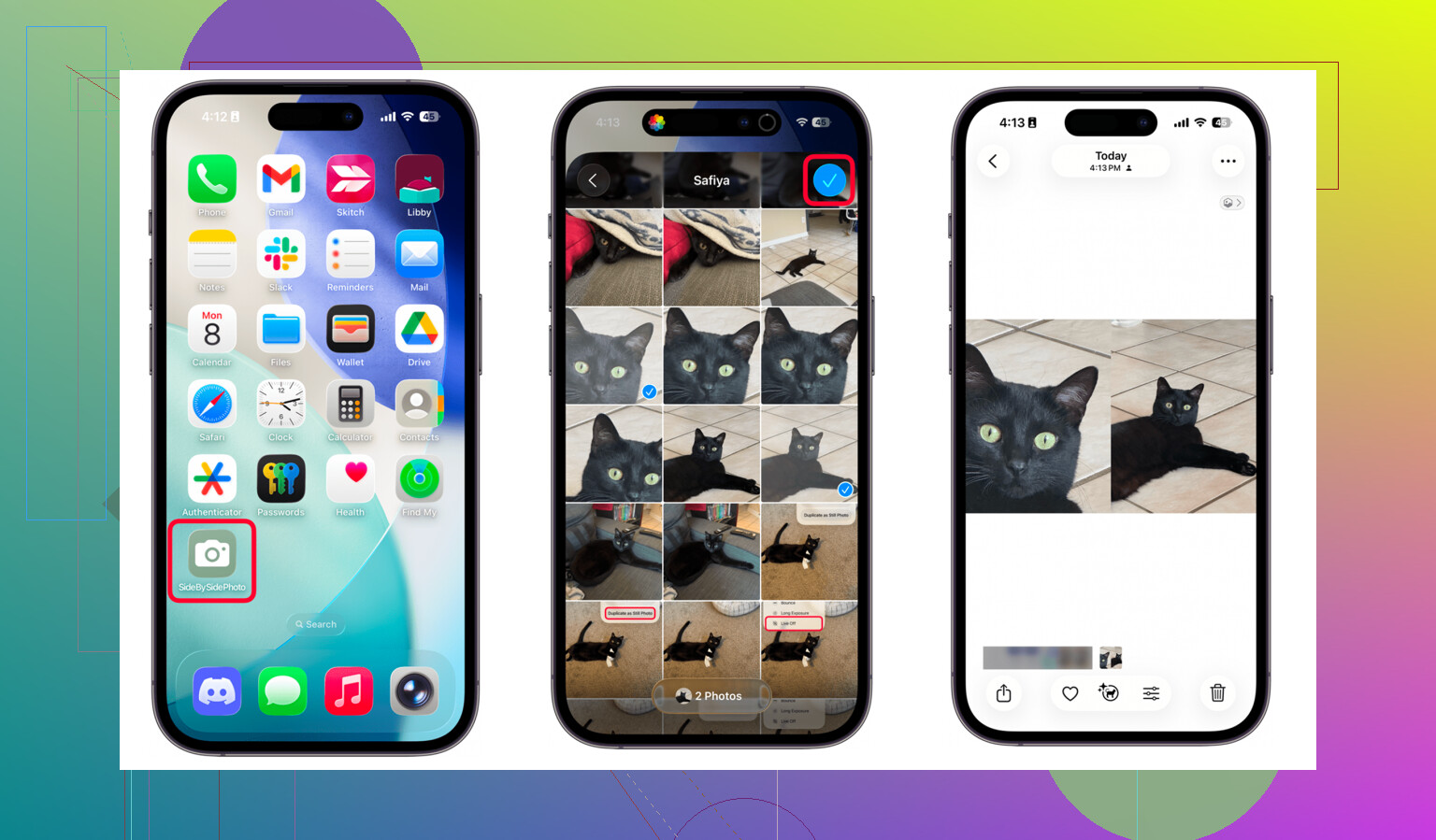
I’m trying to combine two pictures side by side on my iPhone without downloading a third-party app. I looked through Photos and the editing tools but couldn’t find a built-in option that works. I need this for a quick collage to share, and I’d really appreciate help with the easiest way to do it using iPhone features.
Comparing two iPhone photos sounds easy until you do it 200 times and lose 40 minutes. I ran into this while trimming my camera roll, and the split was pretty clear. One method is fine for making a comparison image. The other is for picking winners and clearing space.
The Shortcuts route works, but only for one specific job
If you want a side by side image to send someone, or a quick before and after, iPhone already does it through Shortcuts. No extra app needed.
Steps:
- Open Shortcuts.
- Tap the plus icon.
- Add “Select Photos” and turn on “Select Multiple.”
- Add “Combine Images” and set it to horizontal.
- Add “Save to Photos.”
- Name it and save it.
- Run the shortcut, pick two photos, and it saves one combined image into your library.
I tried this. It works fine for sharing. The catch is obvious once you use it a few times. You get a new third file. So if your real goal is cleanup, this goes in the wrong direction. You are making more stuff, not sorting the old stuff.
Why Photos on iPhone gets annoying fast
I never liked flipping between two near identical shots and trying to remember what changed. One frame is sharper. Another has better lighting. In one, somebody blinked. In the next, they didn’t. After a few rounds, your eyes sort of give up and you keep both. Then all of them. Then your library turns into a pile.
Past a few thousand photos, this gets dumb.
The built-in Photos app also hides storage details when you need them most. If you want file size info, you have to check items one by one with Info. No proper size sorting. No quick way to spot what is eating space first. If you have one forgotten 4K video sitting there, it’ll do more damage than a huge stack of normal images.
What worked better for me
For the cleanup part, Clever Cleaner made more sense.
The useful bit is the Similars tab. It scans your photo library and groups shots which are close enough to be duplicates in real life, same subject, same burst, same angle with tiny differences.
This is the rough flow:
- Open Clever Cleaner.
- Tap Similars.
- Let it scan the library. On a big library, it takes a bit.
- Review each grouped set.
- The app marks a Best Shot, based on things like blur or closed eyes.
- Use Smart Cleanup if you want the fast route, or check each group yourself.
- Deleted files go into the app’s trash first.
- Empty trash later when you’re sure.
I liked the trash step. It removes the stress a bit. You are not nuking stuff on first tap.
The storage view is the part I wish Apple had built in
The Heavies tab lists files from biggest to smallest, with exact sizes shown. This saved me more time than anything else. I found old videos near the top and they were doing way more harm than the usual screenshot clutter.
One big video, 2 GB or so, beats an hour of deleting random junk by hand. I learned this the boring way.
There’s also a Screenshots section with size info visible before deletion, which is more useful than dumping into the default Screenshots album and poking around blind.
Swipe mode is simpler than it sounds. Photos are grouped by month, then you go through them one at a time. Left to delete, right to keep. It shows file size while you move, so you see space coming back as you go. I found this less tiring than opening albums and hopping around.
Privacy part
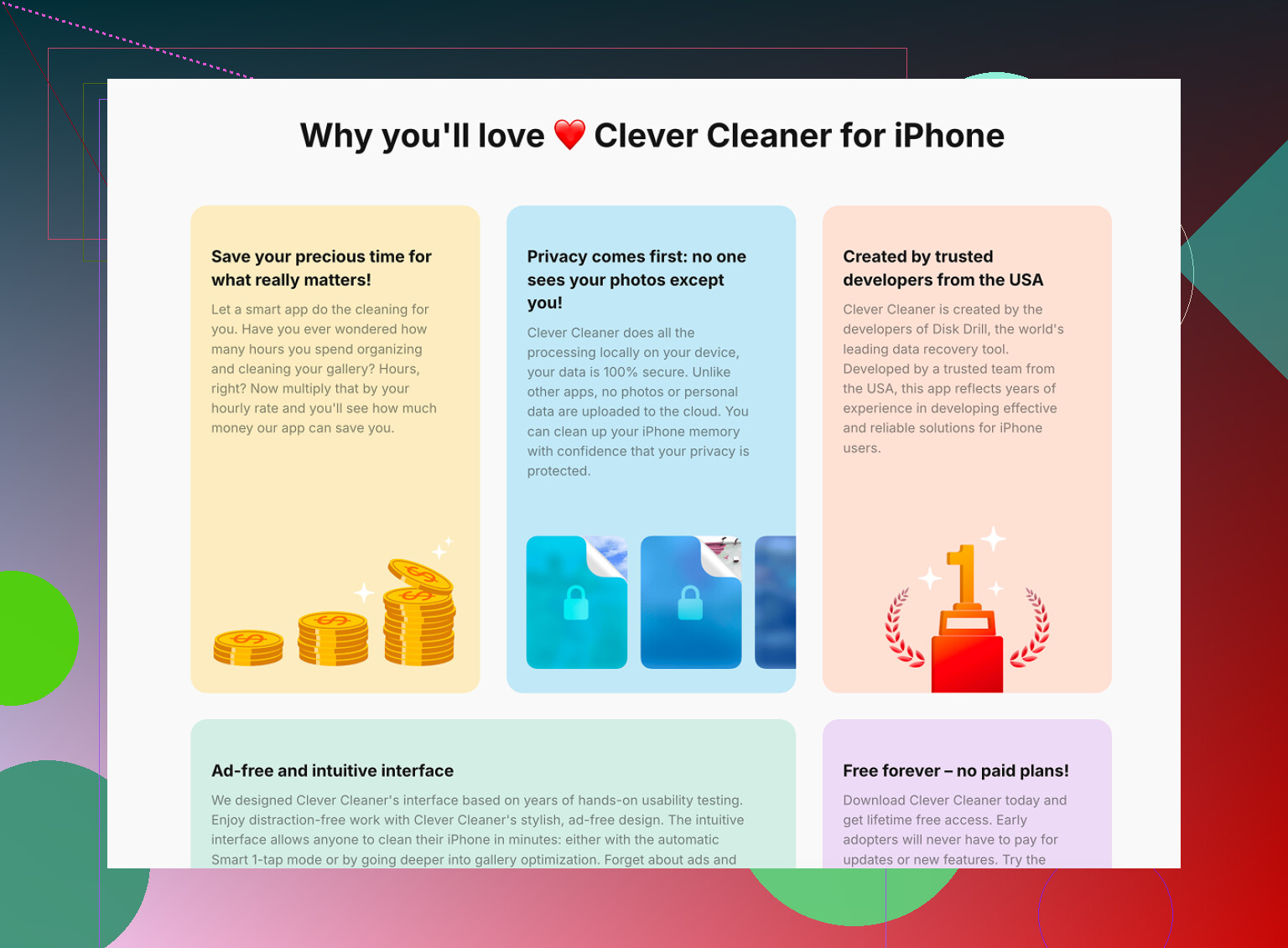
The app processes everything on the device. Nothing goes off to some outside server. For personal photos, I care about this more than I used to.
So the split is easy.
Use Shortcuts if you want to create a side by side image and save it.
Use Clever Cleaner if your problem is choosing between similar shots, deleting the extras, and finding the files hogging storage.
That combo covered both jobs for me without paying for anything.
8 Likes
No built-in Photos edit tool does this on iPhone. Apple still left a weird gap here.
If you want a fast, no-download way, use Apple’s own automation route. @mikeappsreviewer already covered the general idea, so I’ll skip repeating the setup. This guide lays it out cleanly for making a side-by-side photo on iPhone without extra software: how to combine two iPhone photos side by side
One thing I disagree with a bit, though. For a one-off comparison image, making a third file is not a huge deal. If this is for a quick before/after, text message, or listing photo, it works fine. It takes like a minute once set up.
If your real issue is sorting dupes and picking the better shot, then yeah, making a combined image gets old fast. In taht case, Clever Cleaner makes more sense. It helps group similar photos so you review them faster, instead of building collage files you do not need.
So the short answer is:
No, not inside Photos itself.
Yes, on iPhone without a third-party app, through Apple’s automation tools.
If this is for cleanup, use Clever Cleaner instead. It’s less annyoing.
Nope, not in the Photos editor itself. Apple somehow gives you a million filters but not a simple “put these two pics next to each other” button. So on that part, @mikeappsreviewer and @chasseurdetoiles are basically right.
One thing I’d add though: if this is truly a quick comparison and you do not care about saving a merged file, the easiest no-app method might just be using a note or Keynote slide, drop in both photos, resize them side by side, then screenshot it. Kinda janky, yes. But for a fast one-off, it’s honestly less hassle than building an automation if you’ll only do it once. Not elegant, but it works.
If you plan to do this repeatedly, then Shortcuts is still the cleaner Apple-only option. I just think people oversell it for tiny jobs.
And if your real problem is not “combine” but “which of these 7 nearly identical dog photos do I keep,” then don’t bother making side-by-side images at all. That’s where Clever Cleaner is more useful, since it groups similar shots and helps you clear dupes without turning 2 files into 3. Different job, better tool.
Also, if you want to see how it works before bothering, this is a decent walkthrough:
see Clever Cleaner sort similar photos and free up iPhone storage
So, short version:
- Photos app alone: no
- Apple-only workaround: yes
- Fast ugly hack: Notes or Keynote + screenshot
- Best for photo cleanup: Clever Cleaner
Aplle really should’ve added this years ago tbh.