My iPhone storage is almost full, and I want to delete old photos from specific months instead of selecting thousands one by one. Is there a built-in way to bulk delete iPhone photos by month, or do I need another method or app?
If you’ve got tens of thousands of photos, don’t try to clean them up one tap at a time. That’s the slowest possible way to do it, and it gets old fast when half the library is screenshots, duplicates, blurry shots, or five copies of the same thing.
The best method depends on whether you want to carefully review everything or just wipe out obvious junk in bulk.
Start with multi-select in the Photos app
For basic manual cleanup, use the built-in Select option instead of opening photos one by one.
Go into your library, tap Select in the top-right corner, then either tap photos individually or drag your finger across rows to select a bunch at once. If you’re working through older stuff, pinch out to a wider view like Months or Years first. It’s a lot easier to jump to an old trip, event, or random chunk of time and clear a big group from there.
Use Select All where Apple actually allows it
Some built-in albums are much faster to clean because they let you select the whole category.
Go to the Collections tab, then look under Media Types. Albums like Screenshots, Bursts, and Screen Recordings usually have a Select option, then Select All. That’s useful if you already know you don’t need most of that stuff. Screenshots in particular can eat up a surprising amount of space over the years.
Use Clever Cleaner if the mess is mostly duplicates and lookalikes
If your library is full of almost-identical photos, cleaning by hand is going to be painful. That’s where something like Clever Cleaner makes more sense.
It’s free, and the main appeal is that it doesn’t push ads or subscriptions like a lot of cleaner apps do. Its Similars tool groups photos that look nearly the same, picks what it thinks is the best one, and still lets you review the set before deleting anything.
It can also help with a few other common storage problems:
- finding similar photos and duplicates,
- deleting screenshots in batches,
- turning Live Photos into regular still images to save space,
- showing your largest videos in the Heavies section, which can free up way more storage than deleting small photos.
For a big cleanup across several years of photos, this is usually much faster than doing everything inside the Photos app.
Use a computer if you’re deleting thousands
For really large libraries, a computer is usually easier than an iPhone screen.
If iCloud Photos is turned on, sign in to iCloud.com on your computer. From there, you can use a mouse and the Shift key to select large ranges of photos quickly. It’s more precise than dragging around on a phone, and anything you delete from iCloud should sync back to your iPhone.
If you truly want everything gone, erase the phone
If you don’t care about keeping any photos, and you just want the fastest clean slate, you can factory reset the iPhone.
Be careful with this one, though. It removes more than photos. It can wipe videos, messages, files, app data, and anything else stored on the device. If you’re completely sure there’s nothing you’ll want later, go to Settings > General > Transfer or Reset iPhone > Erase All Content and Settings.
That’s the fastest option, but it’s also the most destructive, so only use it if you really mean to clear everything.
13 Likes
Deleting from iCloud Photos deletes the copies on your other Apple devices too, so don’t treat this like clearing a local cache unless you have backups somewhere else.
There isn’t really a clean built-in “delete all photos from March 2021” button on the iPhone. The closest built-in method is to use Photos by date, zoom out to Months, open the month you want, tap Select, then drag across the grid to grab large chunks. It works, but it is still manual and can get annoying if that month has thousands of photos or mixed items you want to keep.
The other thing people forget is Recently Deleted. After you delete the photos, they still sit there for up to 30 days and can keep taking space until you empty that album. So the full path is usually: delete the month range, check Recently Deleted, then delete from there too if you’re sure.
For month-based cleanup, I’d use the built-in Photos app first because it gives you the most control. Apps like Clever Cleaner are more useful when the problem is duplicates, similar shots, screenshots, or giant videos, not when your main goal is “everything from this exact month.”

Don’t start by deleting from the Recents view if your goal is “everything from June 2020” or some exact month. Recents is arranged by when items were added to the library, not always when they were actually taken. That can matter if you imported old photos, saved images from Messages, downloaded pictures, edited files, or restored from another phone.
There isn’t a proper iPhone button that says “delete this whole month.” Apple gets you close, but not quite there. The built-in way is still basically:
Go to Photos, get to the date-based library view, jump to the month, tap Select, then drag-select groups of photos. If the month is small, that’s fine. If it is 2,000 vacation photos and videos, it becomes finger gymnastics.
A slightly better built-in trick is to use Search. Search for something like:
March 2021
or
July 2020
Then review what Photos returns before deleting. This can be faster than scrolling through years of thumbnails. I would not blindly trust it, though. Search results can mix in things based on metadata or what Photos thinks is relevant, so look at the batch before you delete. It is better as a shortcut to get near the right month, not as a perfect delete-by-month tool.
The missing caveat is that “month” can mean different things depending on the file:
Photos you took with the iPhone usually sort by capture date.
Screenshots usually sort cleanly by when taken.
Images saved from apps may have weird dates.
Old imported photos may use the original camera date, the import date, or bad metadata.
Edited/exported photos can show up somewhere you do not expect.
So if you are trying to delete “old photos” but keep certain saved documents, family scans, receipts, or downloaded images, month-based deletion can catch stuff you did not mentally include.
For a big cleanup, I’d do it in passes instead of trying to solve the whole storage problem by month. First check Settings > General > iPhone Storage > Photos, because videos may be the real issue. Deleting 80 tiny photos will barely move the needle compared with deleting a few long 4K videos.
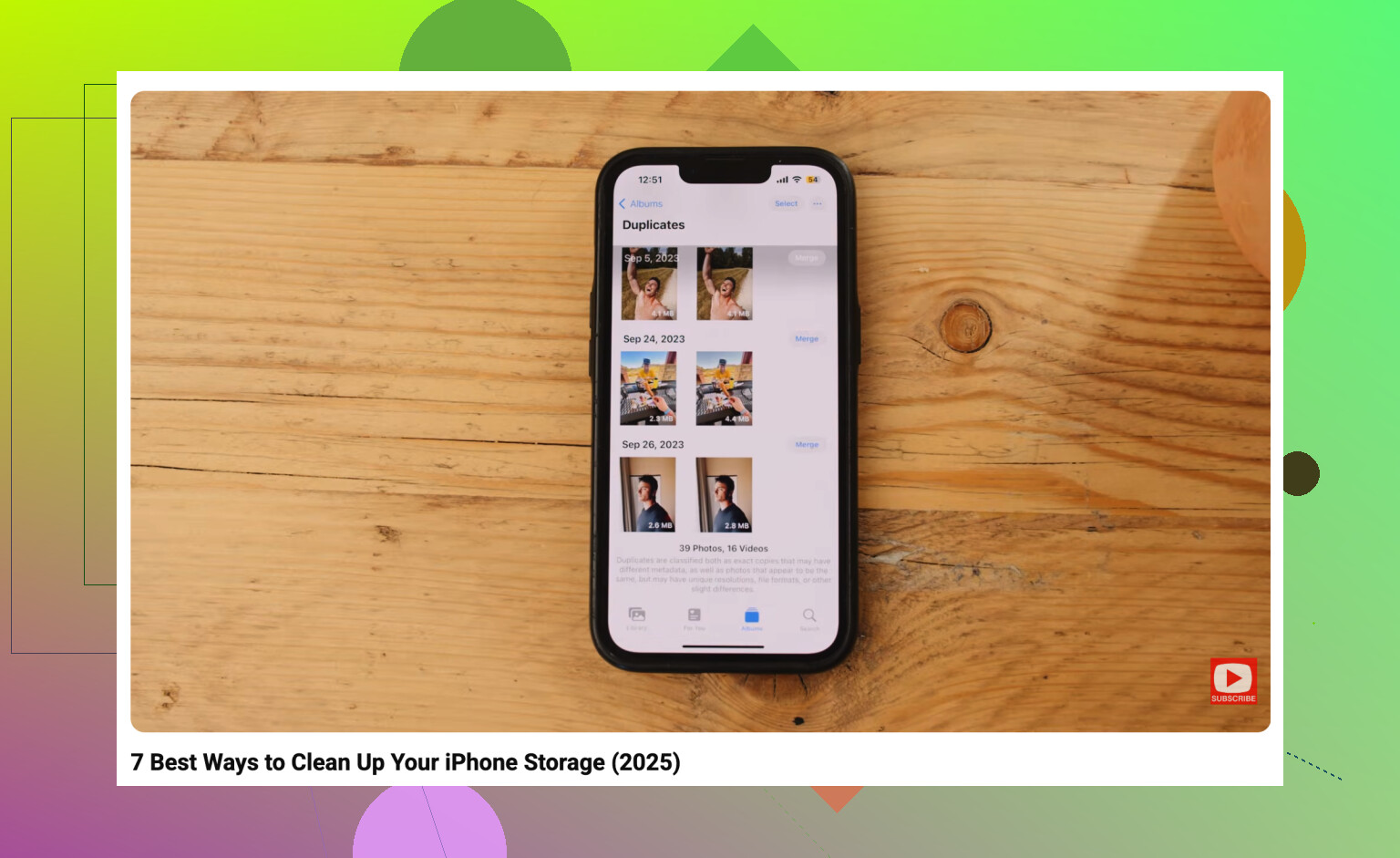
Then in Photos, use the built-in Utilities and Media Types areas for the easy wins: Videos, Screen Recordings, Screenshots, Bursts, Duplicates if your iPhone shows that album. Those categories are usually safer to bulk review than an entire month.
Clever Cleaner can make sense if the library is messy with repeated shots, screenshots, similar photos, or huge videos. I would not use it as the main answer for “delete every photo from May 2019,” because that is a date-range problem more than a duplicate-cleaning problem. But it can reduce the pile before you start doing manual month cleanup.
And yes, empty Recently Deleted afterward if you are sure. Until you do that, you may feel like you deleted a ton and still wonder why the storage number barely changed. Just remember that if iCloud Photos is on, deleting is not local-only. It removes those photos from iCloud and synced devices too, so export or back up anything you might regret losing before you start selecting whole months.
The annoying catch is that month-deleting may not free as much space as you expect if iCloud Photos with “Optimize iPhone Storage” is on, because your phone may only be holding smaller local copies anyway. There’s no true built-in “delete this month” button, so for exact months you’re still stuck selecting from date/search results, then clearing Recently Deleted. For storage, I’d check large videos first before spending an hour wiping old photo months.