I accidentally formatted my USB drive and lost important files I still need. I’m looking for a reliable USB recovery tool that can recover data after formatting without making things worse. If anyone has used one successfully, I’d really appreciate your advice.
USB recovery, from someone who messed this up before
I’ve had this happen enough times to know the feeling. You plug in a USB stick, open it, and either the folder looks empty or Windows throws the lovely “you need to format the disk” message. And since deleted files from USB drives do not land in the Recycle Bin, it gets ugly fast.
What I learned the hard way is simple. If you want the best shot at getting files back, skip the fake-free apps with a shiny button and weak results. You want a tool with a solid recovery rate and a layout you don’t have to fight. For most people, a paid recovery app works better because it deals with formatted drives and busted file systems, not only fresh deletions.
The one I’d try first
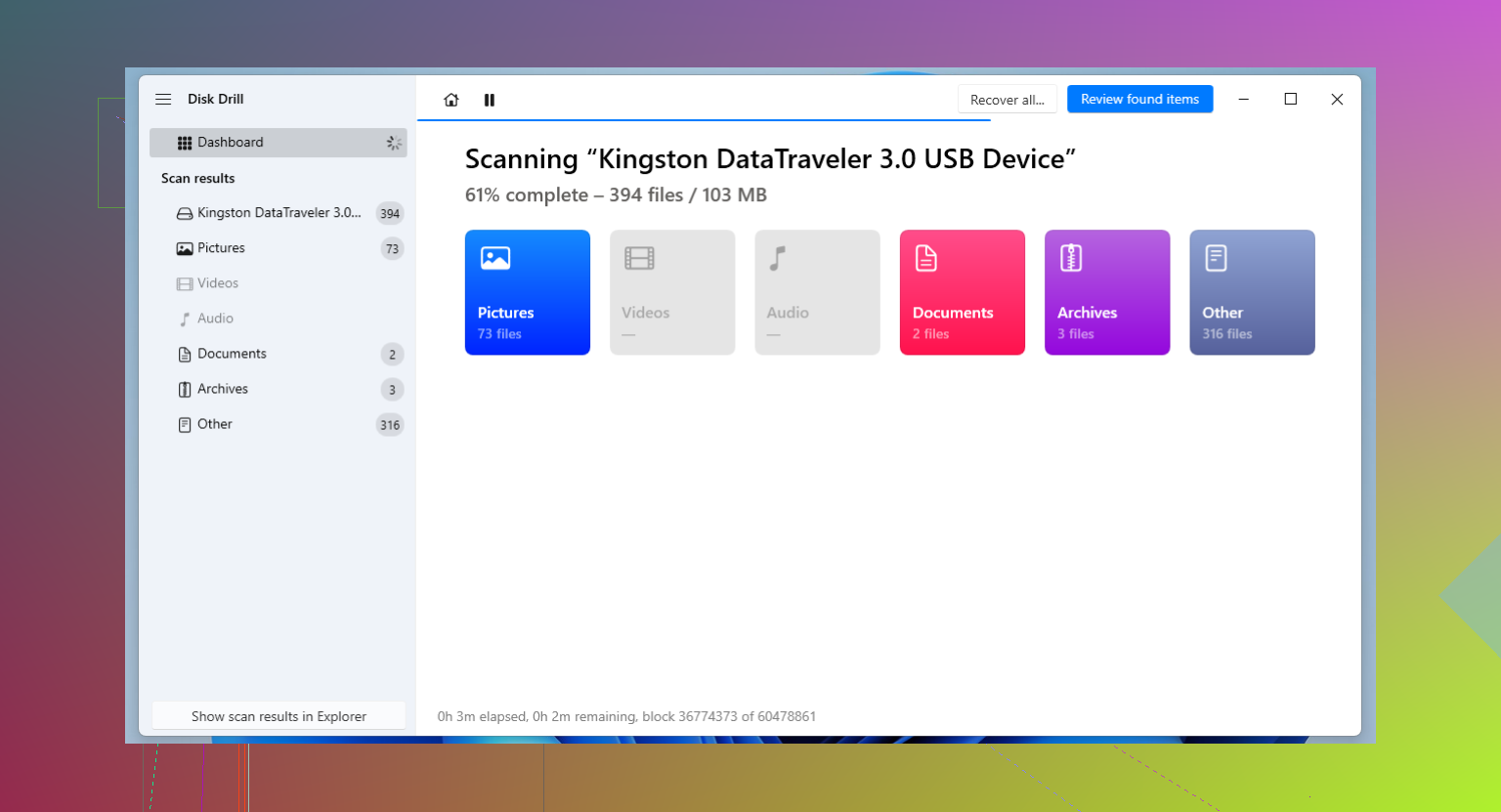
If you want one option that covers most cases in 2026, I keep seeing Disk Drill come up for a reason. I used it on USB sticks, SD cards, and one external drive I thought was gone for good. It did better than I expected.
For USB recovery, the scan is the part I care about. It checks with multiple methods at once and looks for 400+ file types. That matters when the file system is half-broken and the usual “undelete” logic falls apart.
The preview tool helps a lot too. I don’t like waiting through a long scan only to recover trash files that won’t open. With preview, you can check whether the file still looks usable before you spend time on recovery.
Another thing I’d use right away on a flaky USB stick is the byte-to-byte backup feature. If the drive disconnects randomly, acts slow, or throws read errors, make an image first. Scan the image on your PC, not the unstable USB stick. Less stress on the hardware, better odds. On Windows, there’s usually up to 100MB free recovery, which is enough to test whether it finds the right stuff.
If you know your way around storage tools
R-Studio is the one people bring up when the case is messy. I tried it once on a partition problem and, yeah, it goes deep. Menus everywhere. Terms most people do not want to read during a data loss scare. But if you know what you’re doing, it gives you more control than most consumer apps.
I would point technical users there for missing partitions, ugly logical damage, or cases where simpler tools fail. Also, it’s a one-time purchase, which I prefer. Costs more up front, though.
If your budget is zero
You still have options. They’re not equal.
Recuva
This is the easy one. Clean interface, low friction, good for “I deleted a file ten minutes ago and stopped touching the drive.” In those cases, it often works fine.
Where it starts falling apart, from what I saw, is after formatting or when the USB shows up as RAW. Then the hit rate drops. I’d still try it first if you want a free pass before moving on.
PhotoRec
This one is rougher, but stronger in some ugly cases. It’s open source and ignores the damaged file system. Instead, it scans raw sectors and looks for file signatures. Good approach when the structure is toast.
The downside is annoying and real. No normal graphical interface. Old-school text screens. Also, you usually lose original filenames and folders. So your recovered files end up as stuff like f12345.jpg, f12346.png, and now your evening is gone sorting it all by hand. Still, if free is the rule and you need brute force, this is the one.
Rules I’d follow before doing anything
1. Pull the drive out if you deleted something by mistake
Overwriting kills recoverable data. Even when you are not copying files yourself, Windows might write small background data to the USB. If new data lands where your deleted file used to sit, you’re done.
2. Never save recovered files back onto the same USB stick
I’ve seen people do this and make the situation worse. Recover from the USB, save to your PC, another external drive, anywhere else. Writing recovered data back to the same stick can overwrite the files you were trying to rescue. Brutal mistake.
3. Look in Disk Management before wasting time
If the computer does not detect the device at all, software won’t save you. At that point, you’re in repair lab territory. If the drive appears as RAW or Unallocated, recovery software still has a shot.
What I’d do first
I’d start with the trial of Disk Drill and see whether the missing files show up in preview. If they do, you’re in decent shape. If the drive is in worse condition and you know storage tools well, R-Studio is worth a look. If you need a free route, try Recuva first, then move to PhotoRec if the easy route comes up empty.
That’s the order I’d use. It saved me once, and, uh, more than once if I’m being honest.
6 Likes
If the format was quick format, your odds are still decent. Full format is a lot worse on modern Windows.
My pick is Disk Drill first, mostly for one reason. It previews found files well, so you see if your docs and photos are intact before paying or recovering. For formatted USB drives, that saves time. I also like its disk image option more than some other tools. If your USB is acting weird, image it first, then scan the image. Less risk of making it worse.
@mikeappsreviewer mentioned some solid picks. I disagree a bit on Recuva as a first free try after formatting. For simple deletion, yes. For a formatted stick, I’d skip straight to TestDisk/PhotoRec if you want free. Ugly interface, better odds.
Short version:
- Stop using the USB now.
- If it disconnects or throws errors, make an image first.
- Scan with Disk Drill or R-Studio.
- Recover files to your PC, not back to the USB.
If you want a readable take before installing it, this Disk Drill recovery review for USB and formatted drives is worth a look.
If the drive does not show any size in Disk Management, skip software. That points to hardware trouble. If it shows up as RAW or normal size, you still have a shot. I’ve recovered formatted flash drives this way a few times. Slow, annoyng, but it worked.
If it was an accidental quick format, your odds are still pretty decent. I’d actually put UFS Explorer on the shortlist too, since @mikeappsreviewer and @stellacadente already covered the usual suspects. It’s not as beginner-friendly as Disk Drill, but I’ve had it pull files from formatted flash drives when simpler apps only found fragments or junk names.
My take:
- Disk Drill is probably the best first try if you want something easy to use and not spend 3 hrs fighting menus.
- UFS Explorer is great if the USB has weird file system damage or the format did more than you thought.
- DMDE is another one worth mentioning. Looks ancient, works surprisingly well, and the free version can recover some files in batches. Not exactly pretty, but neither is data loss.
One tiny disagreement with the usual advice: I would not keep bouncing between 5 recovery apps on the same USB if it’s acting unstable. Every long scan is extra stress. If the drive is disconnecting, slowing down, or making Windows hang, stop and image it first or you may cook the thing for real.
Also:
- do not copy anything new onto the USB
- do not reformat it again
- recover to a different drive only
If you want to compare the best data recovery software for USB drives and formatted disks, that list is worth checking before you install random junk.
Short version: Disk Drill first for ease and solid results, UFS Explorer or DMDE if the case gets messy. If the USB isn’t even detected properly, software probably isn’t gonna fix it.